> ## Documentation Index
> Fetch the complete documentation index at: https://docs.acelabusa.com/llms.txt
> Use this file to discover all available pages before exploring further.
# Creating a New Company and Inviting Your Team
> If your company if not yet on Acelab, create a company workspace and invite collaborators.
*Written by Patricia Causey · Updated March 20, 2026*
## Setting Up Your Company
Create your account first. 👉 If you need to create your account, check out [the account-creation steps](/help-center/getting-started/creating-your-account-in-acelab). 👉 If you have already created your account, follow the steps below.
### 1. Access Your Account Profile
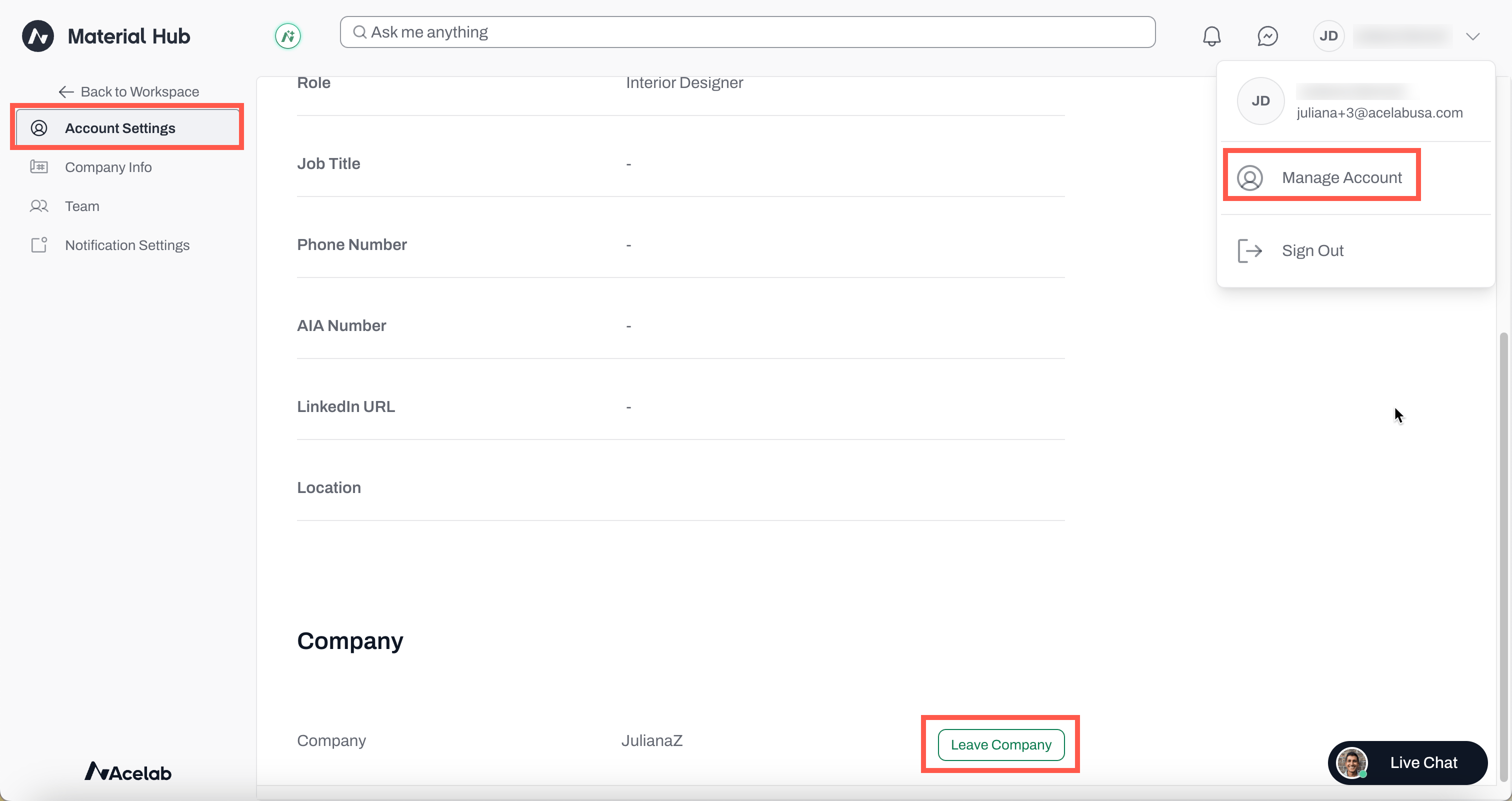
* Click on your photo (or name) at the top-right corner
* Click **Manage Account**
* Scroll down to the **Company** section
* You'll see a default company name (your name+last name+company) has been added
 ### **2. Join or Create a Different Company**
* Click **Leave Company**
* Confirm your choice to Leave
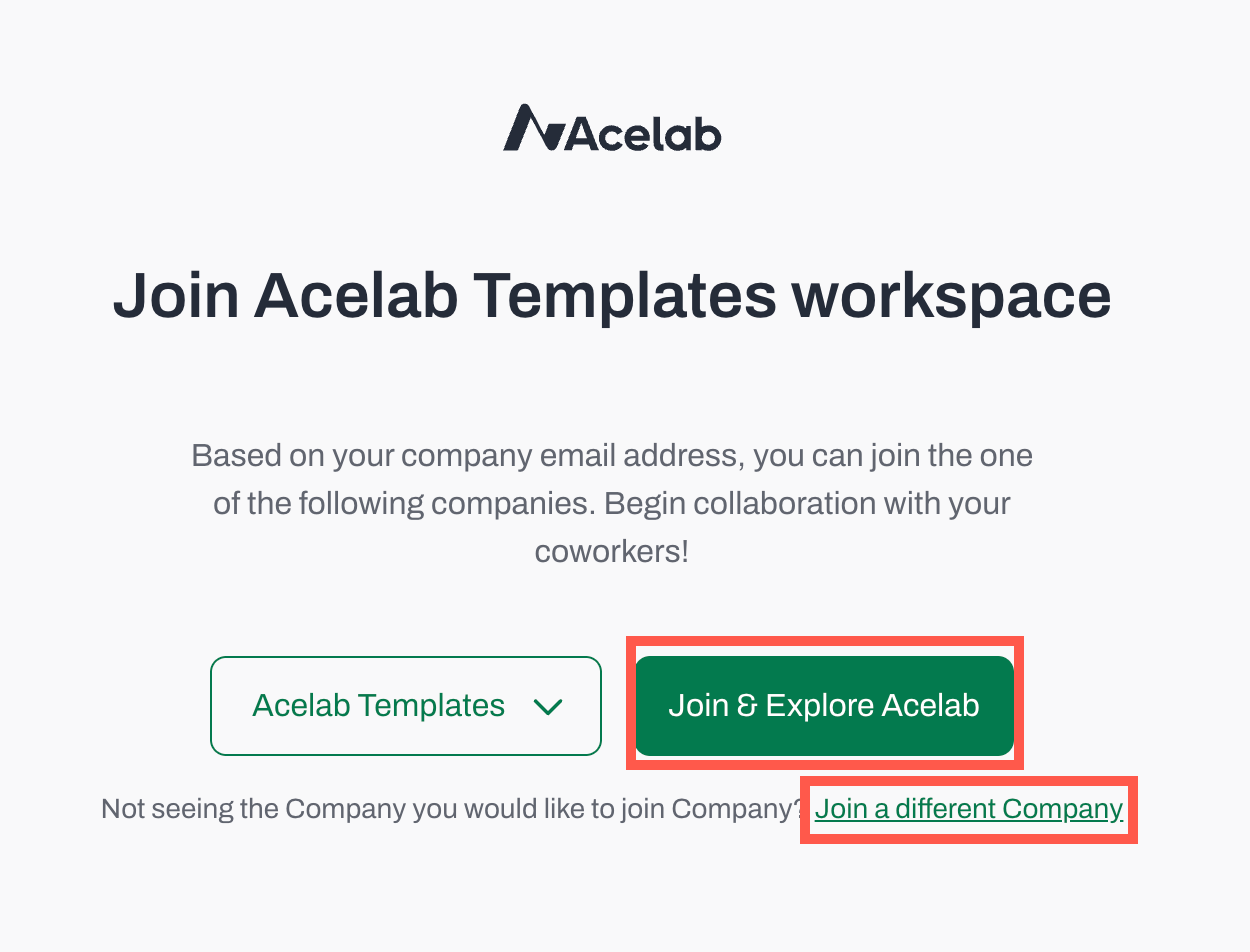
* The system will look for matches based on your email domain
* If one of more companies have been found, it will offer you the option to join. Use the drop down menu to find the correct company and click **Join & Explore Acelab**
* If no matches were found, click **Join a different Company**
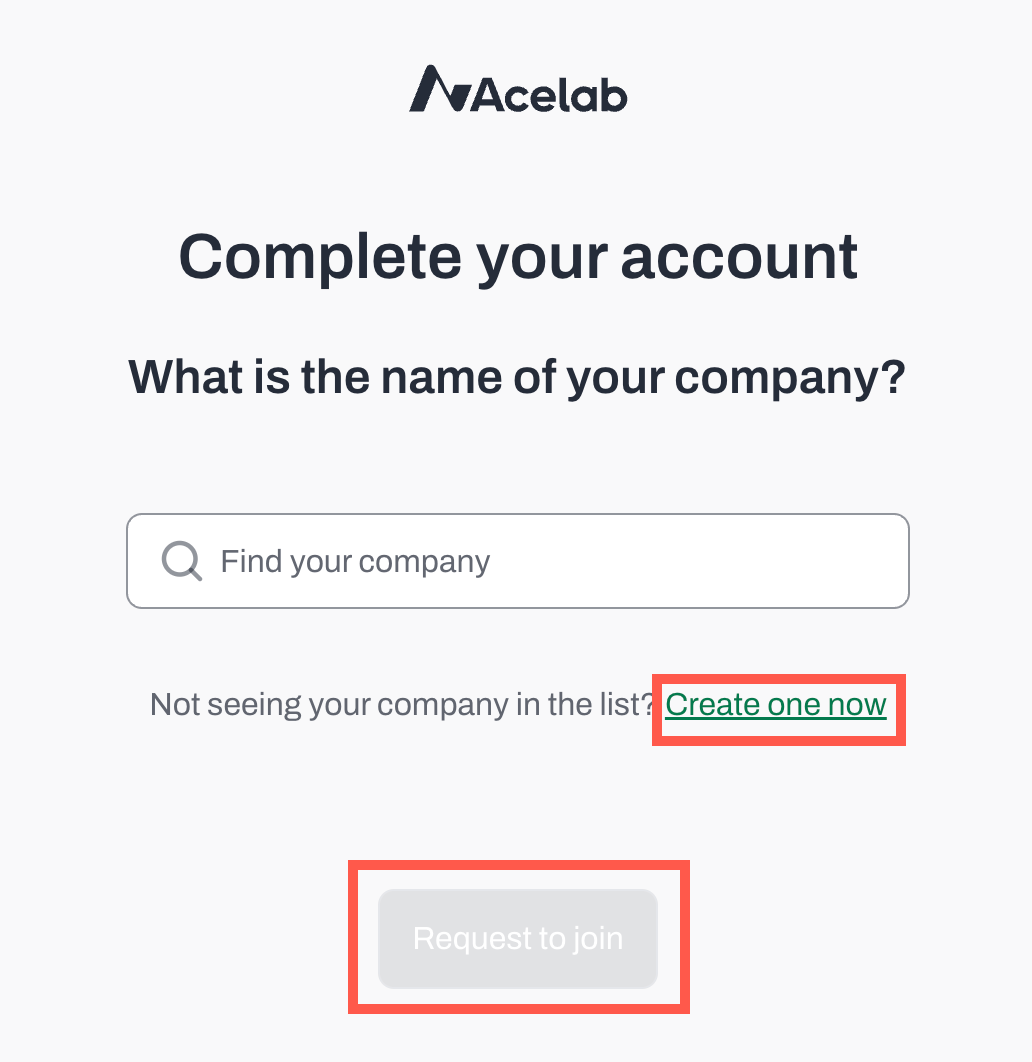
* Try to find your company by typing its name, then click **Request to Join**
* If no company is found, you'll need to create a new one. Click **Create one now**
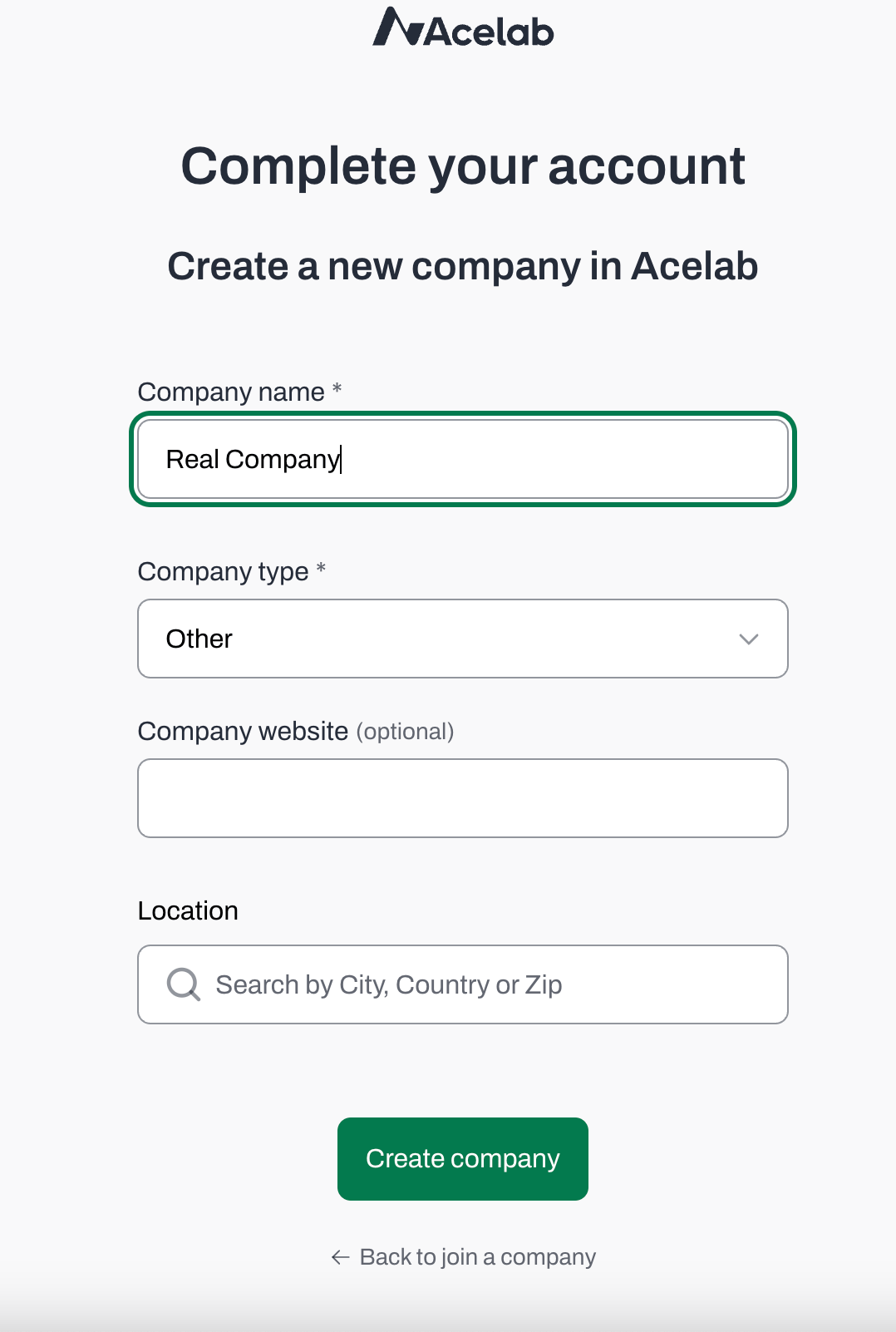
### 3. Enter company details
* Company name (must be unique)
* You will see the default name (user first name + last name + company)
* Change it to the real company name
* Select company type
* Add website (optional)
* Enter location
* Click **Create company**
***
## Inviting Collaborators
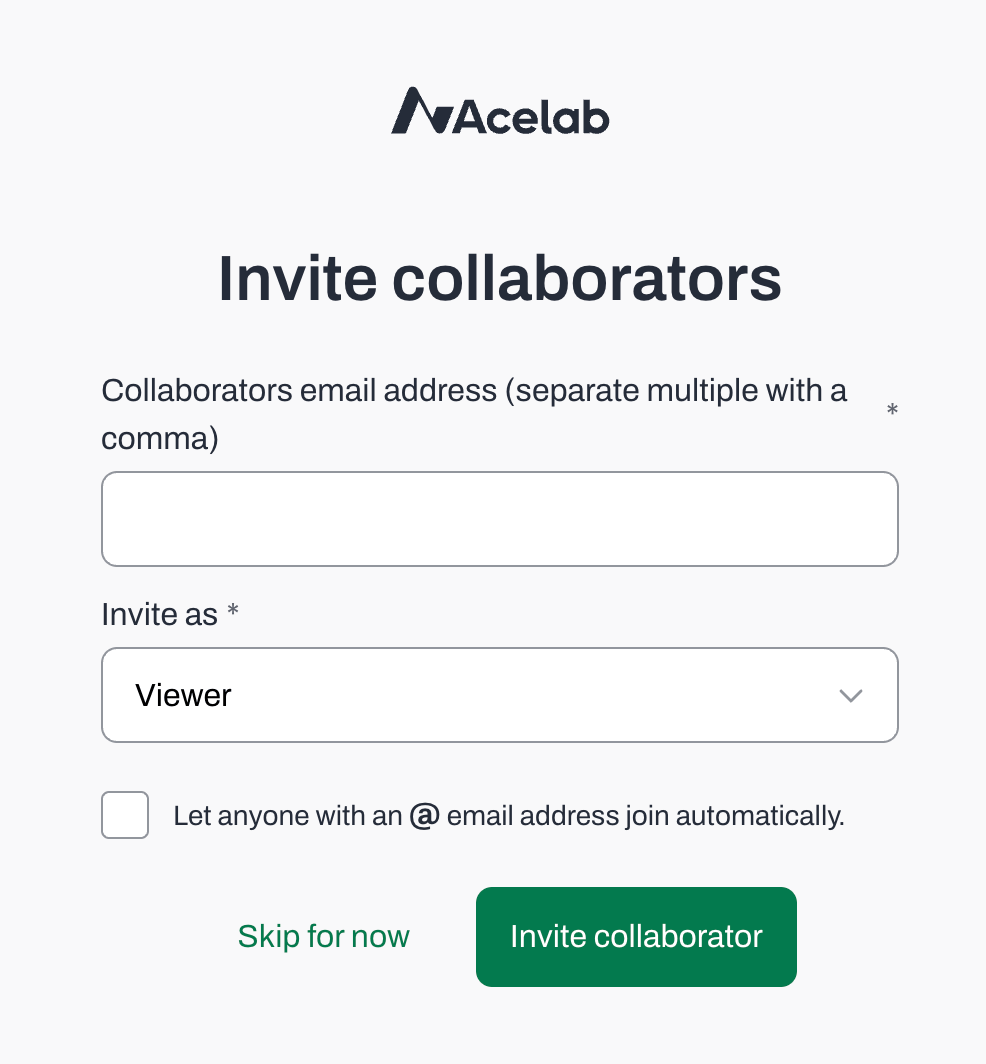
* Enter team member emails (separate with commas)
* Choose the permission level (this can be changed later for each collaborator)
* Check the box to **enable auto-join** for your company's email domain (optional)
* This streamlines the process since anyone who signs-up using an email with your company's domain will join automatically and you will not need to approve individual requests.
* Click **Invite Collaborator** to send invitations
* If you **did not enable auto-join** by email domain, you will receive emails from your team members with **requests to join**
* Click **Approve Request**
* Done! Your team members will have access to the Company workspace
***
📚 Keep Learning 📚
## Next: **Managing Collaborators**
[Go to next article](https://help.acelabusa.com/en/)
### **2. Join or Create a Different Company**
* Click **Leave Company**
* Confirm your choice to Leave
* The system will look for matches based on your email domain
* If one of more companies have been found, it will offer you the option to join. Use the drop down menu to find the correct company and click **Join & Explore Acelab**
* If no matches were found, click **Join a different Company**
* Try to find your company by typing its name, then click **Request to Join**
* If no company is found, you'll need to create a new one. Click **Create one now**
### 3. Enter company details
* Company name (must be unique)
* You will see the default name (user first name + last name + company)
* Change it to the real company name
* Select company type
* Add website (optional)
* Enter location
* Click **Create company**
***
## Inviting Collaborators
* Enter team member emails (separate with commas)
* Choose the permission level (this can be changed later for each collaborator)
* Check the box to **enable auto-join** for your company's email domain (optional)
* This streamlines the process since anyone who signs-up using an email with your company's domain will join automatically and you will not need to approve individual requests.
* Click **Invite Collaborator** to send invitations
* If you **did not enable auto-join** by email domain, you will receive emails from your team members with **requests to join**
* Click **Approve Request**
* Done! Your team members will have access to the Company workspace
***
📚 Keep Learning 📚
## Next: **Managing Collaborators**
[Go to next article](https://help.acelabusa.com/en/)