> ## Documentation Index
> Fetch the complete documentation index at: https://docs.acelabusa.com/llms.txt
> Use this file to discover all available pages before exploring further.
# Creating your Account in Acelab
> Learn how to join Acelab and create your account.
*Written by Armaan Shah · Updated September 23, 2025*
## How to Create an Account
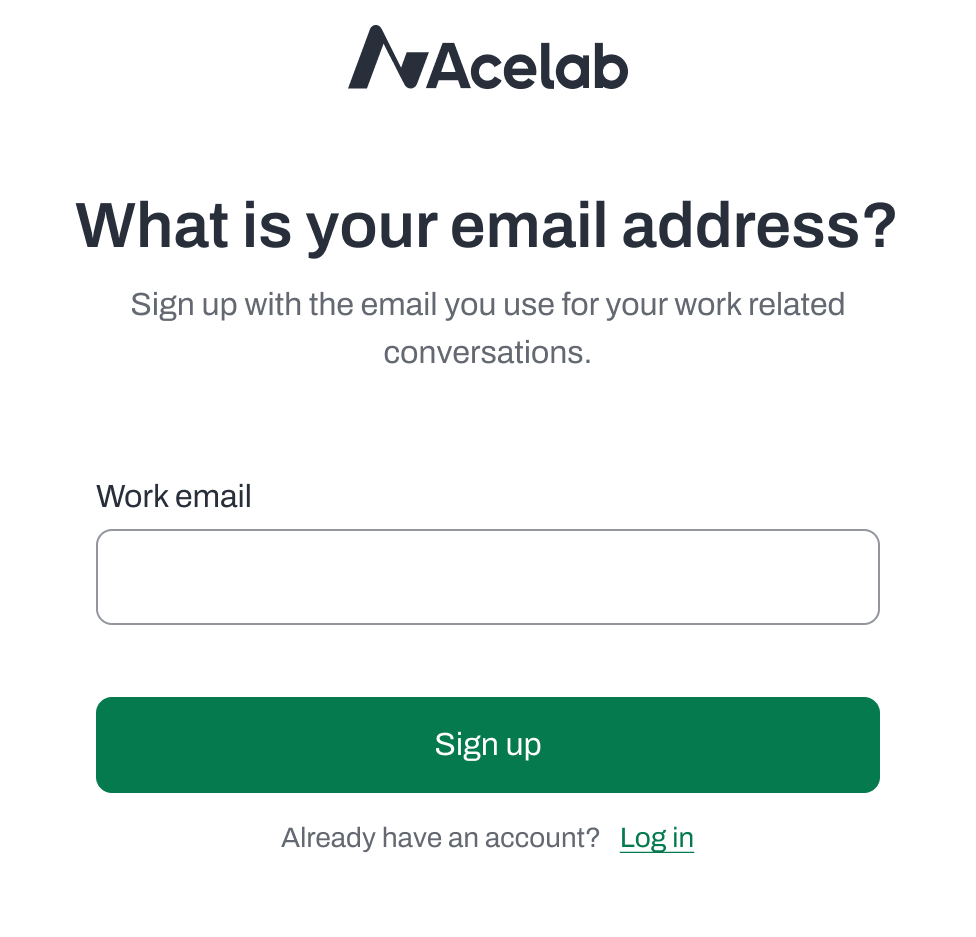
To sign up, go to [https://acelabusa.com/](https://acelabusa.com/) click on **Join for Free** and complete the steps below.
**1. Enter Your Email**
* Enter your email address
* If you add a personal email, you'll see a notification asking if you want to:
* Sign up with a corporate email instead (recommended), or
* Continue with your personal email address
👉 **Pro tip:** Using a corporate email address will make it easier to join your company's workspace.
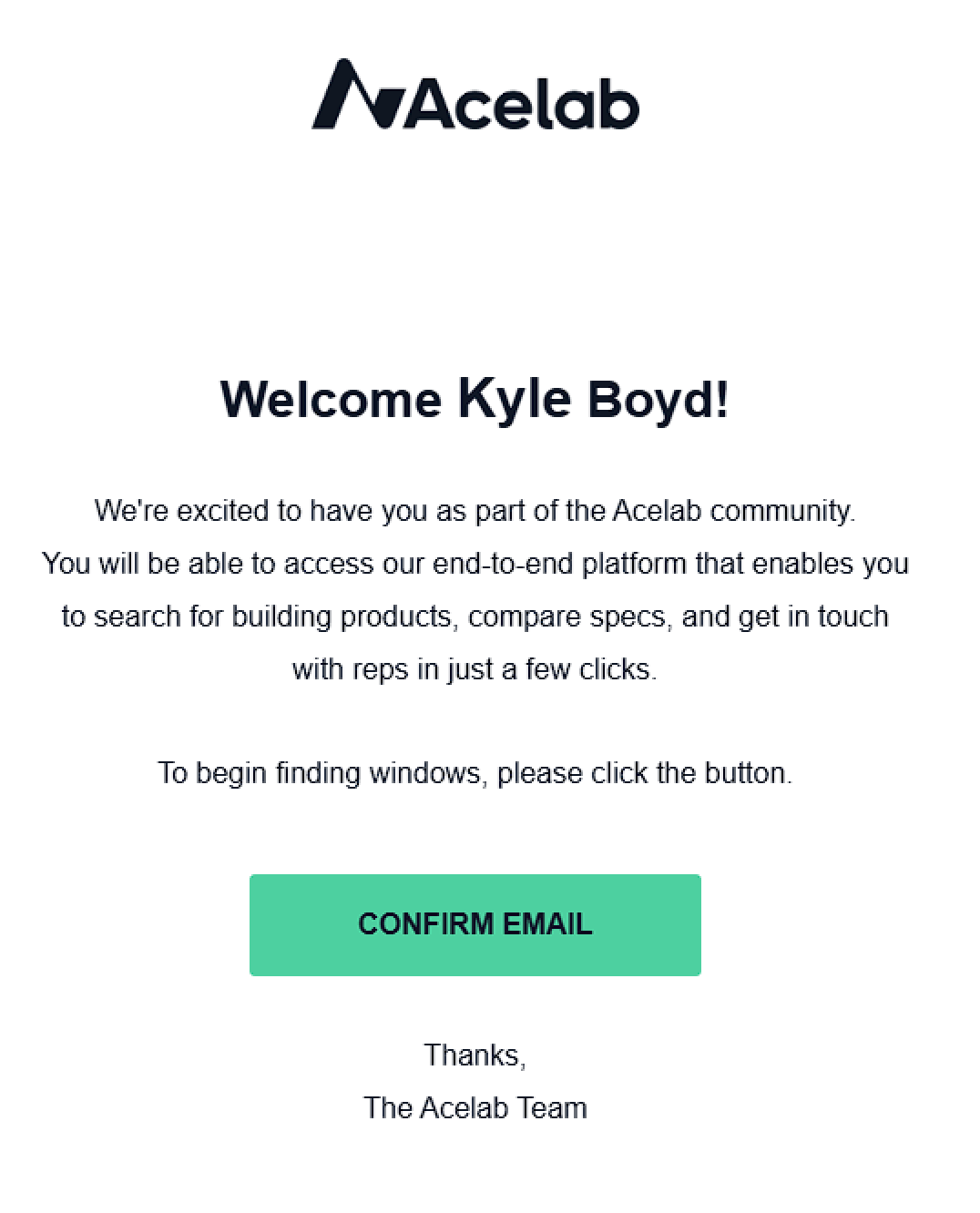
**2. Verify Your Email**
* Check your inbox for a verification email
* Click the Confirm Email button
* Can't find the email? You can:
* Click "Resend Email" for a new verification link
* Use "Back to Login" to start over if you need to change the email address
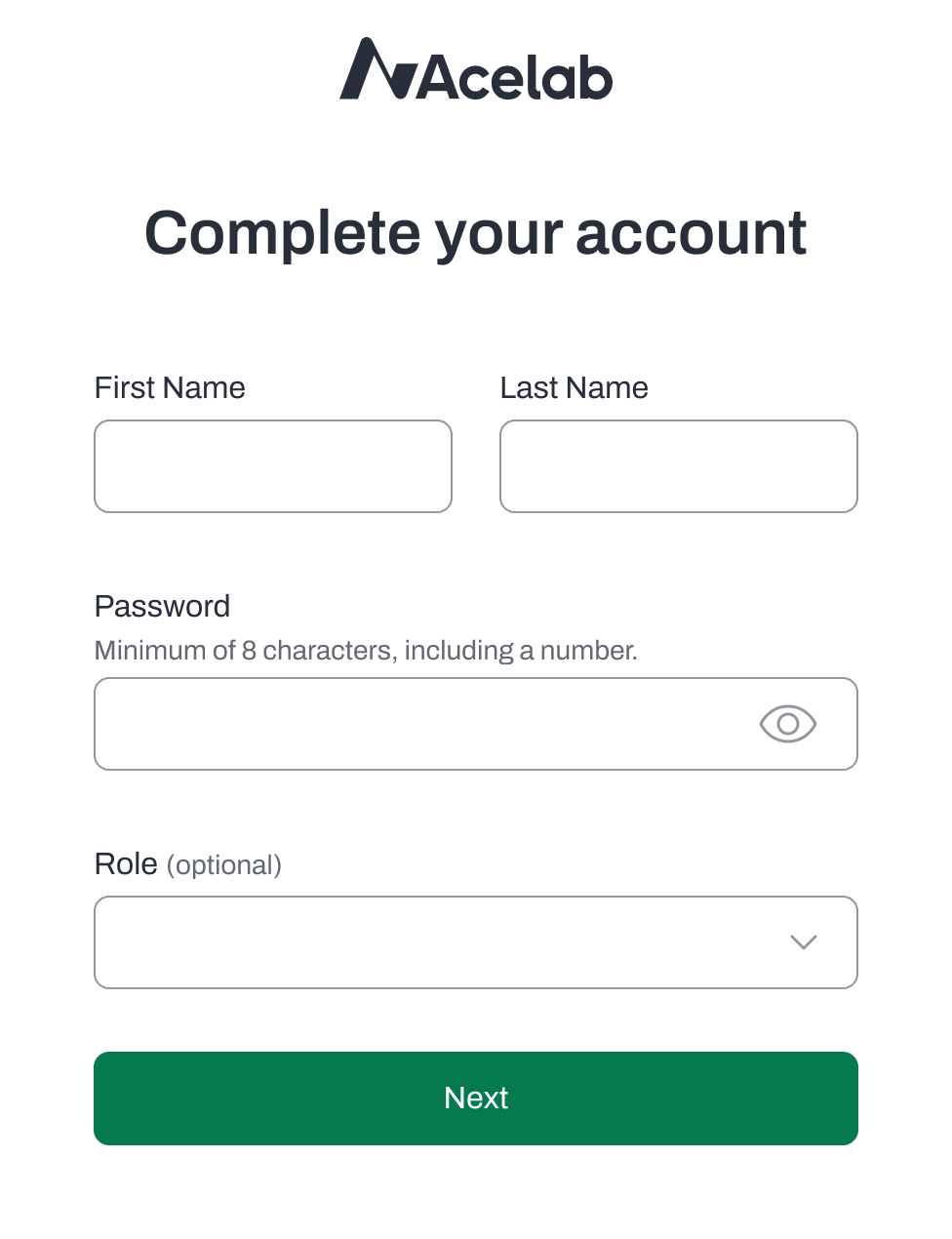
**3. Complete Your Profile**
* Add your first and last name
* Create a secure password
* Choose your role (optional)
* Click Next
* Your account has been created and you may begin exploring the Material Hub
* Keep going to join your company workspace and get access to company library and templates.
* If you choose not to continue joining or creating an account, a default company name will be created (it's going to be your name+last name+company)
* If you choose to join your Company later, you will need to go to your Account profile to complete the steps.
***
## Join Your Company Workspace
* A list of companies that seem to match your email domain will be available from the drop down menu
* Select the company and click **Join\&Explore Acelab**
* If your company is not listed, click **Join a different Company**
* Type the company name and click **Request to Join**
* If you cannot find the company, it may not have been created
* Contact your company admin to confirm a company has been created or, if you are an admin, click **Create one now** and follow the steps below.
🚫 If you are a Company Admin and **need to create a Company Account** in Acelab, follow these steps:
* Click **Create one now**
* Add Company name (must be unique)
* Select company type
* Add website (optional)
* Enter location
* Click **Create company**
***
📚 Keep Learning 📚
## Next: **Joining Your Company in Acelab**
[Go to next article](/help-center/getting-started/joining-your-company-in-acelab)
***