> ## Documentation Index
> Fetch the complete documentation index at: https://docs.acelabusa.com/llms.txt
> Use this file to discover all available pages before exploring further.
# Joining Your Company in Acelab
> How to find and join your company's workspace after creating your Acelab account.
*Written by Patricia Causey · Updated March 20, 2026*
### Before You Begin
* You need an Acelab account. If you haven't created one yet, follow the steps in [Creating Your Account in Acelab](/help-center/getting-started/creating-your-account-in-acelab).
* Your company must already have a Company Account in Acelab. If you're the first person from your organization and need to create one, see [Creating a New Company and Inviting Your Team](/help-center/getting-started/creating-a-new-company-and-inviting-your-team) instead.
If you have already finished creating your account, you will need to **go to your Account profile** to join your company.
1. Click your profile photo (or person icon) in the top-right corner and select **Manage Account**.
2. Scroll to the **Company** section and click **Leave Company**.
3. Confirm your choice. You can then follow the steps below.
***
## How to Join Your Company Workspace
If someone in your Company has already created a Company Account in Acelab, follow the steps below to join it's workspace. 🚫 If you are a Company Admin and need to create a Company Account in Acelab, head out to [Creating a New Company and Inviting Your Team](/help-center/getting-started/creating-a-new-company-and-inviting-your-team) instead.
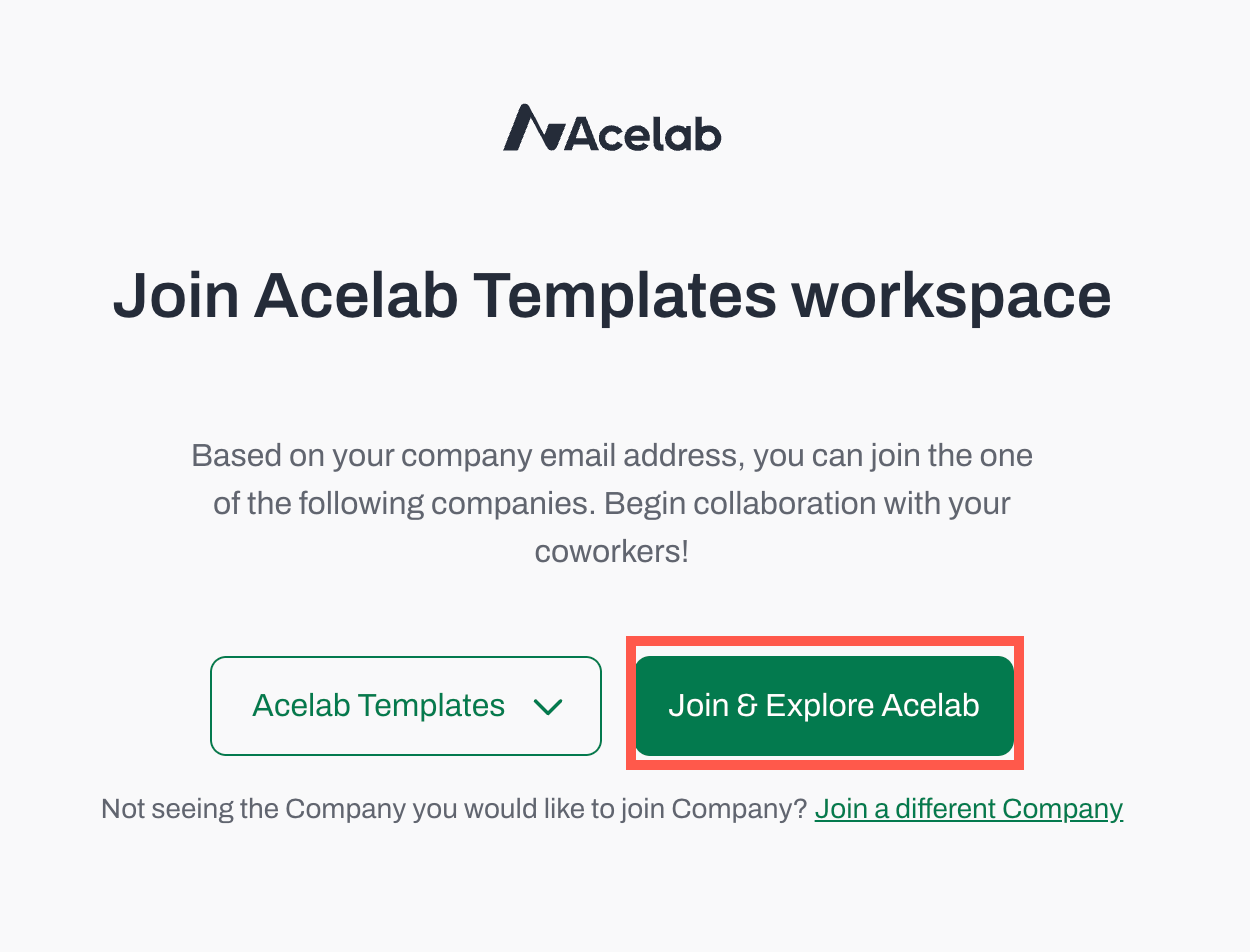
### If your company appears in the suggested list
When you sign up with a corporate email address, Acelab automatically searches for company workspaces that match your email domain.
1. If a matching company is listed, select it from the dropdown.
2. Click **Join & Explore Acelab**.
**Note:** If your company has automatic joining enabled for your email domain, you'll be added instantly. Otherwise, a request is sent to your company admin for approval.
### If your company is not listed
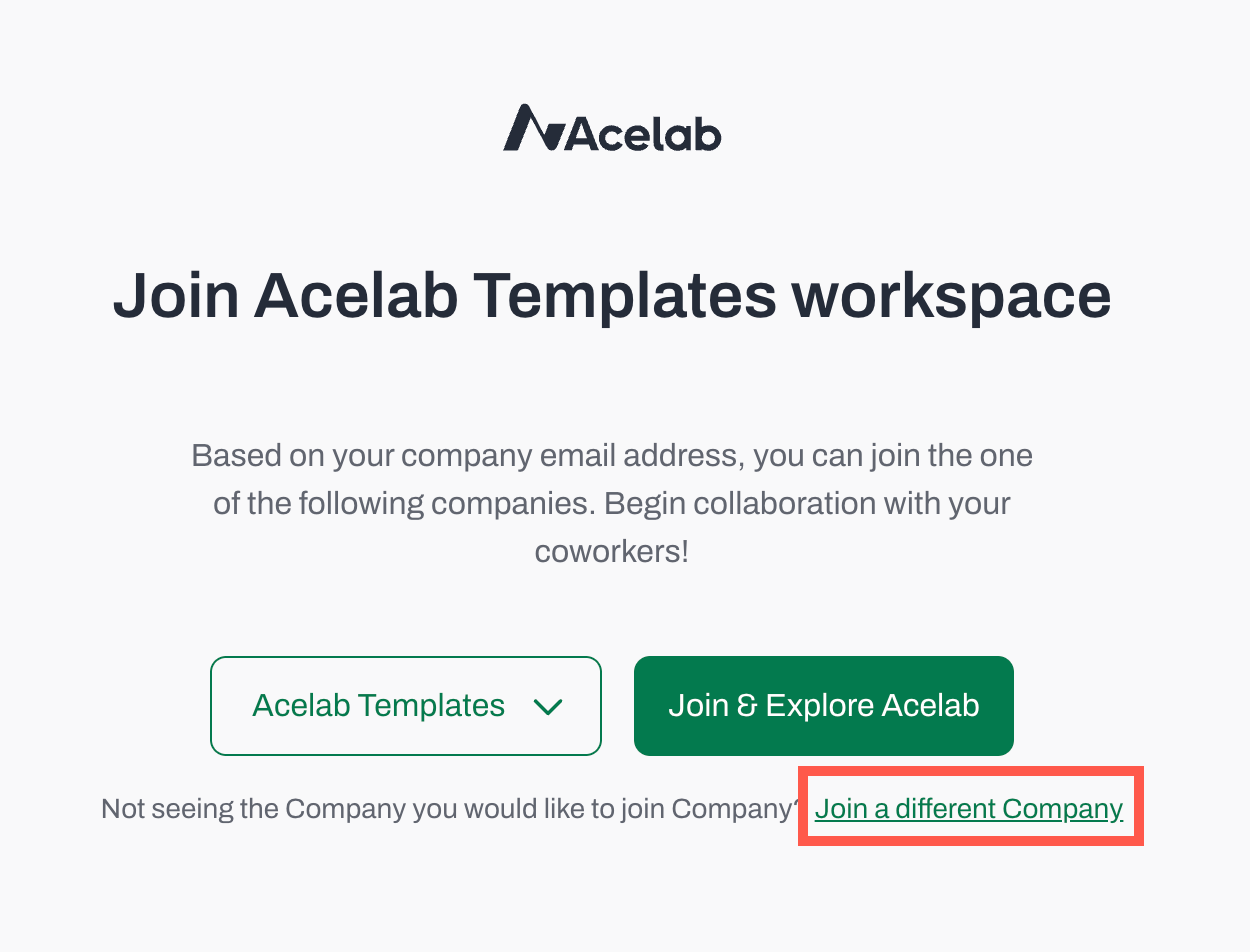
1. Click **Join a different Company**.
 2. Type your company's name in the search bar.
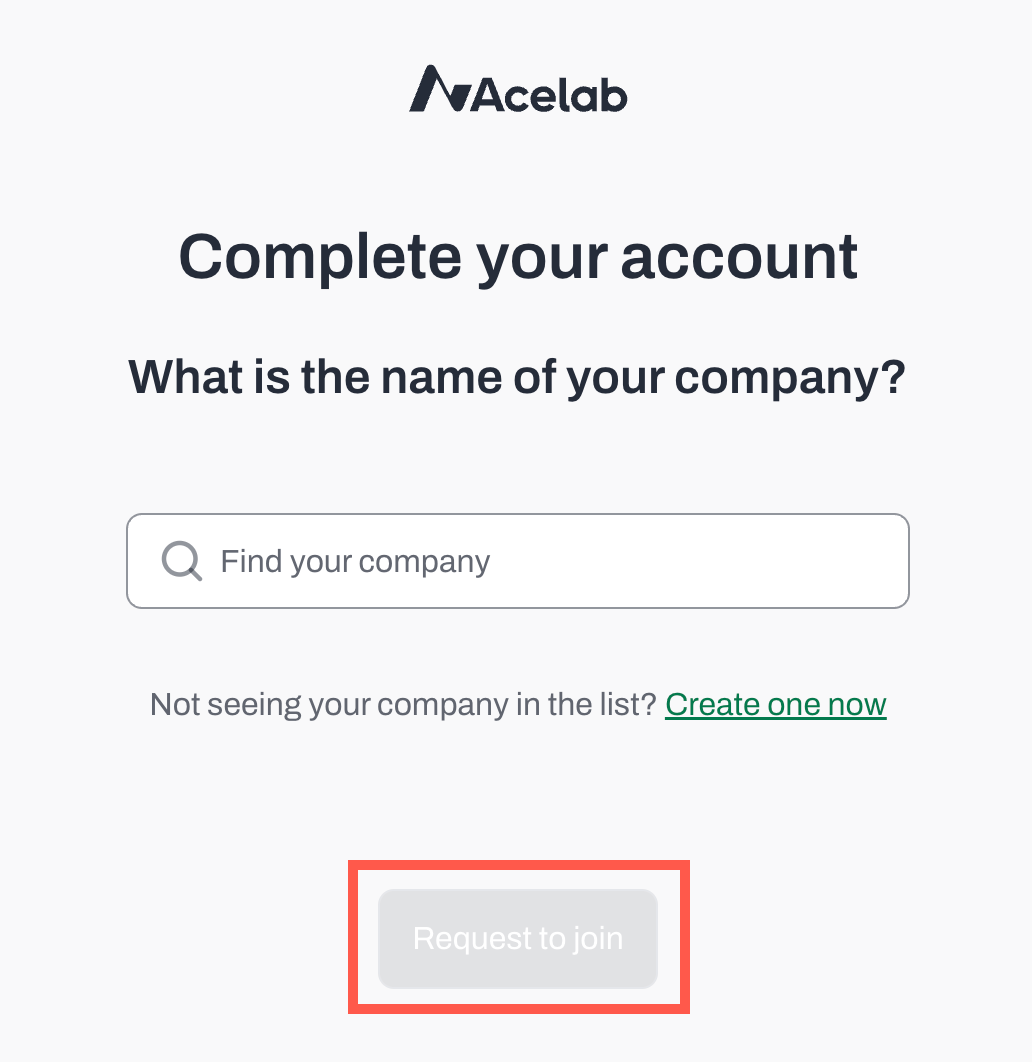 3. If your company appears in the results, select it and click **Request to Join**.
* A request will be sent to your company's admin for approval.
4. If your company does not appear in the results, contact your company admin to confirm that a Company Account has already been set up in Acelab.
5. If you are a Company Admin and your Company isn't yet on Acelab, **Create a New Company** by following the instructions in [this article](/help-center/getting-started/creating-a-new-company-and-inviting-your-team)
***
## What Happens Next?
* **If your company has automatic domain-based approval:** You'll be granted access immediately after submitting your request.
* **If admin approval is required:** Your request will show as **Pending** on your Account profile. Your company admin will receive a notification to approve or deny it.
While you wait, you can explore the Materials Hub. You won't have access to your company's Firm Library or projects until your request is approved.
**Note:** Once you join your Company Workspace, you will have access to the Firm Library. To access projects, you must receive a separate invitation for each project. Access to individual projects requires a separate invitation. See [Inviting Your Team to a Project](/help-center/working-on-projects/managing-project-collaborators).
You can cancel a pending request at any time from the join screen.
***
📚 Keep Learning 📚
## Next: **Setting Up Your Account Profile**
[Go to next article](/help-center/getting-started/setting-up-your-account-profile)
3. If your company appears in the results, select it and click **Request to Join**.
* A request will be sent to your company's admin for approval.
4. If your company does not appear in the results, contact your company admin to confirm that a Company Account has already been set up in Acelab.
5. If you are a Company Admin and your Company isn't yet on Acelab, **Create a New Company** by following the instructions in [this article](/help-center/getting-started/creating-a-new-company-and-inviting-your-team)
***
## What Happens Next?
* **If your company has automatic domain-based approval:** You'll be granted access immediately after submitting your request.
* **If admin approval is required:** Your request will show as **Pending** on your Account profile. Your company admin will receive a notification to approve or deny it.
While you wait, you can explore the Materials Hub. You won't have access to your company's Firm Library or projects until your request is approved.
**Note:** Once you join your Company Workspace, you will have access to the Firm Library. To access projects, you must receive a separate invitation for each project. Access to individual projects requires a separate invitation. See [Inviting Your Team to a Project](/help-center/working-on-projects/managing-project-collaborators).
You can cancel a pending request at any time from the join screen.
***
📚 Keep Learning 📚
## Next: **Setting Up Your Account Profile**
[Go to next article](/help-center/getting-started/setting-up-your-account-profile)