> ## Documentation Index
> Fetch the complete documentation index at: https://docs.acelabusa.com/llms.txt
> Use this file to discover all available pages before exploring further.
# Managing Company Collaborators
> Learn how to add/remove collaborators, and change their permission levels
*Written by Armaan Shah · Updated November 11, 2025*
To complete the steps in this article, you must have Admin permission. Learn more about [Permissions in Acelab](/help-center/getting-started/permissions-in-acelab).
## Access your Company Account
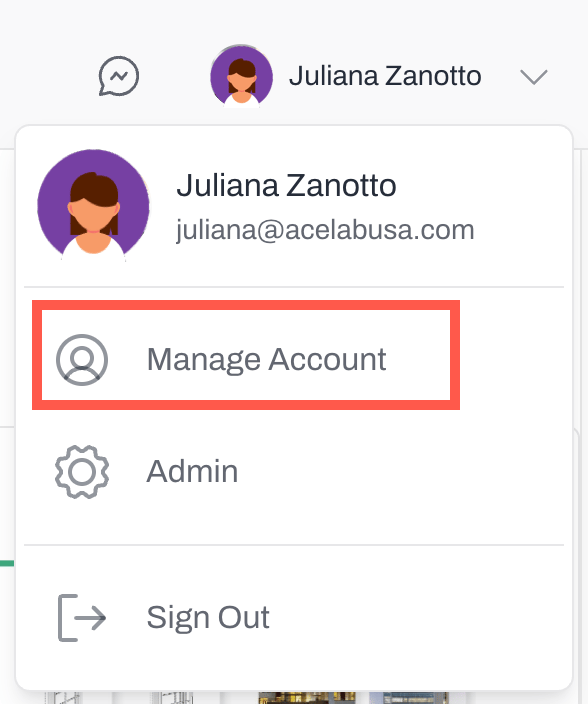
* Click on your name at the top-right corner and select **Manage Account**
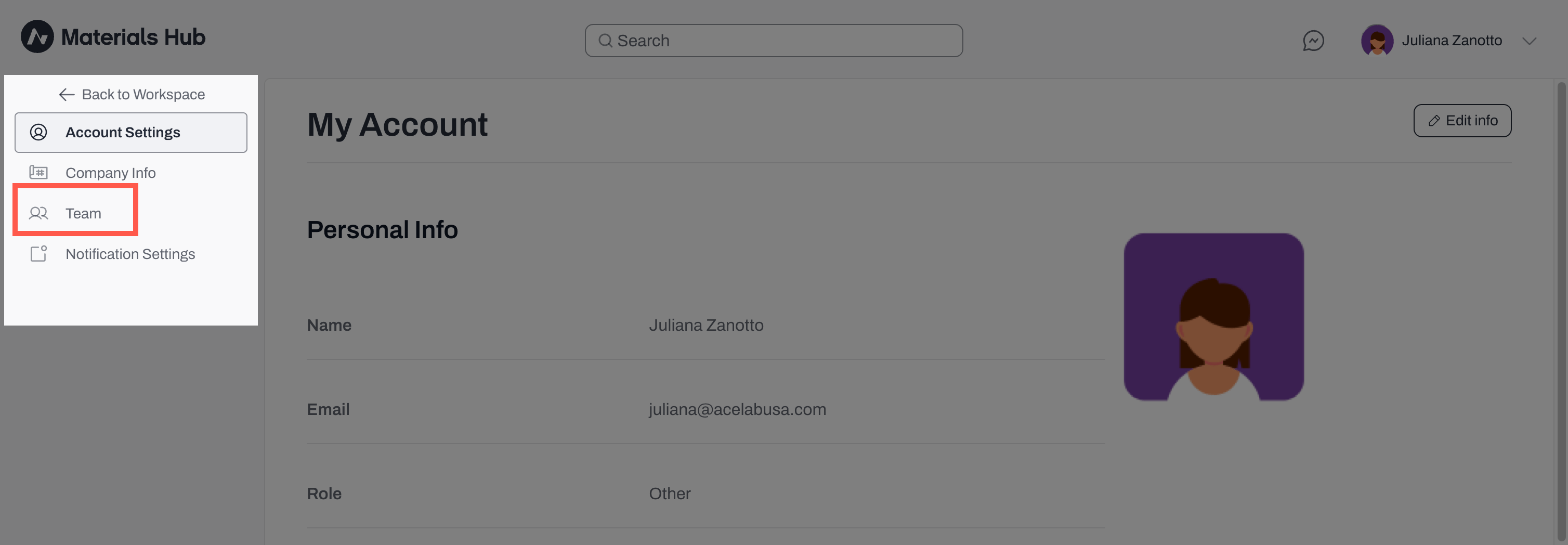
* Select **Team** from the left-side menu
 ***
## Adding Collaborators
* Select **+Add Collaborator**
***
## Adding Collaborators
* Select **+Add Collaborator**
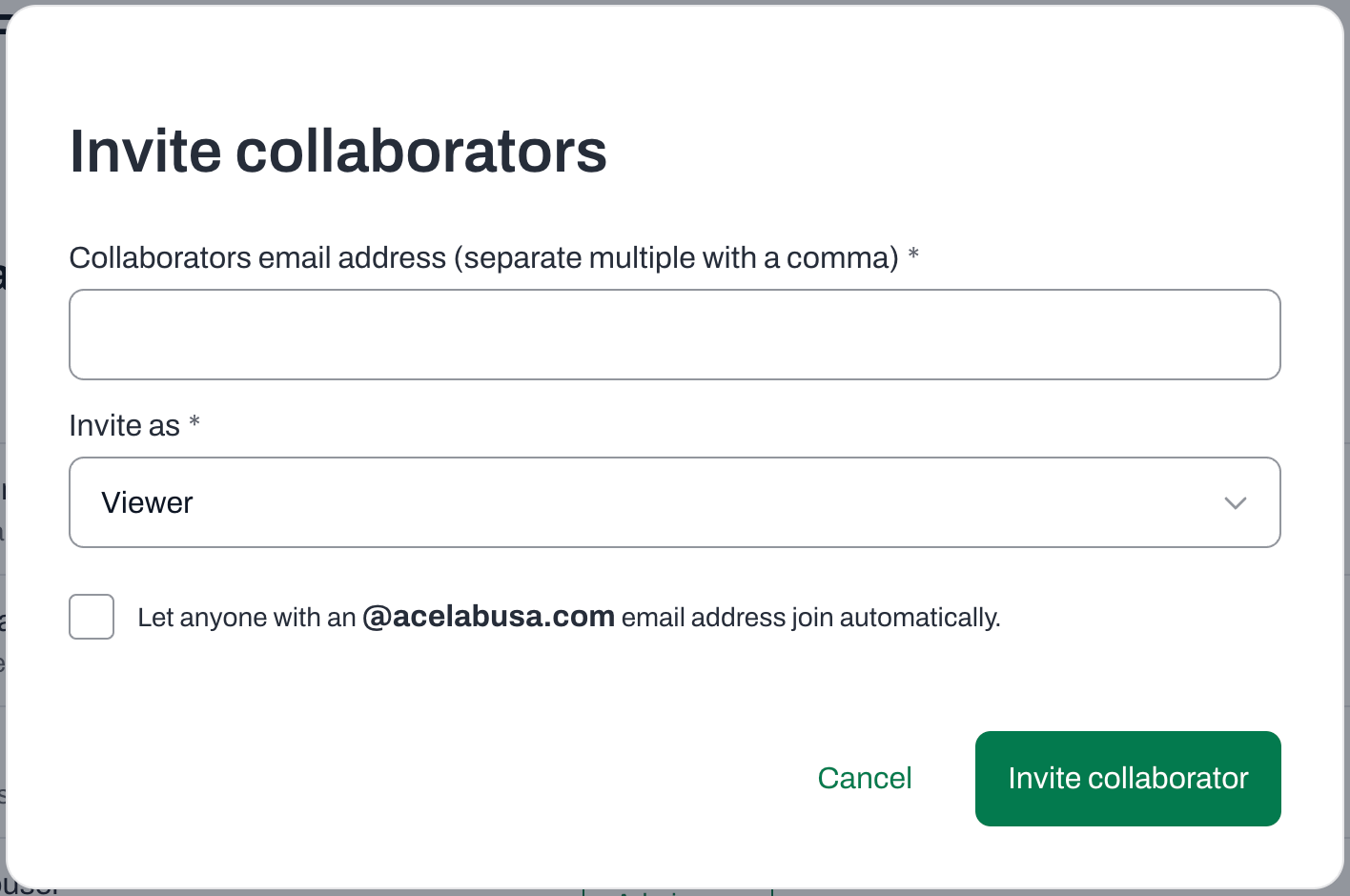
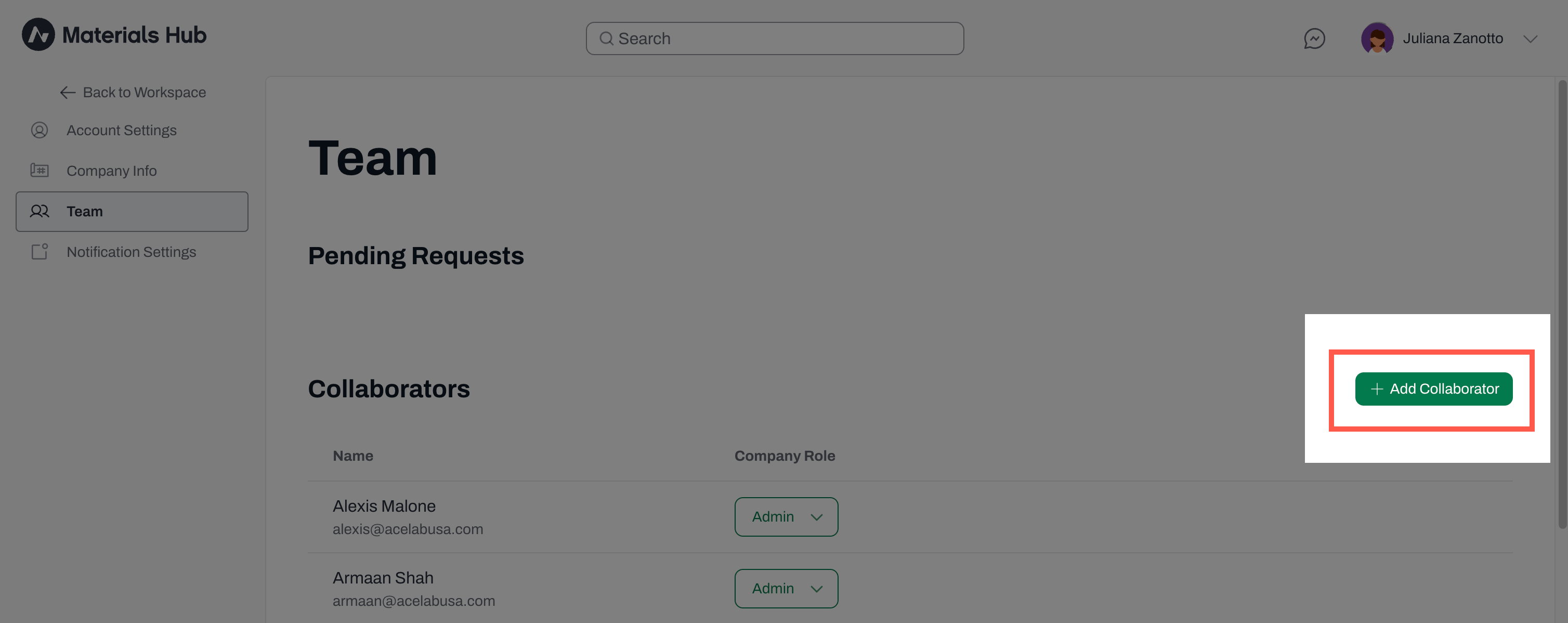 * Add in all team members' emails, separated by commas
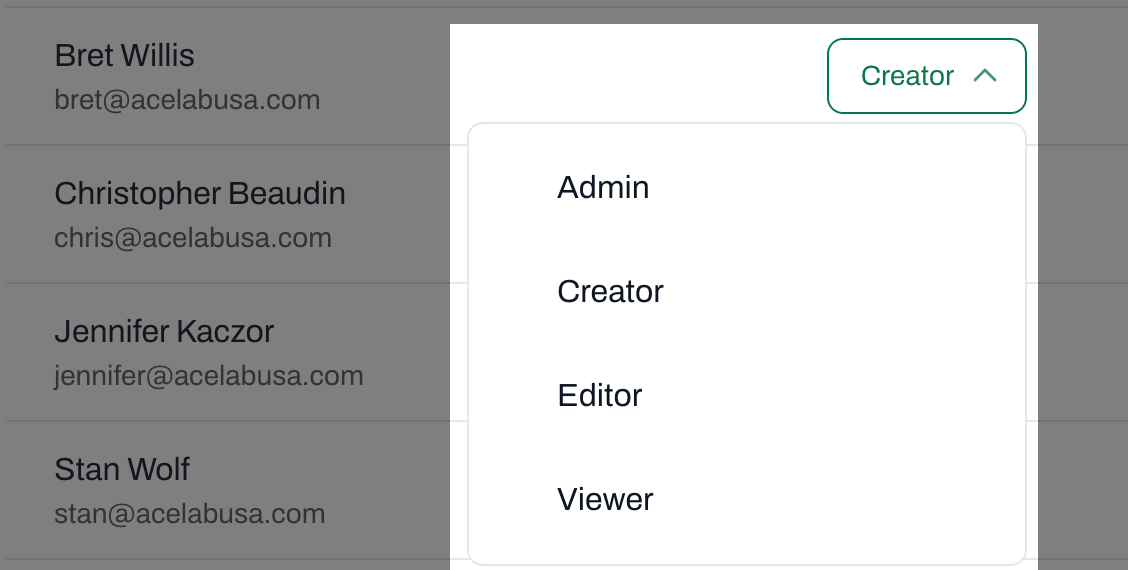
* Select their permission level from the drop-down menu (learn more about each permission level in the article [Permissions in Acelab](/help-center/getting-started/permissions-in-acelab))
* You can change permission levels any time
* Check the box if you want to let anyone with your company's email address join automatically, without needing an Admin's approval or invitation
* Click **Invite Collaborator**
**Tip:** For a seamless roll out, let your team know about the incoming invitations and ask them to check their spam folders.
**Note:** Collaborators added to the company will have access to the Firm Library, but they won’t automatically gain access to all projects. Team members need to be added to each project from the project's page. To learn more about adding collaborators to projects, check out [this article](/help-center/working-on-projects/managing-project-collaborators).
***
## Managing Pending Requests
* Collaborators who **have received an invitation** but have not yet accepted it, will appear in the **Pending Requests** section
* Collaborators who **have requested to join the company** will also appear in the Pending Requestes section
* As an Admin you can:
* Can **Cancel** a pending invitation that was sent out
* Approve a collaborator's request to join the company
* Deny a collaborator's request to join the company
* **Resend Invite** if a collaborator has not received the previous invitation
* Change **permission** levels using the drop-down menu
* Add in all team members' emails, separated by commas
* Select their permission level from the drop-down menu (learn more about each permission level in the article [Permissions in Acelab](/help-center/getting-started/permissions-in-acelab))
* You can change permission levels any time
* Check the box if you want to let anyone with your company's email address join automatically, without needing an Admin's approval or invitation
* Click **Invite Collaborator**
**Tip:** For a seamless roll out, let your team know about the incoming invitations and ask them to check their spam folders.
**Note:** Collaborators added to the company will have access to the Firm Library, but they won’t automatically gain access to all projects. Team members need to be added to each project from the project's page. To learn more about adding collaborators to projects, check out [this article](/help-center/working-on-projects/managing-project-collaborators).
***
## Managing Pending Requests
* Collaborators who **have received an invitation** but have not yet accepted it, will appear in the **Pending Requests** section
* Collaborators who **have requested to join the company** will also appear in the Pending Requestes section
* As an Admin you can:
* Can **Cancel** a pending invitation that was sent out
* Approve a collaborator's request to join the company
* Deny a collaborator's request to join the company
* **Resend Invite** if a collaborator has not received the previous invitation
* Change **permission** levels using the drop-down menu
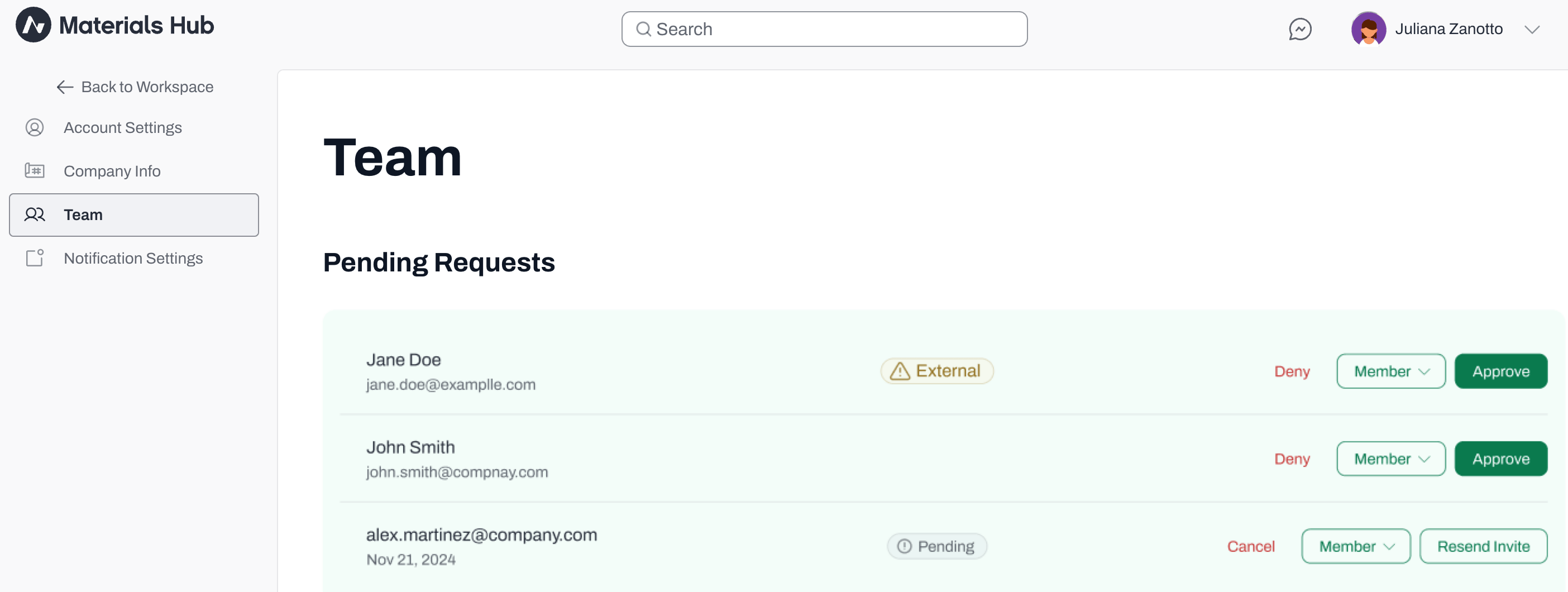 **Note:** Collaborators whose email address do not match your company email domain will be noted as **"External"**.
***
## Removing Collaborators
* If a team member leaves the company, click on the Remove button next to their name to revoke their access to the company workspace
**Note:** Collaborators whose email address do not match your company email domain will be noted as **"External"**.
***
## Removing Collaborators
* If a team member leaves the company, click on the Remove button next to their name to revoke their access to the company workspace
 **Note:** This action irreversible, so please ensure that this is the desired action. To rejoin the firm on Acelab, team members will need a new invite from an Admin.
***
## Adjusting Permission Levels
* You may adjust permission levels after collaborators have accepted their invitation
* Use the drop-down menu next to their name to select a permission level
***
📚 Keep Learning 📚
## Next: **Firm Library Overview**
[Go to next article](/help-center/building-your-firm-library/firm-library-overview)
**Note:** This action irreversible, so please ensure that this is the desired action. To rejoin the firm on Acelab, team members will need a new invite from an Admin.
***
## Adjusting Permission Levels
* You may adjust permission levels after collaborators have accepted their invitation
* Use the drop-down menu next to their name to select a permission level
***
📚 Keep Learning 📚
## Next: **Firm Library Overview**
[Go to next article](/help-center/building-your-firm-library/firm-library-overview)