> ## Documentation Index
> Fetch the complete documentation index at: https://docs.acelabusa.com/llms.txt
> Use this file to discover all available pages before exploring further.
# Notifications
> Learn how to check notifications and set up your preferences.
*Written by Armaan Shah · Updated February 10, 2026*
Trough the notifications feature you can be informs of relevant updates, actions, or alerts in the Materials Hub. You may receive notifications when:
* You are invited to join a company or a project and must choose to accepting or declining invitations
* Someone has requested to join your company or project and, if you are an Admin, you may approve or deny them
* Your company or project permissions changes
* A new conversation or message is added to a project
* Someone tags you in a comment (coming soon)
* A comment you made is replied (coming soon)
* Acelab makes changes to the platform (coming soon)
***
## How to Check Your Notifications
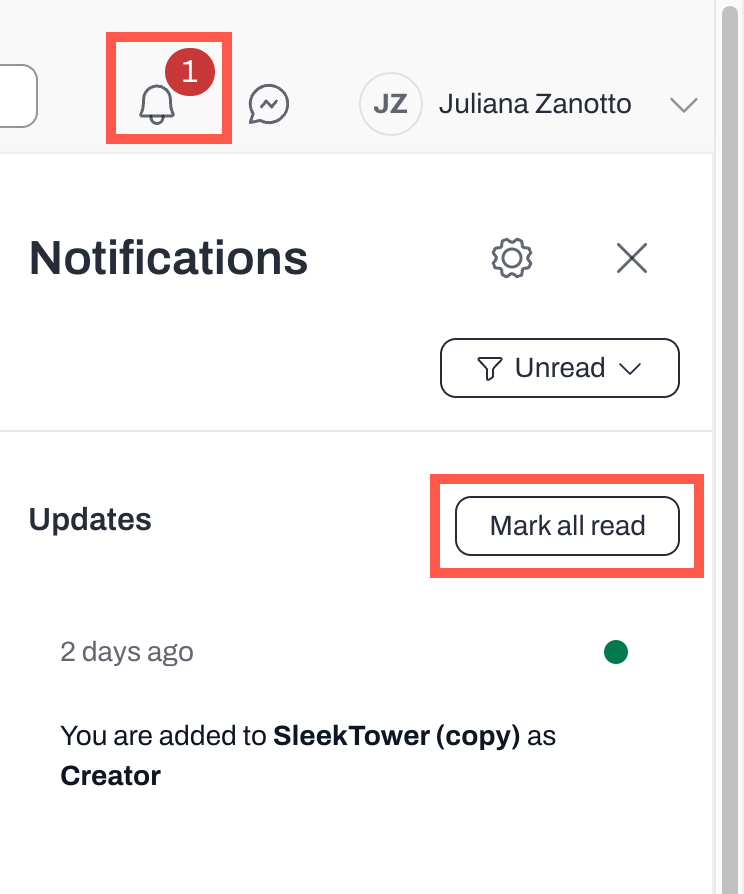
* Click on the bell icon on the top bar
* The icon will display the number of unread messages you have, if any
* Click on a notification to set it as "read"
* Or, use the Mark all read/Mark all unread to change their status
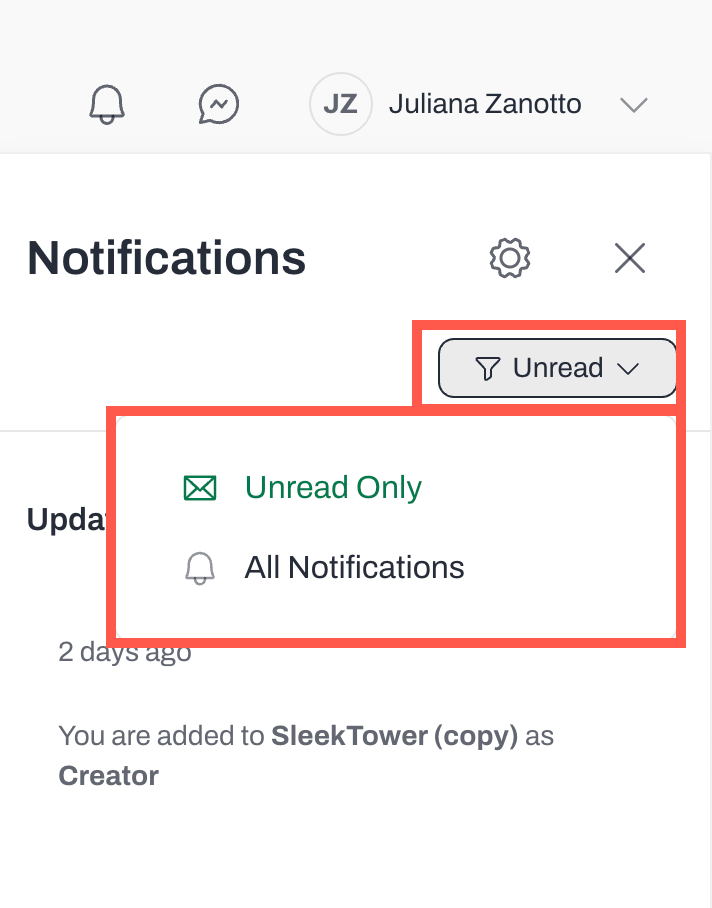
* Use the filter to see All Notifications or Unread Only
***
## **How to Change Your Notification Settings**
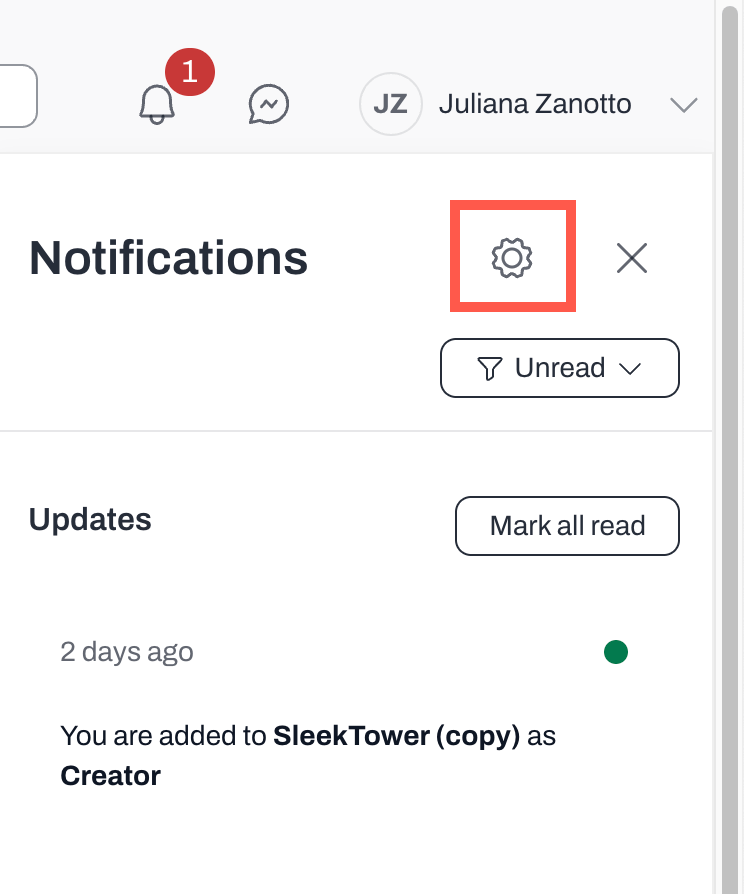
* Click on the bell icon to access your notifications
* Click on the gear icon
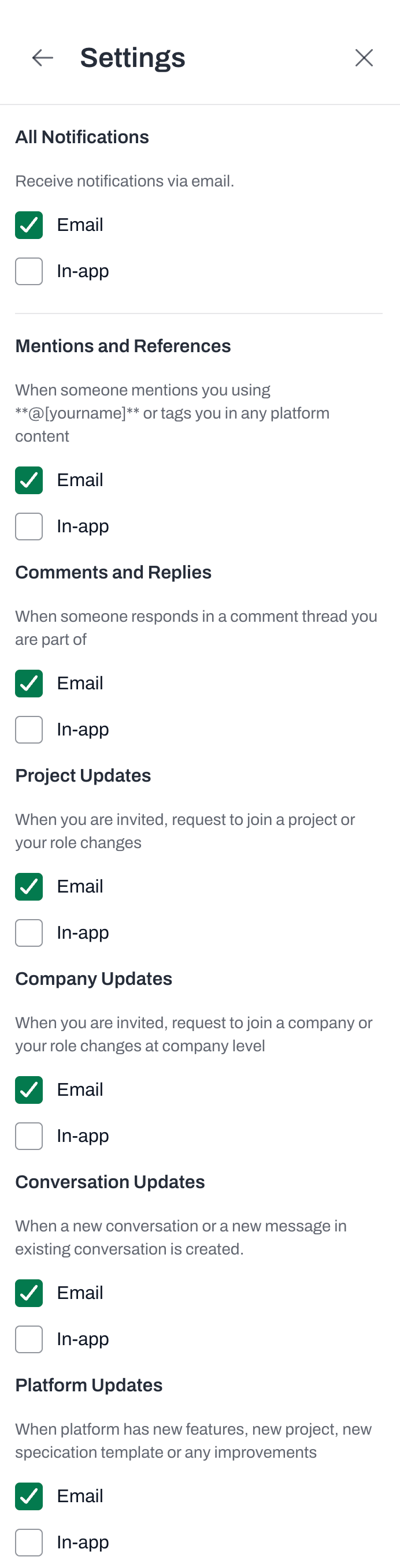
* Check the boxes for each kind of notification to choose whether you want receive them by email, in-app, both, or none.
**Note:** While you can choose to receive in-app notifications for the different kinds of communication, we are currently only sending in-app notifications that require you to take an action (e.g. accept/deny invitations to join projects).
**Tip:** We highly recommend turning on notifications (either by email or in-app) so you do not miss important communication.