> ## Documentation Index
> Fetch the complete documentation index at: https://docs.acelabusa.com/llms.txt
> Use this file to discover all available pages before exploring further.
# Managing Conversations
> Learn how to manage conversations in Acelab's Materials Hub
*Written by Armaan Shah · Updated April 2, 2025*
Check out these articles for more information on how to start a conversation:
* [Requesting Product Information](/help-center/searching-for-products/requesting-product-information)
* [Requesting Expert Product Recommendations](/help-center/searching-for-products/requesting-expert-product-recommendations)
***
## Find your Conversations
Acelab makes it easy to organize and track ongoing conversations with Product Reps or Acelab's team of experts.
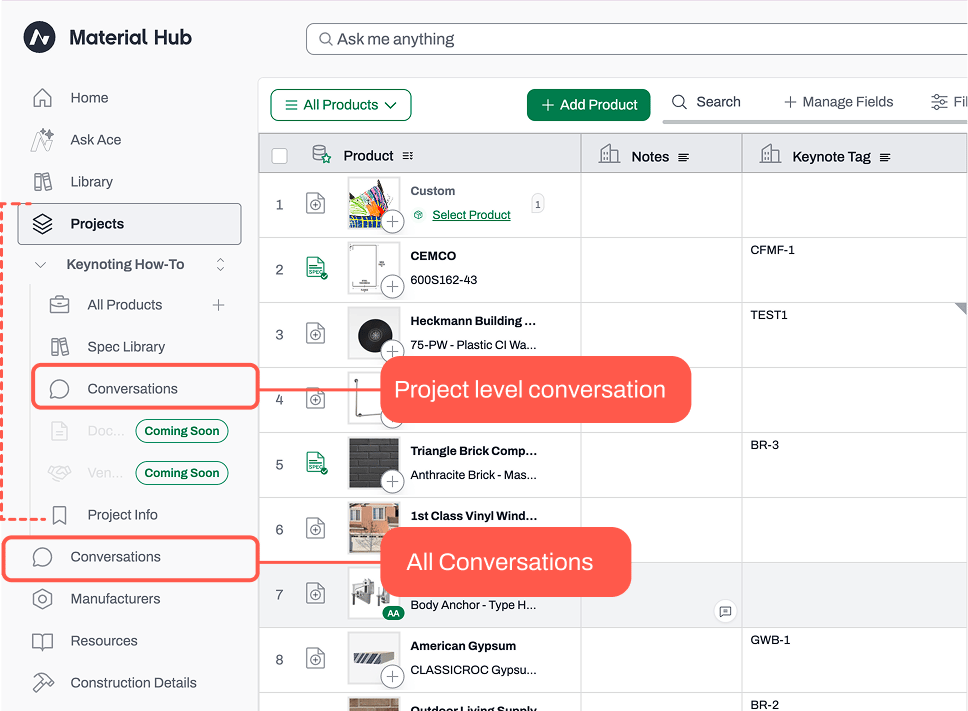
### **Project conversations**
* Conversations are stored in the Conversations page within the project they were saved
* Navigate to the project you want
* Click on the Conversations button on the left-side menu
### **All conversations**
* To see all conversations across all projects, click the **View All Conversations** button from a project conversation page
OR
* Click the **message icon** next to your profile photo on the top right-hand corner
***
## Reply to a Conversation
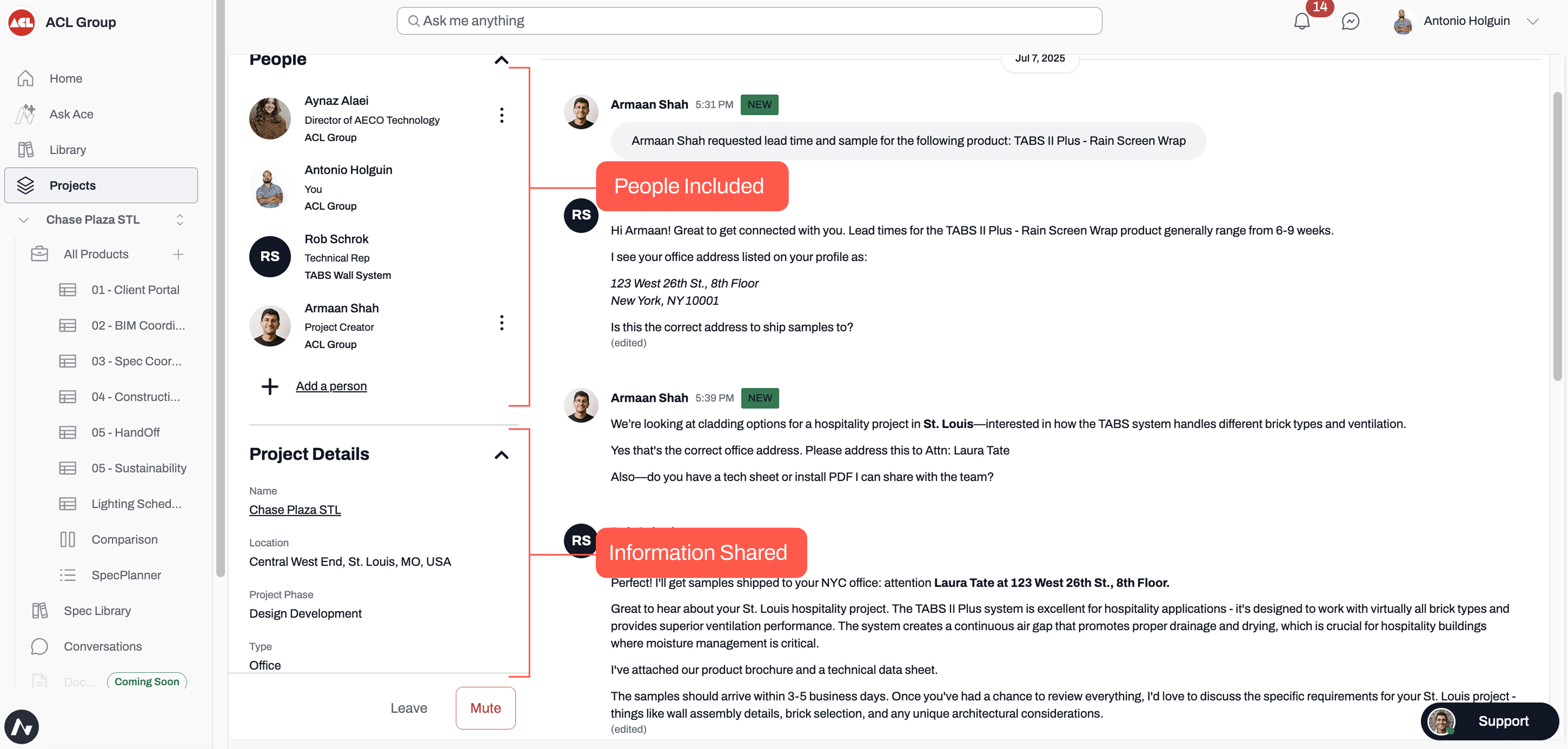
* Click on a conversation to:
* See who is included in the conversation
* What project details have been shared (if anything is wrong or missing, go to the Project Info page to correct it)
* Read any responses you got
* Reply and continue the conversation
***
## Mute a Conversation
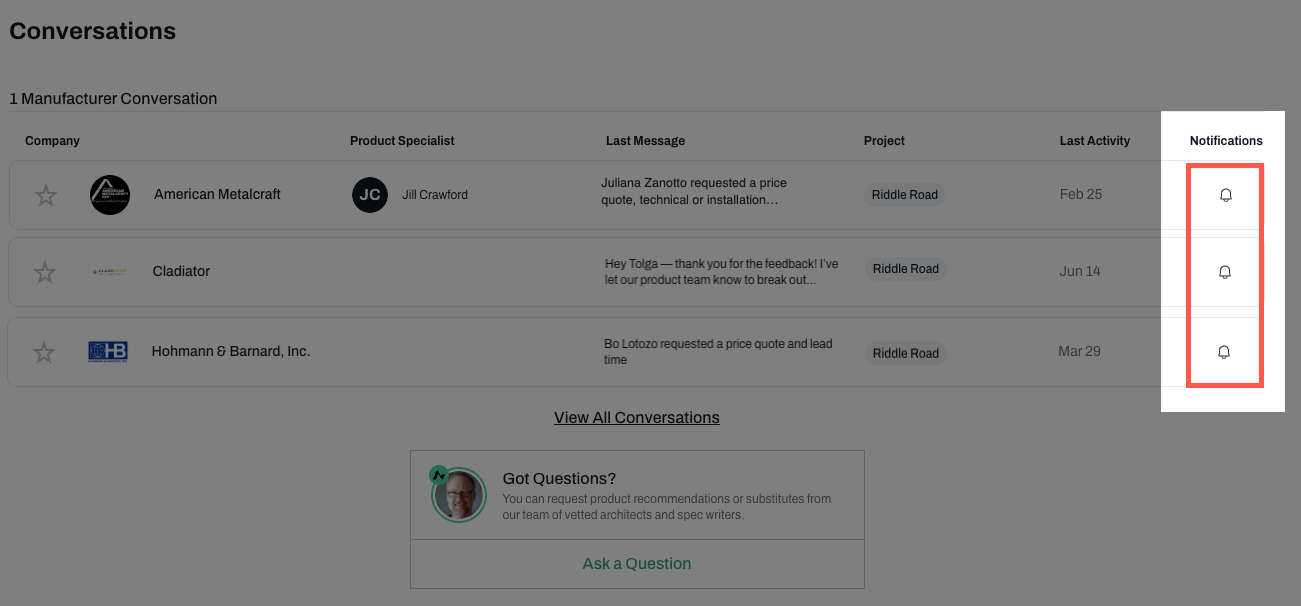
* To Mute/Unmute conversations, locate the conversation on your Conversations page
* Click on the **bell icon** next to the conversation
OR
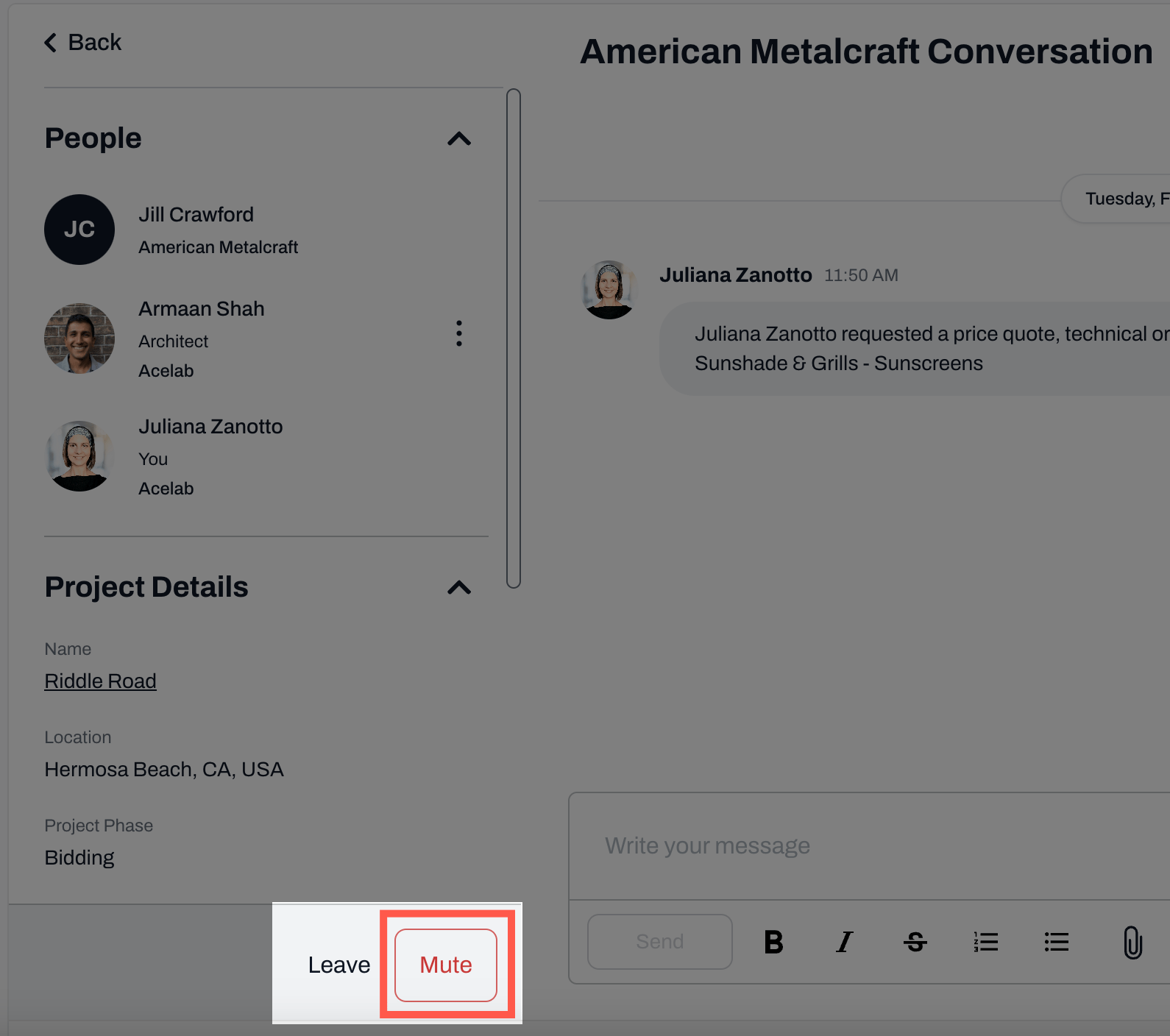
* Click on the conversation to open it
* Click the **Mute/Unmute** button at the bottom of the page
**Note:** If you Mute a conversation, you will not receive any notifications when you get responses. You will need to get back to the conversation to check whether you received a response.
***
## Add a Project Collaborator to a Conversation
By default, only you (the sender) and the rep (recipient) are included.
To add collaborators:
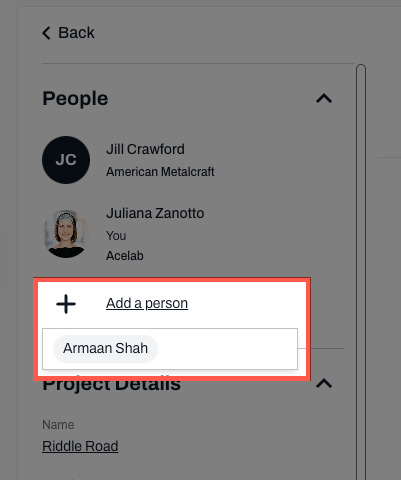
* Click **+ Add a Person**
* Select from the available project or firm members
**Note:** Only project or firm library collaborators can be added to the conversation. If all collaborators have been added to the conversation, the option to add a person will not be displayed.
***
## Remove a Collaborator from a Conversation
* Open the conversation
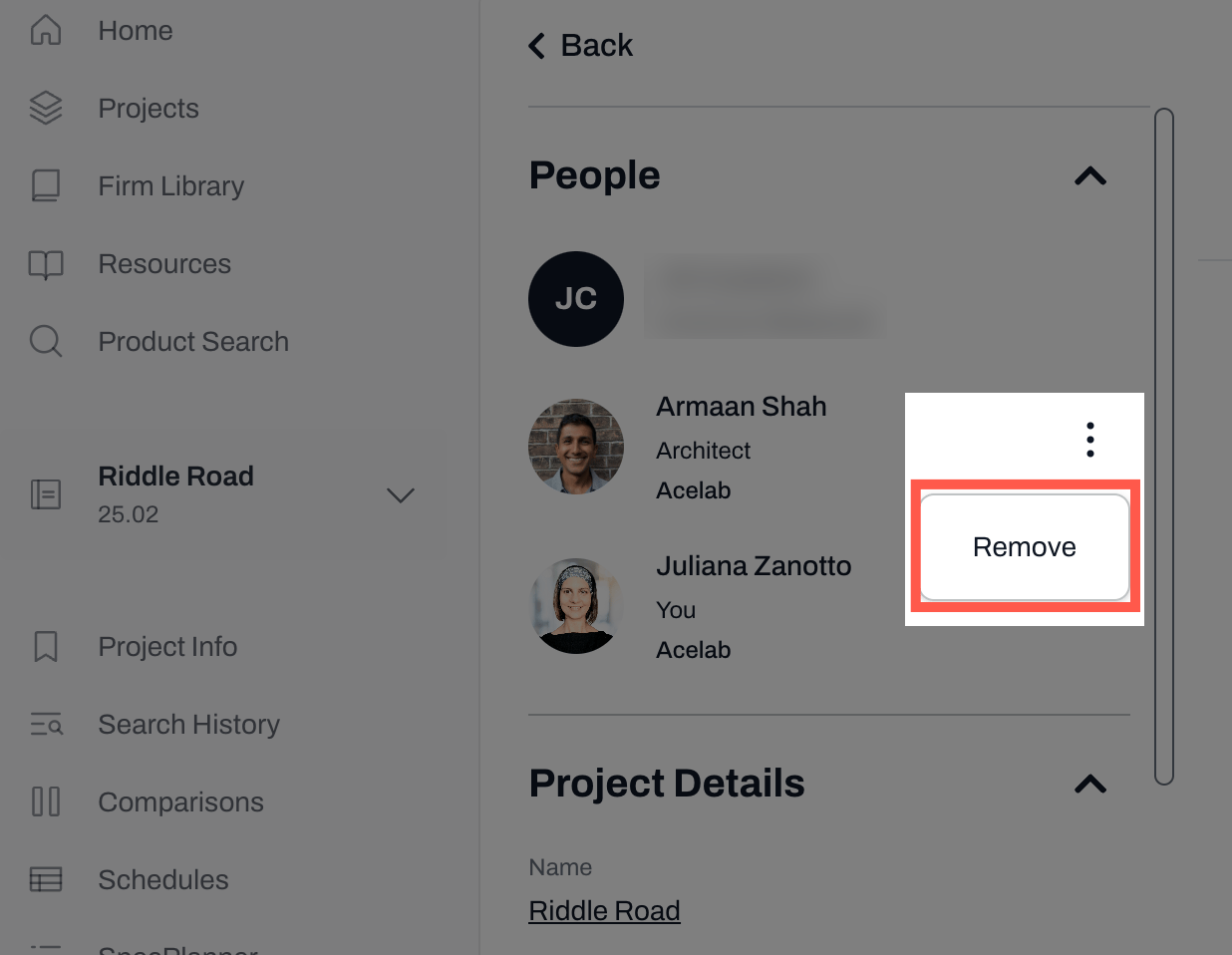
* Click the three-dot menu next to the collaborator’s name
* Select **Remove** and they will be removed from the conversation
***
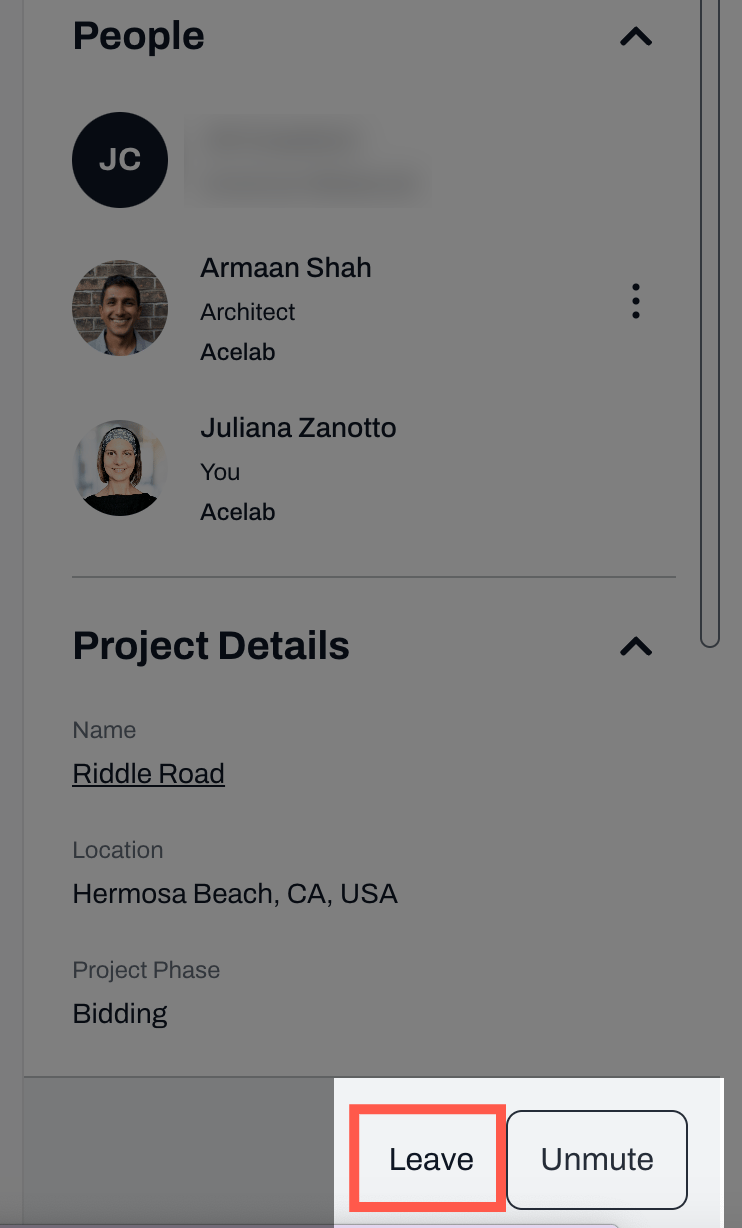
## Leave a Conversation
* Open the conversation
* Click the **Leave Conversation** button next to the **Mute** option
* Confirm your action

 ### **All conversations**
* To see all conversations across all projects, click the **View All Conversations** button from a project conversation page
OR
* Click the **message icon** next to your profile photo on the top right-hand corner
### **All conversations**
* To see all conversations across all projects, click the **View All Conversations** button from a project conversation page
OR
* Click the **message icon** next to your profile photo on the top right-hand corner
 ***
## Mute a Conversation
* To Mute/Unmute conversations, locate the conversation on your Conversations page
* Click on the **bell icon** next to the conversation
OR
* Click on the conversation to open it
* Click the **Mute/Unmute** button at the bottom of the page
***
## Mute a Conversation
* To Mute/Unmute conversations, locate the conversation on your Conversations page
* Click on the **bell icon** next to the conversation
OR
* Click on the conversation to open it
* Click the **Mute/Unmute** button at the bottom of the page