> ## Documentation Index
> Fetch the complete documentation index at: https://docs.acelabusa.com/llms.txt
> Use this file to discover all available pages before exploring further.
# Saving a Product
> Learn how to save products, conduct comparisons, share comparisons, and add comments/files to products.
*Written by Armaan Shah · Updated February 27, 2025*
After conducting a product search, you can save products to a Project, General Research, or the Firm Library. Saving products simplifies comparisons and enhances collaboration.
## Benefits of Saving Products
* Enables **side-by-side comparisons** of selected products
* Streamlines the decision-making process during material selection
* Facilitates collaboration through **shareable links** and **organized project tracking**
* Allows you to add comments and attach files to products
***
## How to Save Products
### From a Search Result
1. **Hover** over the product card image
2. Click to **Save** the item
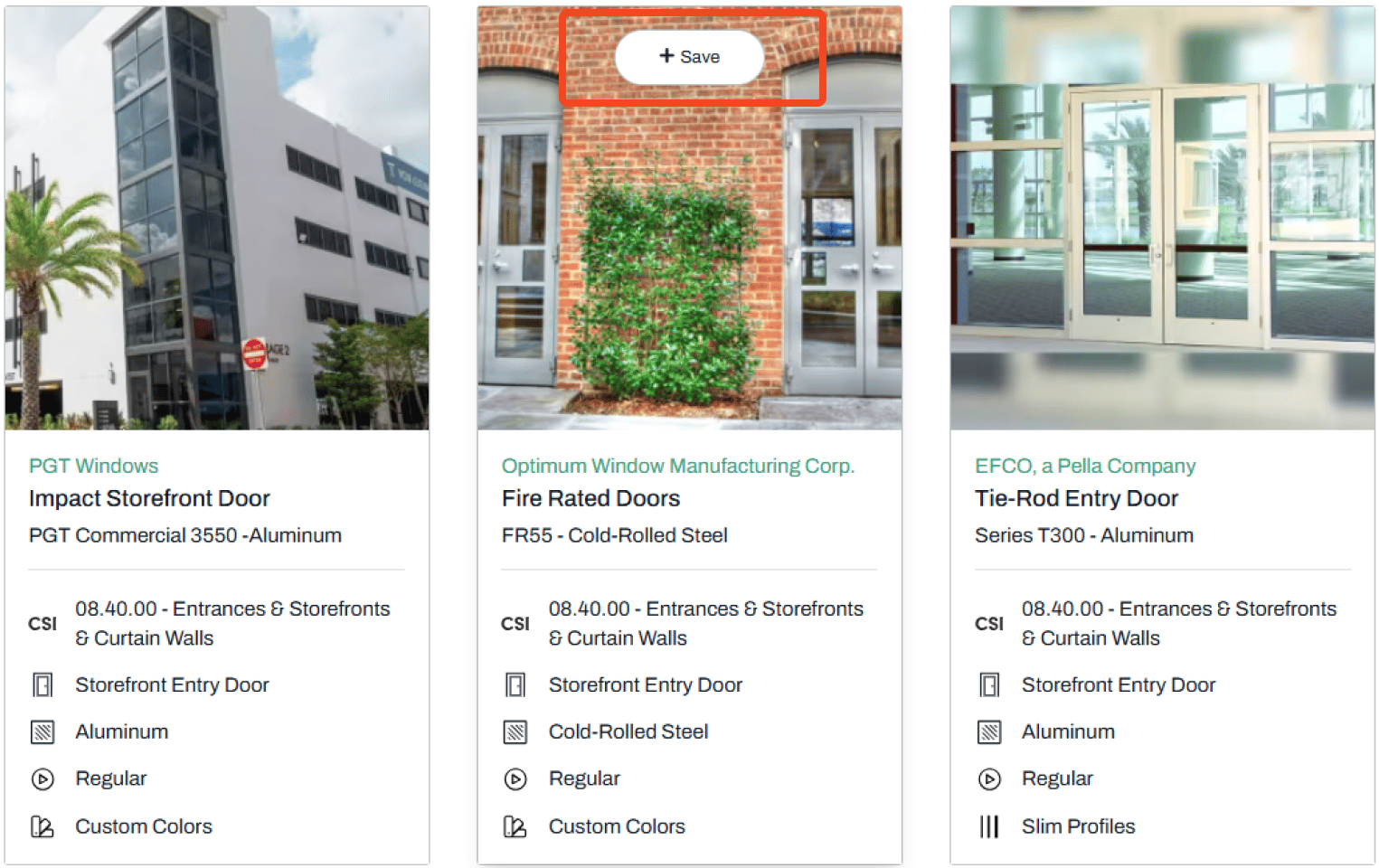 3. Select the **project** where you want to save the product
 **Note:**
* You can save the product to your **Firm** **Library or General Research** without associating it with a project
* You can also create a **New Project**
* Saving products to a **specific project** helps with organization and easier engagement with product representatives
***
### From a Product Page
1. Navigate to the product’s page
2. Click the **Save\&Compare** button in the lower right corner
**Note:**
* You can save the product to your **Firm** **Library or General Research** without associating it with a project
* You can also create a **New Project**
* Saving products to a **specific project** helps with organization and easier engagement with product representatives
***
### From a Product Page
1. Navigate to the product’s page
2. Click the **Save\&Compare** button in the lower right corner
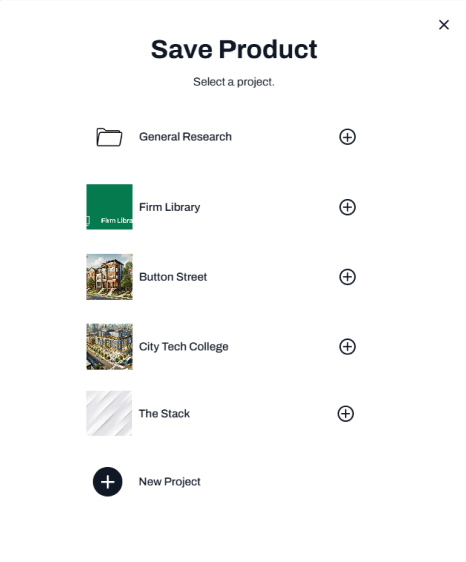
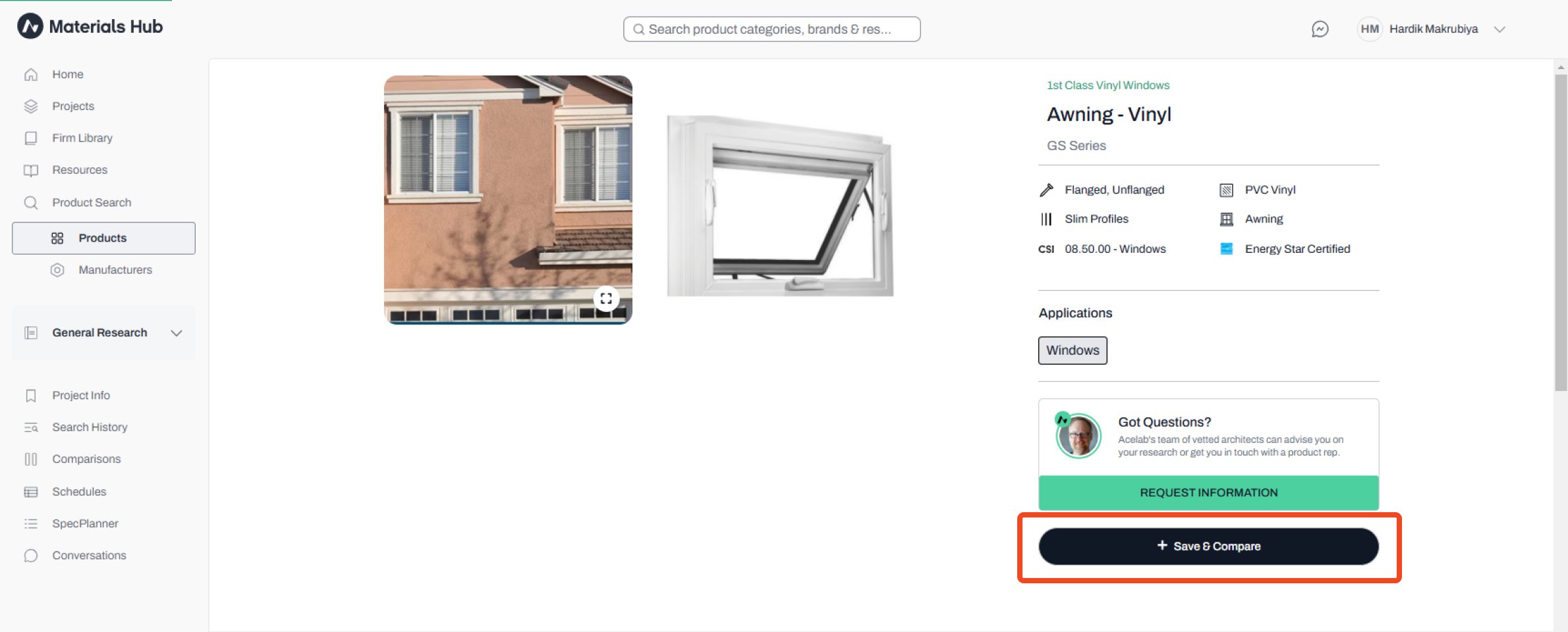 3. Select the **project** where you want to save the product
 **Note:**
* You can save the product to your **Firm** **Library or General Research** without associating it with a project
* You can also create a **New Project**
* Saving products to a **specific project** helps with organization and easier engagement with product representatives.
***
📚 Keep Learning 📚
## Next: **Comparing Products**
[Go to next article](/help-center/searching-for-products/comparing-products)
**Note:**
* You can save the product to your **Firm** **Library or General Research** without associating it with a project
* You can also create a **New Project**
* Saving products to a **specific project** helps with organization and easier engagement with product representatives.
***
📚 Keep Learning 📚
## Next: **Comparing Products**
[Go to next article](/help-center/searching-for-products/comparing-products)