> ## Documentation Index
> Fetch the complete documentation index at: https://docs.acelabusa.com/llms.txt
> Use this file to discover all available pages before exploring further.
# Vendor Management
> Learn how to organize and centralize your vendor contacts in the Material Hub
*Written by Armaan Shah · Updated February 10, 2026*
Most firms manage vendor information across emails, shared drives, and personal contacts. Vendor Management helps your firm organize vendor contacts and communicate with manufacturers more efficiently by bringing updated contacts together in one place.
With Vendor Management, you can:
* **Find the right rep instantly**
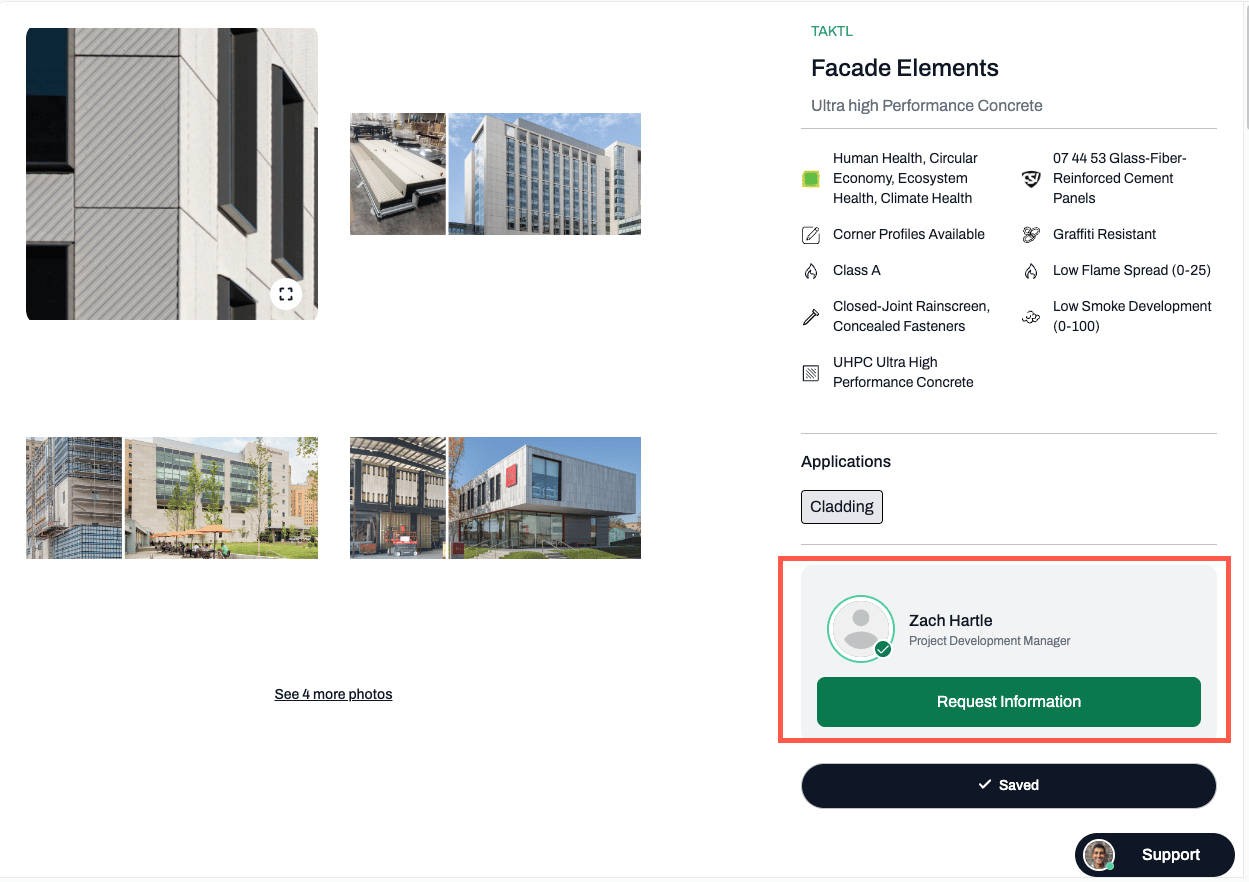
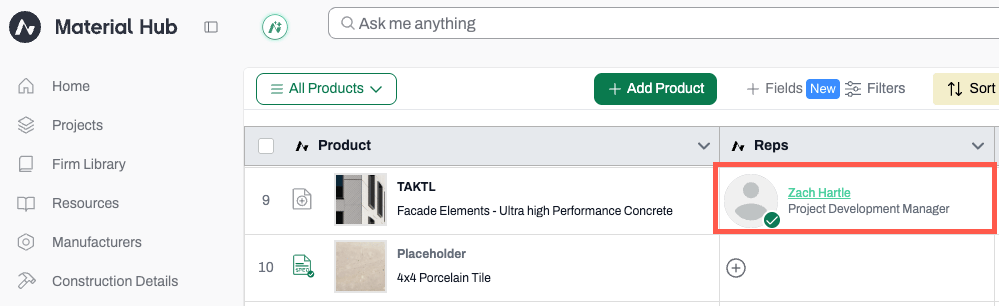
All vendor contacts added to your firm's account are visible in the manufacturer page, product page, and project schedules. No more tracking down emails or business cards.
* **Send inquiries in bulk**
Reach multiple vendors at once with RFIs, quote requests, or sample requests.
* **Keep project history connected**
Conversations with vendors stay linked to specific projects for easy reference later.
* **Rely on self-maintained contacts**
Vendors update their own profiles, so your directory stays accurate without extra work from your team.
***
## How to use Vendor Management
### **Step 1: Send us your vendor list**
Send us an email with your vendor contacts.
We accept any spreadsheets (CSV/Excel files) with the following columns:
* Contact First Name
* Contact Last Name
* Contact Email
* Contact Manufacturer Company
**Tip:** If you are not sure where to find your vendor contacts, you may check with your librarian or resource coordinator, or check your firm's shared drives or project files.
### Step 2: We will set up your vendors in your Material Hub account
Our team handles the setup and invites your reps to join. You'll receive notifications regarding the status of the invitations. Once vendors accept the email invitation, they will be directed to creating and updating their profile in the Material Hub.
### Step 3: Automatically see your reps in the Material Hub
You and your team can see and contact reps directly from within the Material Hub. Simply click on their name in the manufacturer page, product page, or schedules (rep field) to request information. All conversations are stored in the Material Hub project.
**Tip:** Learn more about sending requests [here](/help-center/searching-for-products/requesting-product-information), and managing conversations [here](/help-center/searching-for-products/managing-conversations).
 ***
## What if vendors do not accept the invitation?
Given the volume of emails everyone receives daily, **we recommend pinging your key reps directly** to make sure the invitation doesn't get buried. A quick heads-up from you carries more weight than a platform notification.
Here's a template you can copy/paste and send from your email:
*Subject: Quick heads up—vendor workspace invite*
*Hi \[Rep Name],*
*We've centralized our vendor management through Acelab's Material Hub and added you to our workspace. You should have received an invitation email from Acelab.*
*This makes it easier for our project teams to reach you with RFIs, sample requests, and product questions—all in one place. Takes about 2 minutes to set up your profile.*
*Can you confirm you received the invite? If not, let me know and I'll have Acelab resend it.*
*Thanks,*
*\[Your Name]*
***
## What if vendors do not accept the invitation?
Given the volume of emails everyone receives daily, **we recommend pinging your key reps directly** to make sure the invitation doesn't get buried. A quick heads-up from you carries more weight than a platform notification.
Here's a template you can copy/paste and send from your email:
*Subject: Quick heads up—vendor workspace invite*
*Hi \[Rep Name],*
*We've centralized our vendor management through Acelab's Material Hub and added you to our workspace. You should have received an invitation email from Acelab.*
*This makes it easier for our project teams to reach you with RFIs, sample requests, and product questions—all in one place. Takes about 2 minutes to set up your profile.*
*Can you confirm you received the invite? If not, let me know and I'll have Acelab resend it.*
*Thanks,*
*\[Your Name]*