> ## Documentation Index
> Fetch the complete documentation index at: https://docs.acelabusa.com/llms.txt
> Use this file to discover all available pages before exploring further.
# Adding Products to Schedule from a Product Search
> Learn how to add products you found through a Product Search.
*Written by Armaan Shah · Updated February 10, 2026*
## Start a Product Search
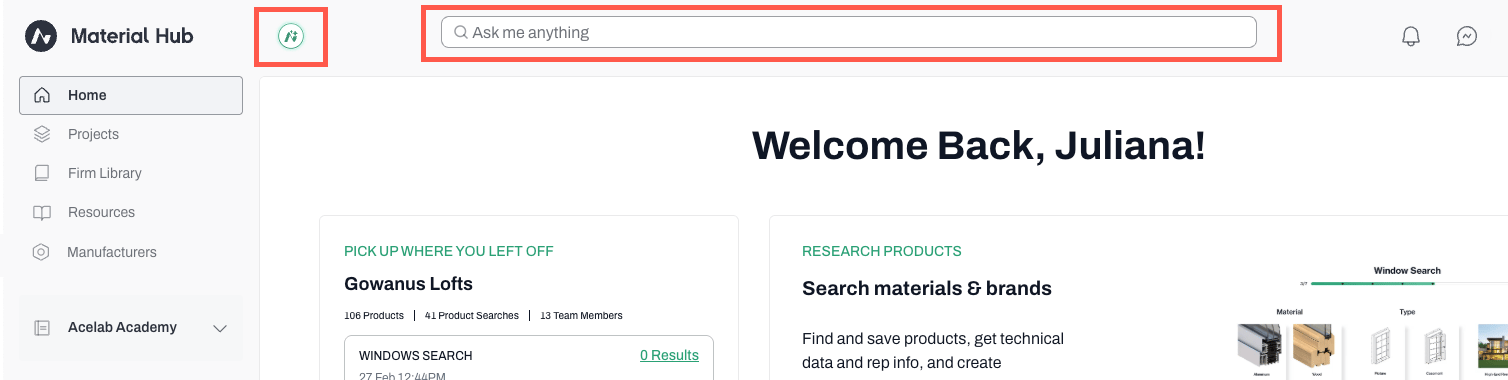
* Start a search from the **search bar** or **Ask Ace**
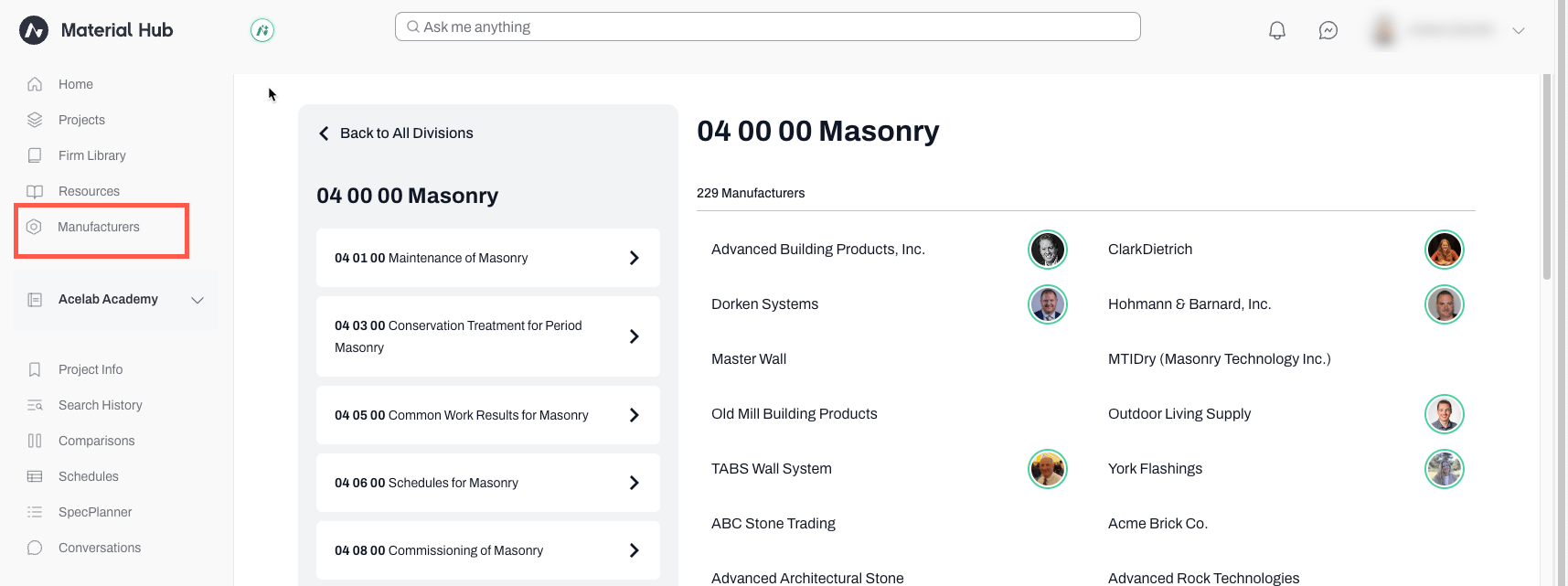
 * Or, to find products by Manufacturer, click on **Manufacturers**
* Select a division to narrow down the list
* Click on a Manufacturer (they are listed alphabetically)
* Scroll down to see the products
* Or, to find products by Manufacturer, click on **Manufacturers**
* Select a division to narrow down the list
* Click on a Manufacturer (they are listed alphabetically)
* Scroll down to see the products
 ***
## Save Products
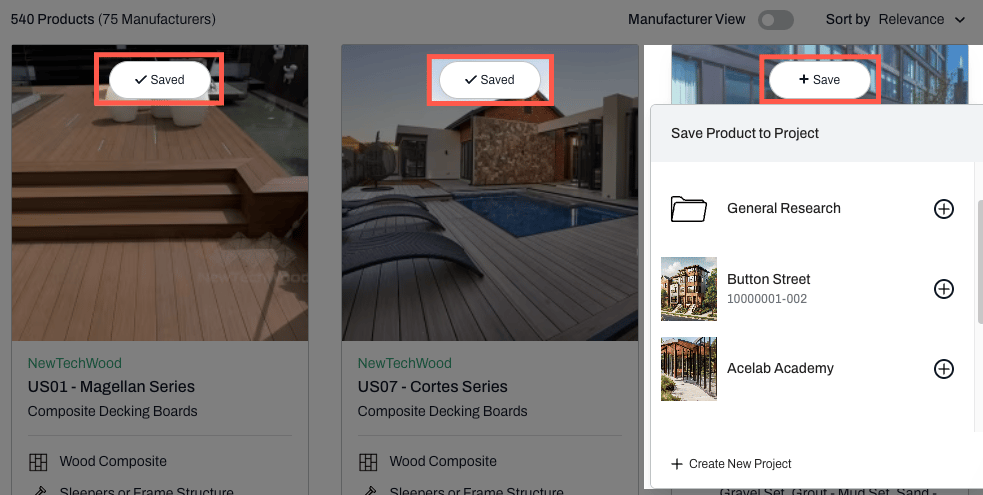
* On the results page, the products that have already been saved to a project (any project) will be identified with a **Saved** tag over the product image.
* Hover over the Saved tag to see which project(s) the product has been added to.
* Select the project to which you want to add this product by clicking on the '+' sign.
* Products that have not been added to any project will not have the Saved tag.
* Hover over the product and a **Save** button will appear.
* Click on Save and select the destination project to which you want to add the product.
***
## Save Products
* On the results page, the products that have already been saved to a project (any project) will be identified with a **Saved** tag over the product image.
* Hover over the Saved tag to see which project(s) the product has been added to.
* Select the project to which you want to add this product by clicking on the '+' sign.
* Products that have not been added to any project will not have the Saved tag.
* Hover over the product and a **Save** button will appear.
* Click on Save and select the destination project to which you want to add the product.
 * That's it. The products you saved will appear in your project's schedule.
***
📚 Keep Learning 📚
## Next: Adding Products to Schedules from a Manufacturer Page
[Go to next article](https://help.acelabusa.com/en/articles/10604348-adding-products-to-schedules-from-the-manufacturer-page)
* That's it. The products you saved will appear in your project's schedule.
***
📚 Keep Learning 📚
## Next: Adding Products to Schedules from a Manufacturer Page
[Go to next article](https://help.acelabusa.com/en/articles/10604348-adding-products-to-schedules-from-the-manufacturer-page)