> ## Documentation Index
> Fetch the complete documentation index at: https://docs.acelabusa.com/llms.txt
> Use this file to discover all available pages before exploring further.
# Change Section - SpecPlanner
> Learn how to change products from one masterformat section to another in SpecPlanner.
*Written by Patricia Causey · Updated March 20, 2026*
SpecPlanner allows users to change product MasterFormat Sections, accommodating unique classification needs and firm-specific preferences. This feature is particularly useful for products that may fit into multiple categories or when your organization has specific classification standards.
## How to Change a Product's MasterFormat Section
There are two ways of changing a product's masterformat section:
1. Use the Change Masterformat Section function
2. Drag and drop products to a different section
### Using the Change Masterformat Section function
* Locate the Product you wish to reclassify in your SpecPlanner
* Click the **three dots (⋮)** at the end of the product row
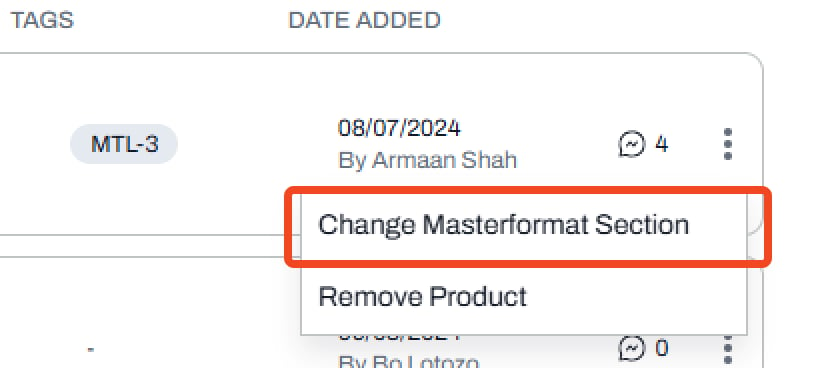 * Select **Change Masterformat Section** from the dropdown
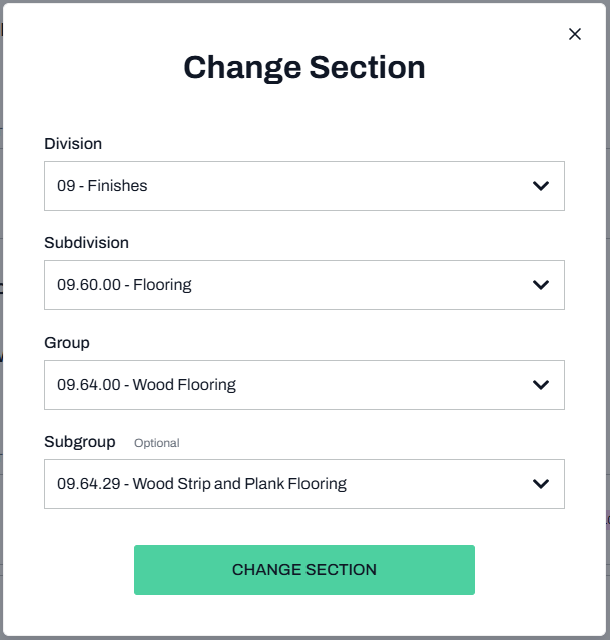
* Choose a New Section from pre-defined Masterformat Sections
**Note:** You can move a product to a Masterformat section that isn’t currently visible in your SpecPlanner. Once moved, that section will automatically become visible.
***
### Drag and drop products to a different section
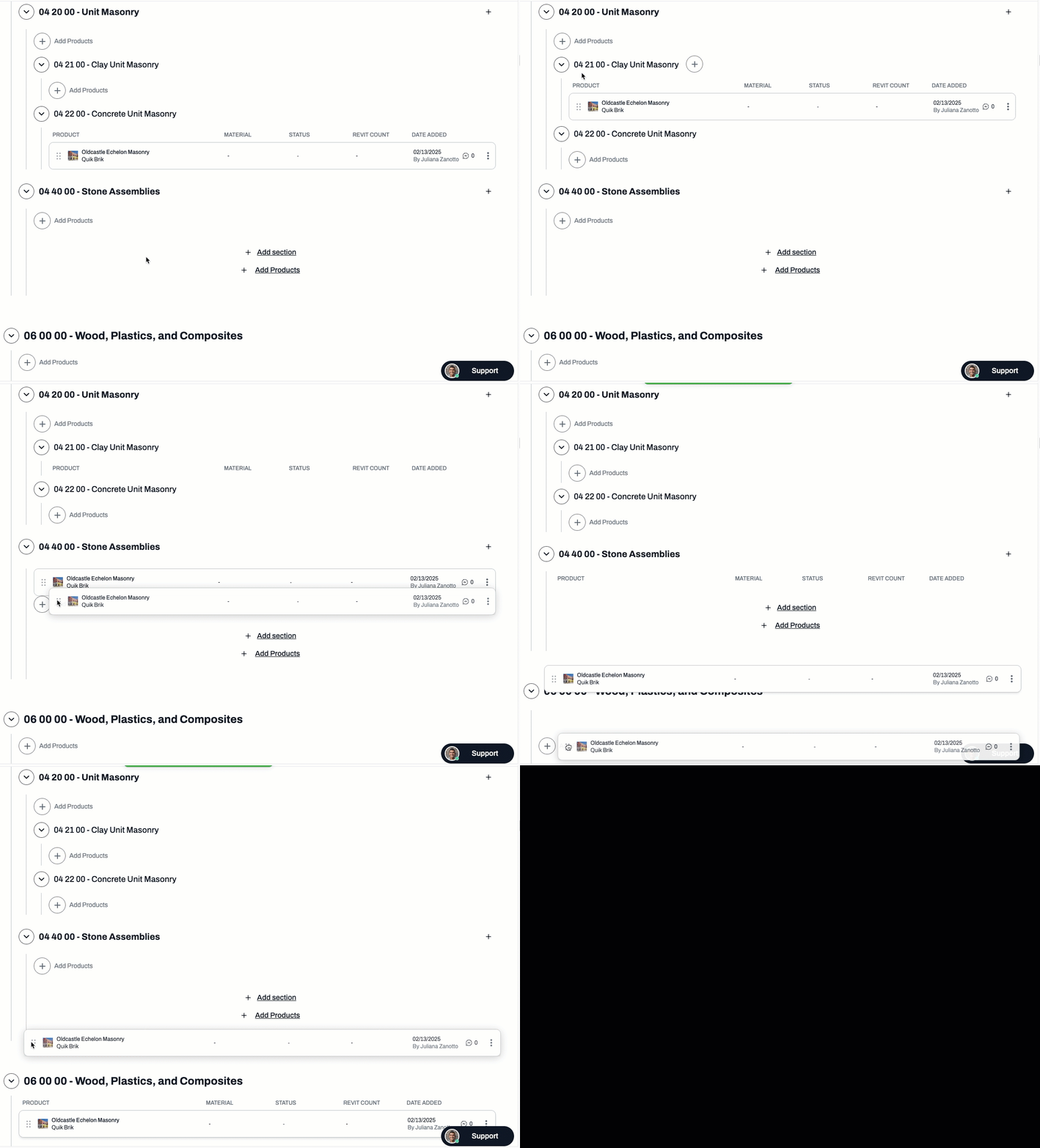
This method is quite simple: click on the six dots to the left of the product picture to **drag and drop** it in a different sub-section, or entirely different masterformat section
* You can also drag products to **reorder** them within the same section or sub-section.
**Note:** In both methods, the masterformat section field will automatically **change in Schedules** to match the section in SpecPlanner.
***
📚 Keep Learning 📚
## Next: **Getting Started With Schedules**
[Go to next article](https://help.acelabusa.com/en/collections/11661741-getting-started-with-schedules)
* Select **Change Masterformat Section** from the dropdown
* Choose a New Section from pre-defined Masterformat Sections
**Note:** You can move a product to a Masterformat section that isn’t currently visible in your SpecPlanner. Once moved, that section will automatically become visible.
***
### Drag and drop products to a different section
This method is quite simple: click on the six dots to the left of the product picture to **drag and drop** it in a different sub-section, or entirely different masterformat section
* You can also drag products to **reorder** them within the same section or sub-section.
**Note:** In both methods, the masterformat section field will automatically **change in Schedules** to match the section in SpecPlanner.
***
📚 Keep Learning 📚
## Next: **Getting Started With Schedules**
[Go to next article](https://help.acelabusa.com/en/collections/11661741-getting-started-with-schedules)