> ## Documentation Index
> Fetch the complete documentation index at: https://docs.acelabusa.com/llms.txt
> Use this file to discover all available pages before exploring further.
# Editing and Deleting SpecPlanner Templates
> Change the name, description and tags, or delete templates.
*Written by Armaan Shah · Updated February 10, 2026*
Renaming and deleting templates that you or your collaborators have created helps you keep your library organized and updated.
Note: Acelab Default templates cannot be edited or deleted.
## What can you do?
* **Edit Templates**:
* Modify the name and description of your templates.
* Add or remove tags, and categorize templates as needed.
* **Delete Templates**:
* Delete outdated templates to maintain an organized library.
## Who may edit or delete templates?
Access to editing or deleting templates are based on user permission levels.
| | **Firm Templates** | **User Templates** | **Acelab Templates** |
| ----------- | ------------------------------------- | ------------------------------------- | -------------------- |
| **Admin** | Rename Add/remove tag Delete template | Rename Add/remove tag Delete template | x |
| **Creator** | Rename Add/remove tag Delete template | Rename Add/remove tag Delete template | x |
| **Editor** | x | Rename Add/remove tag Delete template | x |
***
## How to Edit Templates
* If working with an empty SpecPlanner, select to **Start with Templates**
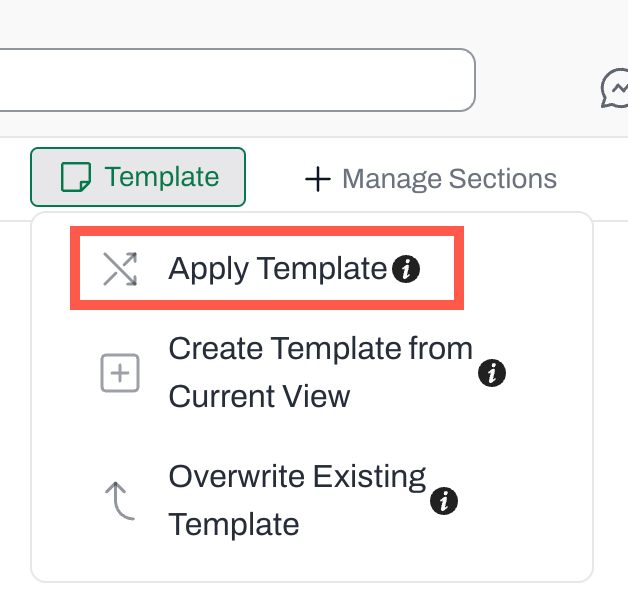
* If working with an existing template, click on **Template** and select **Apply Template**
**Could not display content**
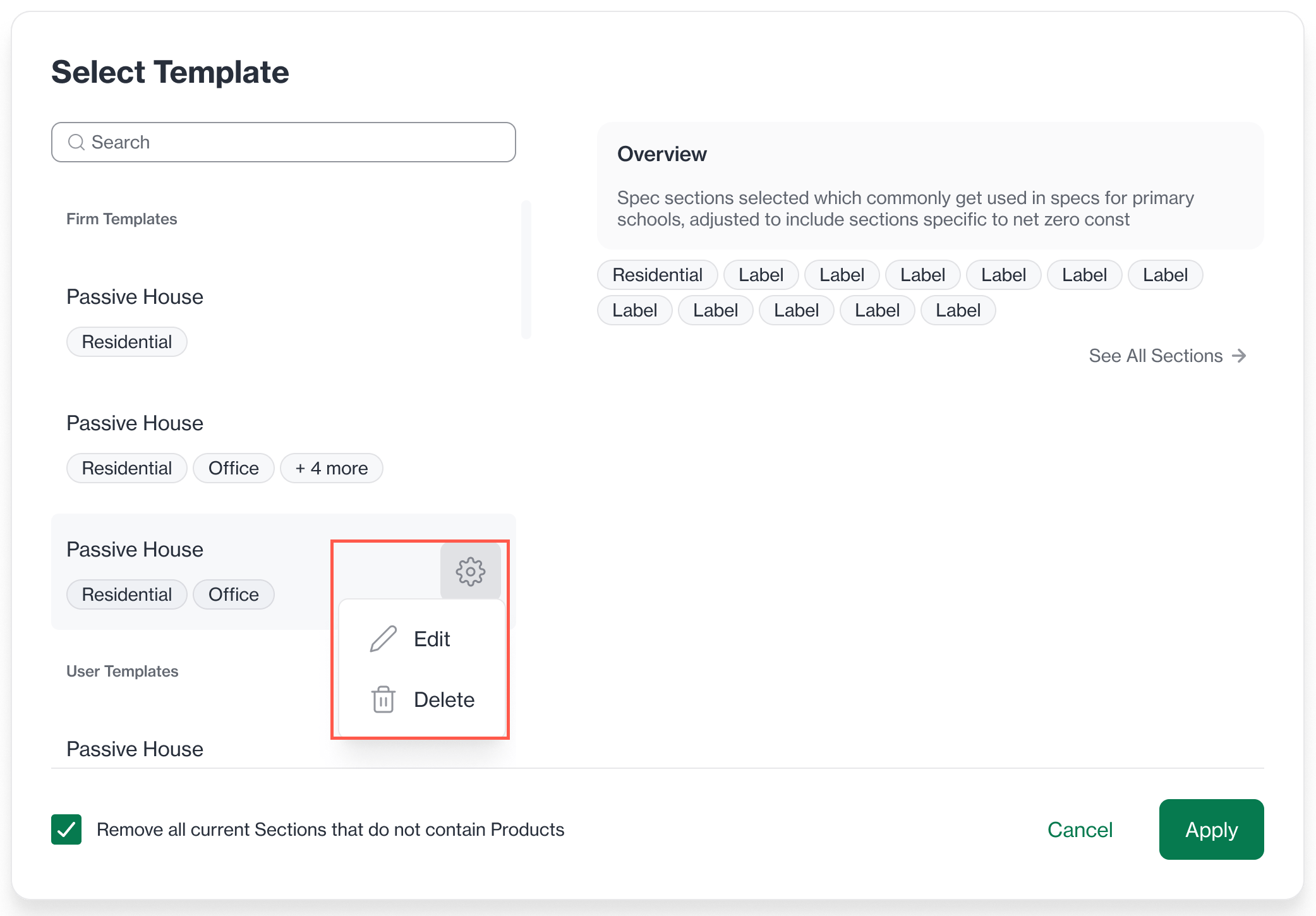
* In the **Select Template** modal, hover over the template you wish to edit.
* A **Settings icon** will appear next to the template.
#### 2. **Edit the Template**
* Select the **Edit** option.
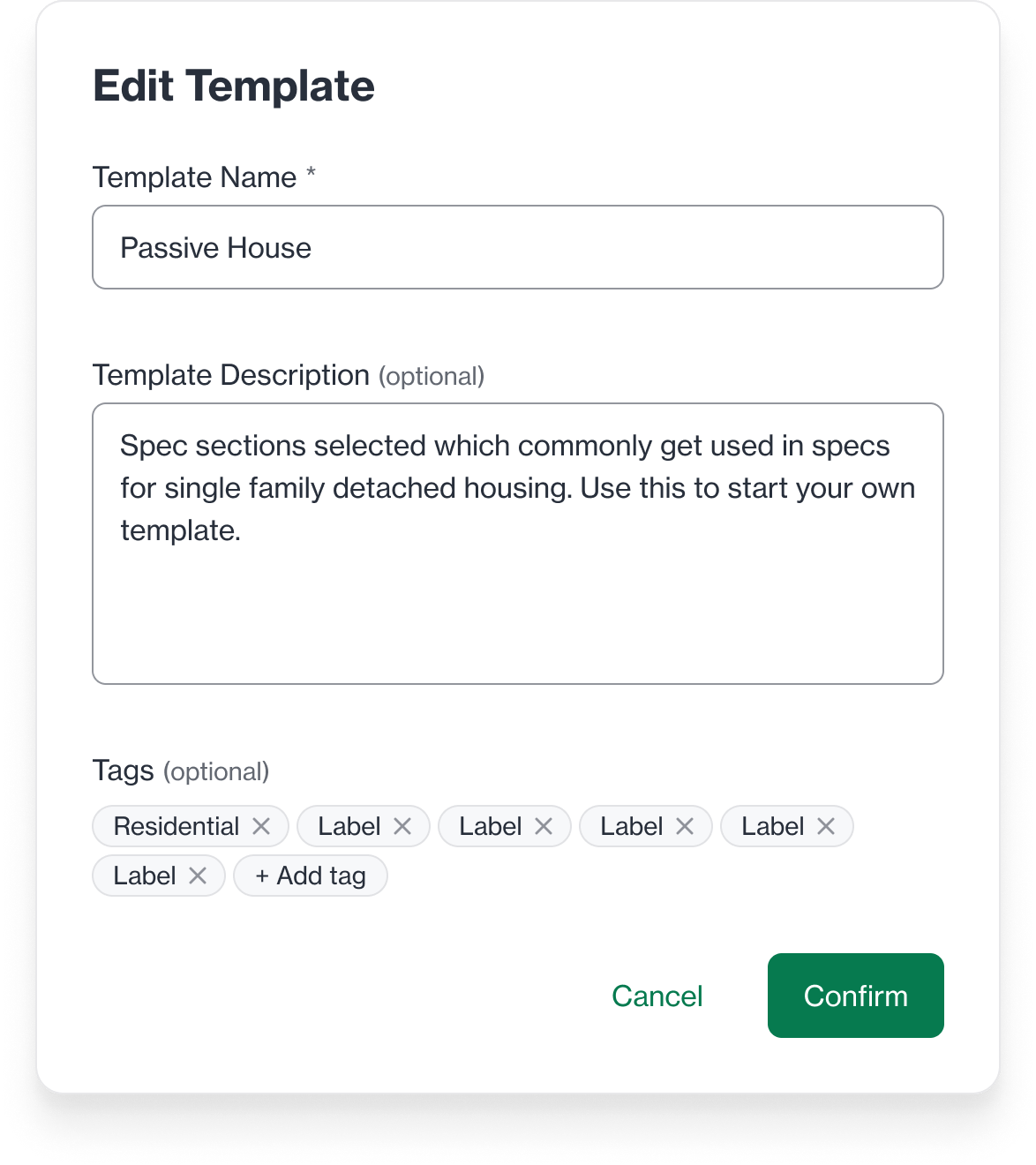 * The **Edit Template Modal** will open. You can:
* **Change the template name** (ensure it’s unique at the level you are saving).
* **Edit the template description**.
* **Add or remove tags**.
* Click **Confirm** to save your edits, or **Cancel** to discard the changes.
### 3. **Deleting a Template**
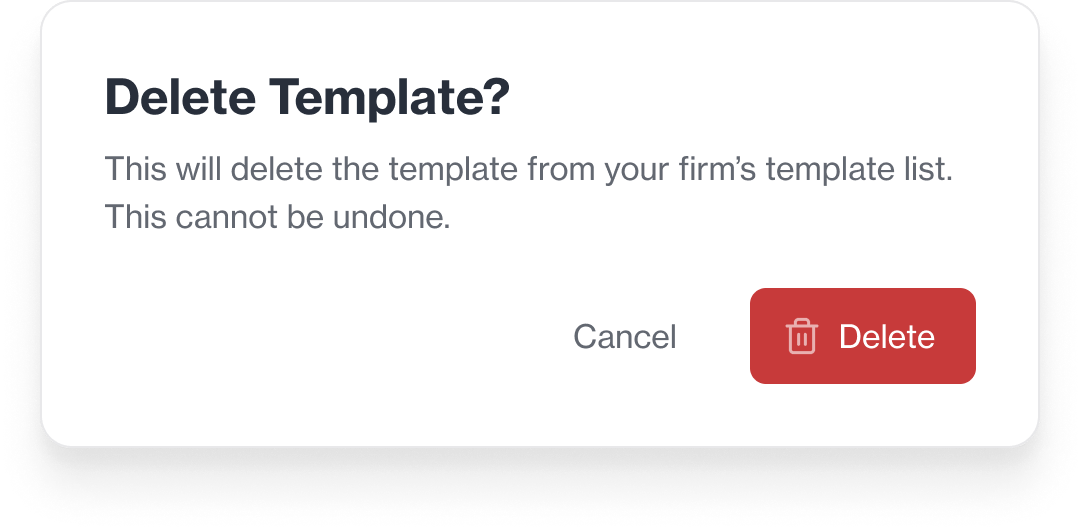
* Select the **Delete** option.
* Click **Delete** to permanently remove the template, or **Cancel** to cancel the process.
* The **Edit Template Modal** will open. You can:
* **Change the template name** (ensure it’s unique at the level you are saving).
* **Edit the template description**.
* **Add or remove tags**.
* Click **Confirm** to save your edits, or **Cancel** to discard the changes.
### 3. **Deleting a Template**
* Select the **Delete** option.
* Click **Delete** to permanently remove the template, or **Cancel** to cancel the process.