> ## Documentation Index
> Fetch the complete documentation index at: https://docs.acelabusa.com/llms.txt
> Use this file to discover all available pages before exploring further.
# Editing Default Fields
> Learn how to add, edit and select options in Default Fields in Schedules.
*Written by Patricia Causey · Updated March 20, 2026*
Default fields are automatically populated with information from Acelab's database. While you cannot to edit Text or Attachment field types, you are able to add custom options to **List and Number** field types.
You can edit the Masterformat section field. For more info, check out [Changing Masterformat Section](/help-center/working-on-projects/changing-masterformat-section).
***
## What You Need to Know
### User Permissions
* Only **Admins**, **Creators**, and **Editors** of the Project can edit Default Fields.
### Types of Fields
* Only **Default Fields** in List and Number formats can be edited.
* Only fields with information on **Acelab Products** (not Placeholders) can be edited.
***
## How to Edit Default Fields
### Adding and Removing Options
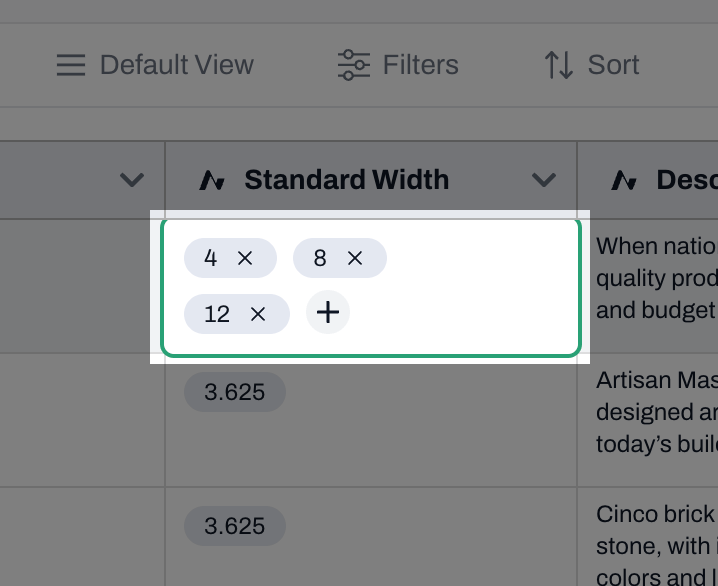
1. Click on cell you wish to edit
2. To add a new option:
* Click the **'+'** sign
* Type in your desired option and click **'Add Option'**.
3. To remove an existing option:
* Click the **'x'** sign next to the option you wish to remove
* Note: Options are not permanently deleted. They will be removed from the cell, but will still be listed as an option to be added
### Editing Options
Note: You can only Edit options that you have added. You cannot edit default options from Acelab's database.
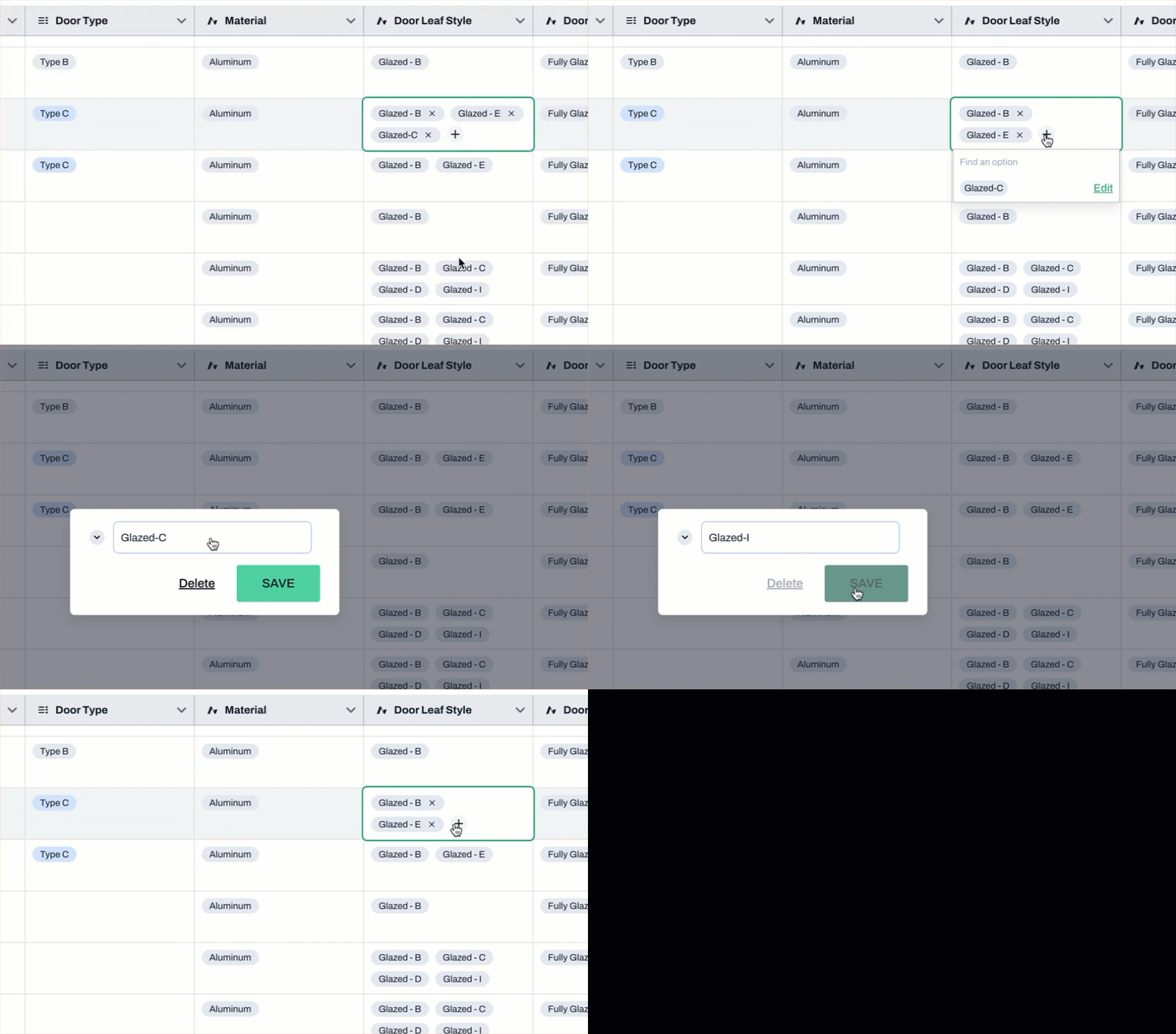
1. Click on the cell with the option you wish to edit.
2. If the option you wish to edit is included in the cell, you must removed it first by clicking on the 'x' sign.
3. Click the **'+'** sign
4. You will see a list of options you have added.
* Click **'Edit'** next to the option you wish to edit
* **Rename** the option and click **'Save'**.
OR
* **Deleting Options**:
* You can delete an option only if it is not in use in this project or any other projects.
* If an option is in use, a pop-up error will display a list of projects where the option is active.
* If the option is free of usage, you can click on Delete.
***
📚 Keep Learning 📚
## Next: **Changing Masterformat Section**
[Go to next article](/help-center/working-on-projects/changing-masterformat-section)