> ## Documentation Index
> Fetch the complete documentation index at: https://docs.acelabusa.com/llms.txt
> Use this file to discover all available pages before exploring further.
# Explore Products: Add Products to Schedules
> Search the Acelab catalog — all without leaving your schedule
*Written by Patricia Causey · Updated March 18, 2026*
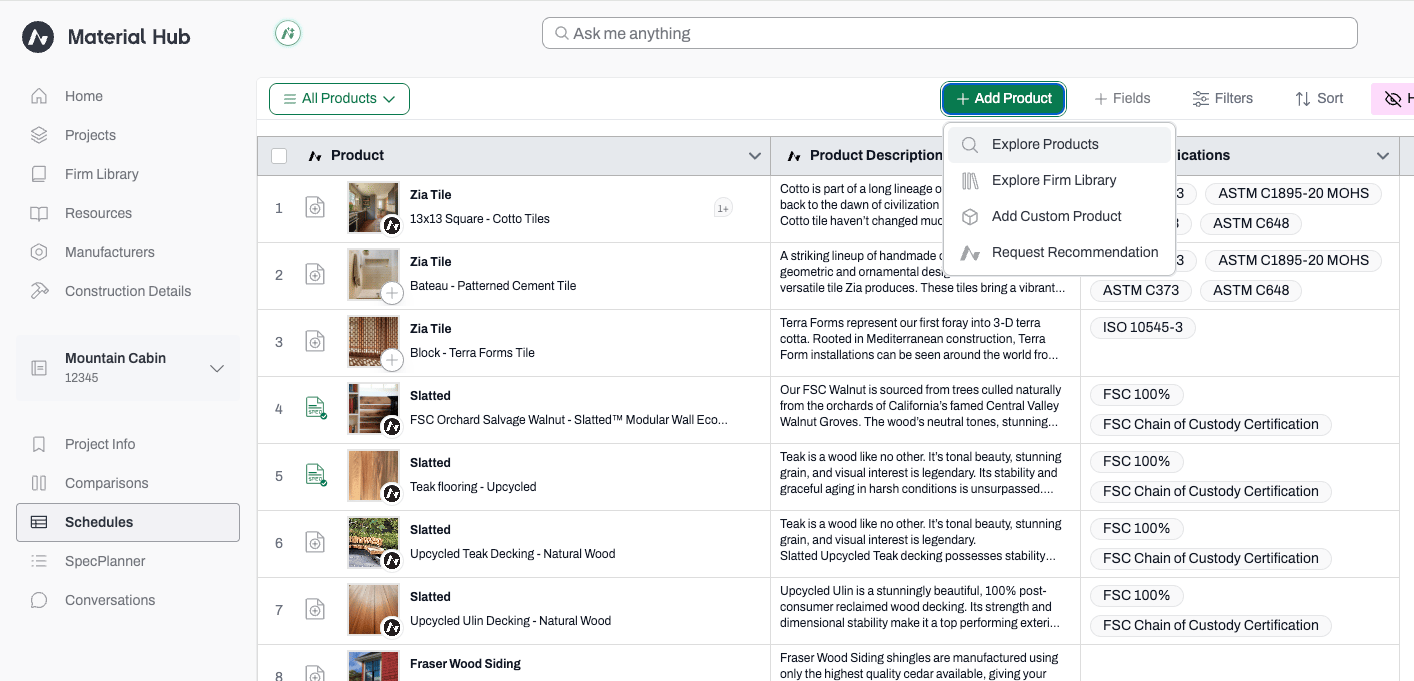
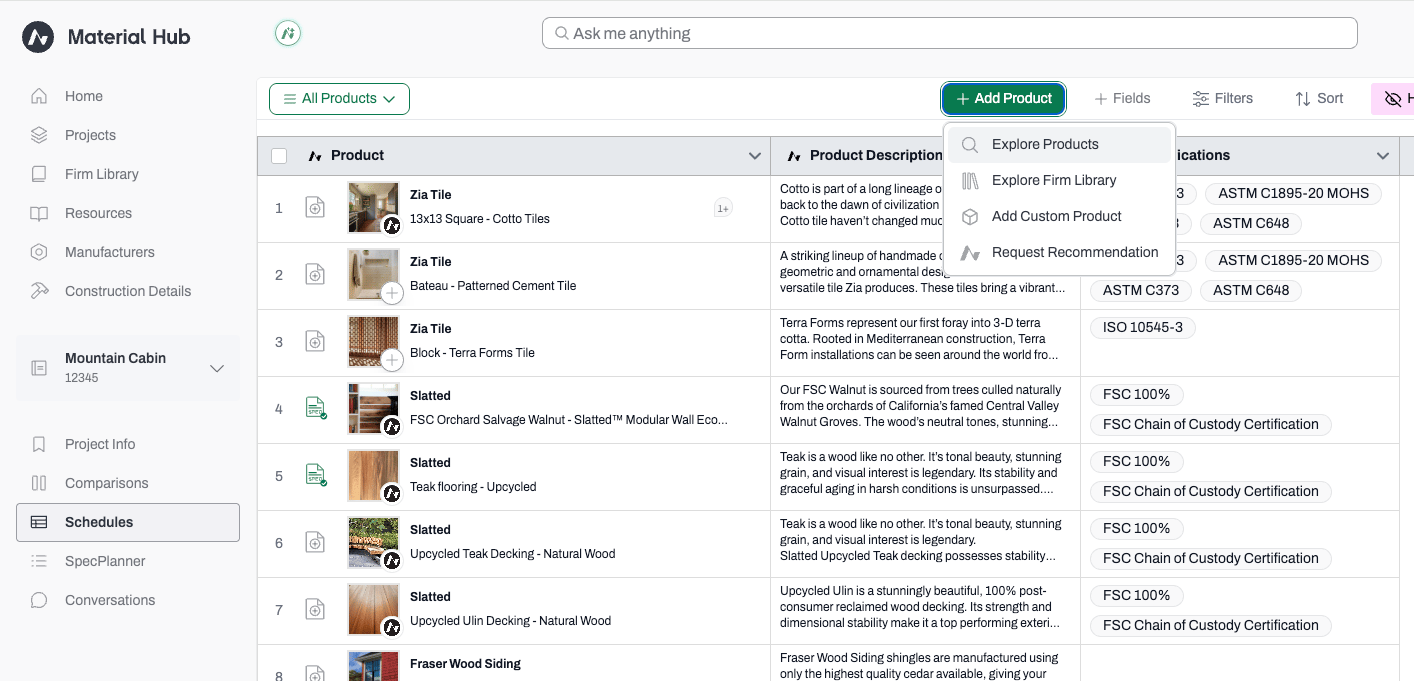
The **Add Product** button in Schedules gives you four ways to add products without navigating away from your schedule. The primary option is **Explore Products** — a full keyword search of the Acelab global catalog where you can search, filter, and add multiple products at once.
 You can also browse your firm's curated **[Firm Library](/help-center/working-on-projects/adding-products-to-schedules-from-your-firm-library)**, add a **[Custom Product](/help-center/working-on-projects/adding-custom-products-to-your-schedules)** for items not yet in the catalog, or **[Request a Recommendation](/help-center/searching-for-products/requesting-expert-product-recommendations)** from an Acelab expert. This article covers **Explore Products** what to expect after products are added.
***
### Before You Begin
* You must be a project **Admin**, **Creator**, or **Editor** to add products to a schedule.
* Products added to a schedule are automatically available to add to SpecPlanner.
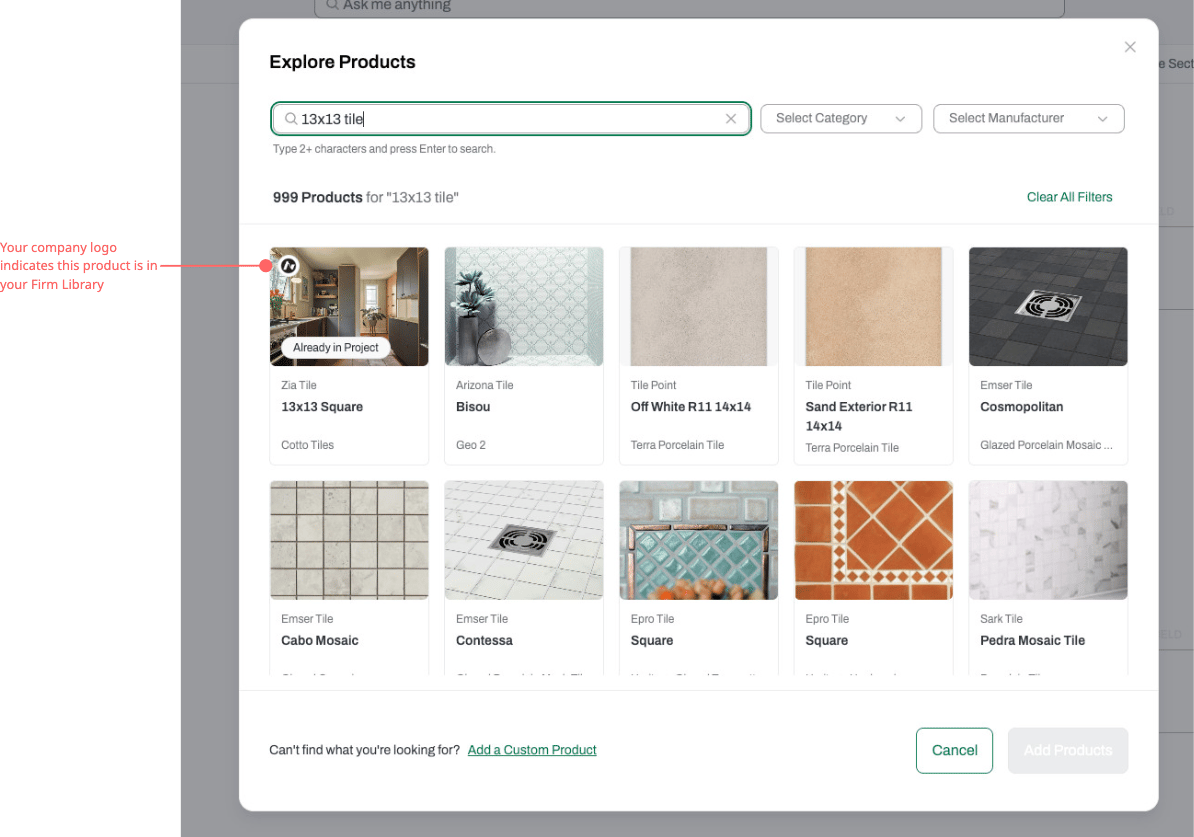
* If a product is already in your schedule anywhere in the project (even in a view you're not currently looking at), it will be marked as **Already in schedule** in search results so you don't accidentally add duplicates.
***
### How to Open Add Product
There are two ways to open the Add Product menu:
* Click the green **+ Add Product** button at the top of the schedule.
You can also browse your firm's curated **[Firm Library](/help-center/working-on-projects/adding-products-to-schedules-from-your-firm-library)**, add a **[Custom Product](/help-center/working-on-projects/adding-custom-products-to-your-schedules)** for items not yet in the catalog, or **[Request a Recommendation](/help-center/searching-for-products/requesting-expert-product-recommendations)** from an Acelab expert. This article covers **Explore Products** what to expect after products are added.
***
### Before You Begin
* You must be a project **Admin**, **Creator**, or **Editor** to add products to a schedule.
* Products added to a schedule are automatically available to add to SpecPlanner.
* If a product is already in your schedule anywhere in the project (even in a view you're not currently looking at), it will be marked as **Already in schedule** in search results so you don't accidentally add duplicates.
***
### How to Open Add Product
There are two ways to open the Add Product menu:
* Click the green **+ Add Product** button at the top of the schedule.
 * Right-click any row in the schedule and select **+ Add New Product**.
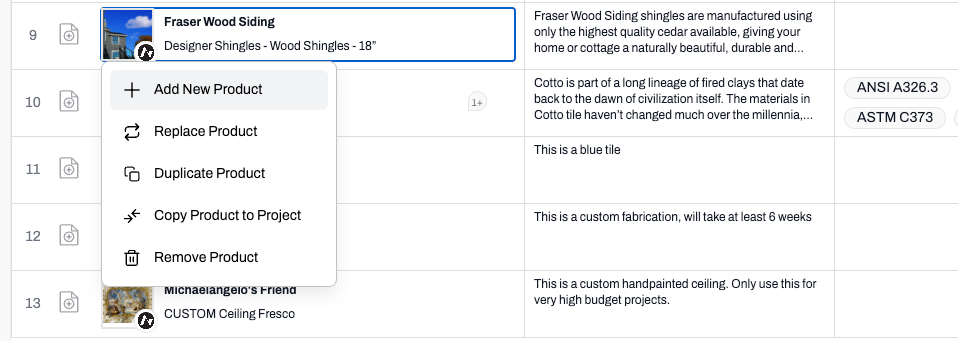 Both open the same menu. The only difference is that the **Request Recommendation** option is not available from the right-click menu.
***
### Add Product Options
| **Option** | **What it does** |
| -------------------------- | ------------------------------------------------------------------------------ |
| **Explore Products** | Search the full Acelab global catalog by keyword, category, and manufacturer |
| **Explore Firm Library** | Browse products your firm has saved to the Firm Library |
| **Add Custom Product** | Add a product that isn't in the Acelab catalog |
| **Request Recommendation** | Ask an Acelab expert to suggest products for you *(+ Add Product button only)* |
***
## Explore Products
**Explore Products** opens the full Acelab catalog in a modal so you can search, filter, and select products without navigating away from your schedule.
### Search
1. Click **+ Add Product** > **Explore Products**.
2. The modal opens with the search input focused — start typing immediately. Type at least 2 characters and press **Enter** to run the search. Type in anything - a question, some key terms, or a manufacturer and/or product name. This search operates using our Natural Language AI technology.
Both open the same menu. The only difference is that the **Request Recommendation** option is not available from the right-click menu.
***
### Add Product Options
| **Option** | **What it does** |
| -------------------------- | ------------------------------------------------------------------------------ |
| **Explore Products** | Search the full Acelab global catalog by keyword, category, and manufacturer |
| **Explore Firm Library** | Browse products your firm has saved to the Firm Library |
| **Add Custom Product** | Add a product that isn't in the Acelab catalog |
| **Request Recommendation** | Ask an Acelab expert to suggest products for you *(+ Add Product button only)* |
***
## Explore Products
**Explore Products** opens the full Acelab catalog in a modal so you can search, filter, and select products without navigating away from your schedule.
### Search
1. Click **+ Add Product** > **Explore Products**.
2. The modal opens with the search input focused — start typing immediately. Type at least 2 characters and press **Enter** to run the search. Type in anything - a question, some key terms, or a manufacturer and/or product name. This search operates using our Natural Language AI technology.
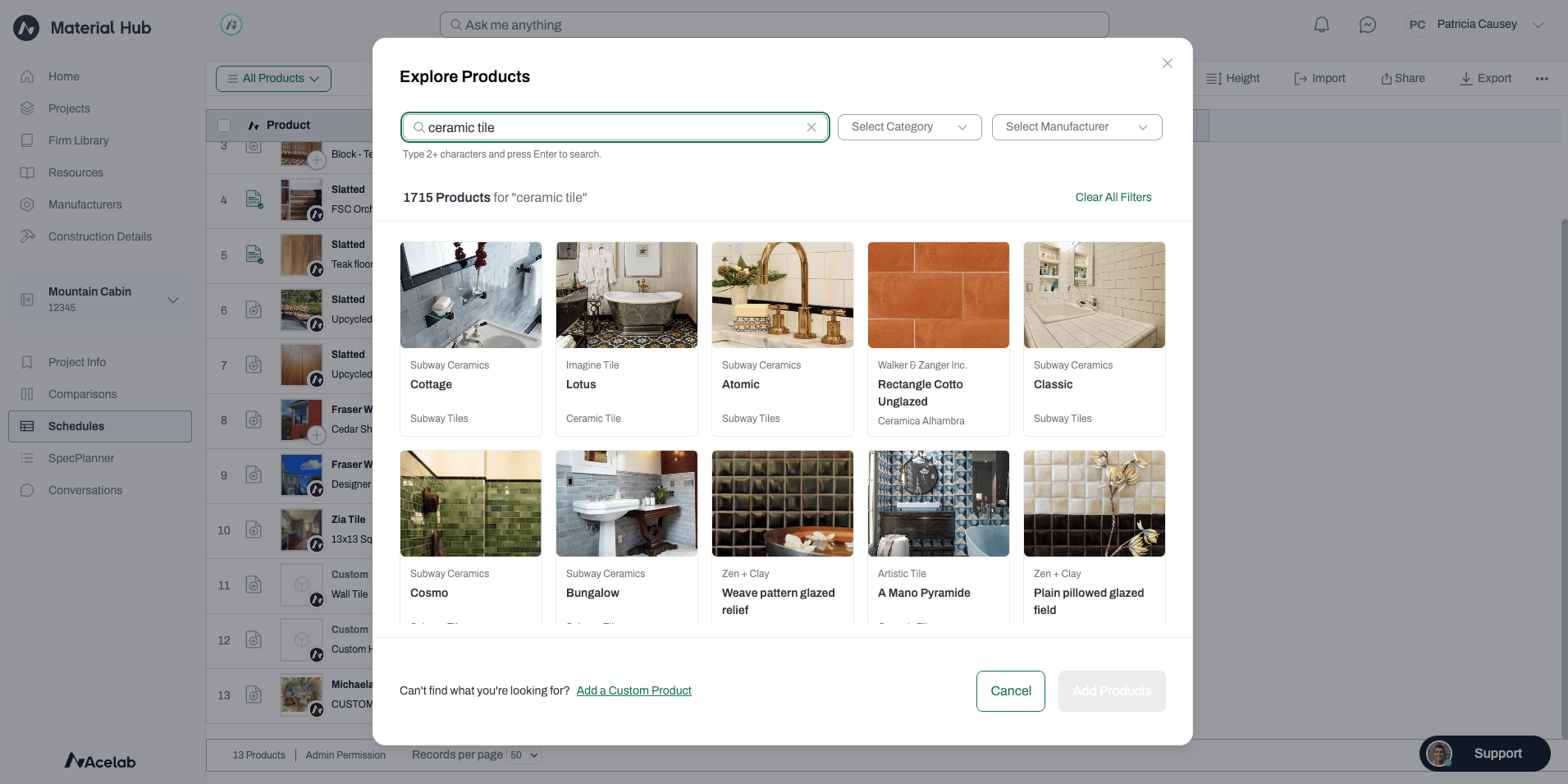 3. Results are ordered by relevance. Partial matches are supported — typing "al" can surface results containing "aluminum," "wall," "balustrade," and so on.
4. Scroll down to load more results.
### Filter Results
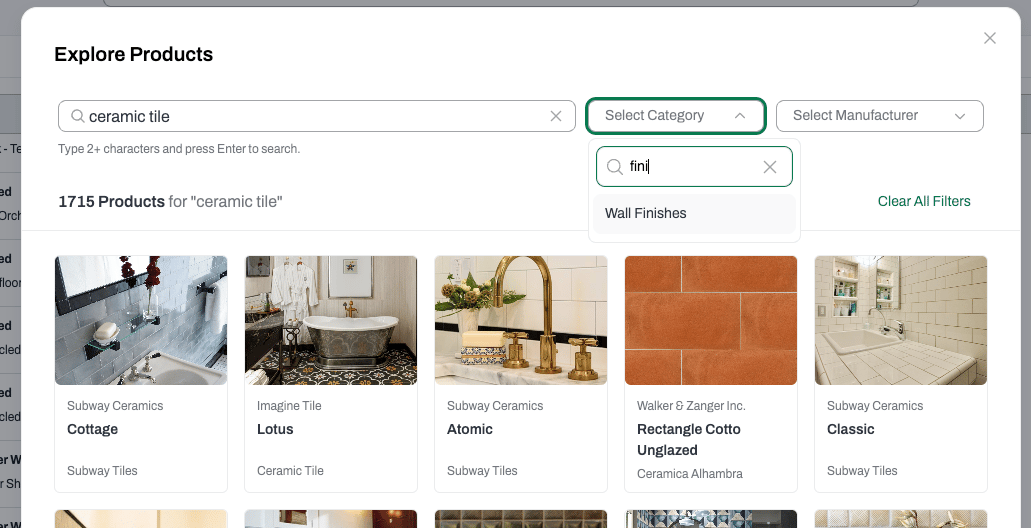
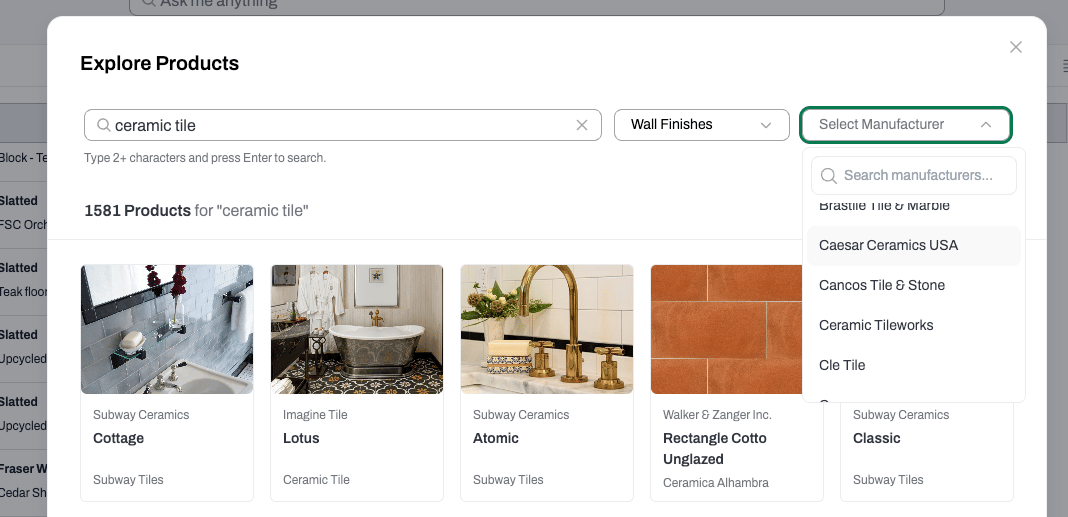
Use the **Category** and **Manufacturer** filters to narrow down results. Both filters are independent — you can apply one without the other, and both use a searchable typeahead dropdown.
Changing a filter updates results immediately. Any products you've already selected are preserved when results refresh, as long as they remain visible in the updated results.
### Select and Add Products
1. Click any product card to select it. Click again to deselect.
2. You can select multiple products at once. A running count of your selections is shown at the bottom of the modal.
3. Results are ordered by relevance. Partial matches are supported — typing "al" can surface results containing "aluminum," "wall," "balustrade," and so on.
4. Scroll down to load more results.
### Filter Results
Use the **Category** and **Manufacturer** filters to narrow down results. Both filters are independent — you can apply one without the other, and both use a searchable typeahead dropdown.
Changing a filter updates results immediately. Any products you've already selected are preserved when results refresh, as long as they remain visible in the updated results.
### Select and Add Products
1. Click any product card to select it. Click again to deselect.
2. You can select multiple products at once. A running count of your selections is shown at the bottom of the modal.
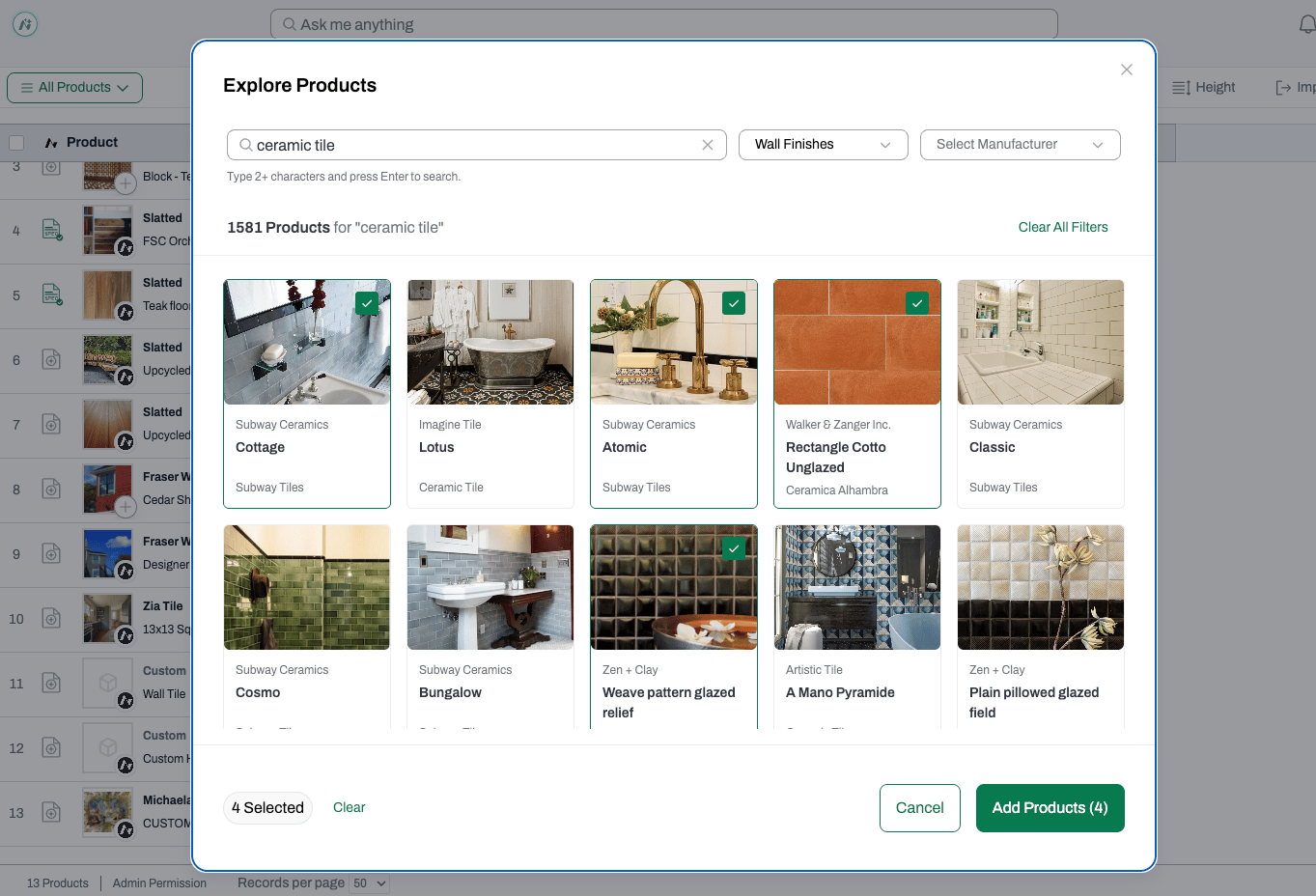 3. Use the **Clear** button to deselect everything and start over (this does not reset your search or filters).
4. When you're ready, click **Add Products**.
**Where products are added:**
* If your schedule view has no active sort, new products appear at the **top of the view**.
* If your schedule view has an active sort applied, new products are inserted in the position determined by that sort.
After a successful add, the modal closes and a confirmation toast appears.
### Product Card Indicators
Each result card shows the product image, name, manufacturer, and any of the following indicators where applicable:
| **Indicator** | **Meaning** |
| ----------------------- | ----------------------------------------------------------------------- |
| **Firm Library badge** | This product is saved in your firm's Firm Library |
| **Already in schedule** | This product is already in your project schedule, you can add it again. |
3. Use the **Clear** button to deselect everything and start over (this does not reset your search or filters).
4. When you're ready, click **Add Products**.
**Where products are added:**
* If your schedule view has no active sort, new products appear at the **top of the view**.
* If your schedule view has an active sort applied, new products are inserted in the position determined by that sort.
After a successful add, the modal closes and a confirmation toast appears.
### Product Card Indicators
Each result card shows the product image, name, manufacturer, and any of the following indicators where applicable:
| **Indicator** | **Meaning** |
| ----------------------- | ----------------------------------------------------------------------- |
| **Firm Library badge** | This product is saved in your firm's Firm Library |
| **Already in schedule** | This product is already in your project schedule, you can add it again. |