> ## Documentation Index
> Fetch the complete documentation index at: https://docs.acelabusa.com/llms.txt
> Use this file to discover all available pages before exploring further.
# Exporting your SpecPlanner
> Learn how to export your specifications to a Word or Text file.
*Written by Armaan Shah · Updated March 3, 2026*
Once you are done adding products to SpecPlanner, you have the option to export your specifications as a Word (.doc) or Text (.txt) file.
## How to Export Your Specifications
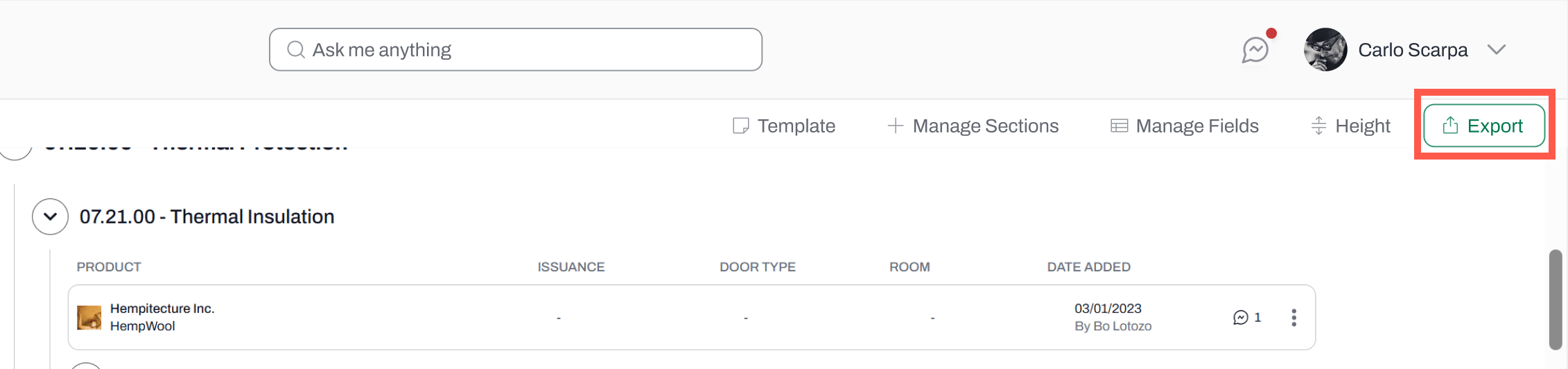
* Click on the **Export** button and select:
* Export as .doc
or
* Export as .txt
 * The exported file will include:
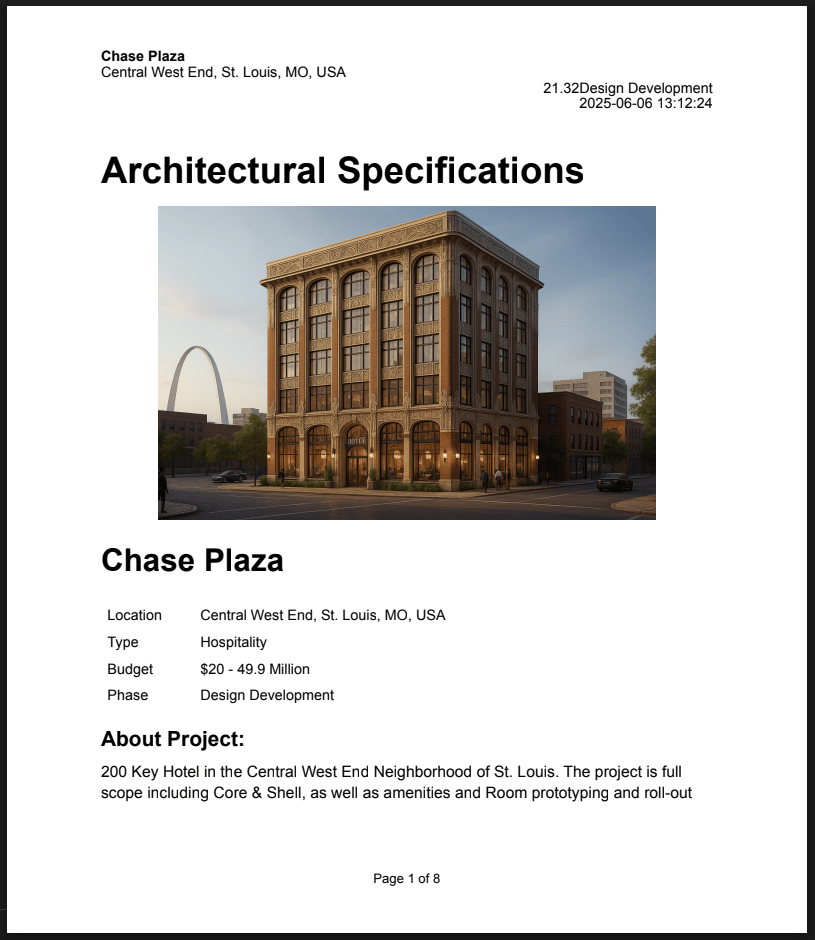
* A **cover page** containing project information (e.g. project name, image, description)
* A **table of contents** containing all the divisions
* Only divisions with products will be included. Divisions where no products have been added will not appear.
* **All fields\*** and their data (e.g. product name and manufacturer, status, tags)
\*Product images are not included
* **Collaborator** who added the product
[Click here to see an example of an exported document.](https://drive.google.com/file/d/1ZkctqPVc7tOHRRxUH_HWykbe2c2lLzbX/view?usp=drive_link)
[
* The exported file will include:
* A **cover page** containing project information (e.g. project name, image, description)
* A **table of contents** containing all the divisions
* Only divisions with products will be included. Divisions where no products have been added will not appear.
* **All fields\*** and their data (e.g. product name and manufacturer, status, tags)
\*Product images are not included
* **Collaborator** who added the product
[Click here to see an example of an exported document.](https://drive.google.com/file/d/1ZkctqPVc7tOHRRxUH_HWykbe2c2lLzbX/view?usp=drive_link)
[ ](https://drive.google.com/file/d/1ZkctqPVc7tOHRRxUH_HWykbe2c2lLzbX/view?usp=drive_link)