> ## Documentation Index
> Fetch the complete documentation index at: https://docs.acelabusa.com/llms.txt
> Use this file to discover all available pages before exploring further.

# Height - SpecPlanner

> Learn how to optimize SpecPlanner display with different height options.

*Written by Patricia Causey · Updated March 20, 2026*

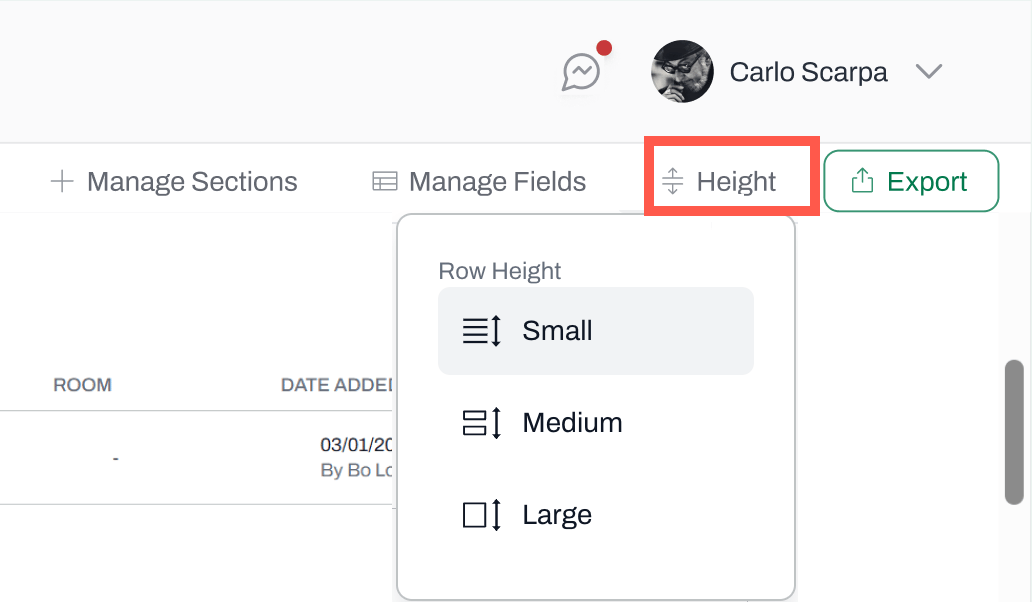
The Height option in SpecPlanner offers 3 different pre-set heights to help tailor your views based on the amount of data and screen size.

* To change the height view, navigate to **Height**, on the top-right corner.

<div className="flex justify-center">
  <img src="https://mintcdn.com/acelab/Vofo8jTME_0WN-VB/images/help-center/working-on-projects/height-specplanner/img-1.png?fit=max&auto=format&n=Vofo8jTME_0WN-VB&q=85&s=8452e3cc687f0bf441290f2a7ef4d728" alt="" width="450" data-path="images/help-center/working-on-projects/height-specplanner/img-1.png" />
</div>

* Choose a height options: Small, medium, and large.

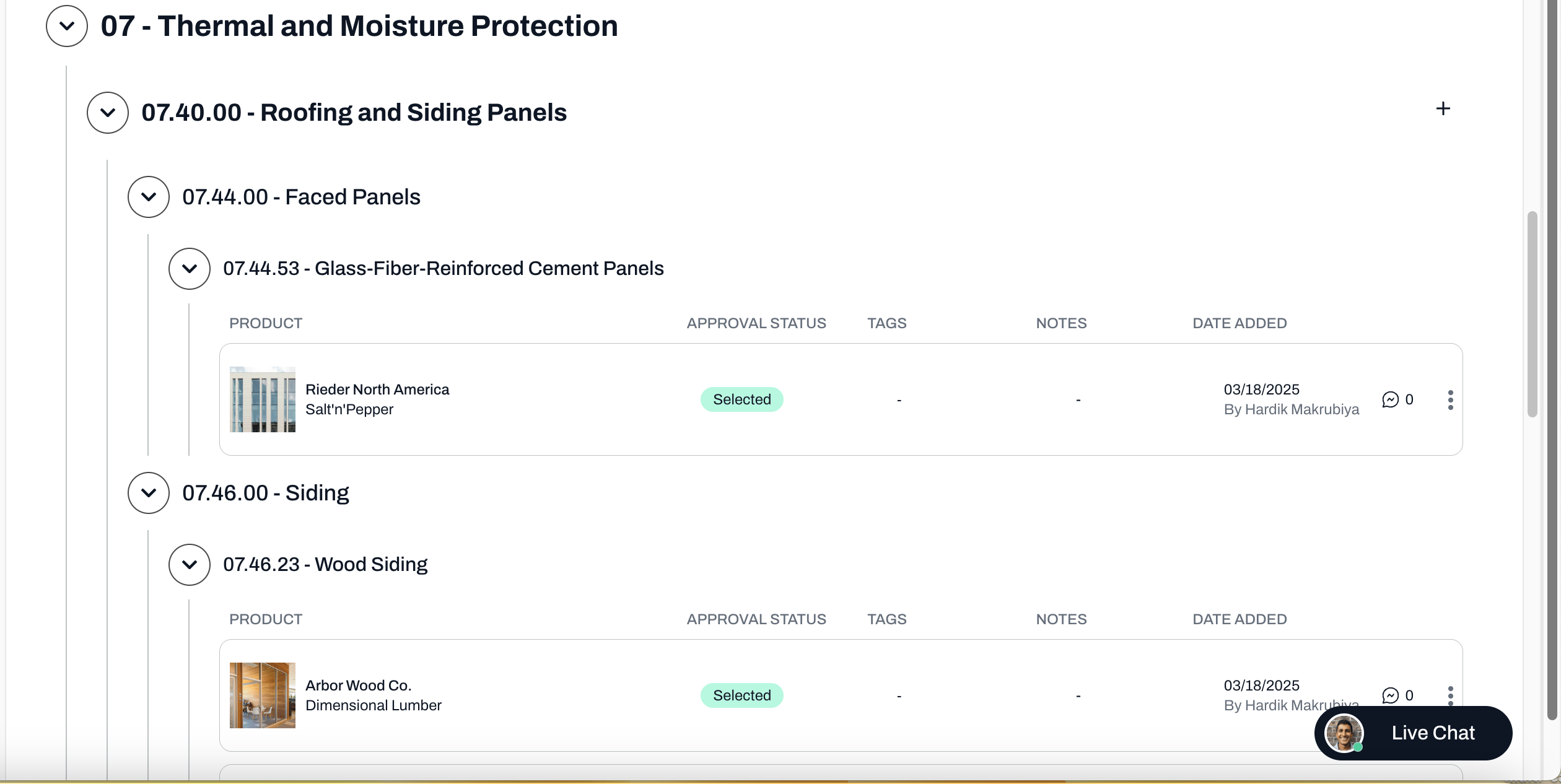
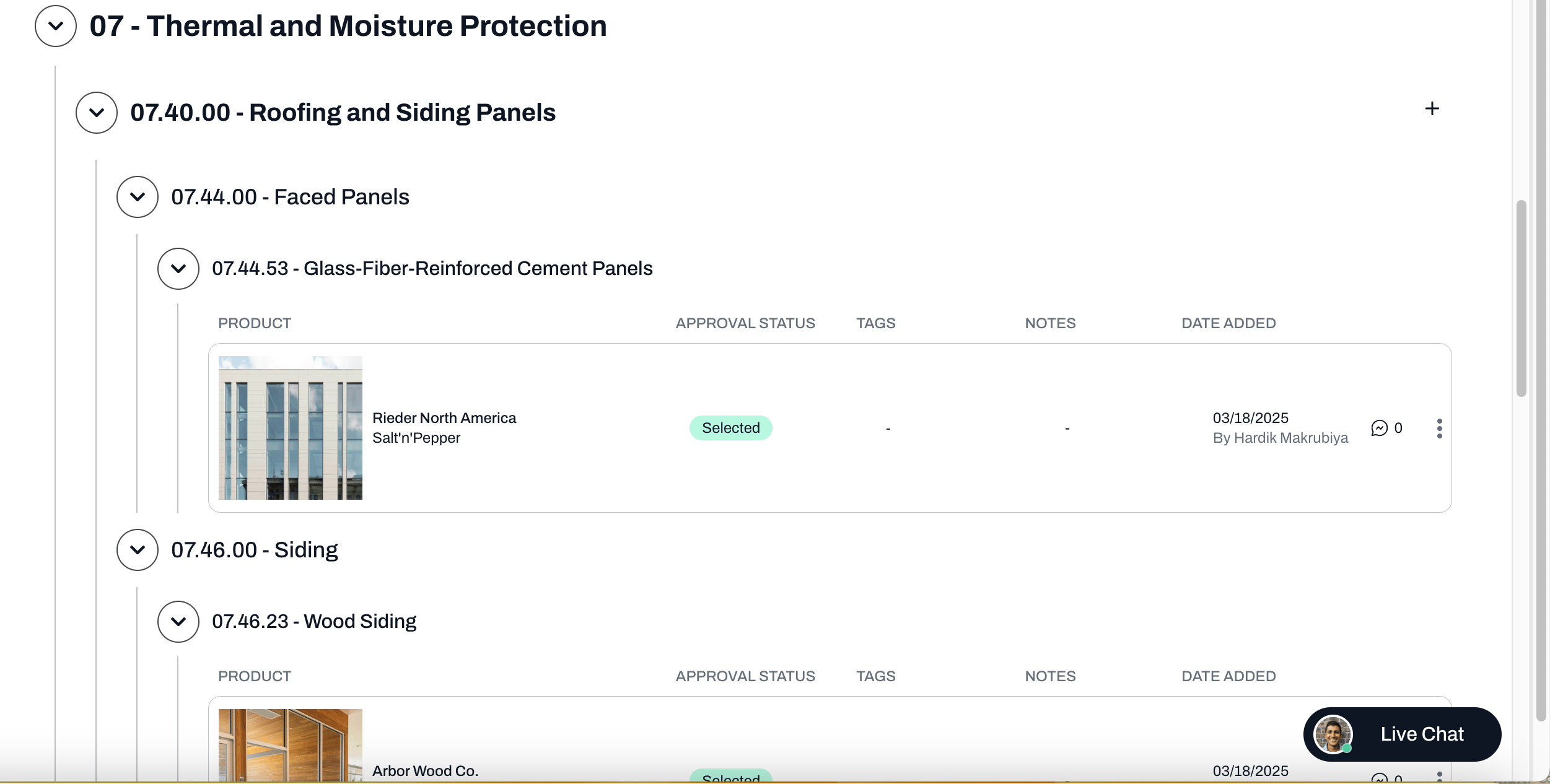
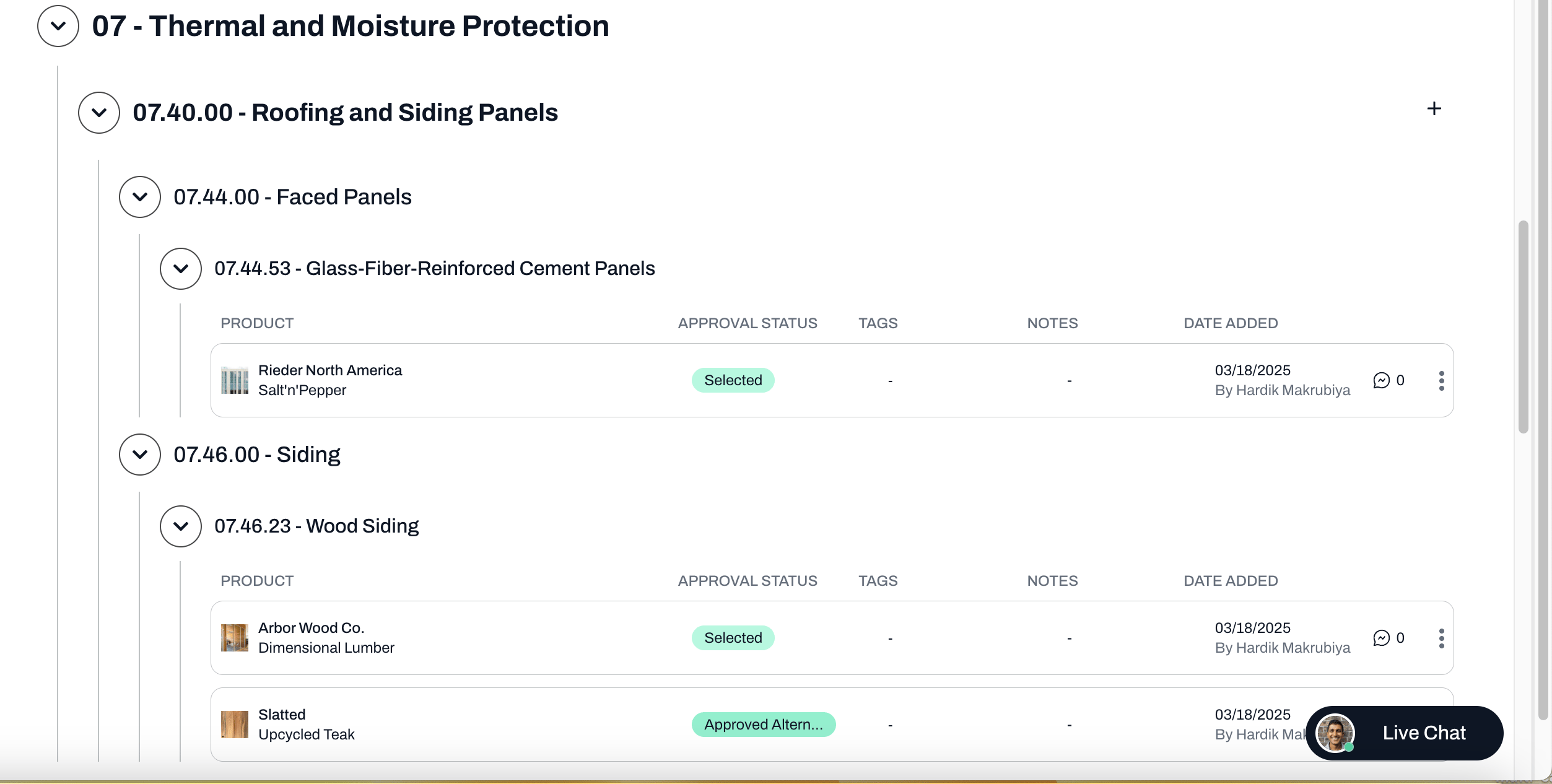
**Small** is recommended for large amounts of data, and **large** is helpful when the images are incredibly important. Please see the screenshots of each option below.

#### **Small**
<Frame>
  <img src="https://mintcdn.com/acelab/Vofo8jTME_0WN-VB/images/help-center/working-on-projects/height-specplanner/img-2.png?fit=max&auto=format&n=Vofo8jTME_0WN-VB&q=85&s=5465bba68986adccabd9daafcd814ffd" alt="" width="768" data-path="images/help-center/working-on-projects/height-specplanner/img-2.png" />
</Frame>

#### **Medium**

<Frame>
  <img src="https://mintcdn.com/acelab/Vofo8jTME_0WN-VB/images/help-center/working-on-projects/height-specplanner/img-3.png?fit=max&auto=format&n=Vofo8jTME_0WN-VB&q=85&s=a239d97cd041c42776016d4b241c97e8" alt="" width="768" data-path="images/help-center/working-on-projects/height-specplanner/img-3.png" />
</Frame>

#### **Large**

<Frame>
  <img src="https://mintcdn.com/acelab/Vofo8jTME_0WN-VB/images/help-center/working-on-projects/height-specplanner/img-4.png?fit=max&auto=format&n=Vofo8jTME_0WN-VB&q=85&s=4854da03fa9819fe73cf851c726c73ab" alt="" width="768" data-path="images/help-center/working-on-projects/height-specplanner/img-4.png" />
</Frame>

***

📚 Keep Learning 📚

## Next: **Export in SpecPlanner**

[Go to next article](/help-center/working-on-projects/exporting-your-specplanner)