> ## Documentation Index
> Fetch the complete documentation index at: https://docs.acelabusa.com/llms.txt
> Use this file to discover all available pages before exploring further.
# Hide in Schedules
> Learn how to hide columns in Schedules to customize your views
*Written by Armaan Shah · Updated February 24, 2025*
Hide any fields (columns) that you do not need to view.
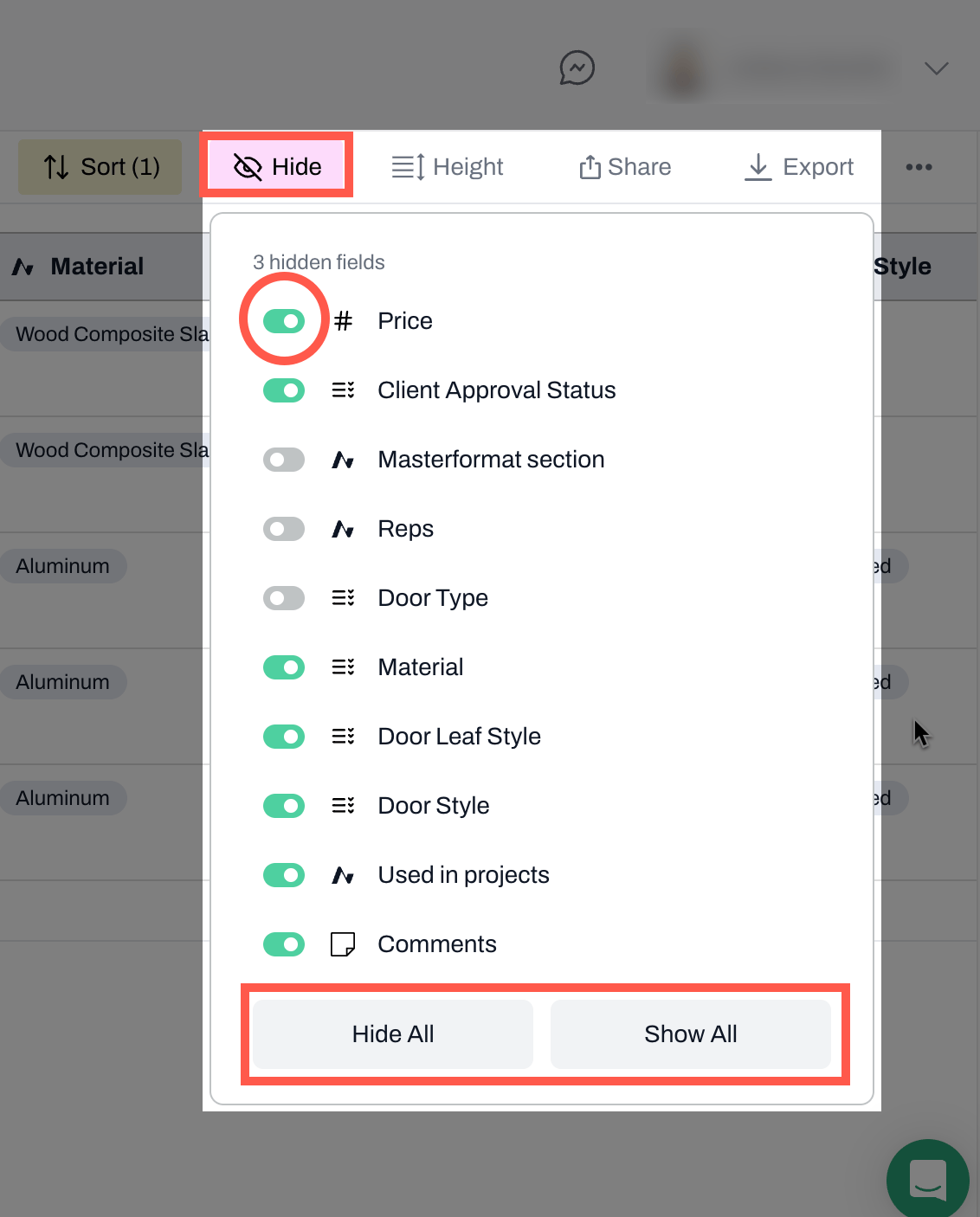
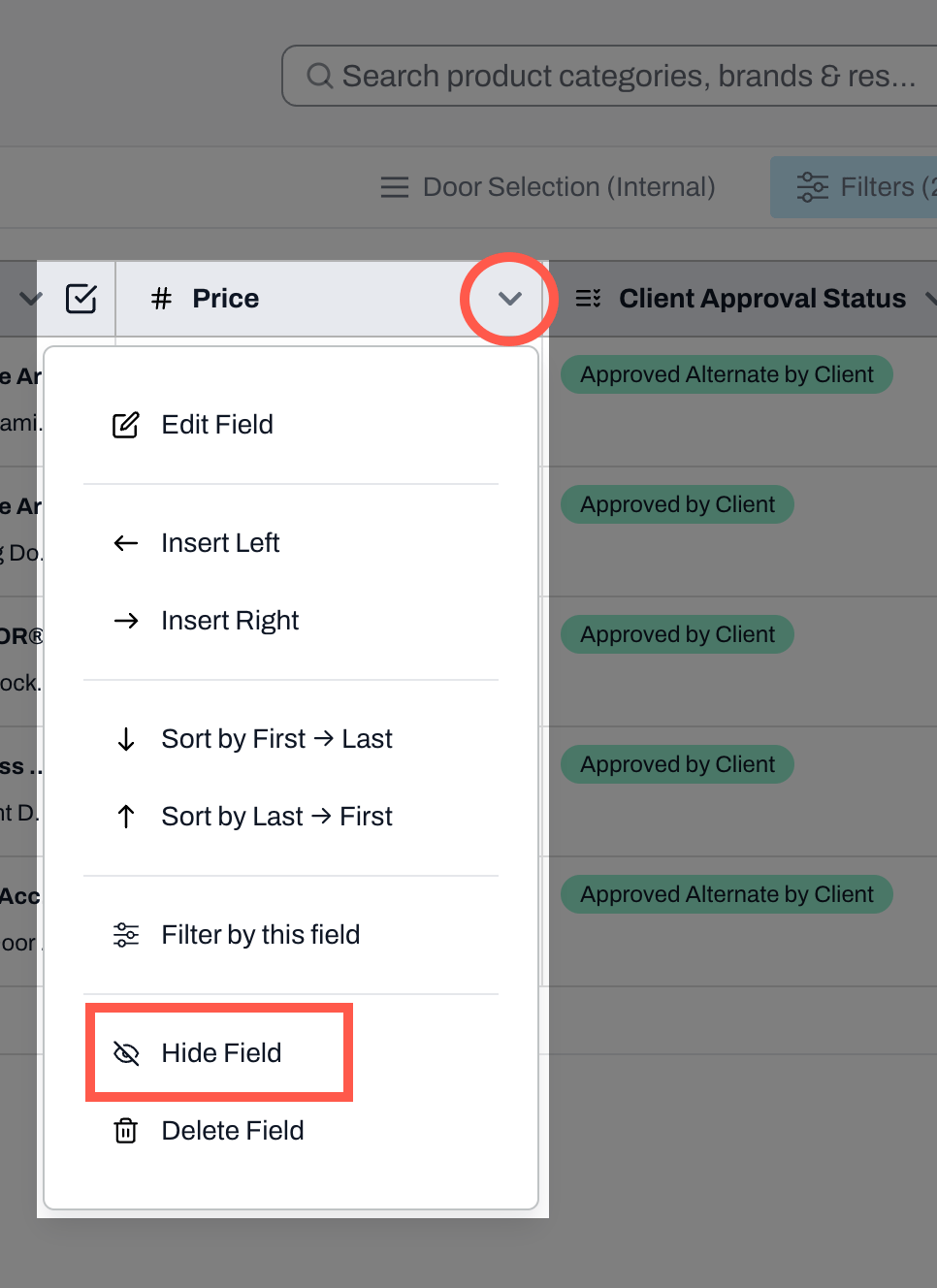
There are two ways to hide fields: from the top navigation bar (recommended when hiding or unhiding multiple fields at once) or from the drop-down menu in each column.
## How to hide fields using the button in the top bar
* Navigate to the Hide button.
* Toggle on any fields you want to show
* Toggle off any fields you do not want to hide
* To hide all or show all fields use the Hide All or Show All options at the bottom
***
## How to hide a field using the drop-down menu in each column
* Click on the down arrow in the column header you want to hide
* Select Hide Field
* To unhide fields, you must use the Hide button at the top bar
**Note:** Please note that the Product Name column cannot be hidden.
***
📚 Keep Learning 📚
## Next: Height in Schedules
[Go to next article](/help-center/working-on-projects/height-in-schedules)