> ## Documentation Index
> Fetch the complete documentation index at: https://docs.acelabusa.com/llms.txt
> Use this file to discover all available pages before exploring further.
# Managing Project Collaborators
> Learn how to add teammates and external collaborators to projects.
*Written by Patricia Causey · Updated May 19, 2026*
This article focuses on project collaborators. To manage firm collaborators, check out [Managing Company Collaborators](/help-center/getting-started/managing-company-collaborators).
Collaborating on projects ensures team members can efficiently work together and contribute effectively. Learn how to invite internal and external collaborators and manage their permissions.
**Important:** Only Project Admins can Manage Collaborators (add, remove, change their permission levels).
## **Accessing Project Collaboration Settings**
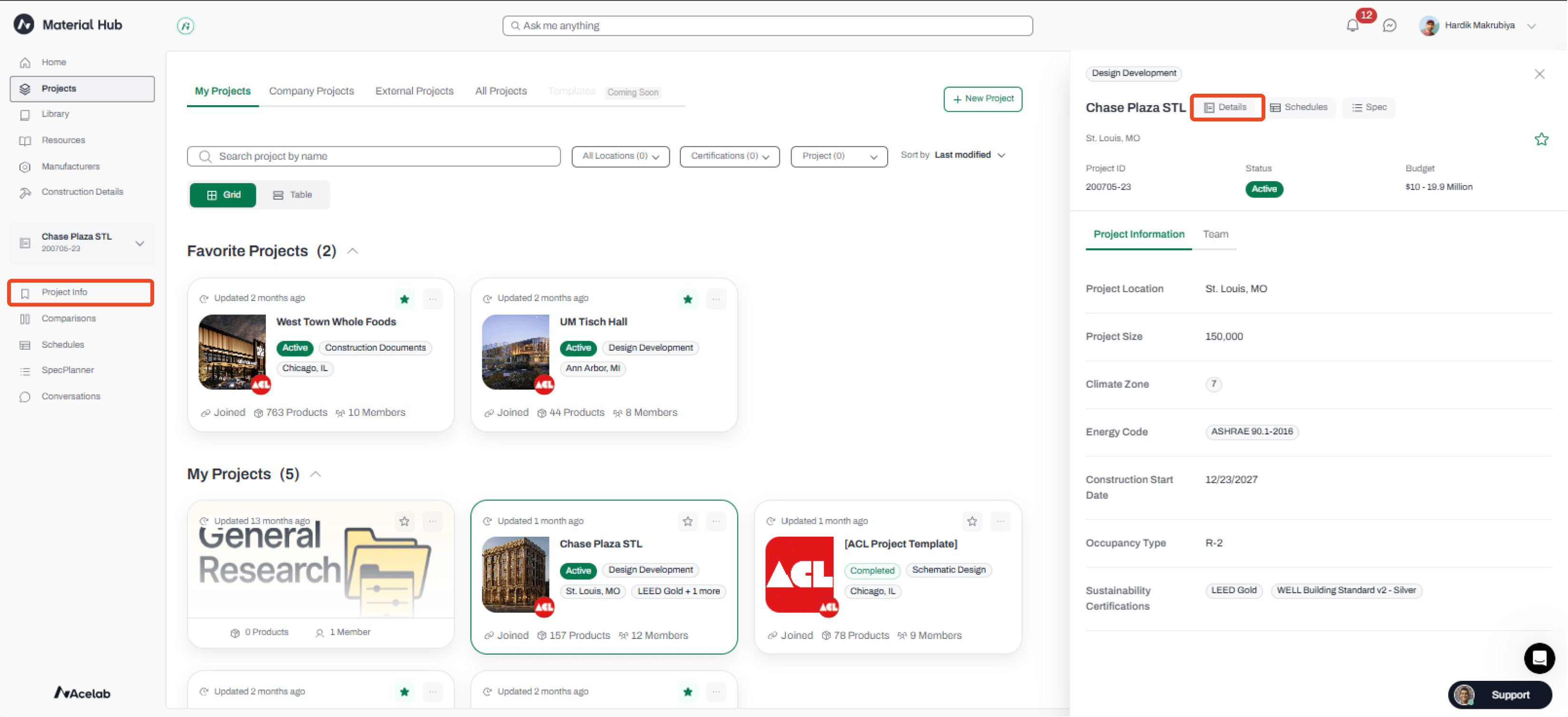
* On the Projects Overview page, select the project you want to manage — this opens the project details drawer and updates the active project in the navigation
* From the drawer, click the Details button — or select the Project Info tab from the side navigation
* This takes you to the Project Info page
* Scroll to the bottom of the screen to see the Pending Requests and Collaborators sections
 ***
## **Adding Collaborators**
* Scroll to the **Team** section
* Click Add Collaborator
***
## **Adding Collaborators**
* Scroll to the **Team** section
* Click Add Collaborator
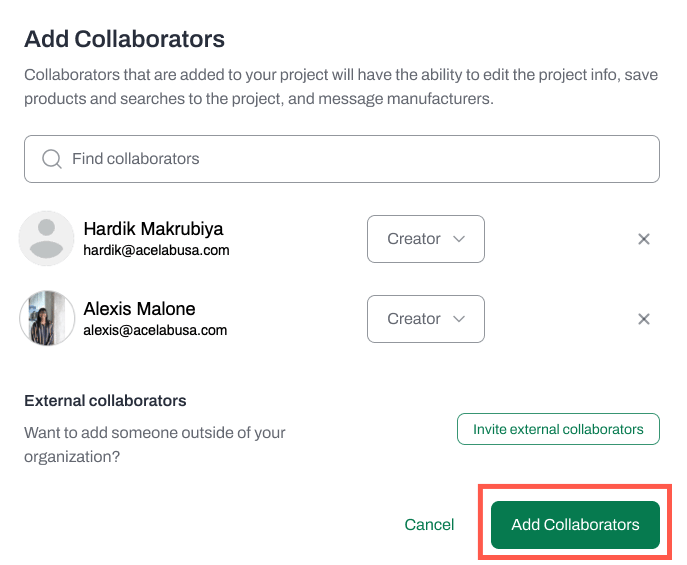
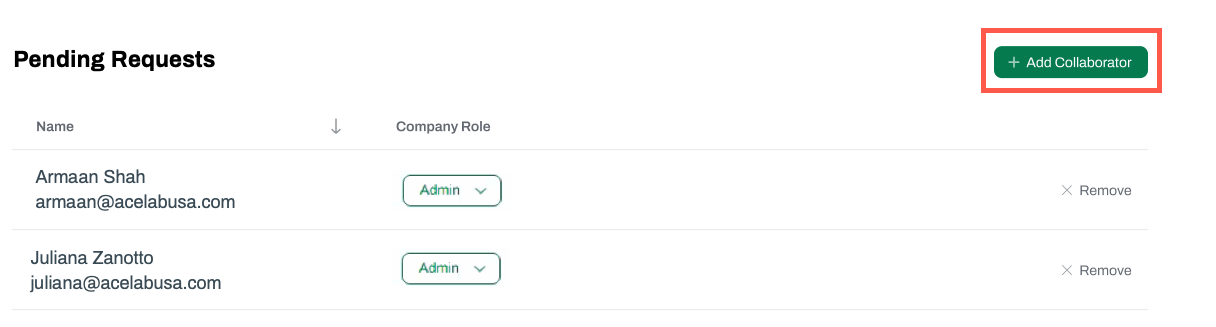 * In the pop-up you will have the option to select from a list of internal collaborators, or invite external collaborators
### To add internal collaborators
* Internal collaborators are members who have already joined your firm on Acelab
* A list of internal collaborators will be displayed
* Find the collaborator you want to add, select their permission level from the dropdown menu, and click **Add Collaborators**
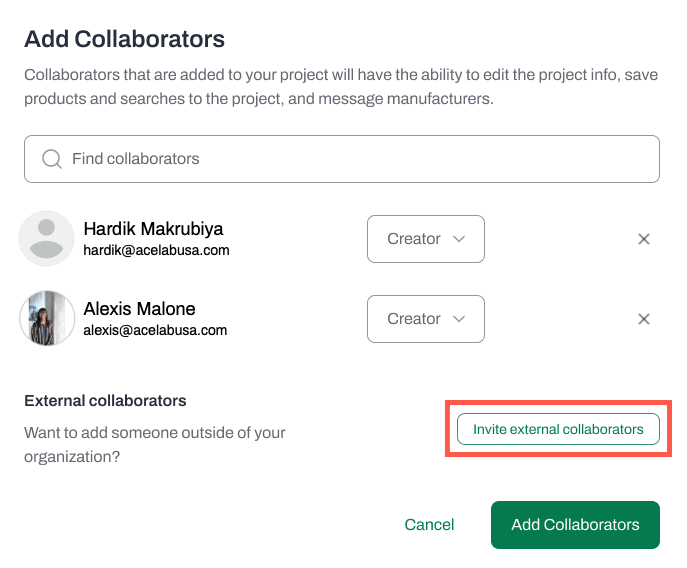
### To invite external collaborators
* You might want to invite users outside of your organization, who are not part of your firm, to join a particular project. These users might be consultants, contractors, owners, etc.
* Click on **Invite external collaborators**
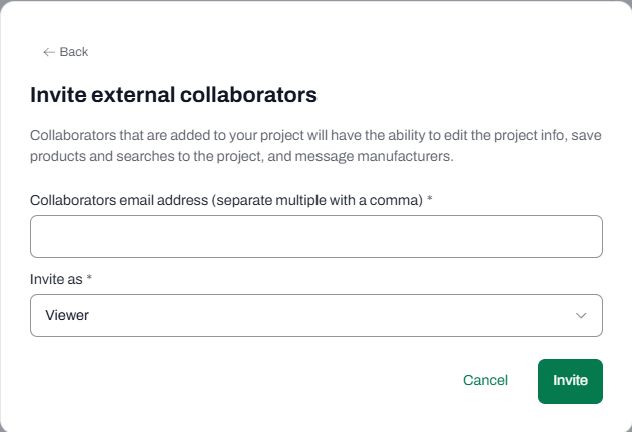
* In the pop-up, add their email addresses, separated by a comma
* Select their permission level
* Click **Invite**
* An email with an invitation to join the project will be sent
* Once users accept the invitation, they will be automatically added to the project
***
## Managing Pending Requests
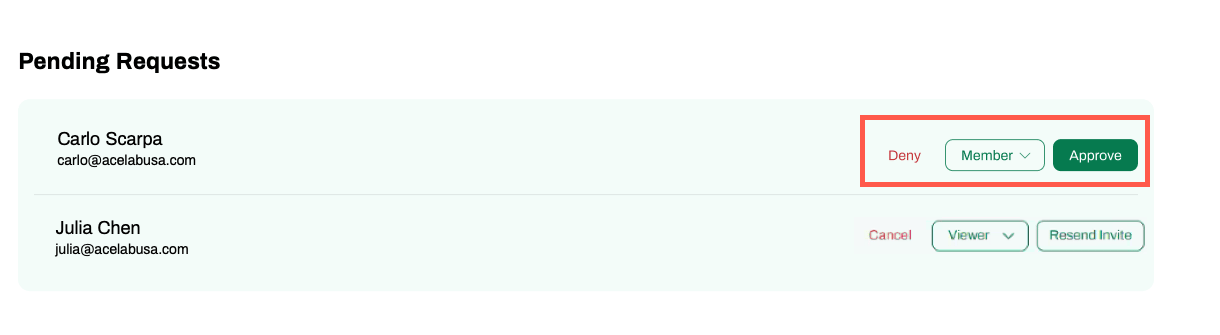
* The Pending Requests section will show:
* Internal collaborators who have requested to join the project
* External collaborators to whom an invitation was sent but not yet accepted
* Project admins have the option to: Deny or Approve requests, Resend an Invitation, or Cancel an invitation, as well as change permission levels from the dropdown menu
* In the pop-up you will have the option to select from a list of internal collaborators, or invite external collaborators
### To add internal collaborators
* Internal collaborators are members who have already joined your firm on Acelab
* A list of internal collaborators will be displayed
* Find the collaborator you want to add, select their permission level from the dropdown menu, and click **Add Collaborators**
### To invite external collaborators
* You might want to invite users outside of your organization, who are not part of your firm, to join a particular project. These users might be consultants, contractors, owners, etc.
* Click on **Invite external collaborators**
* In the pop-up, add their email addresses, separated by a comma
* Select their permission level
* Click **Invite**
* An email with an invitation to join the project will be sent
* Once users accept the invitation, they will be automatically added to the project
***
## Managing Pending Requests
* The Pending Requests section will show:
* Internal collaborators who have requested to join the project
* External collaborators to whom an invitation was sent but not yet accepted
* Project admins have the option to: Deny or Approve requests, Resend an Invitation, or Cancel an invitation, as well as change permission levels from the dropdown menu
 ***
## **Managing Project Permissions**
* Once a collaborator is added to the project, their permission level can be adjusted
* [Learn more about Permissions here](/help-center/getting-started/permissions-in-acelab)
* To update permissions, go to the **Collaborators** section, locate the collaborator, and select the desired permission level from the dropdown
***
## **Removing Collaborators**
* To remove a collaborator, go to the **Project Info** tab
* Find their name in the **Collaborators** section
* Click the **"x"** icon next to their name
**Note:** Removing a collaborator will revoke their access to the project and all associated files. Collaborators who also members of your firm (internal collaborators) will be removed from the project, but **not from the firm** - they will continue to have access to the Firm Library, General research folder, and other Project they have joined.
***
## **Managing Project Permissions**
* Once a collaborator is added to the project, their permission level can be adjusted
* [Learn more about Permissions here](/help-center/getting-started/permissions-in-acelab)
* To update permissions, go to the **Collaborators** section, locate the collaborator, and select the desired permission level from the dropdown
***
## **Removing Collaborators**
* To remove a collaborator, go to the **Project Info** tab
* Find their name in the **Collaborators** section
* Click the **"x"** icon next to their name
**Note:** Removing a collaborator will revoke their access to the project and all associated files. Collaborators who also members of your firm (internal collaborators) will be removed from the project, but **not from the firm** - they will continue to have access to the Firm Library, General research folder, and other Project they have joined.