> ## Documentation Index
> Fetch the complete documentation index at: https://docs.acelabusa.com/llms.txt
> Use this file to discover all available pages before exploring further.
# Projects Page Overview
> Navigating and organizing your projects page
*Written by Patricia Causey · Updated March 19, 2026*
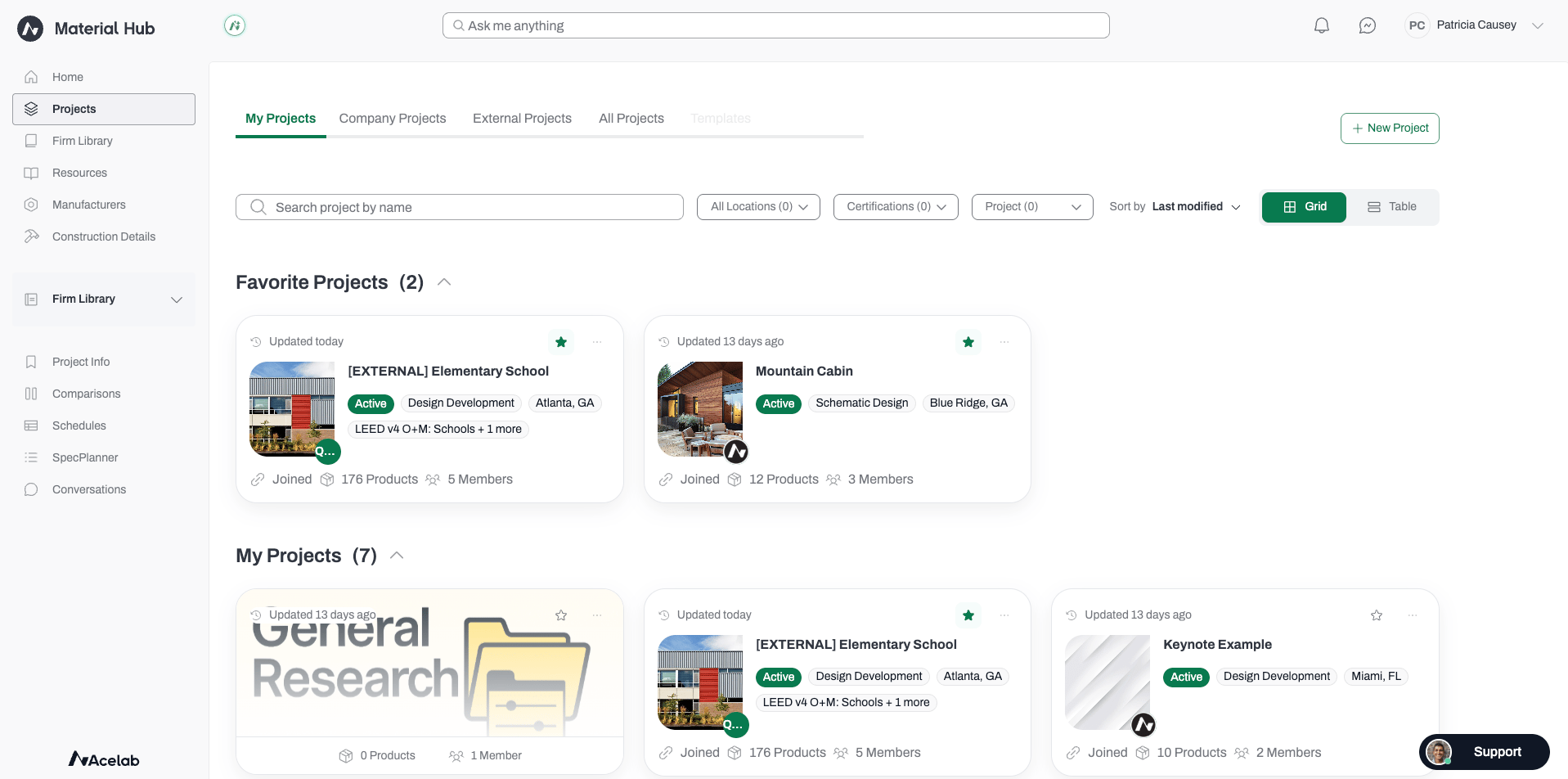
**The Projects page** is your home base for all project work in Acelab. From here, you can find and open any project, preview key details without leaving the page, and take actions like creating, copying, or editing projects — all in one place.
 ***
## Before You Begin
* You must be signed into Acelab to access the Projects page.
* Available actions (edit, delete, invite collaborators) vary by your role within each project.
***
## Navigating Your Projects
The tabs at the top of the page organize your projects into four views. Think of them as labeled drawers — each surfaces a focused slice of your work.
***
## Before You Begin
* You must be signed into Acelab to access the Projects page.
* Available actions (edit, delete, invite collaborators) vary by your role within each project.
***
## Navigating Your Projects
The tabs at the top of the page organize your projects into four views. Think of them as labeled drawers — each surfaces a focused slice of your work.
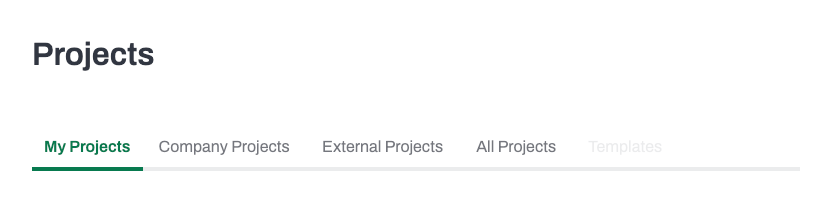 | **Tab** | **What it shows** |
| --------------------- | --------------------------------------------------------------------- |
| **My Projects** | All projects you've personally joined |
| **Company Projects** | All projects created within your firm |
| **External Projects** | Projects from other organizations you've been invited to and accepted |
| **All Projects** | A unified view combining all of the above |
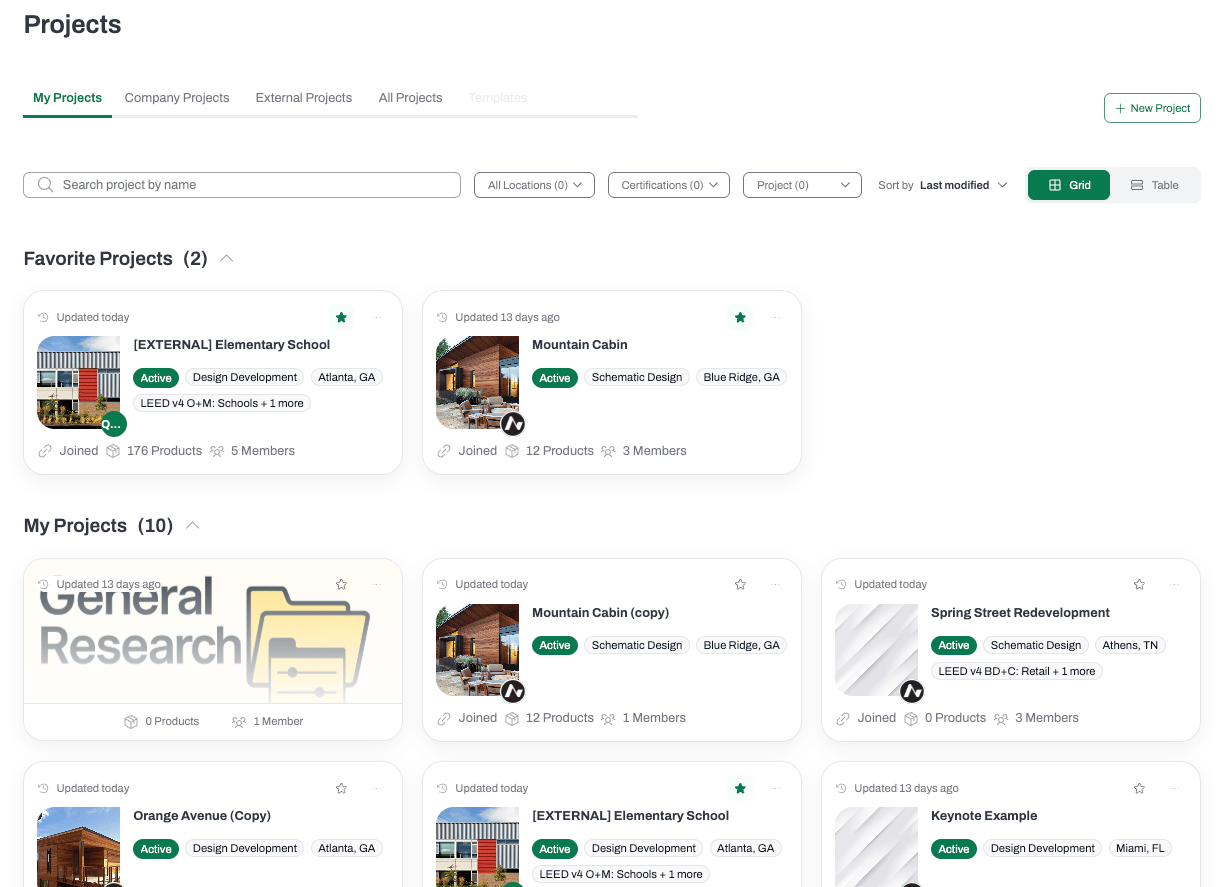
Within each tab, projects are grouped into two collapsible sections: **Favorite Projects** and the tab's main project list. Both sections update live as you search or filter.
| **Tab** | **What it shows** |
| --------------------- | --------------------------------------------------------------------- |
| **My Projects** | All projects you've personally joined |
| **Company Projects** | All projects created within your firm |
| **External Projects** | Projects from other organizations you've been invited to and accepted |
| **All Projects** | A unified view combining all of the above |
Within each tab, projects are grouped into two collapsible sections: **Favorite Projects** and the tab's main project list. Both sections update live as you search or filter.
 ***
## Viewing Your Projects
You can switch between two layout options using the toggle in the top-right area of the page:
**Grid View** displays projects as visual cards, three across. Each card shows the project image, name, status, phase, location, certifications, product count, member count, and last-updated time.
***
## Viewing Your Projects
You can switch between two layout options using the toggle in the top-right area of the page:
**Grid View** displays projects as visual cards, three across. Each card shows the project image, name, status, phase, location, certifications, product count, member count, and last-updated time.
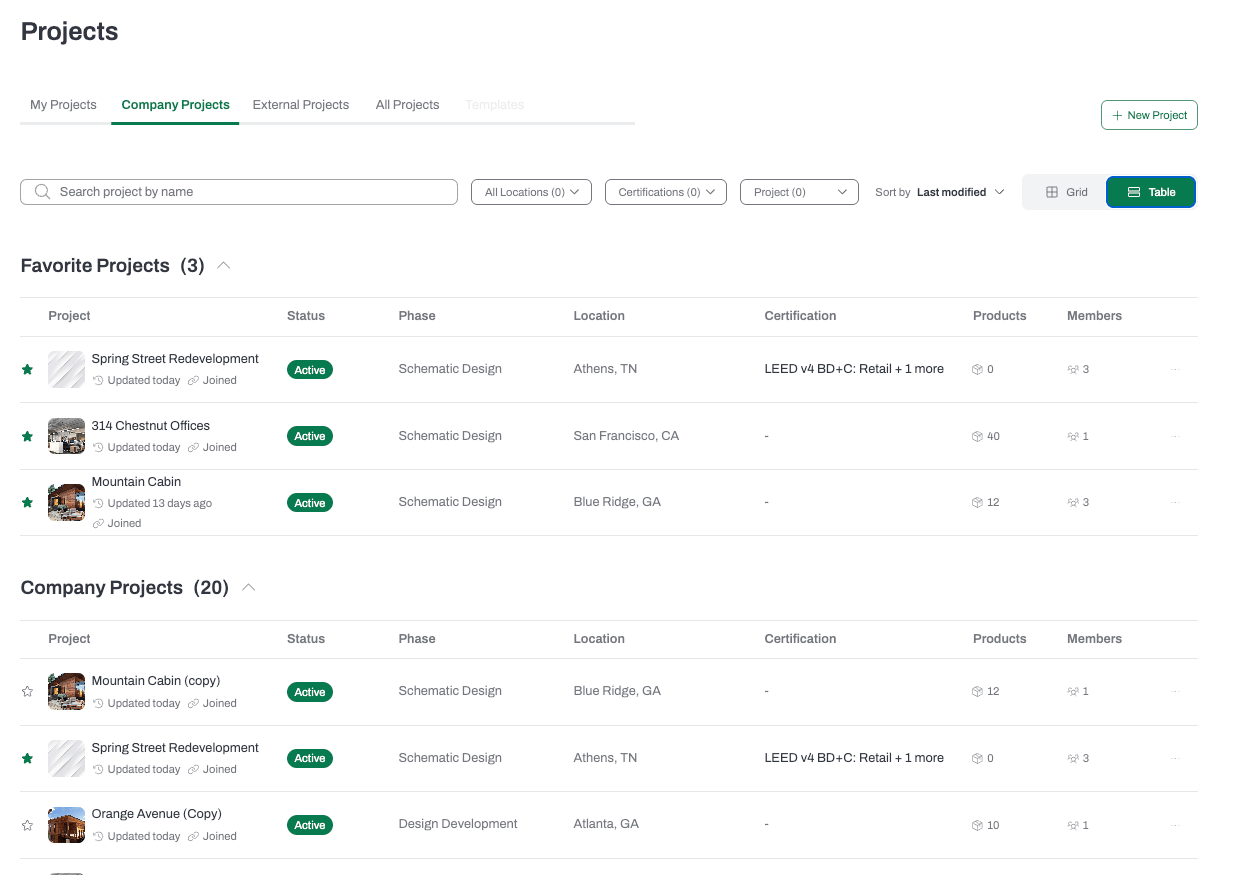
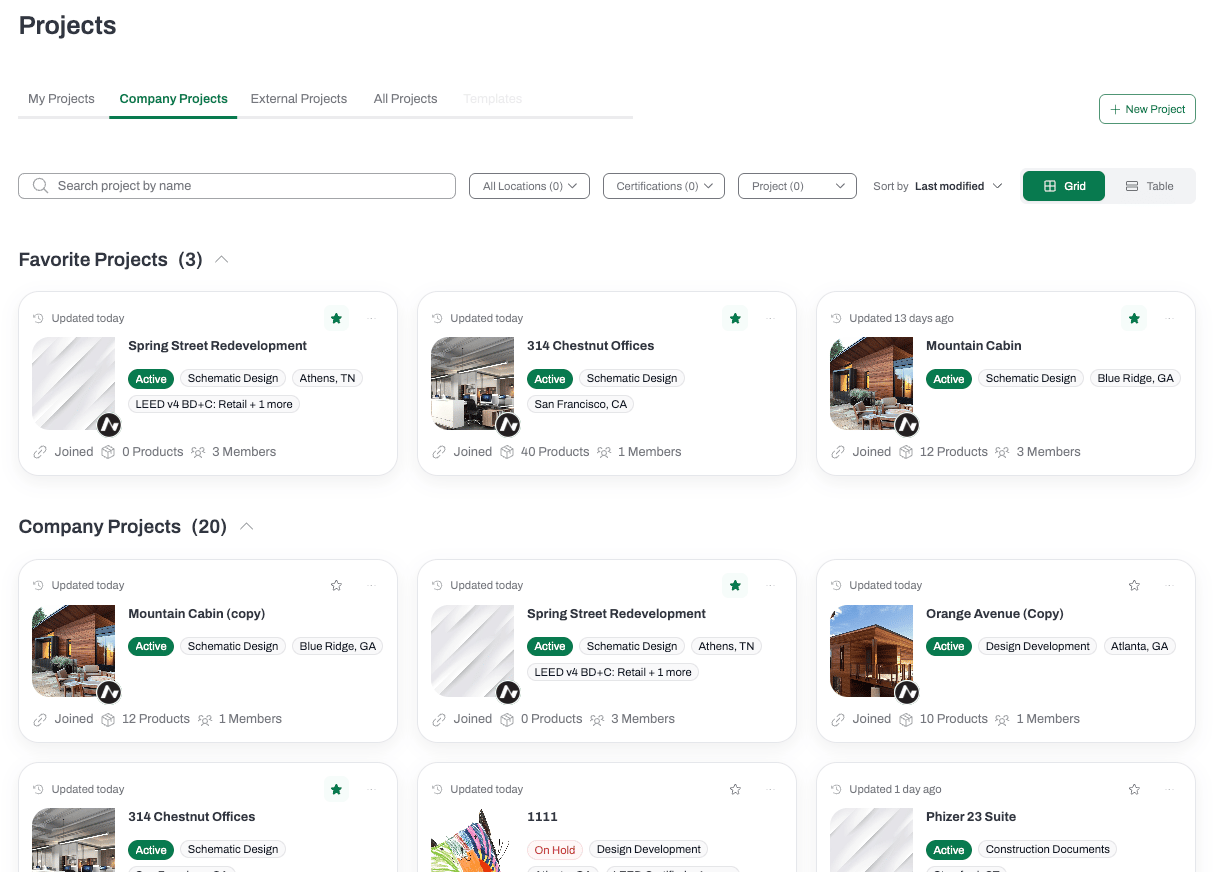 **Table View** displays projects as compact rows — useful when scanning a large list or comparing details side by side. The same information is available as in Grid View.
Your preferred view is saved automatically and remembered the next time you visit.
**Table View** displays projects as compact rows — useful when scanning a large list or comparing details side by side. The same information is available as in Grid View.
Your preferred view is saved automatically and remembered the next time you visit.
 ***
## Finding the Right Project
Use the **search bar** to filter projects by name as you type.
***
## Finding the Right Project
Use the **search bar** to filter projects by name as you type.
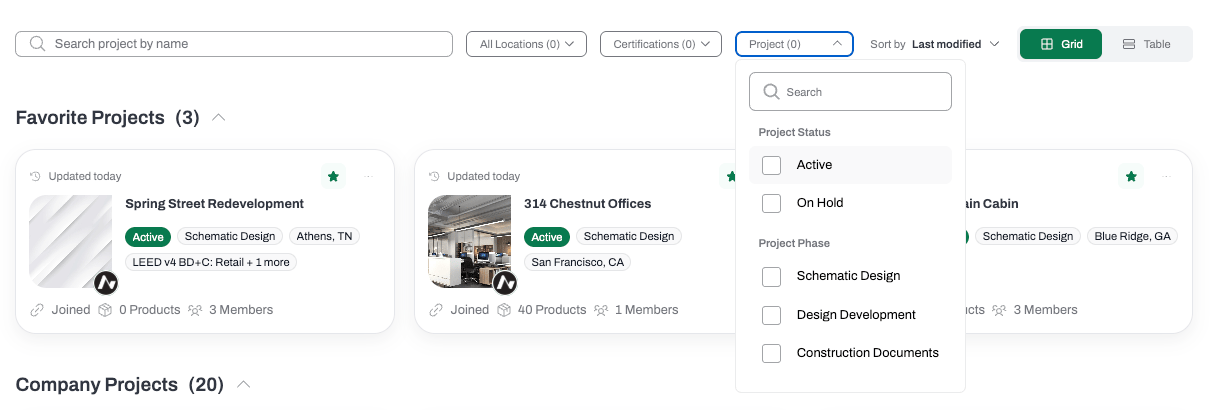 Use the filter dropdowns to narrow results by:
* **Location** — filter by city and state
* **Certifications** — filter by sustainability certification
* **Project Status** — Active, On Hold, or Completed
* **Project Phase** — Schematic Design, Design Development, Construction Documents, Bidding, or Construction Administration
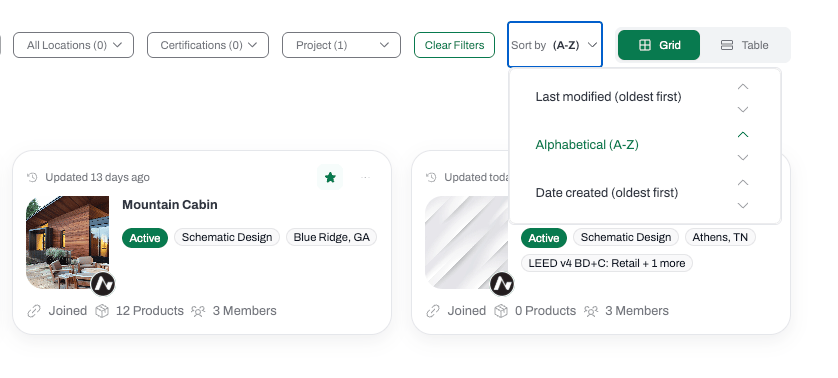
Use the **Sort by** dropdown to order your projects by Last Modified, Alphabetical, or Date Created. Each sort option can be toggled between ascending and descending order.
Use the filter dropdowns to narrow results by:
* **Location** — filter by city and state
* **Certifications** — filter by sustainability certification
* **Project Status** — Active, On Hold, or Completed
* **Project Phase** — Schematic Design, Design Development, Construction Documents, Bidding, or Construction Administration
Use the **Sort by** dropdown to order your projects by Last Modified, Alphabetical, or Date Created. Each sort option can be toggled between ascending and descending order.
 ***
## Project Summary Drawer
Clicking any project card opens a side panel on the right — no need to navigate away from the Projects page.
***
## Project Summary Drawer
Clicking any project card opens a side panel on the right — no need to navigate away from the Projects page.
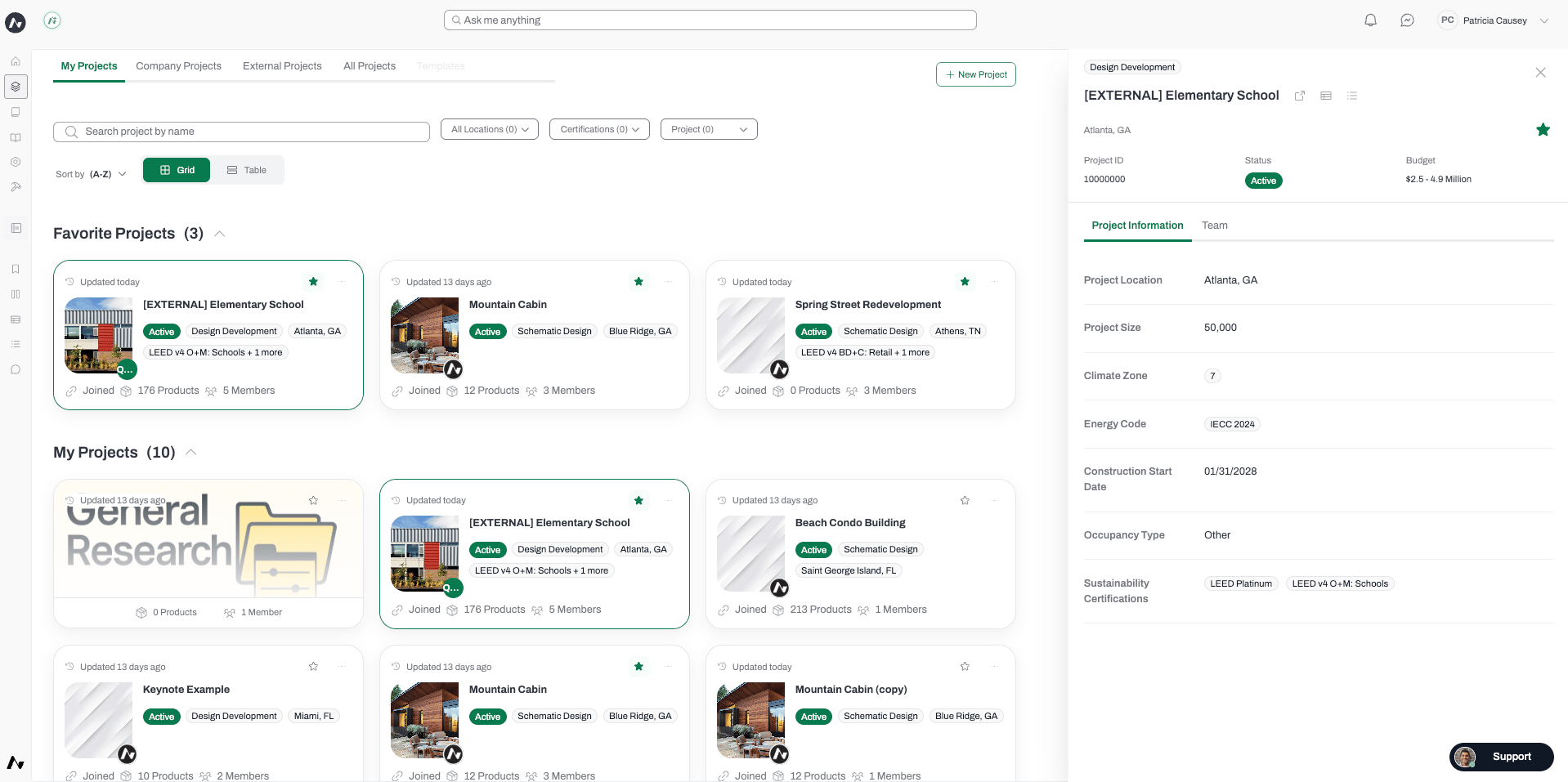 The drawer has two tabs:
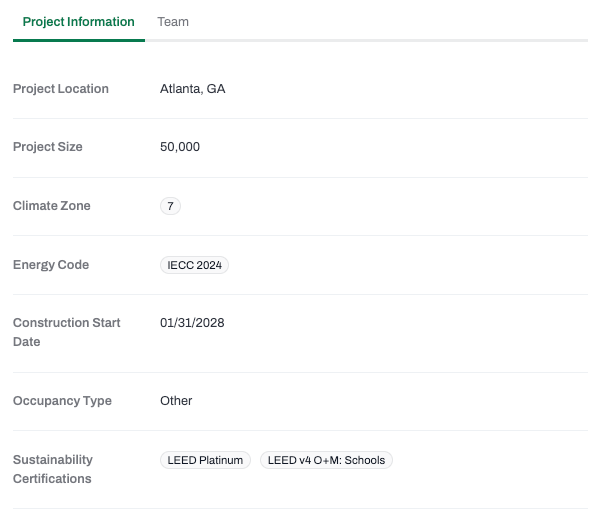
**Project Information** shows location, project size, climate zone, energy code, construction start date, occupancy type, sustainability certifications, budget, project ID, and status.
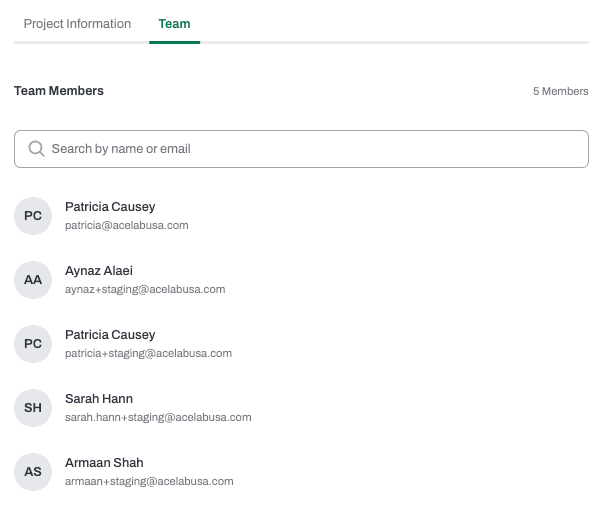
**Team** shows all members who have accepted an invitation to the project. Use the search bar within this tab to find a specific team member.
From the drawer header, you can jump directly to the project's **Schedules**, **Spec Planner**, or **Project Details** page using the navigation icons.
***
## Managing Projects
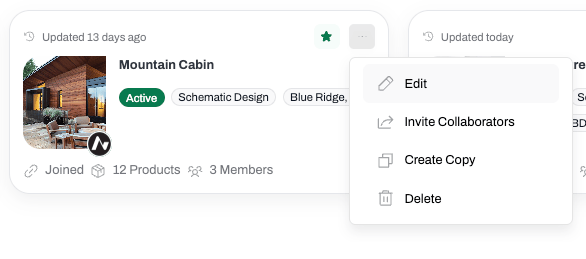
Click the **three-dot menu** on any project card to take action.
Available options depend on your role:
| **Action** | **Viewer** | **Editor / Creator** | **Admin** |
| -------------------- | ---------- | -------------------- | --------- |
| Request to Join | ✓ | — | — |
| Edit | — | ✓ | ✓ |
| Invite Collaborators | — | ✓ | ✓ |
| Create a Copy | — | ✓ | ✓ |
| Delete | — | — | ✓ |
**Notes on specific behaviors:**
* **Create a Copy** duplicates all project info. The copied project is named "\[Original Name] (Copy)" and opens in a new tab.
* **Delete** requires confirmation via a modal. This action is permanent.
* The **General Research** project is always pinned to the top of your My Projects list and cannot be deleted.
***
## Favoriting Projects
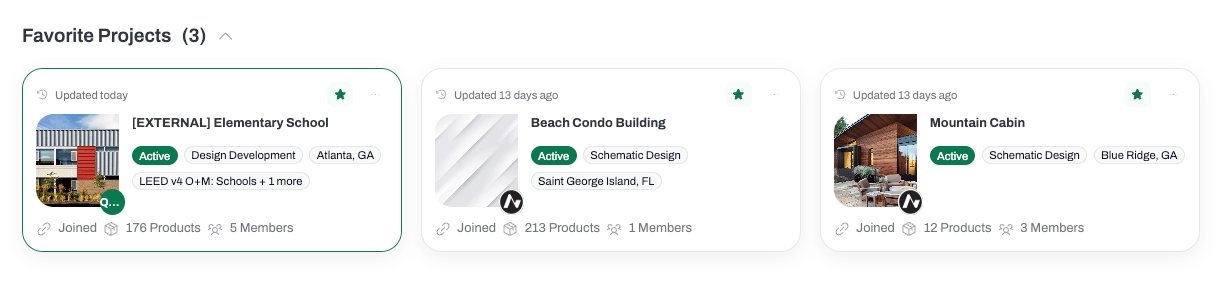
Click the **star icon** on any project card to mark it as a favorite. Favorited projects appear in the **Favorite Projects** section at the top of each tab for quick access. You can also toggle the favorite status from within the Project Summary Drawer.
The drawer has two tabs:
**Project Information** shows location, project size, climate zone, energy code, construction start date, occupancy type, sustainability certifications, budget, project ID, and status.
**Team** shows all members who have accepted an invitation to the project. Use the search bar within this tab to find a specific team member.
From the drawer header, you can jump directly to the project's **Schedules**, **Spec Planner**, or **Project Details** page using the navigation icons.
***
## Managing Projects
Click the **three-dot menu** on any project card to take action.
Available options depend on your role:
| **Action** | **Viewer** | **Editor / Creator** | **Admin** |
| -------------------- | ---------- | -------------------- | --------- |
| Request to Join | ✓ | — | — |
| Edit | — | ✓ | ✓ |
| Invite Collaborators | — | ✓ | ✓ |
| Create a Copy | — | ✓ | ✓ |
| Delete | — | — | ✓ |
**Notes on specific behaviors:**
* **Create a Copy** duplicates all project info. The copied project is named "\[Original Name] (Copy)" and opens in a new tab.
* **Delete** requires confirmation via a modal. This action is permanent.
* The **General Research** project is always pinned to the top of your My Projects list and cannot be deleted.
***
## Favoriting Projects
Click the **star icon** on any project card to mark it as a favorite. Favorited projects appear in the **Favorite Projects** section at the top of each tab for quick access. You can also toggle the favorite status from within the Project Summary Drawer.
 ***
## Outcome
After using the Projects page, you'll be in the right project with fewer clicks — whether you're jumping back into active work, reviewing project details before a meeting, or setting up a new job.
***
## Outcome
After using the Projects page, you'll be in the right project with fewer clicks — whether you're jumping back into active work, reviewing project details before a meeting, or setting up a new job.