> ## Documentation Index
> Fetch the complete documentation index at: https://docs.acelabusa.com/llms.txt
> Use this file to discover all available pages before exploring further.
# Removing Products from Schedules
> Learn how to remove products from a schedule.
*Written by Armaan Shah · Updated February 10, 2026*
## To remove one or a few products
* Navigate to Schedules
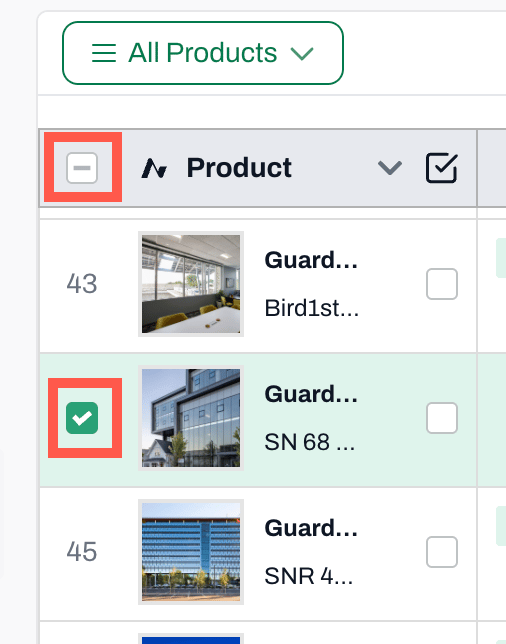
* In the column that displays the product name, hover over the number to the left of the name
* The number will turn into a checkbox
* Click on the checkbox to select the product
* Check all the products you wish to remove
* To select all products, check the box to the left of the Product header
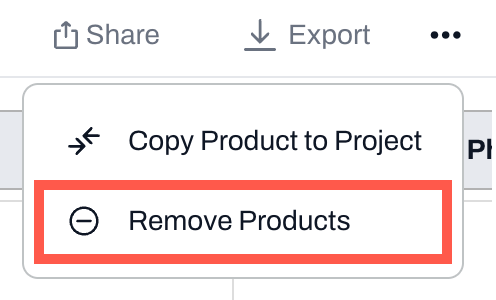
* Click on the 3 dots on the top right corner
* Choose Remove Products
***
📚 Keep Learning 📚
## Next: Real-Time Collaboration in Schedules
[Go to next article](/help-center/working-on-projects/real-time-collaboration)