> ## Documentation Index
> Fetch the complete documentation index at: https://docs.acelabusa.com/llms.txt
> Use this file to discover all available pages before exploring further.
# Removing Products from SpecPlanner
> Learn how to remove a product and re-add it to SpecPlanner
*Written by Patricia Causey · Updated March 20, 2026*
SpecPlanner offers a straightforward method to remove products from your specification list. You can manage your product lineup efficiently without affecting other parts of your project.
## How to Remove a Product
1. Locate the product you wish to remove from your SpecPlanner
2. Click on the **three dots (⋮)** at the end of the product row
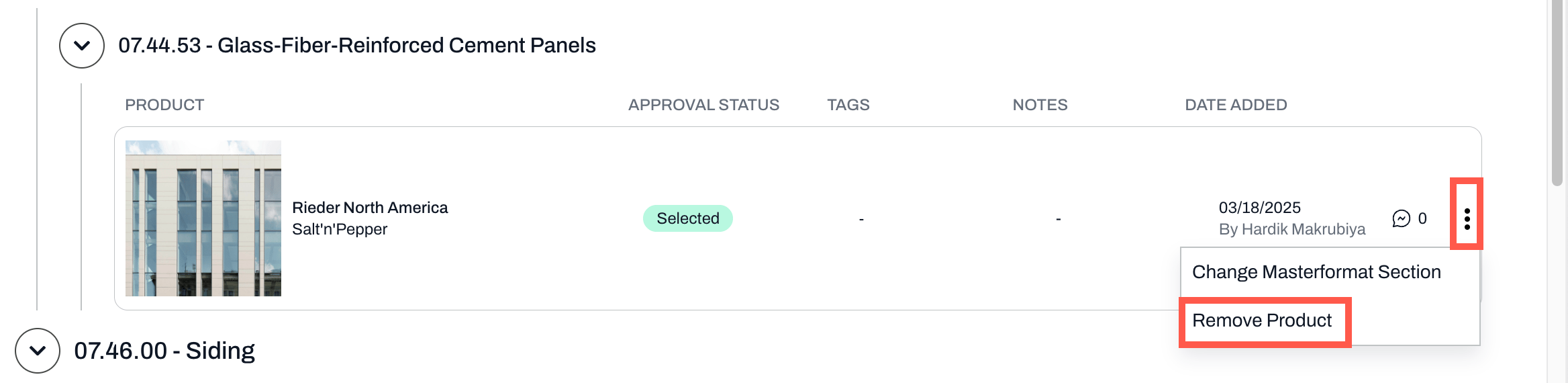 **Note:** Removing a product only affects SpecPlanner. The product remains in your schedules and comparisons. The checkbox for the product in the schedules will be unchecked.
***
## Re-adding Removed Products
If you need to add the product back to SpecPlanner:
1. Go to the relevant schedule
2. Find the product
3. Check the box next to the product name
4. The product will reappear in SpecPlanner
Note: The product will reappear in the masterformat section that is aligned with the product type. You have to change the section again if you wish.
***
📚 Keep Learning 📚
## Next: **Getting Started With Schedules**
[Go to next article](https://help.acelabusa.com/en/collections/11661741-getting-started-with-schedules)
**Note:** Removing a product only affects SpecPlanner. The product remains in your schedules and comparisons. The checkbox for the product in the schedules will be unchecked.
***
## Re-adding Removed Products
If you need to add the product back to SpecPlanner:
1. Go to the relevant schedule
2. Find the product
3. Check the box next to the product name
4. The product will reappear in SpecPlanner
Note: The product will reappear in the masterformat section that is aligned with the product type. You have to change the section again if you wish.
***
📚 Keep Learning 📚
## Next: **Getting Started With Schedules**
[Go to next article](https://help.acelabusa.com/en/collections/11661741-getting-started-with-schedules)