> ## Documentation Index
> Fetch the complete documentation index at: https://docs.acelabusa.com/llms.txt
> Use this file to discover all available pages before exploring further.
# Tag Collaborators in Comments
> Learn how to tag your collaborators when adding a comment in Schedules.
*Written by Armaan Shah · Updated February 10, 2026*
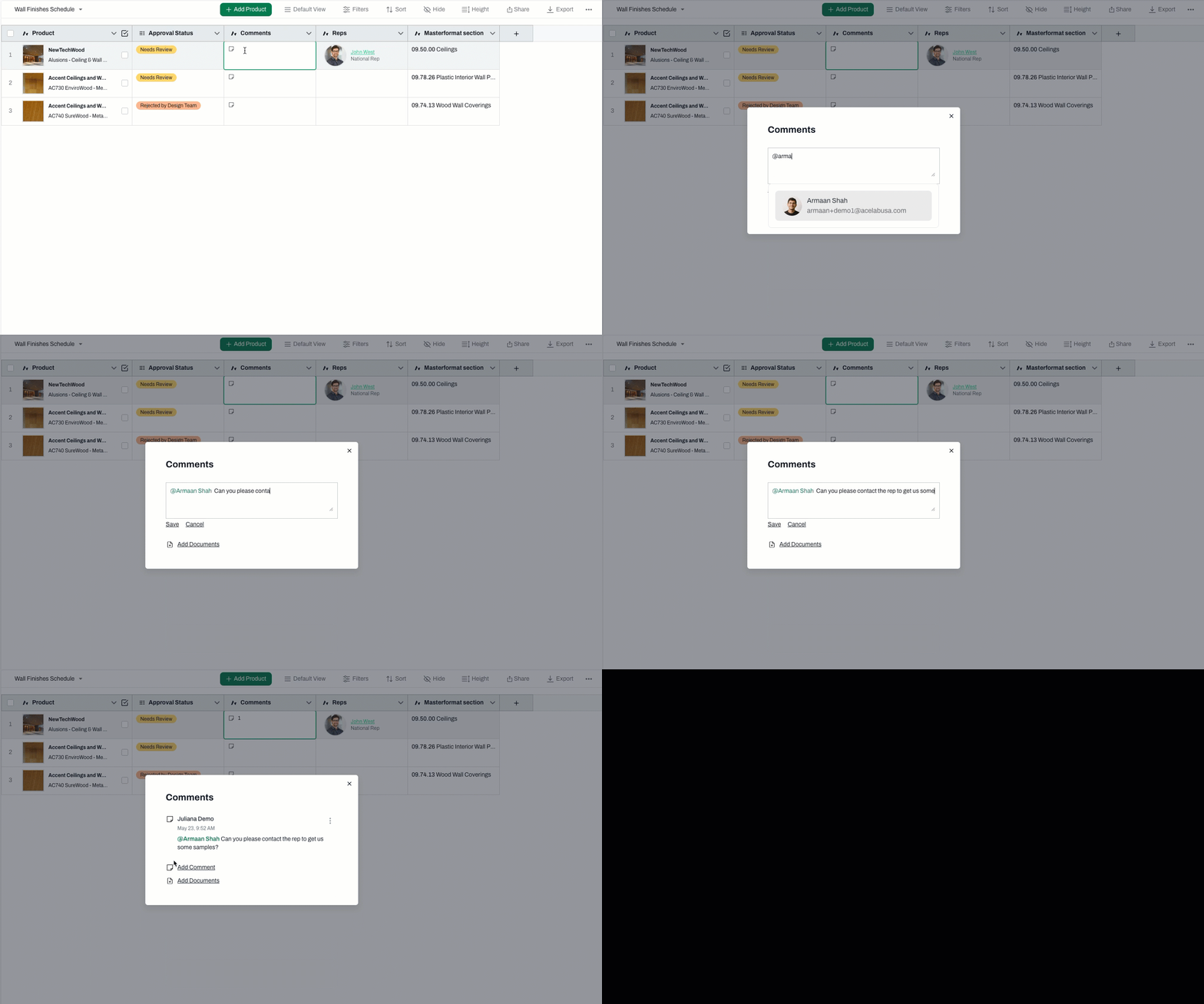
In the comments field, you may add information, thoughts, questions about specific products. Your project collaborators will be able to see your comments and reply. If you tag collaborators, they will receive a notification that they have been tagged.
To tag collaborators:
 ***
📚 Keep Learning 📚
## Next: **Share Schedules**
[Go to next article](/help-center/working-on-projects/share-schedules)
***
📚 Keep Learning 📚
## Next: **Share Schedules**
[Go to next article](/help-center/working-on-projects/share-schedules)