

Before You Begin
- You need an Acelab account. If you haven’t created one yet, follow the steps in Creating Your Account in Acelab.
- Your company must already have a Company Account in Acelab. If you’re the first person from your organization and need to create one, see Creating a New Company and Inviting Your Team instead.
- If you are running into issues related to receiving the invite link to your email, please refer to the FAQs page here
How to Join Your Company Workspace
If your company appears in the suggested list
When you sign up with a corporate email address, Acelab automatically searches for company workspaces that match your email domain.- If a matching company is listed, select it from the dropdown.
- Click Join & Explore Acelab.

If your company is not listed
-
Click Join a different Company.

-
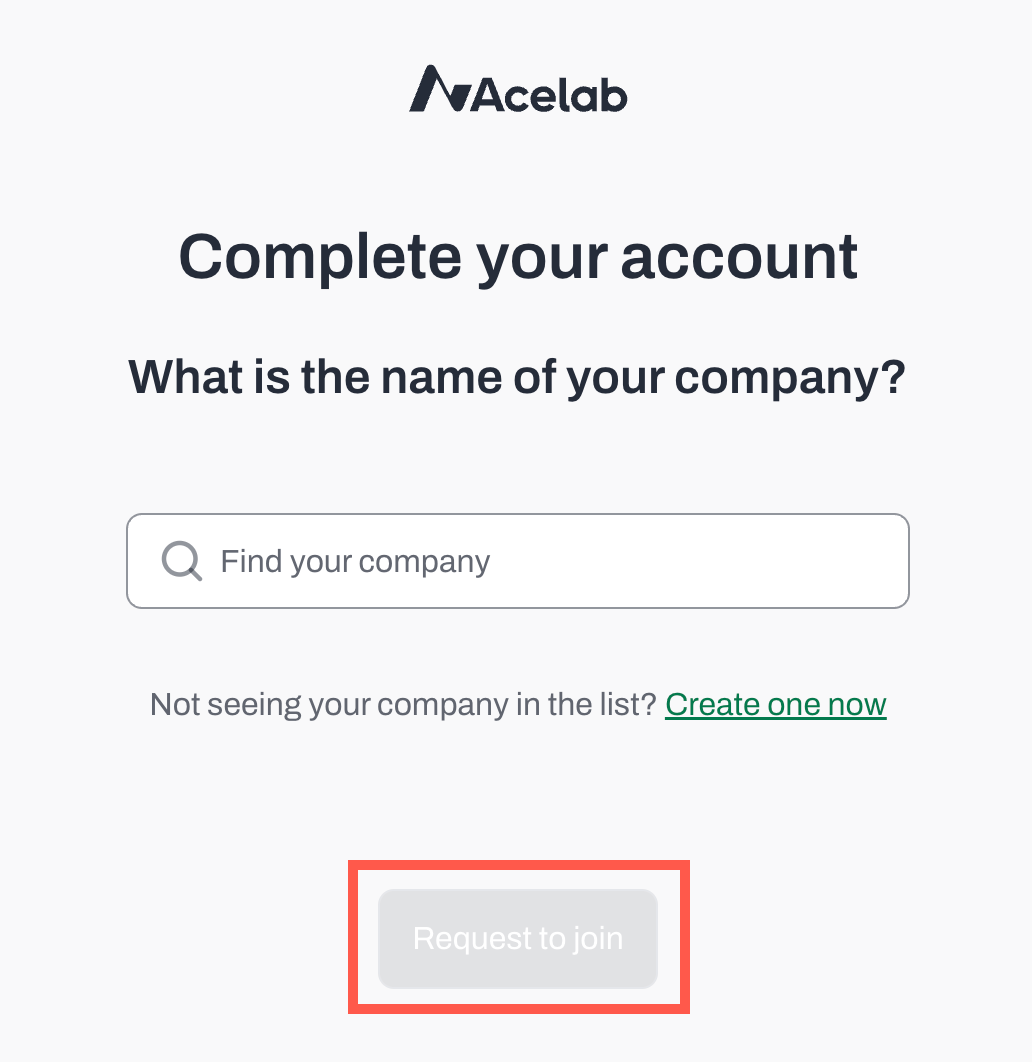
Type your company’s name in the search bar.
-
If your company appears in the results, select it and click Request to Join.
- A request will be sent to your company’s admin for approval.
- If your company does not appear in the results, contact your company admin to confirm that a Company Account has already been set up in Acelab.
- If you are a Company Admin and your Company isn’t yet on Acelab, Create a New Company by following the instructions in this article
What Happens Next?
- If your company has automatic domain-based approval: You’ll be granted access immediately after submitting your request.
- If admin approval is required: Your request will show as Pending on your Account profile. Your company admin will receive a notification to approve or deny it.
Note: Once you join your Company Workspace, you will have access to the Firm Library. To access projects, you must receive a separate invitation for each project. Access to individual projects requires a separate invitation. See Inviting Your Team to a Project.
📚 Keep Learning 📚