

Link a Material Hub Project to Revit
Linking a project connects your Acelab product data to your Revit model. Once linked, you can map products to Revit assets, sync data, and keep your schedules up to date.-
Click Select Project in the ribbon the Acelab tab.
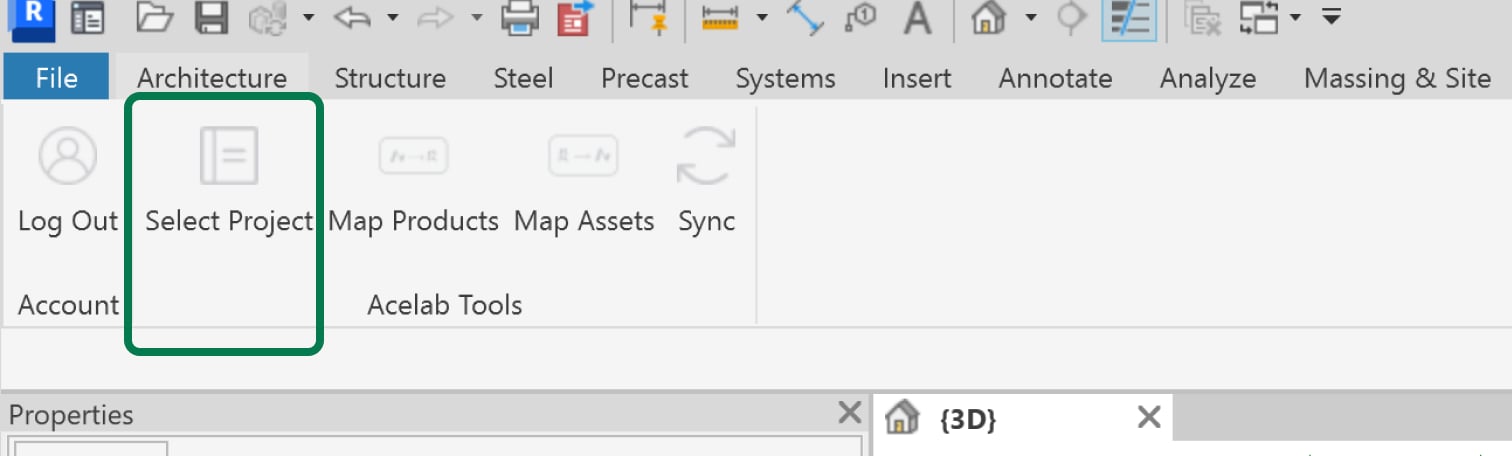
-
From the dropdown menu, select the Acelab project -
- The dropdown includes all projects you’ve created or been invited to in Acelab.
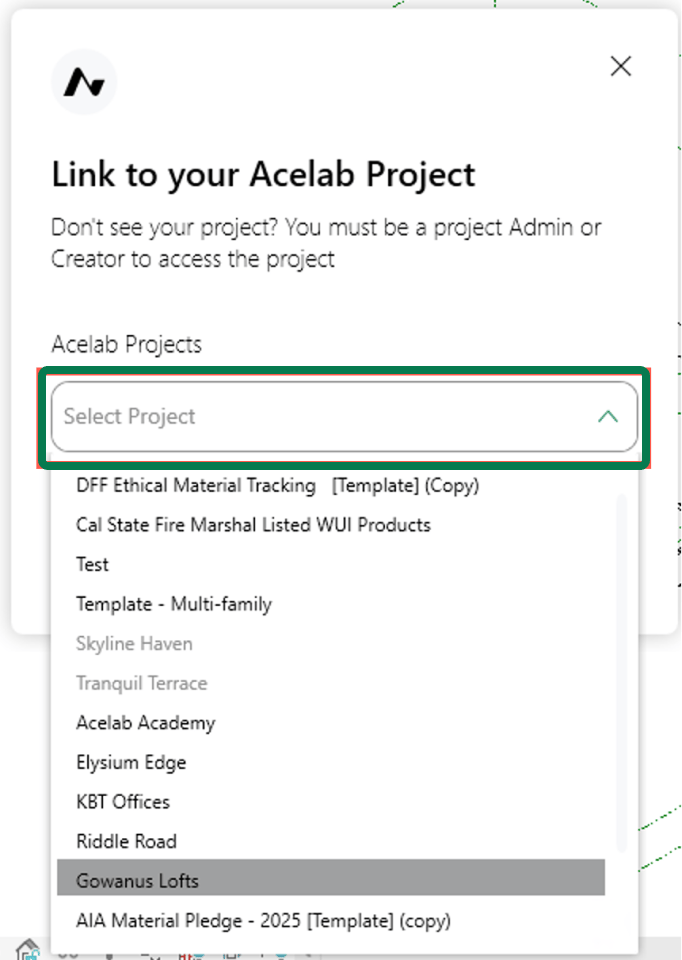
- The dropdown includes all projects you’ve created or been invited to in Acelab.
- Click Next.
- A confirmation message will appear indicating the project has been successfully linked. Click Close to dismiss it.
Reassigning a Project Link
An Acelab project can only be linked to one Revit Project at a time, and a Revit Project can only be linked to one Acelab project at a time. If either side already has an existing link, you’ll see a reassignment modal when you try to connect them. There are two scenarios where this can happen.Scenario 1: The Acelab Project Is Already Linked to a Different Revit Project
If you select an Acelab project that is currently linked to another Revit project:- Click Select Project in the top bar menu and choose the project you want to link.
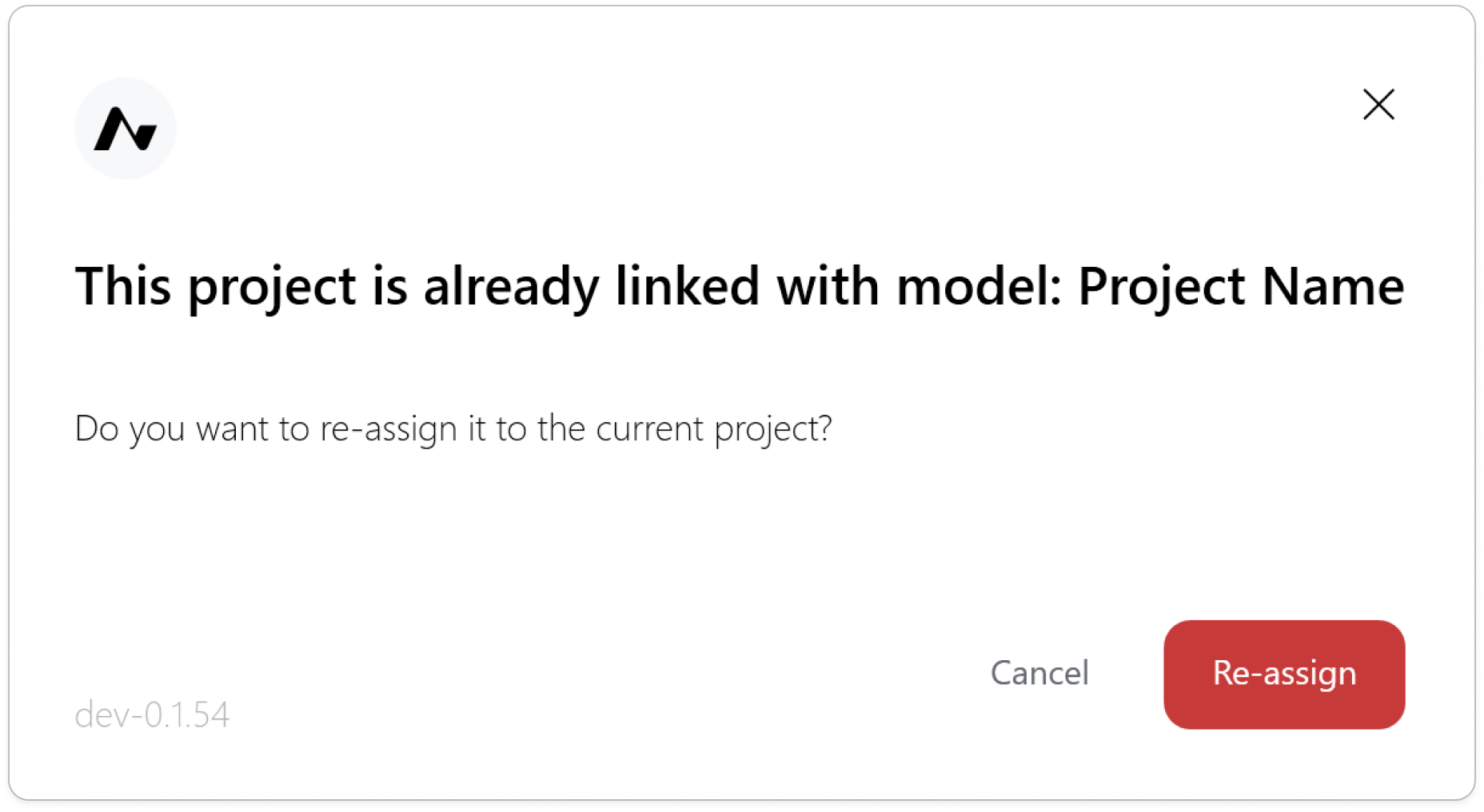
- A modal will appear showing you which Revit project the selected acelab project is currently linked to.
-
You have two options:
- Reassign — Breaks the existing link between the project and the other Revit project, and links the Acelab project to your current Revit project instead.
- Cancel — Keeps the existing link unchanged and returns you to the project dropdown.
Scenario 2: The Revit File Is Already Linked to an Acelab Project by Another User
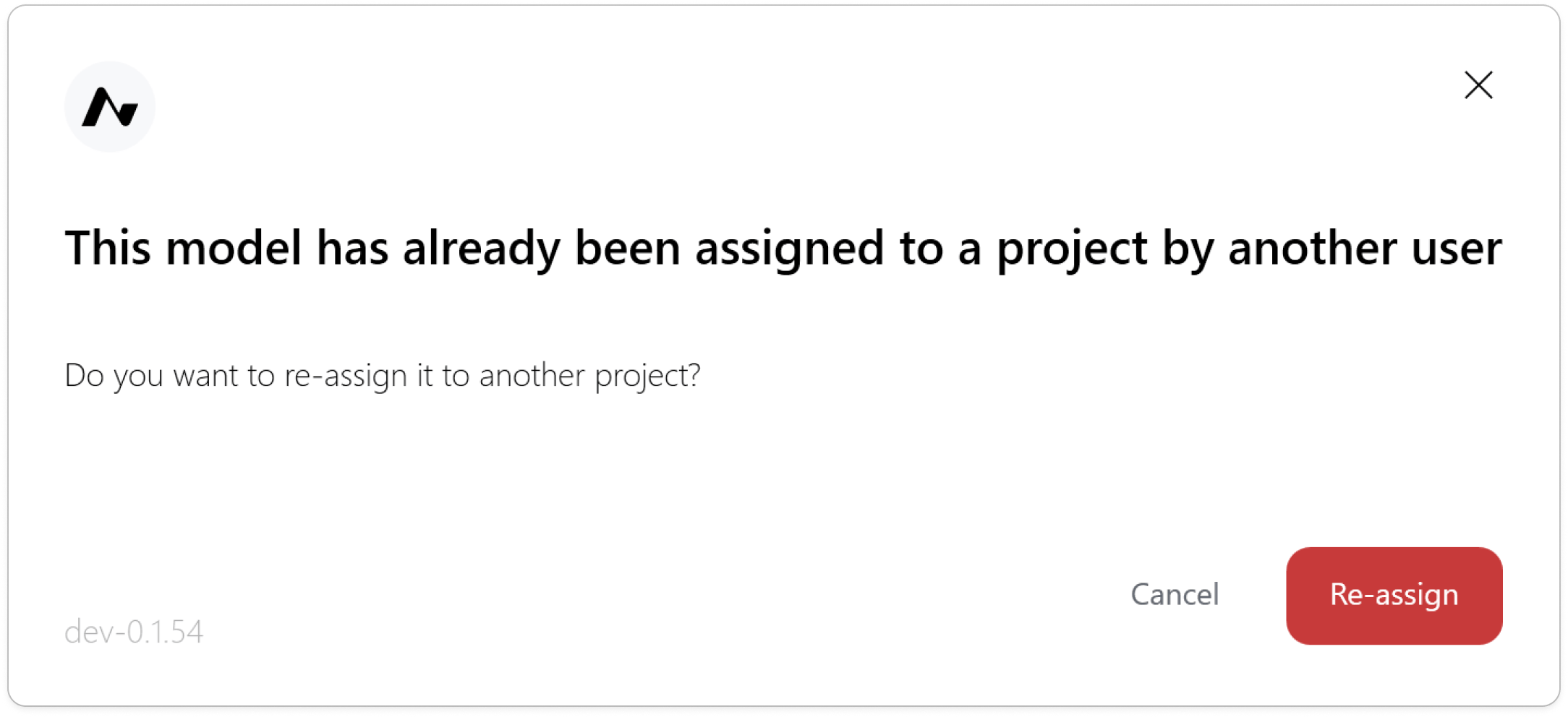
If the Revit file you’re working in is already linked to an Acelab project that you don’t have access to:- When you sign in and click on Select Project option in Acelab Ribbon, a modal will appear informing you that the Revit file is already linked to an Acelab project by another user.
-
You have two options:
- Reassign — Breaks the existing link and allows you to select a different Acelab project to link to this Revit file.
- Cancel — Keeps the existing link in place. You won’t be able to map products and sync.
Unlink or Switch to a Different Project
If you need to disconnect the current project or link a different one, you can do so directly from the Acelab tab in Revit.-
Click Select Project in the top bar menu.
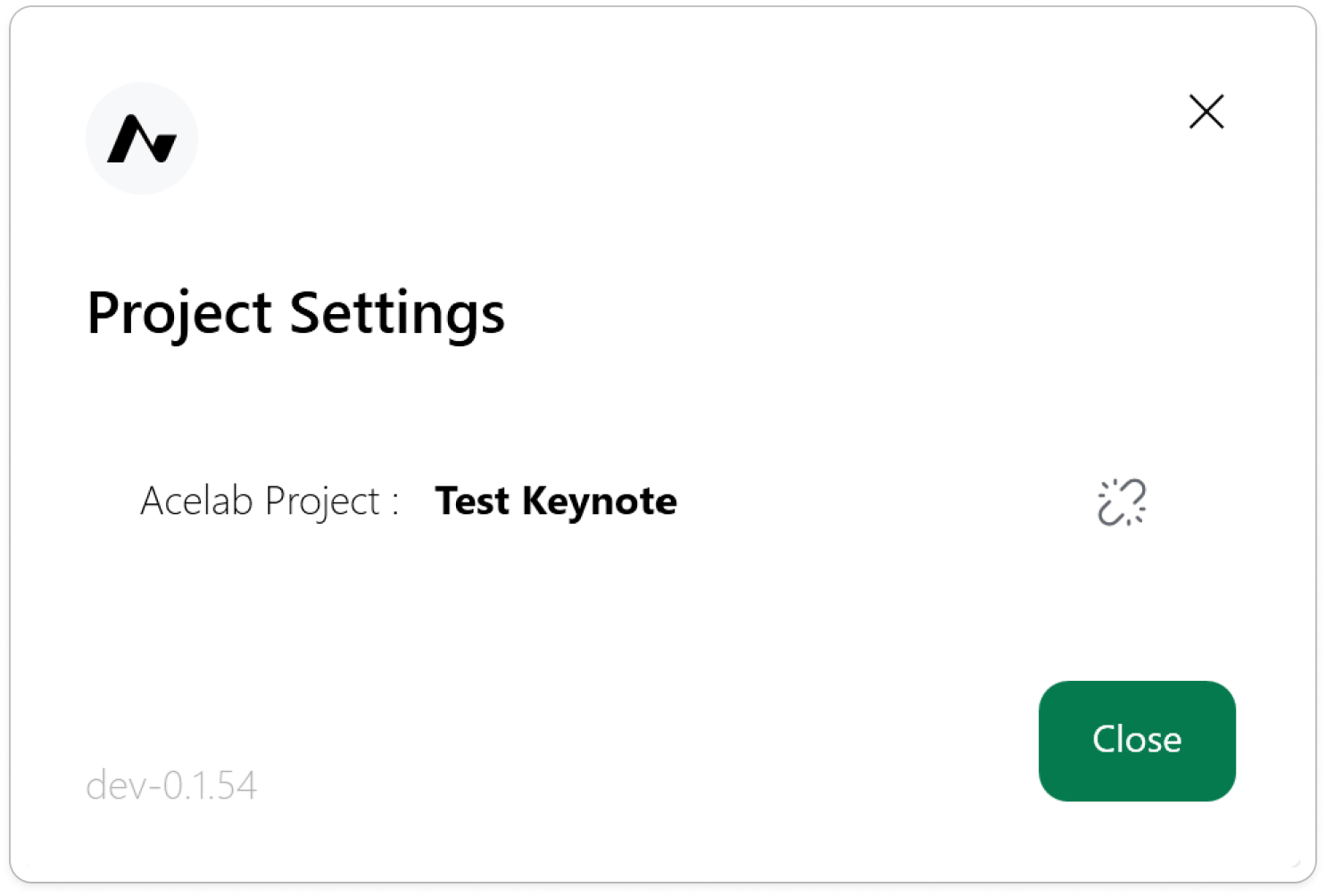
- Click on Unlink Icon
- Click Unlink to confirm.
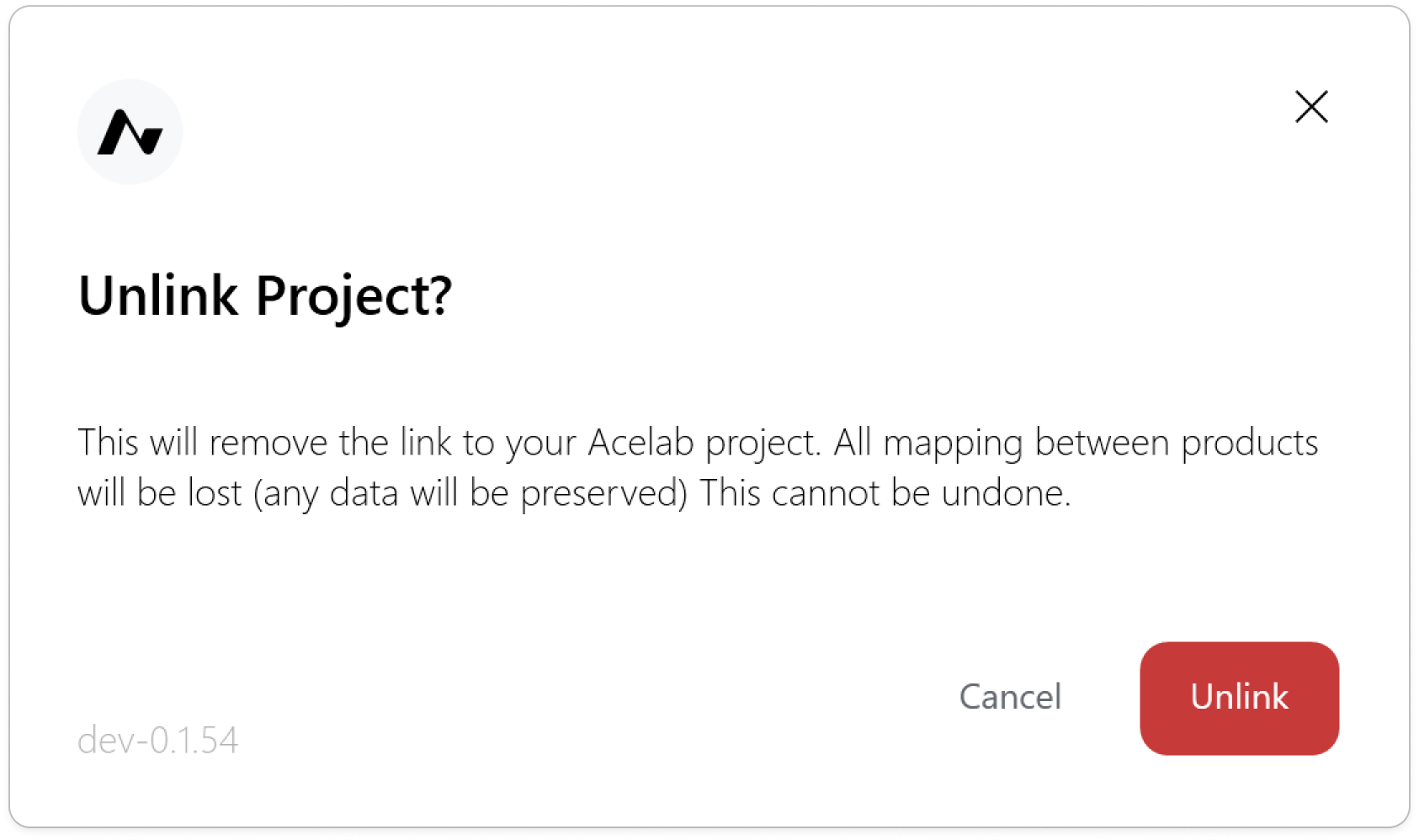
What Happens When You Link a Project?
Once a project is linked, you can:- Map products from your Acelab schedule to Revit families and materials (see Mapping Acelab Products to Revit Elements)
- Sync data between the Material Hub and Revit to populate schedule fields with product information (see Syncing Data Between Material Hub & Revit)