

- Ask Ace, our AI-Powered Co-pilot
- From the top search bar, which may return results for products, brands, or resources
- From the Manufacturer Directory, which will allow you to see and select products from a brand
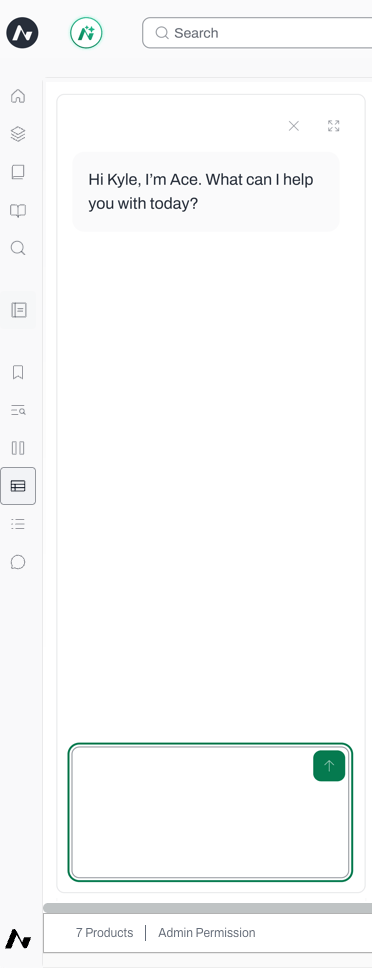
Ask Ace
Ace is Acelab’s co-pilot that understands project requirements and user preferences. With Ace, you get:- Project-Based Recommendations: Ace analyzes project requirements to suggest the most appropriate products, considering factors like quality, compatibility, and budget
- Personalized Research Experience: Ace learns your preferences over time to deliver increasingly tailored product suggestions
- Knowledge Research: Ace provides general building material and product information, design and construction best practices, energy codes, and more
- Cross-Category Expertise: Ace provides informed recommendations across diverse product categories, from windows to interior finishes
- Comparison: Ace evaluates multiple options based on price, features, and performance to recommend optimal options
- Click on the Ace icon at the top bar, or
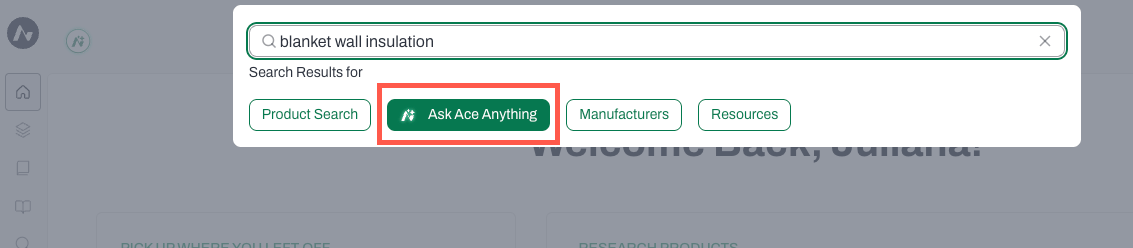
- Type on the search bar and select Ask Ace Anything

Using the Search Bar

1. To Find Products - Using the AI-Powered Search
The Search Bar is powered by advanced AI that understands natural language queries. Simply describe what you’re looking for, and the AI translates your input into relevant product parameters to filter results from our vast database.- Begin typing about the product you are looking for and add as much detail as possible
- Make sure the Product Search button is selected
- The search will return every result in our database (that’s thousands of results!) ranked in order of relevance. So, jumping to page 1,000 will give you irrelevant results
- Products which meet all your criteria come first. But if nothing matches all of your criteria, you’ll get a list of products which meet some of your criteria, ranked by guessing at which criteria are most important
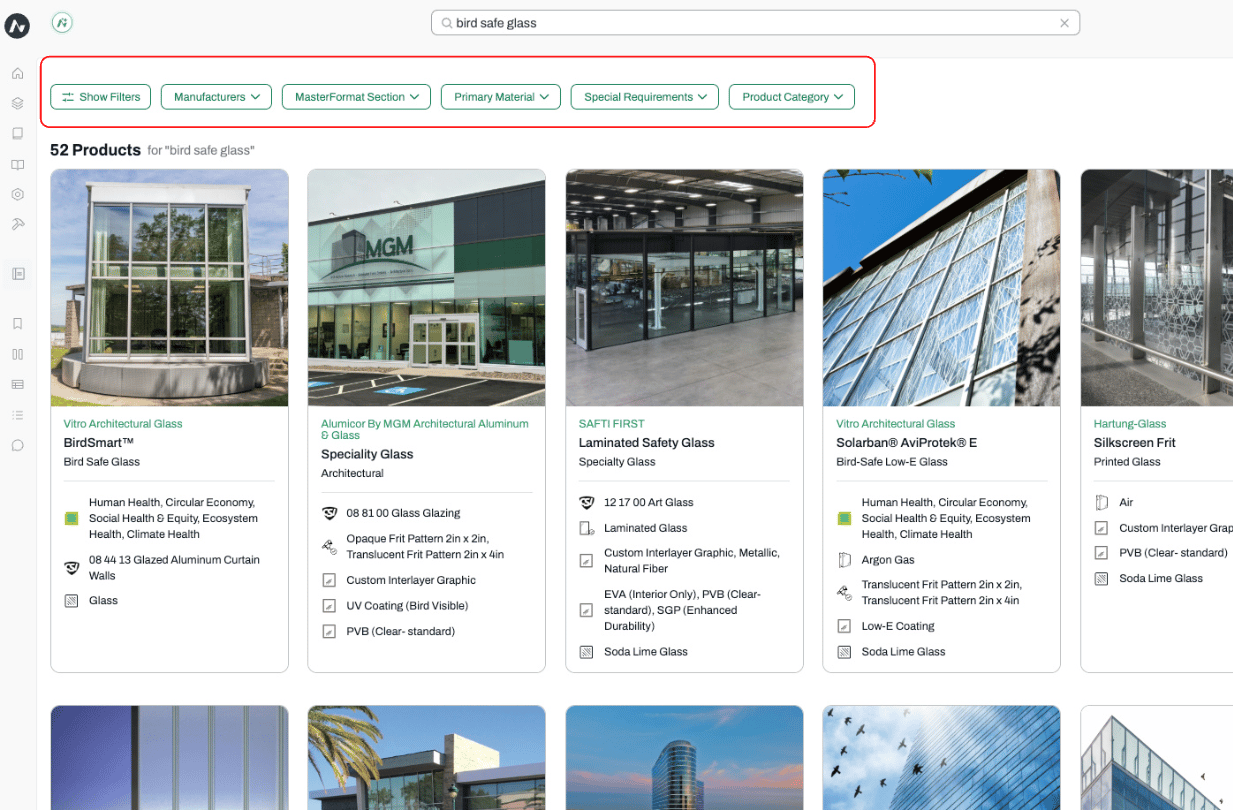
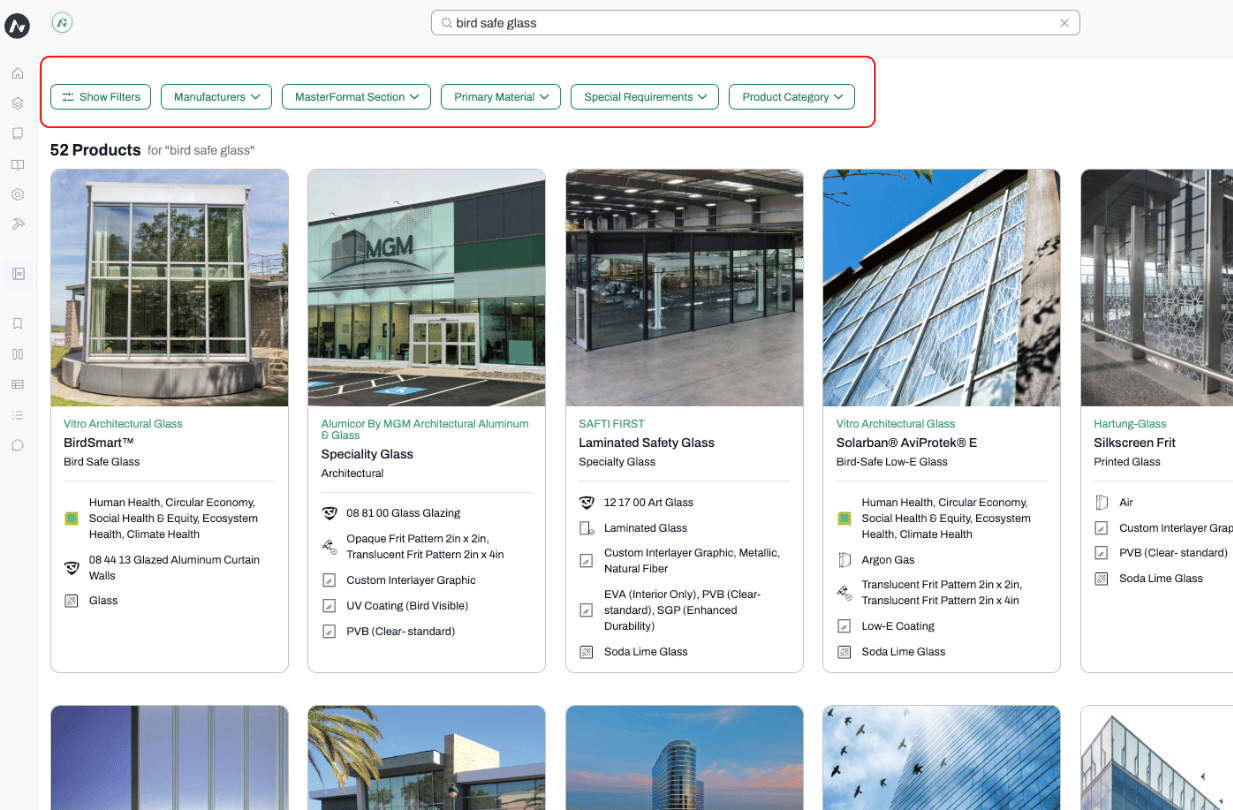
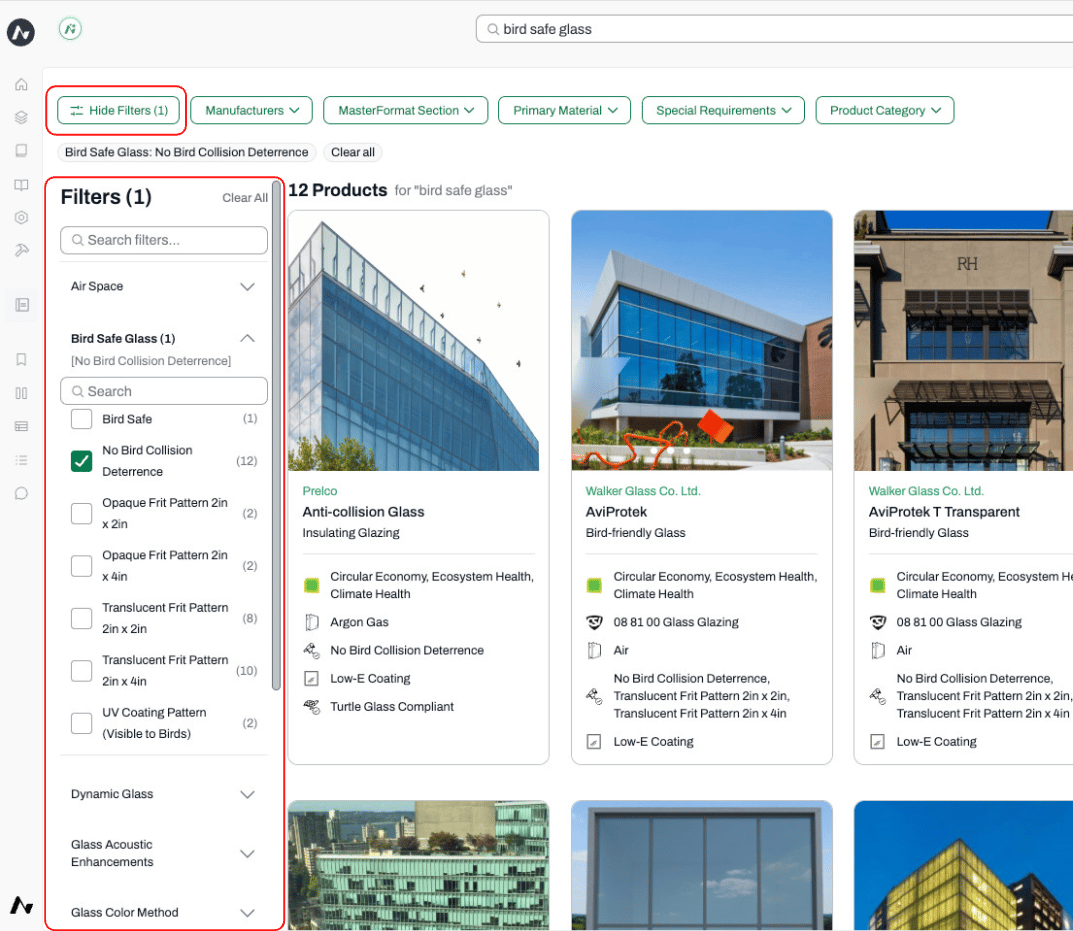
- Use the filters at the top to refine your results. Click Show Filters too see more options.
- Click on a filter to access the options in the drop-down menu
- To remove a filter, click on the ‘x’
2. To Find Manufacturers
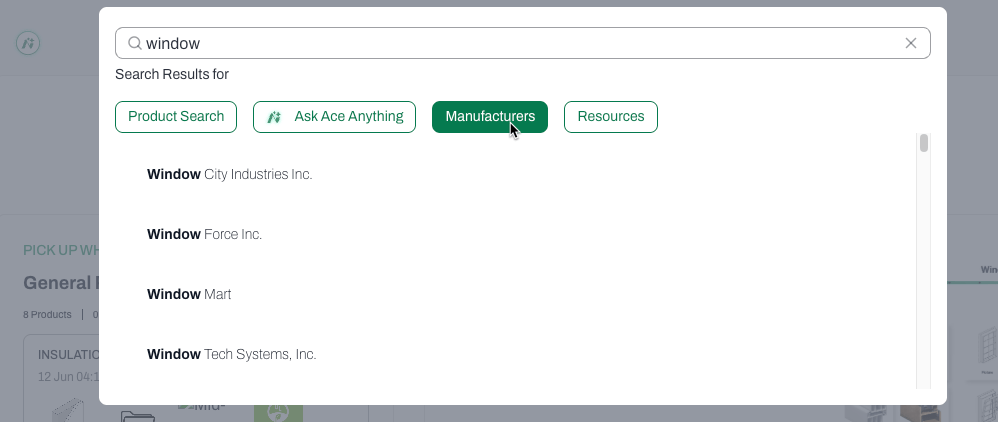
- Begin typing the Manufacturer you are looking for
- Select the Manufacturers button in the dropdown
- A list of manufacturers that contain the search word(s) your typed will be suggested
- Pick the manufacturer your are looking for from the drop-down menu
3. To Find Resources
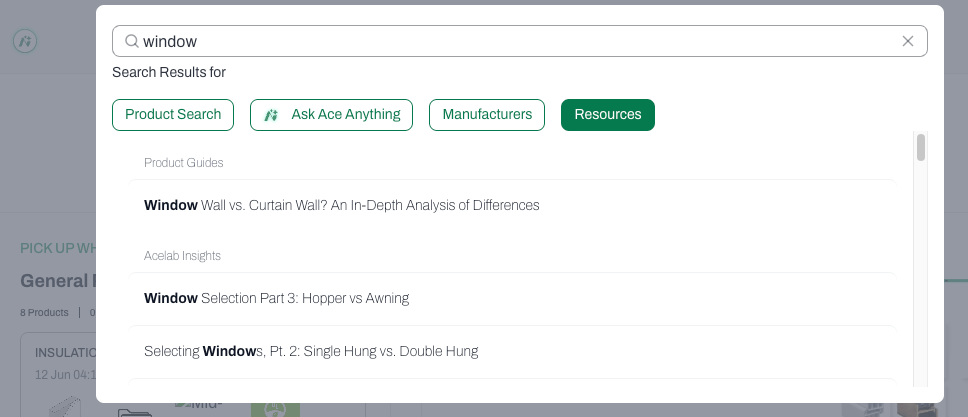
Acelab gives you access to a number of resources about building products and materials, including Product Guides, Construction Details, Webinars, Case Studies, Insights, and Building Science Courses. To search for resources using the top search bar:- Begin typing the topic or type of resource you are looking for
- Select Resource button
- The drop-down will show applicable resource links
- Click to open the resource you need
You can access all Resources at acelabusa.com/resources.
Before You Sign In: The Public Homepage Search
If you haven’t created an account yet, you can start exploring products from Acelab’s public homepage.- The search bar’s placeholder text rotates through real, popular search terms from the past 30 days, shuffled each time you load the page.
- Up to four of those terms appear as clickable buttons below the search bar — click one (or tab to it and press Enter) to jump straight to matching products.
- Type your own search and press Enter, or click Search, to search for anything — same as the rotating suggestions.
Using the Manufacturer Directory
-
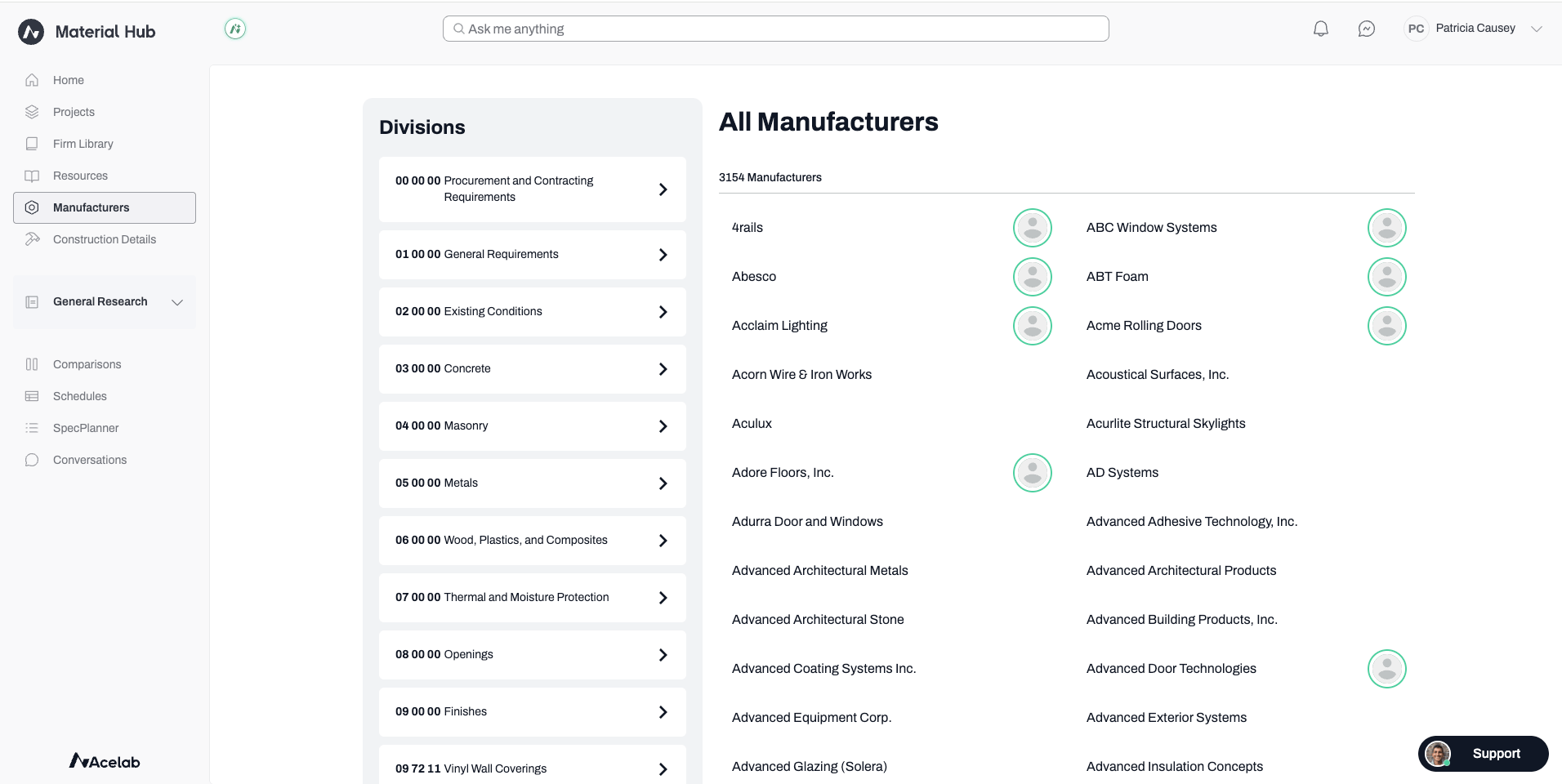
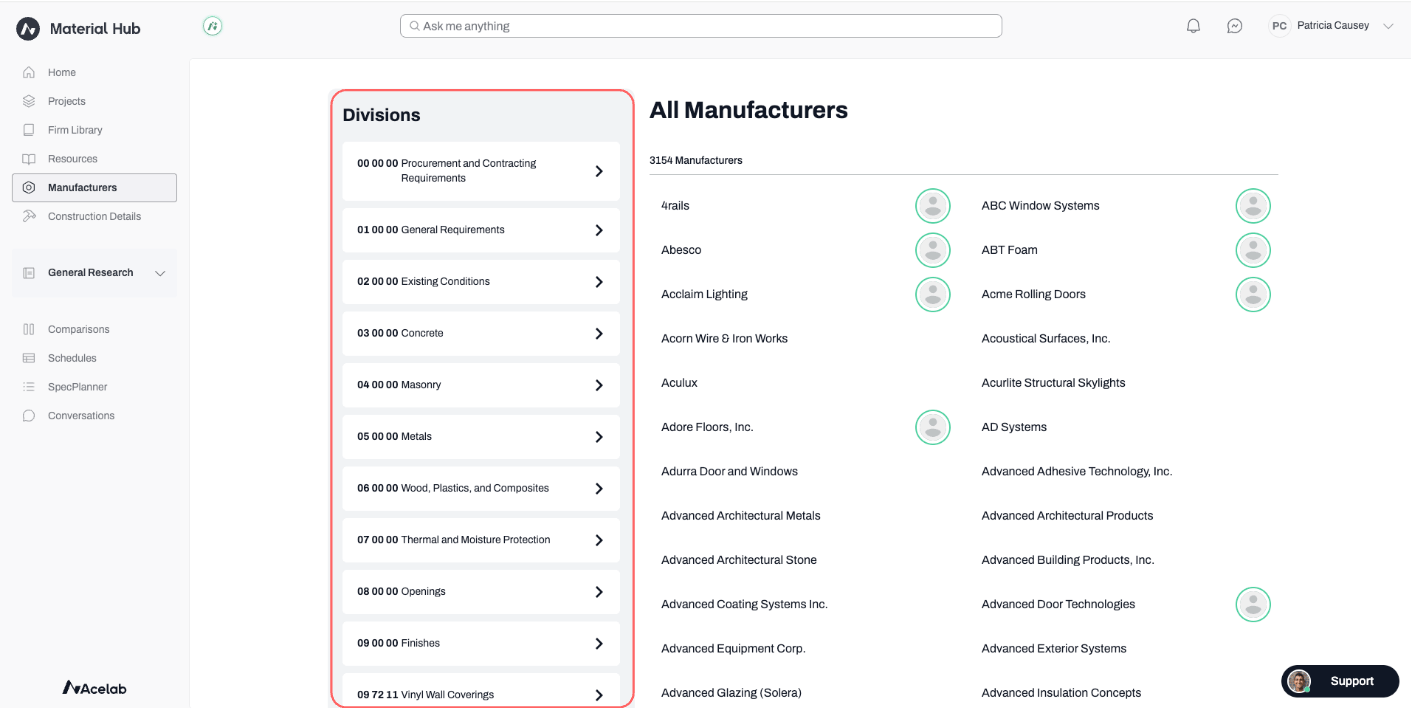
Access the Manufacturers Directory by clicking on Manufacturers in the left-side menu
-
The Manufacturers Directory is sorted alphabetically. You can scroll through the pages or use the Divisions filters to the left to narrow down to a particular Masterformat section.
-
Once you find your manufacturer or brand, click on their name.
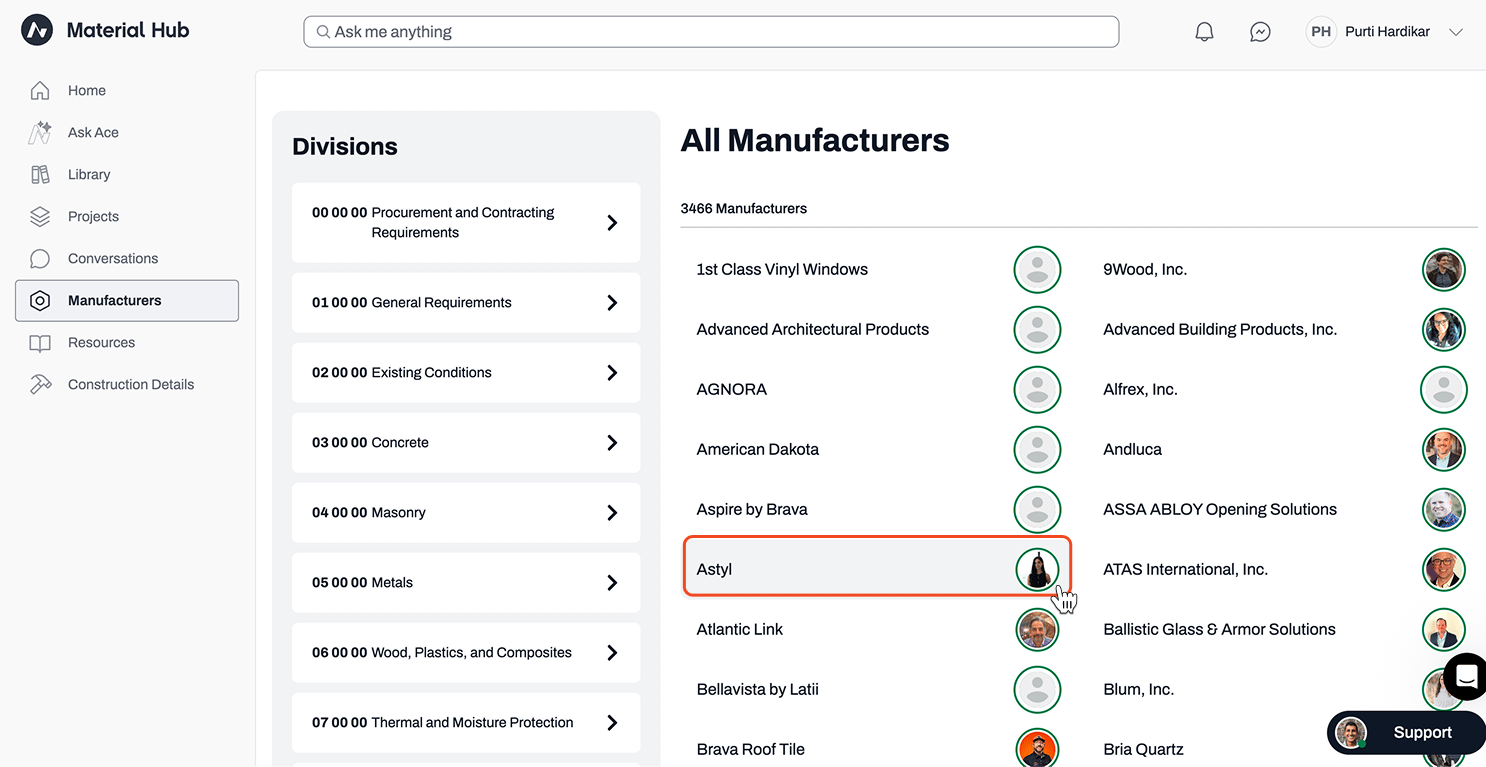
- This will take you to the Manufacturer’s Brand page.
Find Products in your Project
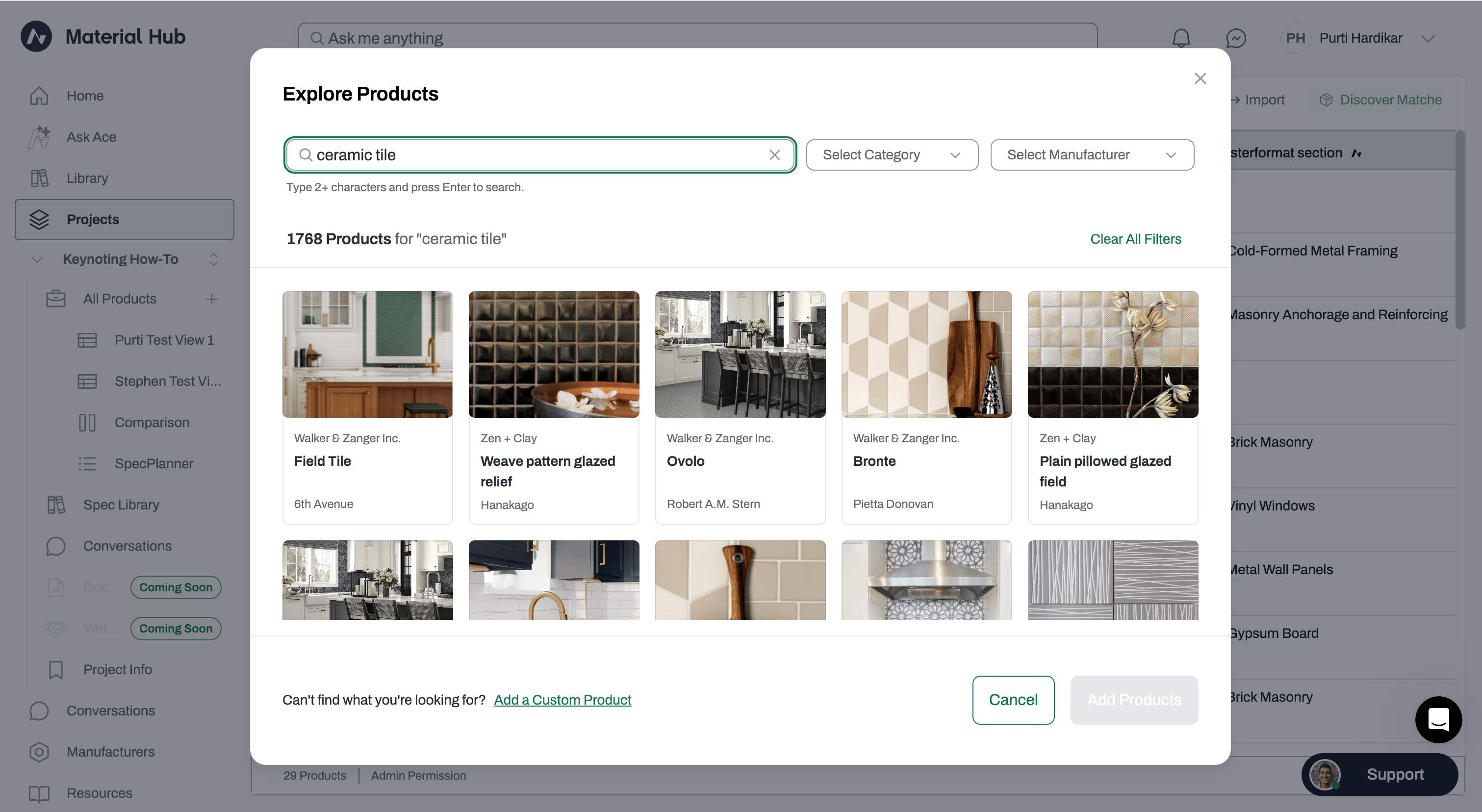
Using the Explore Products feature, you can search for products without leaving your project. Explore Products can be found nested in the Add Products CTA in your project’s Schedule.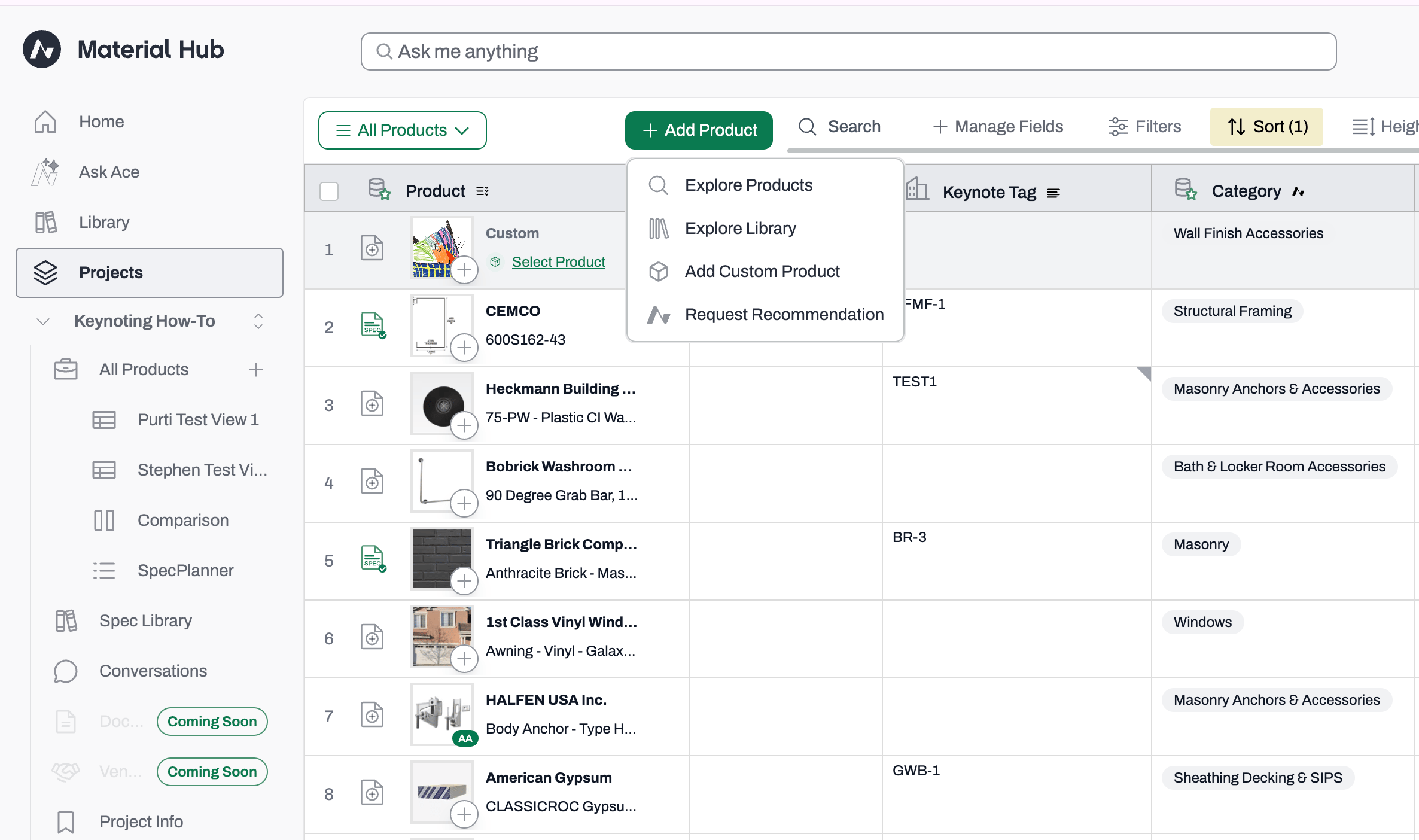
📚 Keep Learning 📚