

Saving a Product
To compare products, you must first save products. Check out Saving a Product for information on how to save products.
Comparing Saved Products
- Click on Comparisons in the left-side menu
- View all saved products for the selected project, organized by category
- Use the drop-down menu to select the correct category
-
See Products side-by-side
- Scroll down to see all the publicly available data information for each product neatly organized
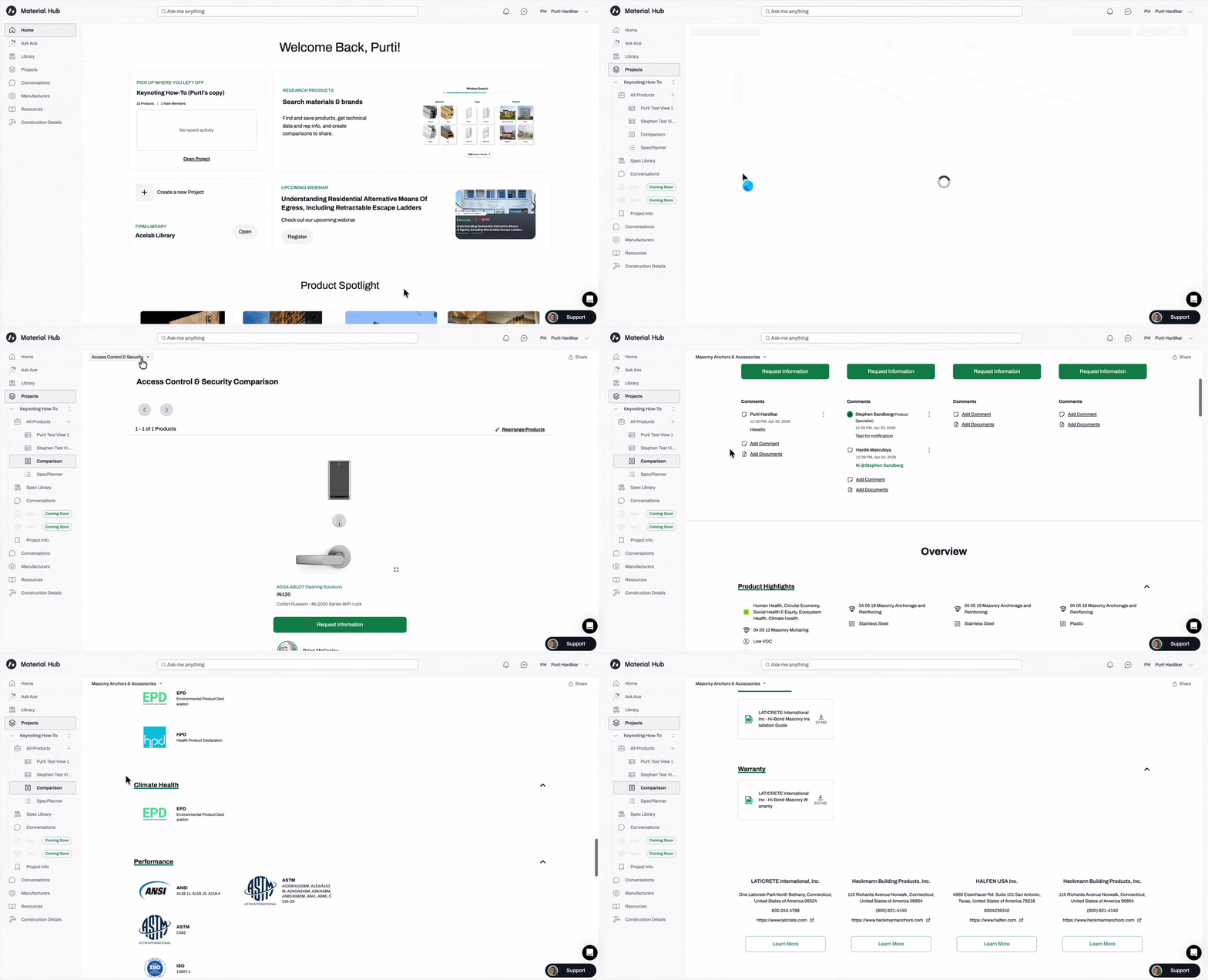
All products saved to the project are displayed in the Comparisons page. They are also saved in Schedules.
Rearranging and Removing Products
- Use the arrows to see all products
- Click on Rearrange Products to drag and drop product tiles into your preferred order
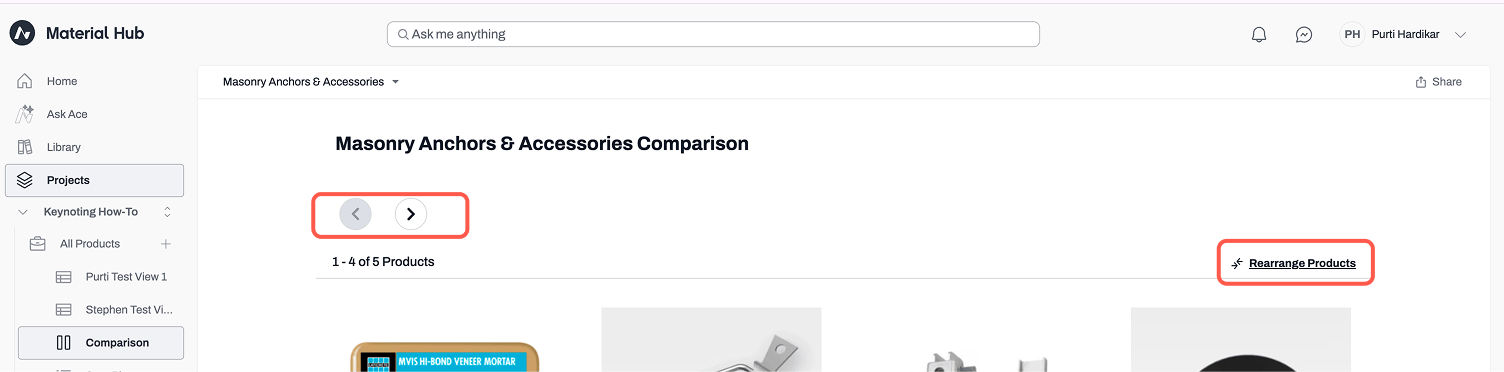
- To remove products, click on the ‘x’ at the the top-right corner of the product image
Important: Removing a product from the Comparisons page will also remove the product from Schedules. If that is not the intended goal, we recommend rearranging the products to have the ones you need side-by-side
Requesting Product Information
- Click on Request Information
- If a product representative is available on Acelab, the request will be sent directly to them
- If no representative is available, Acelab’s product experts will assist
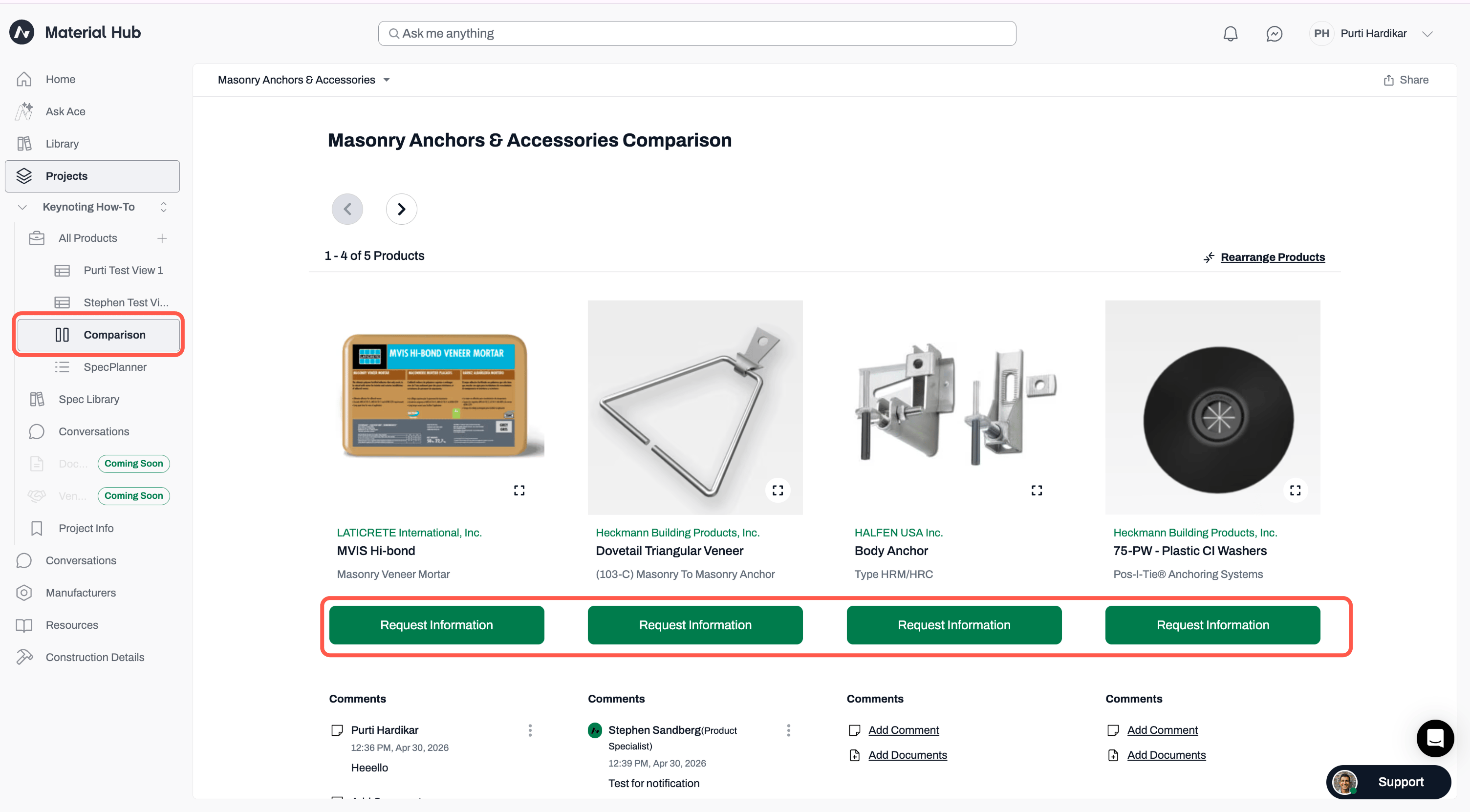
All requests initiate a conversation in Acelab. You’ll receive email notifications for responses and the conversation will be stored in your project. Learn more about Conversations.
Adding Comments and Documents
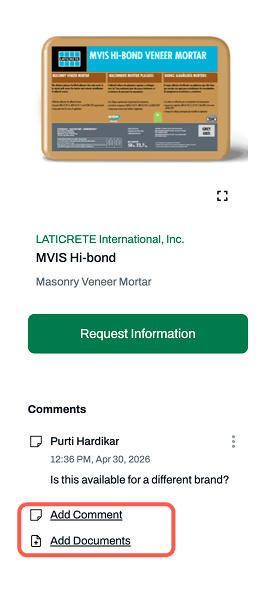
- Use the Add Comment or Add Document options to store and share product information with your team
- Upload documents such as drawings or performance requirements
- Add comments to track action items or follow-up questions
Sharing a Shortlist
Comparison of Saved Products can be shared using a link. This is a fantastic collaborative option to share with your clients, contractors, consultants etc.-
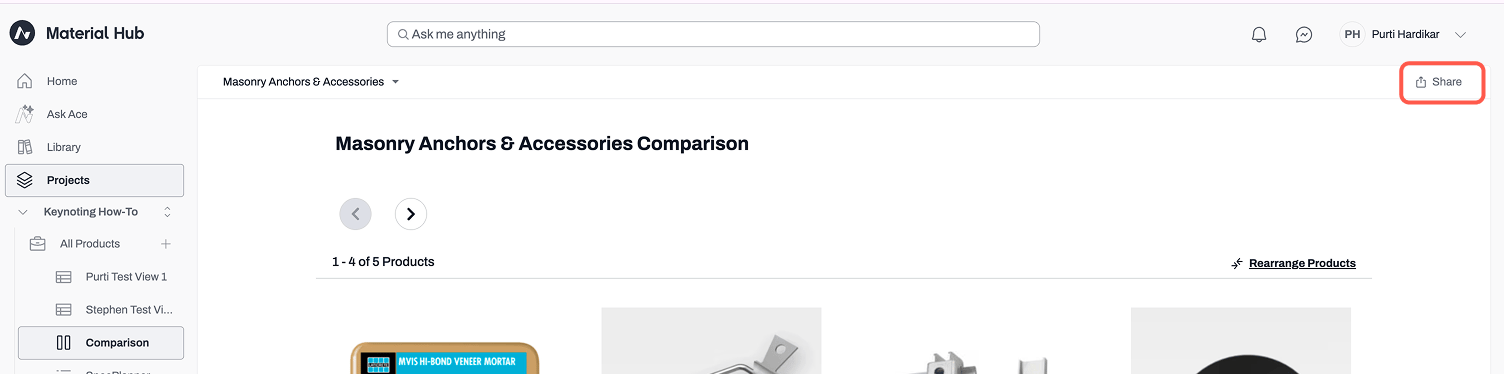
Navigate to the toolbar of the comparison page and click on Share
- Select the products you want to include (default is all products).
- Select which additional information to include, if any
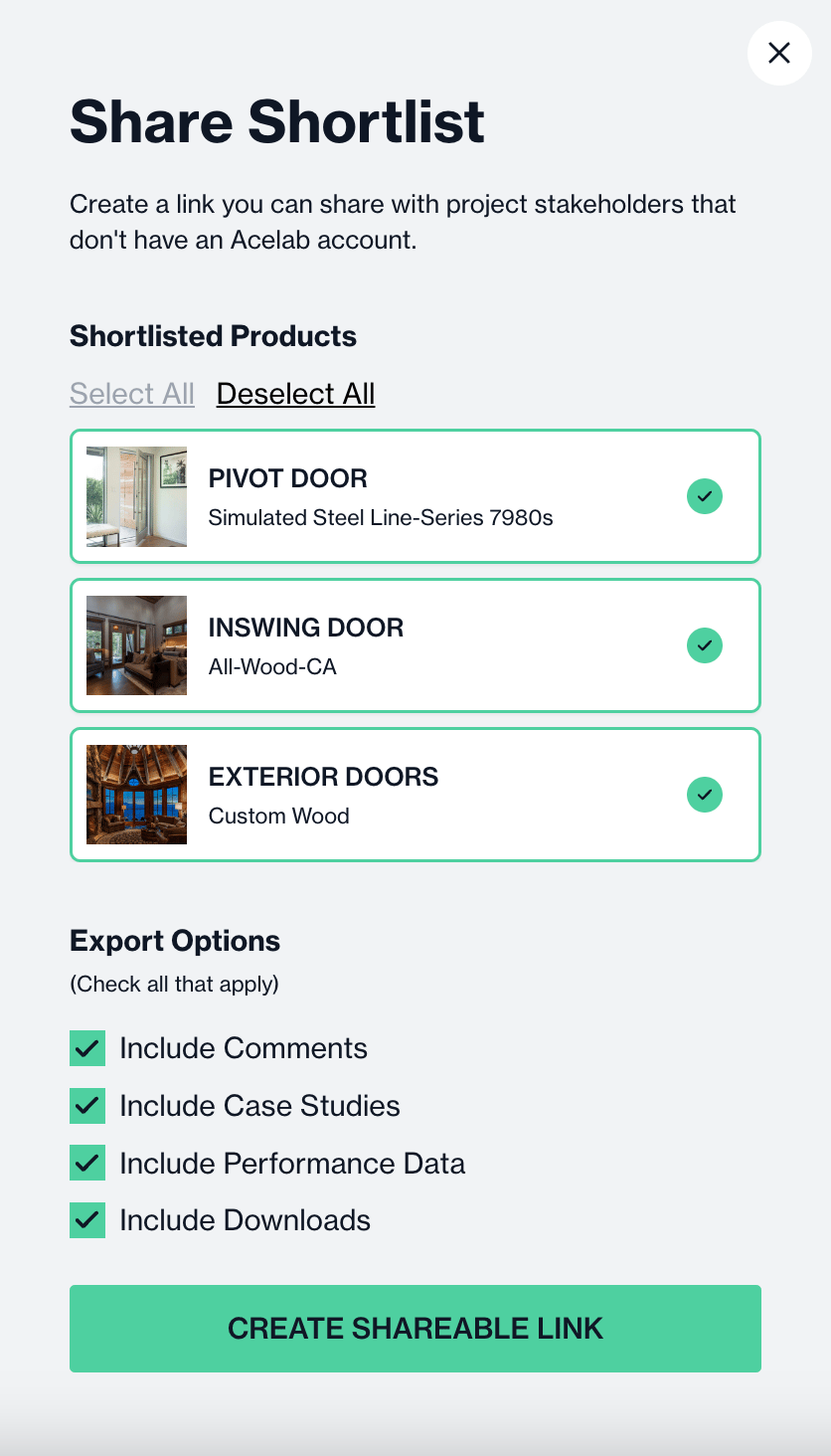
- Click Create Shareable Link,
- The new tab will open
- Review what’s being shared
- Copy the url and send it to your external collaborators
📚 Keep Learning 📚