

Firm Library Overview
Don’t know what the Acelab’s Library is? Check out the full article.
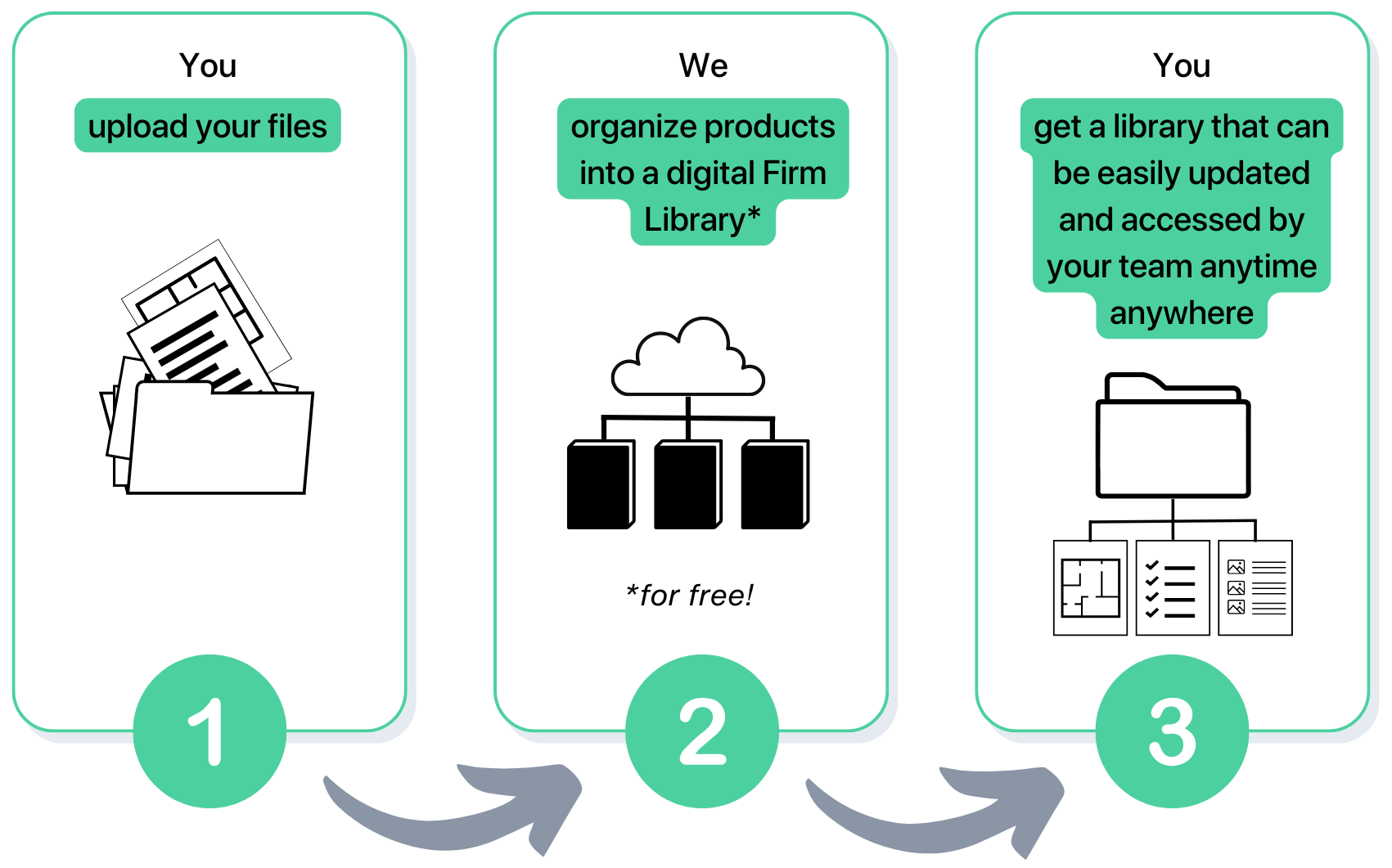
Step 1: You upload your files to our portal
We will use information from your construction documents, specifications, schedules, and bid packages to extract information about the products you have used in the past. Instructions on what and how to submit documents are included here. Following our instructions will help ensure a smoother and faster process. Once your documents are submitted you will receive a message from our team in your Acelab Conversation Portal informing you of when our implementation team will start building your LibraryStep 2: We organize products into a digital Library
Now, it’s our turn to get to work. We will use magic (not really - we’ll use our proprietary AI tool) to extract product information from your files. Each product will be added to the digital library along with publicly available information about them. The library is neatly organized into categories (i.e. CSI Masterformat divisions). And, the following columns are included:- Product Name
- Approval Status (Standard, Needs Review, Avoid, Acelab Recommendation)
- Tags (Residential, Commercial, Industrial, etc)
- Notes
- Masterformat
- Reps
- Used in Projects
These columns include a mix of default and custom fields. You can edit them and add new fields to fully customize your library.
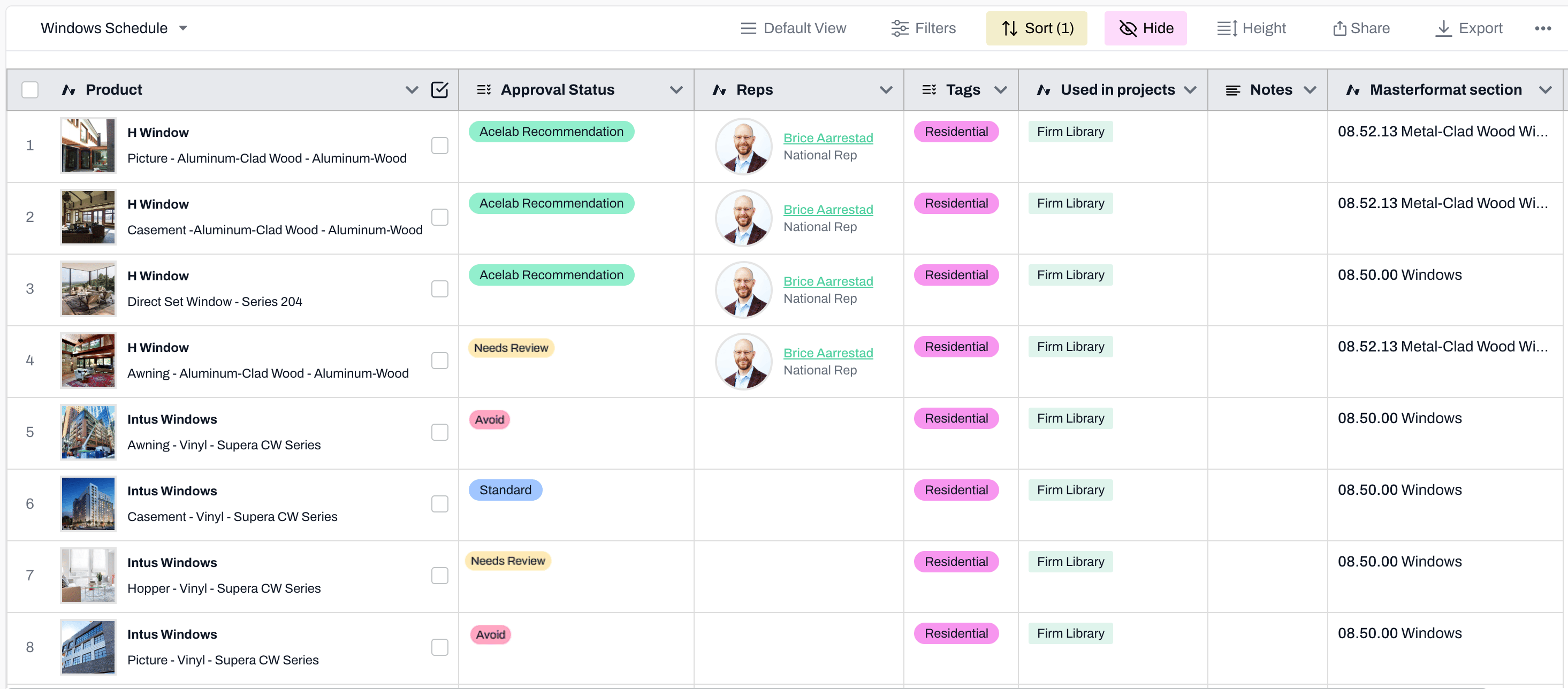
Step 3: You get a neatly organized digital library
When your newly created digital library is ready to be reviewed, you’ll receive a message from our implementation team on Acelab. Their completion message will include:- The total number of materials added to your library
- 6 manufactures we recommend exploring based on our review of your history
- Next steps to begin enriching your library
- access to the library from anywhere anytime
- a central location for all product information, including documents and representative contacts
- permission levels set for each team member according to their role
- easy updates made by anyone with the appropriate permission
- integration with Schedules and the SpecPlanner
- custom fields to add notes or any relevant information that should guide future materials decision-making