Before You Begin
- You must be a project Admin, Creator, or Editor to add products to a schedule.
- Products added to a schedule are automatically available to add to SpecPlanner.
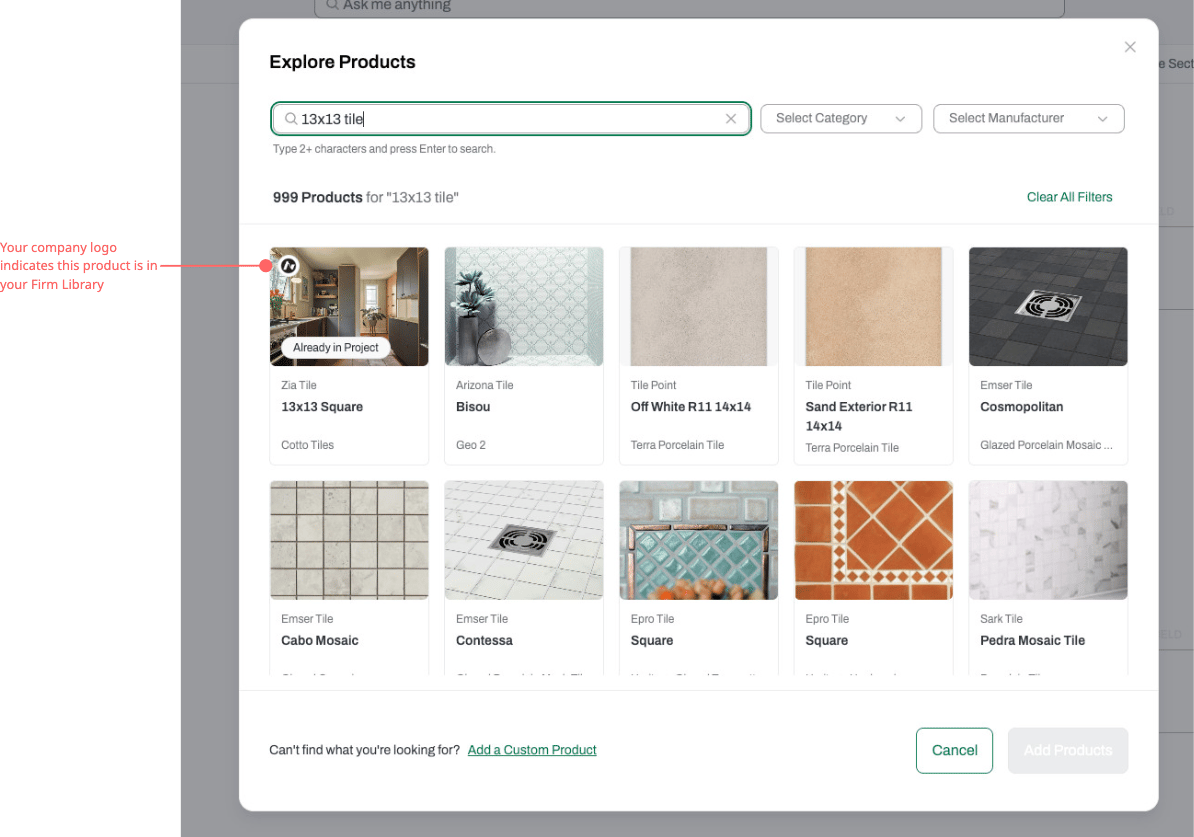
- If a product is already in your schedule anywhere in the project (even in a view you’re not currently looking at), it will be marked as Already in schedule in search results so you don’t accidentally add duplicates.
How to Open Add Product
There are two ways to open the Add Product menu:-
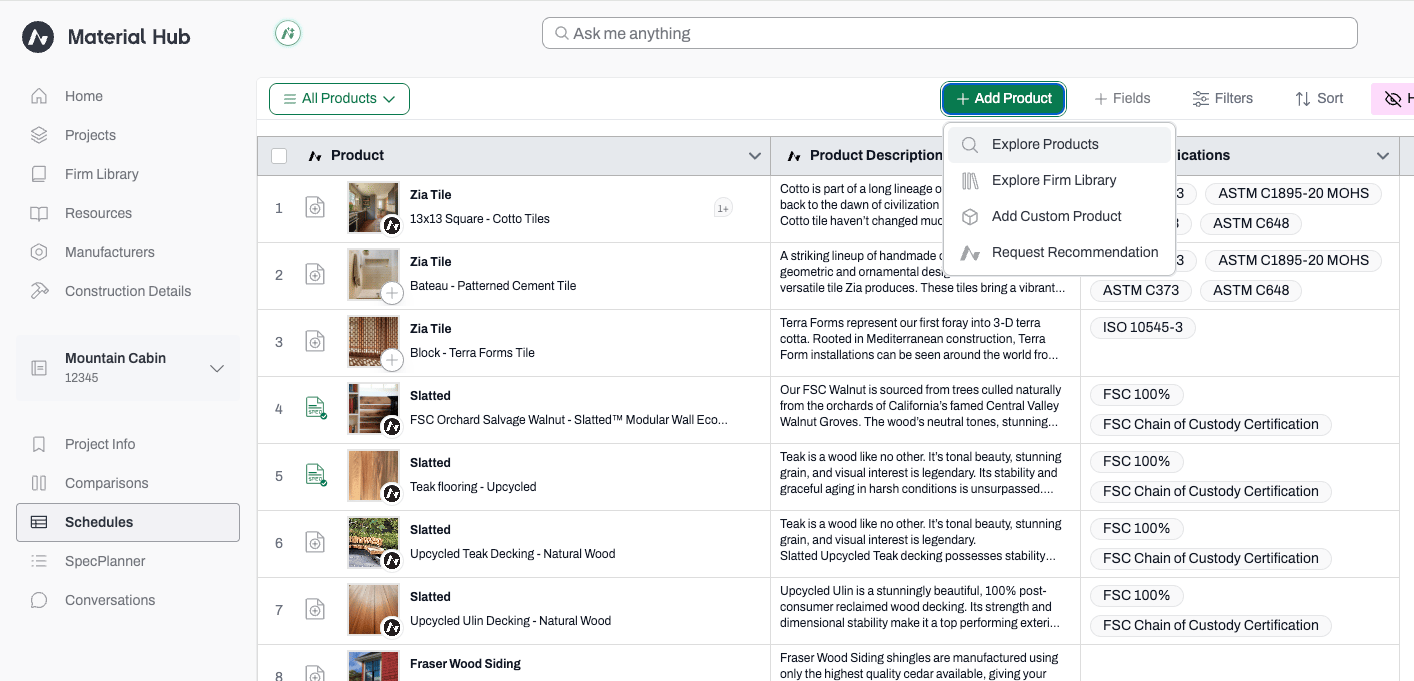
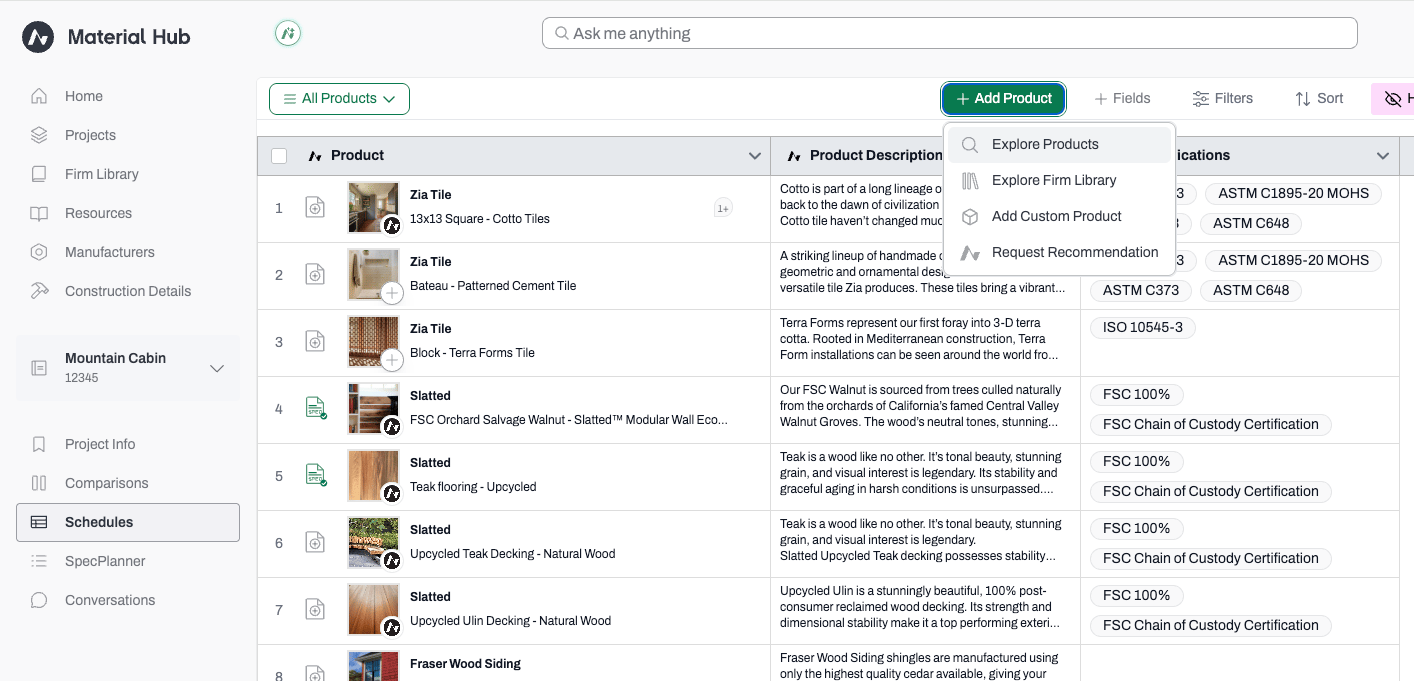
Click the green + Add Product button at the top of the schedule.
-
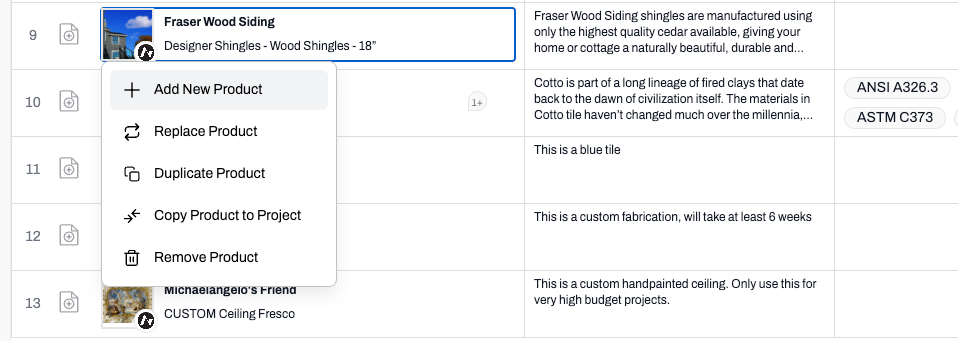
Right-click any row in the schedule and select + Add New Product.
Add Product Options
Explore Products
Explore Products opens the full Acelab catalog in a modal so you can search, filter, and select products without navigating away from your schedule.Search
- Click + Add Product > Explore Products.
-
The modal opens with the search input focused — start typing immediately. Type at least 2 characters and press Enter to run the search. Type in anything - a question, some key terms, or a manufacturer and/or product name. This search operates using our Natural Language AI technology.
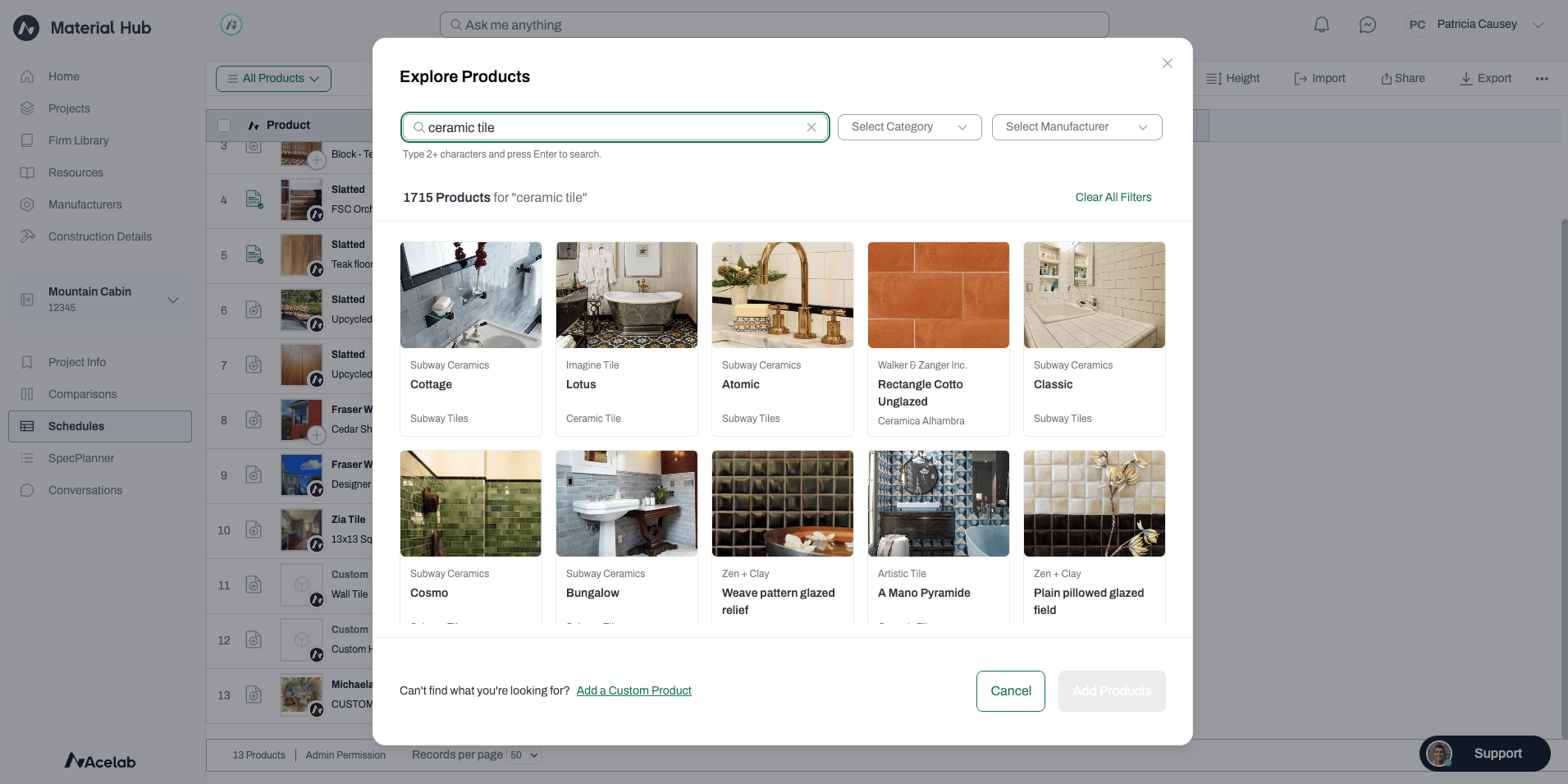
- Results are ordered by relevance. Partial matches are supported — typing “al” can surface results containing “aluminum,” “wall,” “balustrade,” and so on.
- Scroll down to load more results.
Filter Results
Use the Category and Manufacturer filters to narrow down results. Both filters are independent — you can apply one without the other, and both use a searchable typeahead dropdown.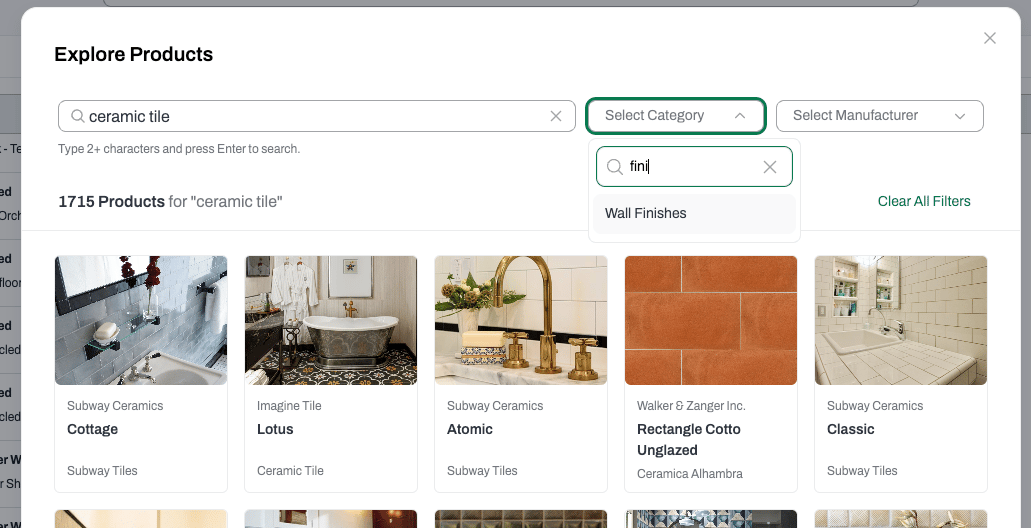
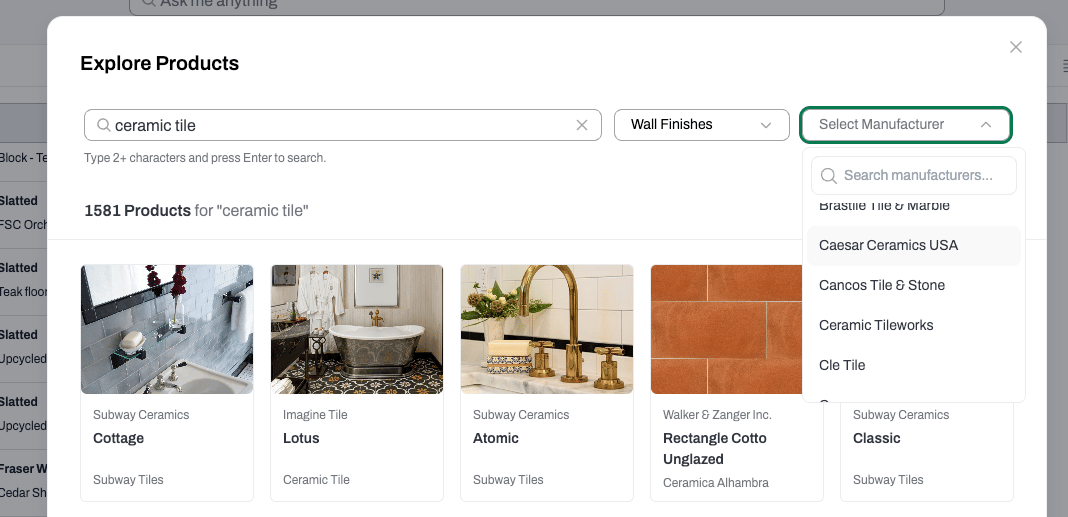
Select and Add Products
- Click any product card to select it. Click again to deselect.
-
You can select multiple products at once. A running count of your selections is shown at the bottom of the modal.
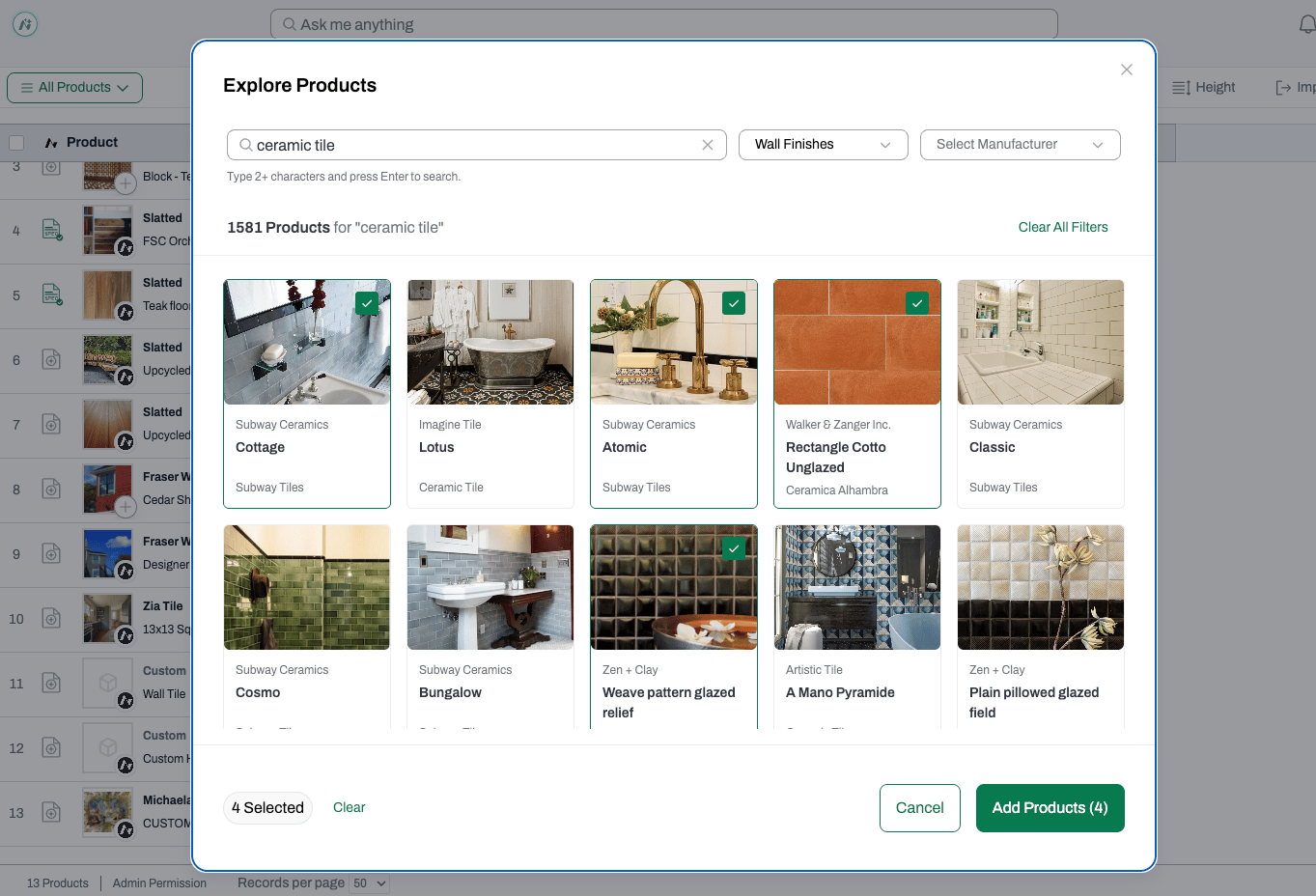
- Use the Clear button to deselect everything and start over (this does not reset your search or filters).
- When you’re ready, click Add Products.
- If your schedule view has no active sort, new products appear at the top of the view.
- If your schedule view has an active sort applied, new products are inserted in the position determined by that sort.
Product Card Indicators
Each result card shows the product image, name, manufacturer, and any of the following indicators where applicable: