

Use cases
-
Commercial Space Standards
- Maintain templates for different commercial space types (retail, office, healthcare)
- Pre-load approved materials that meet specific industry regulations based on Firm Practice.
- Quickly adapt to client needs while following established standards
-
LEED/WELL Certification Projects
- Pre-load templates with approved sustainable materials that meet certification requirements
- Organize product research by certification credits
- Easily track and document sustainable material selections for submission
How to create a project using templates
1
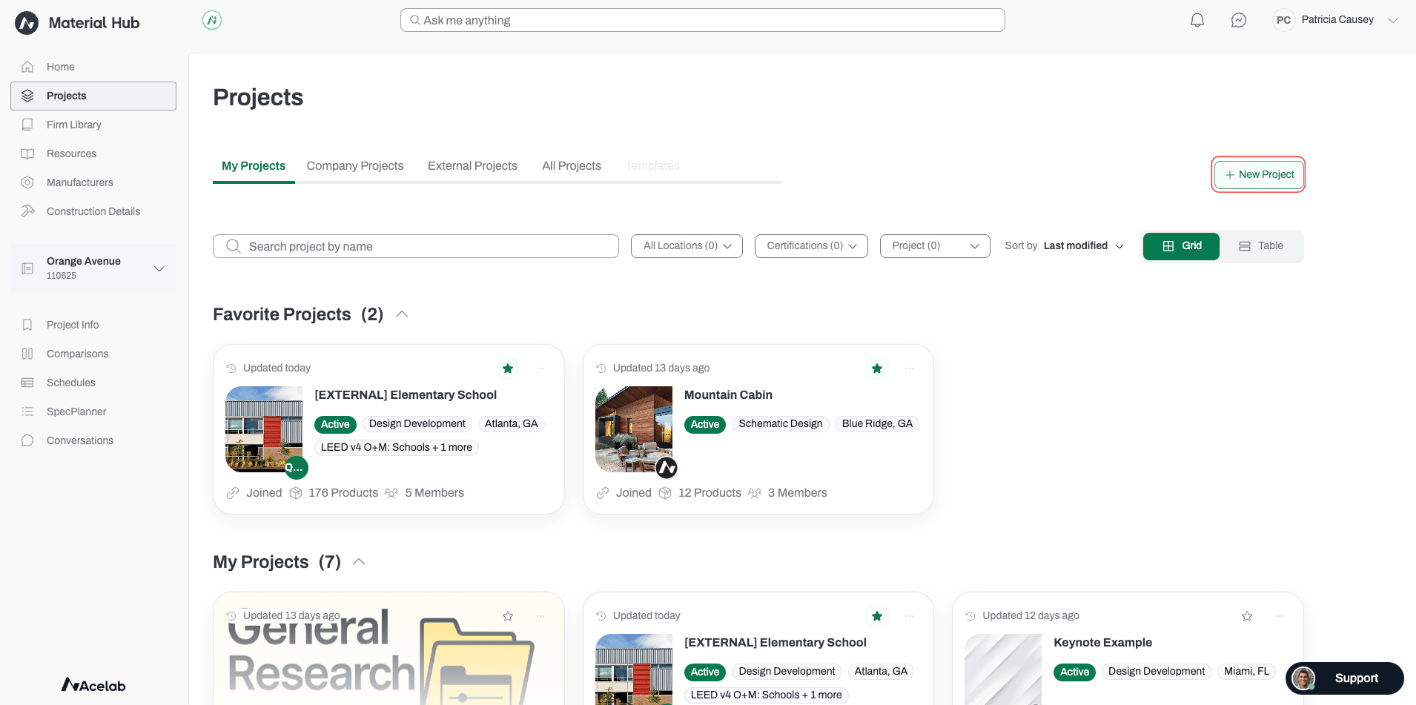
From the homepage or Projects page, click on **New Project**
2
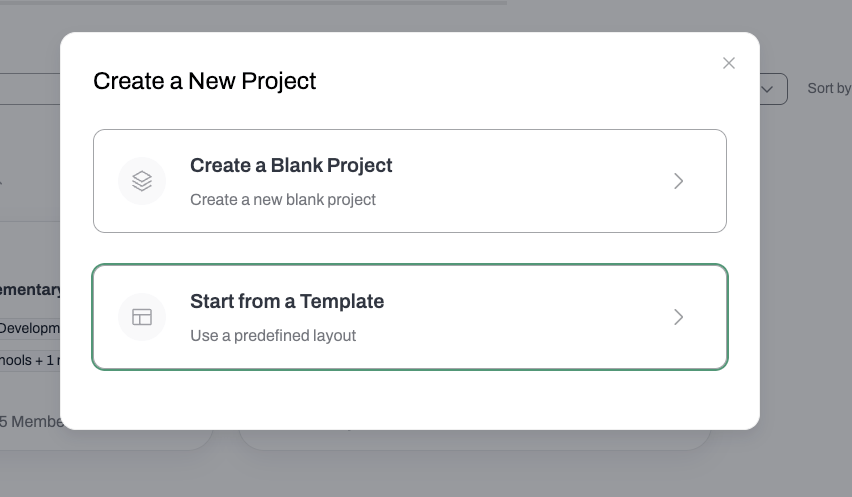
Select **Start From Template**
3
Choose the project to copy from.
The project you select will serve as a Template. We recommend creating project templates that you can use in this step.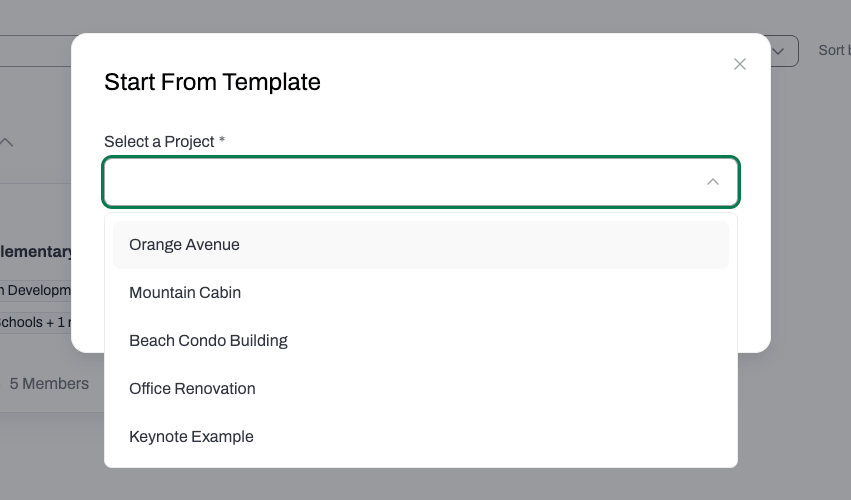
4
Decide whether to **copy products**
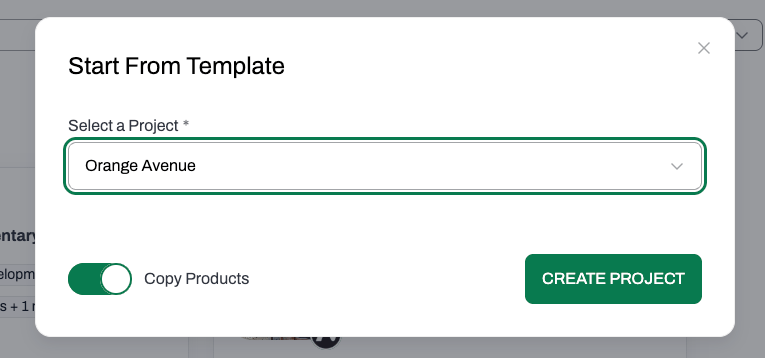
- If your original project (e.g. the template you are using) includes pre-approved products relevant to the project you are creating, leave the option on
- If you want to create a blank project to start adding products from scratch, turn the copy products option off
5
Click **Create Project**
What gets copied?
-
Project Info
- All project information is copied
- User must edit details to fit the specific project
- User becomes project admin and can add collaborators
-
Comparison and Research Data
- If “copy product” toggle is on, products are copied
- Displays product comparisons by category
-
Schedules
- Copies the schedule, with the customizations of the original project (e.g. added fields, hidden fields, sorting options)
- All shared views are copied (private views are not copied)
- If you selected to copy products they are displayed in Schedules
-
SpecPlanner Configuration and Settings
- Copies all section configurations to the new project
- Products are displayed in their sections, if you selected to copy products
What doesn’t get copied?
-
Shared Links
- Any shared links from the original project have not been carried over
-
Saved Searches
- Saved searches are excluded from the copied project
-
Export History
- Export history is not included in the new project
During the creation of new project or copy process
- A status indicator shows the progress of the copy
- The copied project image becomes transparent as the copying progresses
- The project card is disabled until the copying is complete