

What Acelab Does for Manufacturers
Architects use Acelab to search for products, build specifications, and manage material decisions across their projects. When they engage with your brand — browsing your products, requesting information, or saving items to a project — that activity flows into your manufacturer account as a lead you can act on. Think of Acelab as a combination of a digital showroom and a sales pipeline: architects discover you, and your team captures and manages that interest in one place.Your Tools at a Glance
Brand Page
Your public-facing profile on Acelab. Architects can find your brand page through product search, the Manufacturers directory, or direct links. It includes your company description, product catalog, case studies, design inspiration, and a way to contact your rep directly.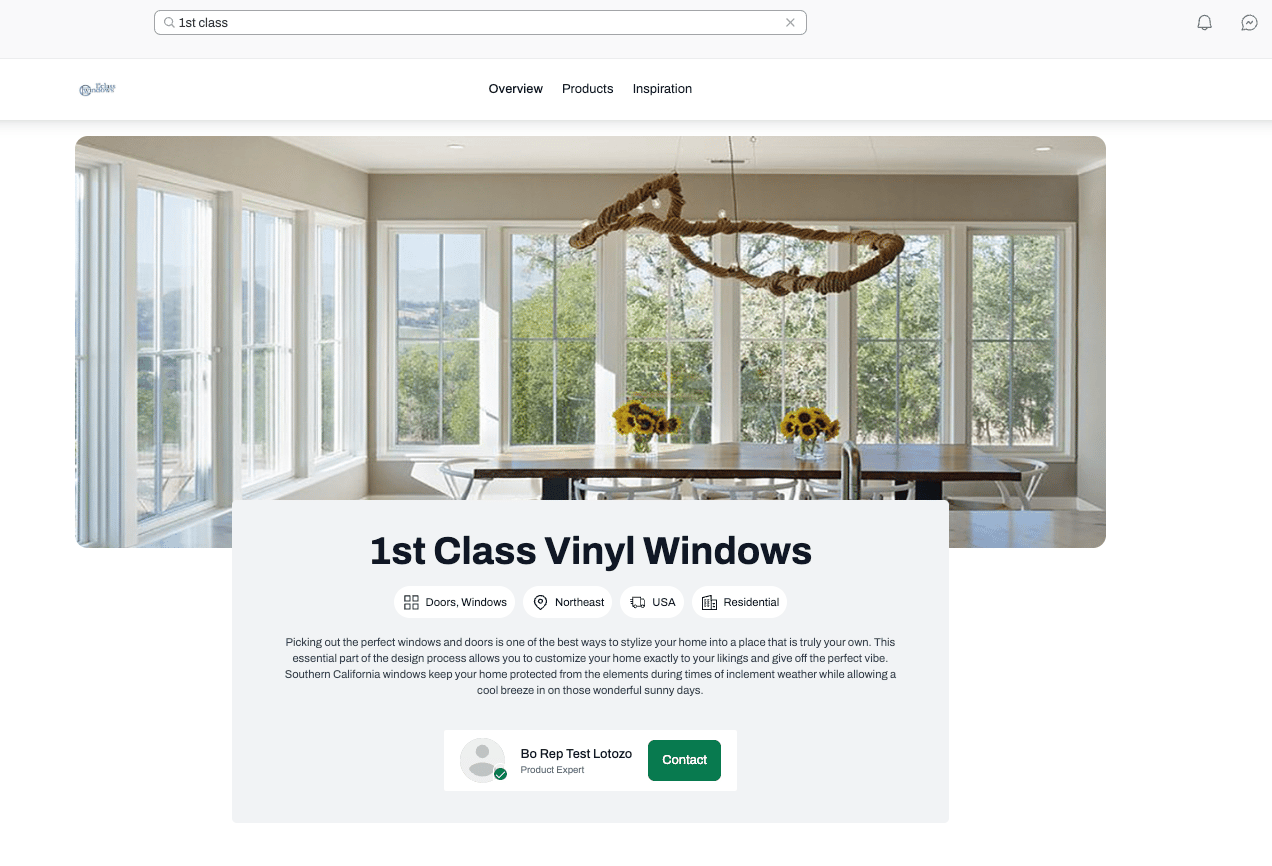
Partner Dashboards
Two dashboard where all AECO companies (Accounts) and their Projects live. Your team can track the status, priorities, and stages of each using your own custom labels, or the out-of-the-box labels.Conversations
A dedicated inbox for direct messages from architects. When someone submits a contact request or asks a question through your brand page or a product page, those inquiries appear here. You can reply, update conversation status, and assign follow-up to the right rep.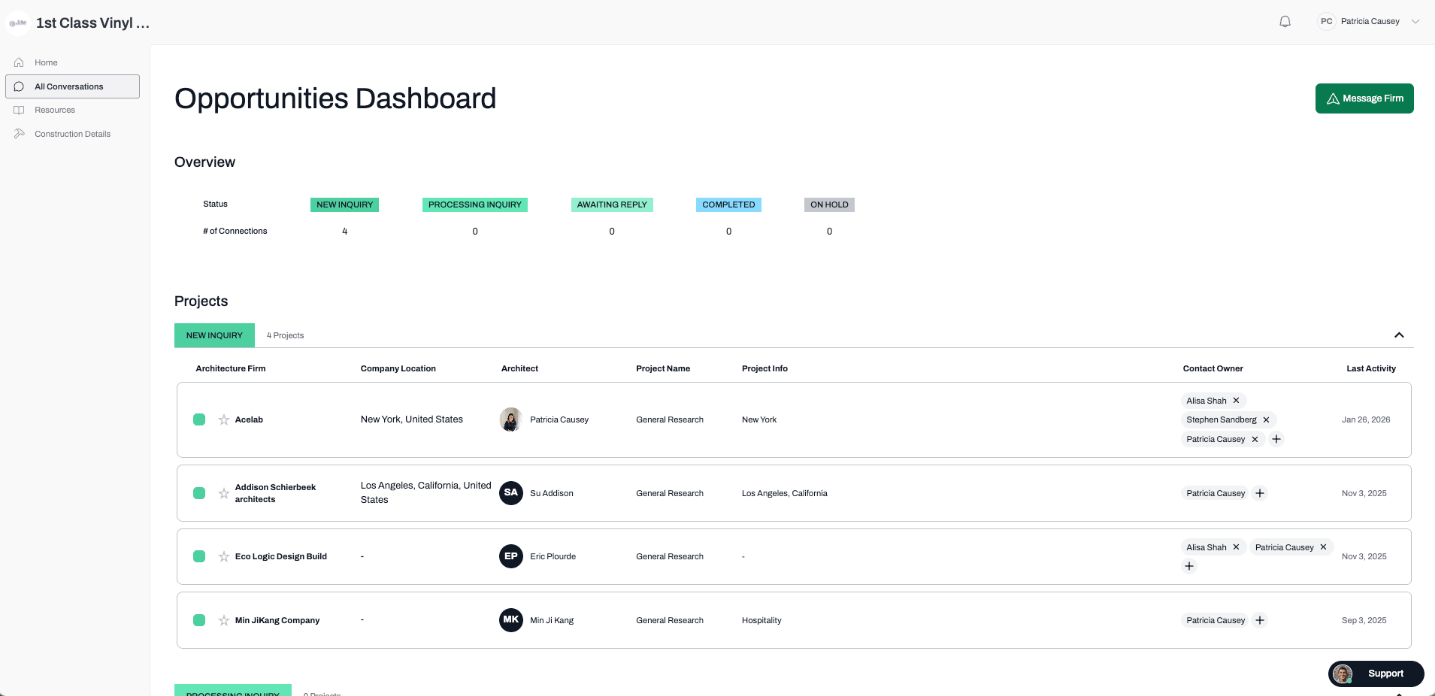
Team Management
Manufacturer Admins can invite reps, assign roles, and manage who has access to the account.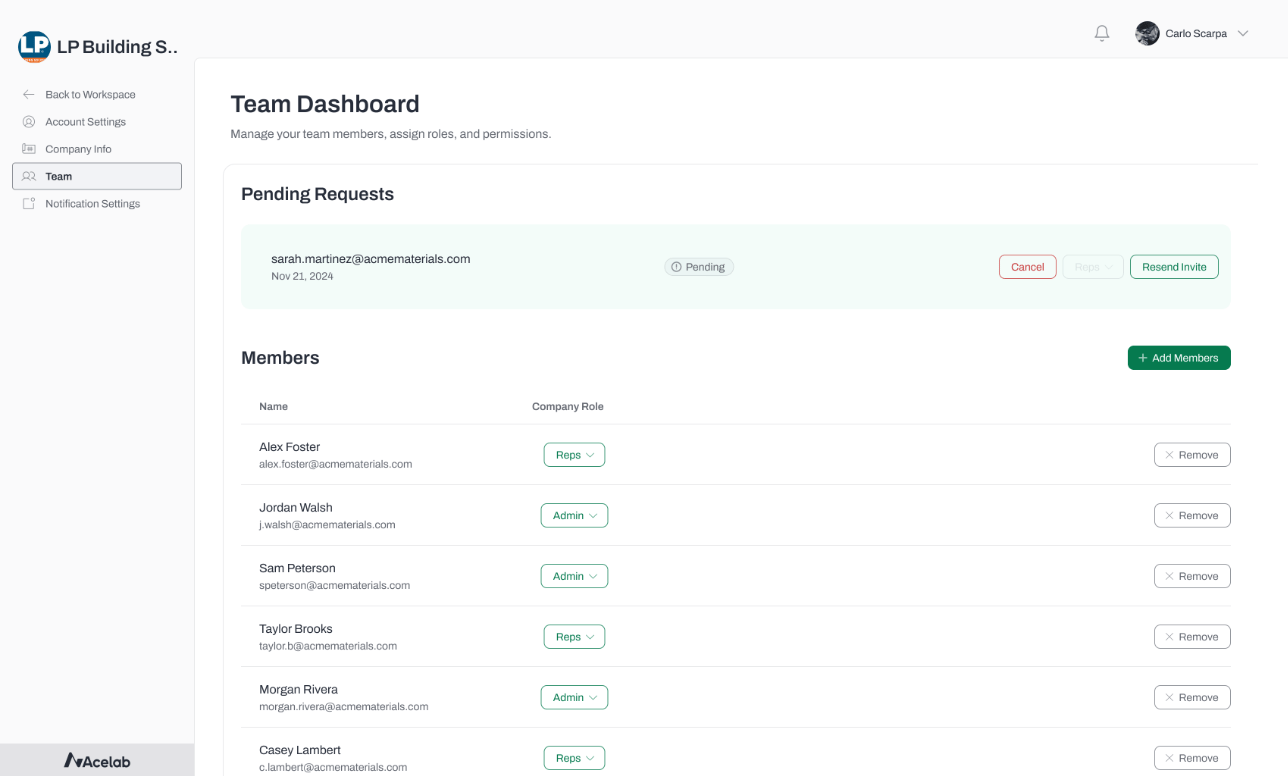
How Signals are Generated:
Insights and leads on Acelab are created in several ways including, but not limited to:- Product page views: When a logged-in architect views one of your product pages, a lead is automatically created.
- Brand page visits: Similarly, architect visits to your brand page generate a lead.
- Event registration: When someone registers for events, like a webinar
- Product saves
- Product added to Spec
- Product mapped to Revit object
Next Steps
If you’re just getting started, we recommend working through these articles in order:- How to Accept Your Invitation and Set Up Your Account
- Understanding Manufacturer Roles: Admin vs. Rep
- Your Brand Page: What Architects See