LEED v5 projects document their products in USGBC’s LEED v5 Building Products Calculator, an Excel workbook with one row per product. Material Hub can fill this workbook for you from your project’s All Products schedule. Each product goes on the correct sheet, in the correct LEED category, with the certifications and documentation that Acelab has on file.You choose the products. Material Hub fills the rows. You check the result and complete the quantities.
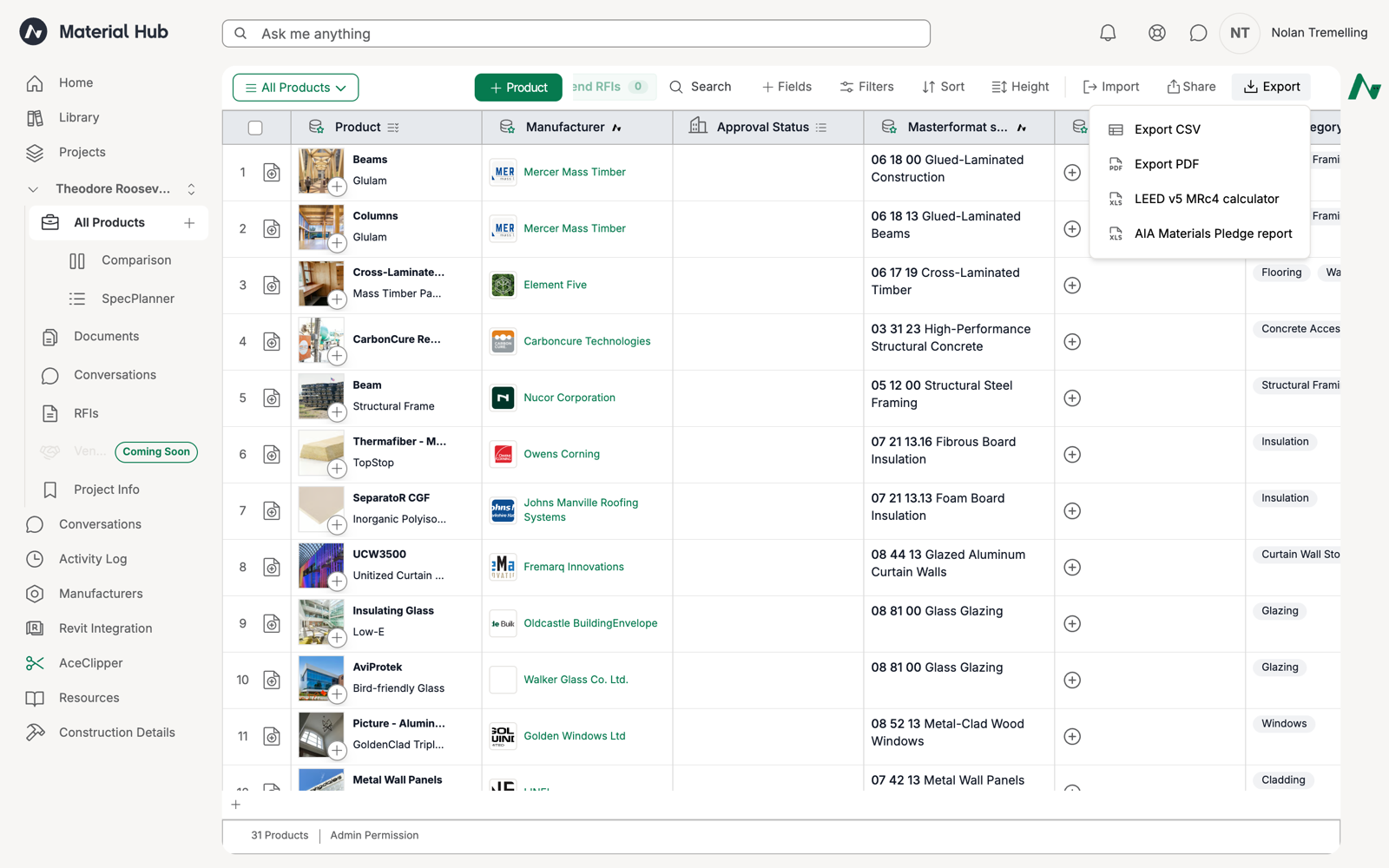
The LEED v5 MRc4 calculator option in the schedule Export menu.
Open the All Products view of your project. The calculator reports the whole project, so Material Hub only exports it from this view. A filtered or shared view cannot produce it.
Optional: set your project’s target certification in the project settings. Material Hub uses it to fill the calculator’s Project Type.
Optional: link the project to Revit. Material Hub uses Revit cost, area and count to fill product values and category totals.
The export reads the same data as the four LEED fields in Schedules. Add LEED v5 Contributing Certifications and LEED v5 Multi-Attribute Score as columns to preview which products will earn points before you export. See LEED v5 Scoring in Acelab.
In your project, open Schedules and make sure the All Products view is selected. Click Export in the top right, then click LEED v5 MRc4 calculator.
2
Choose the products to report
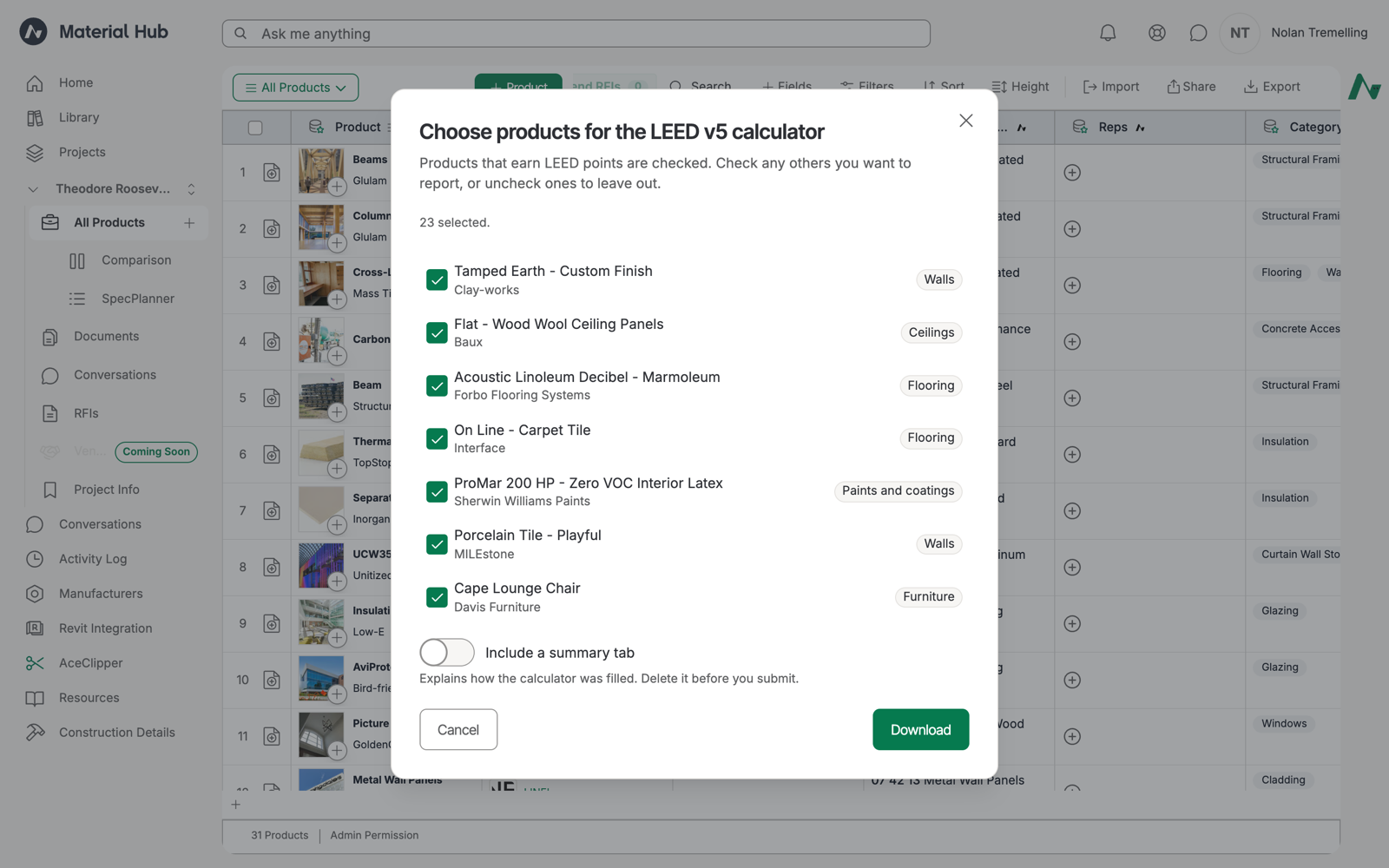
Material Hub loads every product on the schedule and opens the product picker. Products that earn LEED points are checked for you. Check any others you want to include, or uncheck products you want to leave out.Each row shows a badge with the product’s LEED category, Pilot Credit for structure, enclosure and MEP products, or No LEED category when the product does not match a category.
The product picker. Products that earn LEED points are checked by default.
3
Decide on the summary tab
Keep Include a summary tab on while you review the file. The tab explains where each total and product came from. Turn it off for a clean file, or delete the tab before you submit.
4
Download
Click Download. Material Hub generates the workbook and saves it as [Project]_All Products_LEED-v5-Calculator_[date].xlsx. Large projects can take a moment.
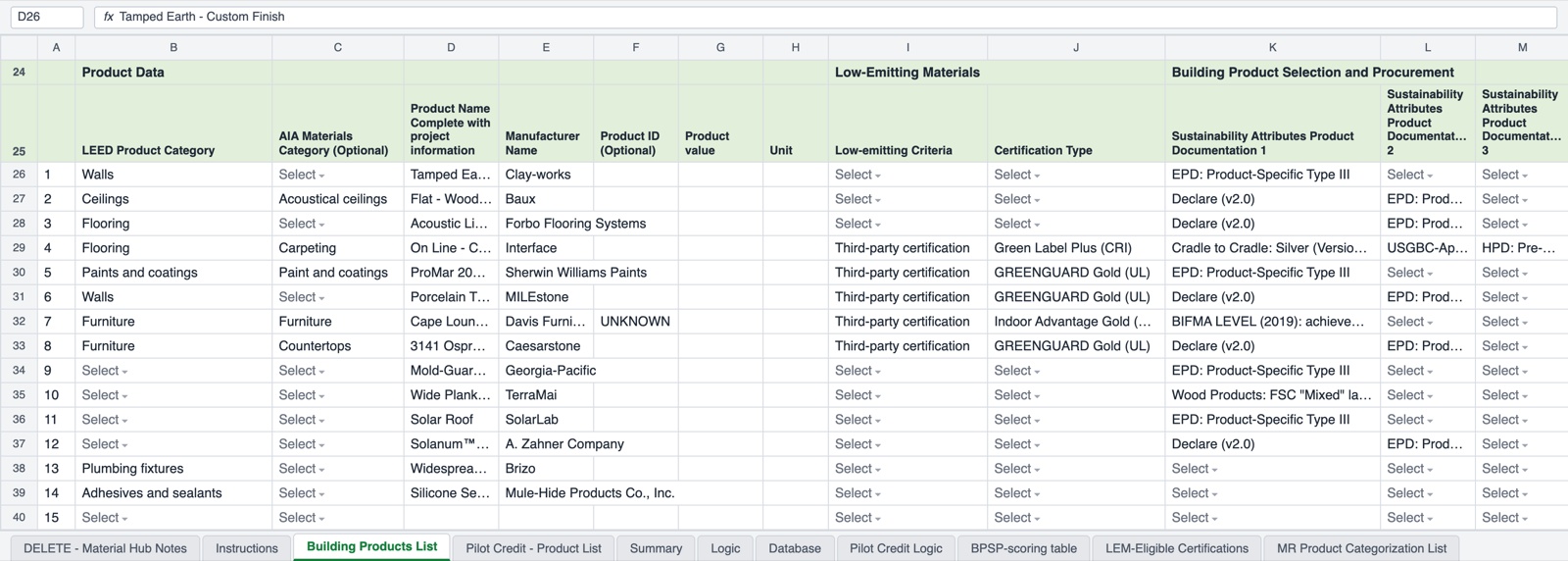
The filled Building Products List. Rows 26 onward are the products you chose.
The calculator has two product sheets. Material Hub puts each product on the sheet that USGBC’s MR Product Categorization List calls for.
Building Products List
Pilot Credit - Product List
Step 1 totals
Interior products that count toward the main MRc4 credit: paints and coatings, adhesives and sealants, flooring, ceilings, walls, insulation, furniture, composite wood and plumbing fixtures. This sheet holds up to 110 products.
Column
Filled with
LEED Product Category
The category from the product’s MasterFormat section or Acelab category
AIA Materials Category
The matching AIA category, when the calculator has one
Product Name and Manufacturer Name
The schedule’s product and manufacturer
Product value
The Revit cost, area or count, when the project is linked to Revit
Low-emitting Criteria and Certification Type
Third-party certification plus the certification, such as GREENGUARD Gold (UL) or FloorScore
Sustainability Attributes
Up to four documents, in the calculator’s own wording: product-specific EPDs, Declare labels, Cradle to Cradle levels, recycled content, FSC wood and more
Structure, enclosure, hardscape and MEP products, which LEED v5 reports under the Multi-Attribute Structure and Enclosure pilot credits. This sheet holds up to 75 products from up to 20 manufacturers. Material Hub also fills the sheet’s list of unique manufacturers.
The calculator’s Project Type comes from the project’s target certification. Category totals are filled only when every product in the category has a Revit value. If one product has none, the total is left for you, so a partial sum cannot pass as a complete one.
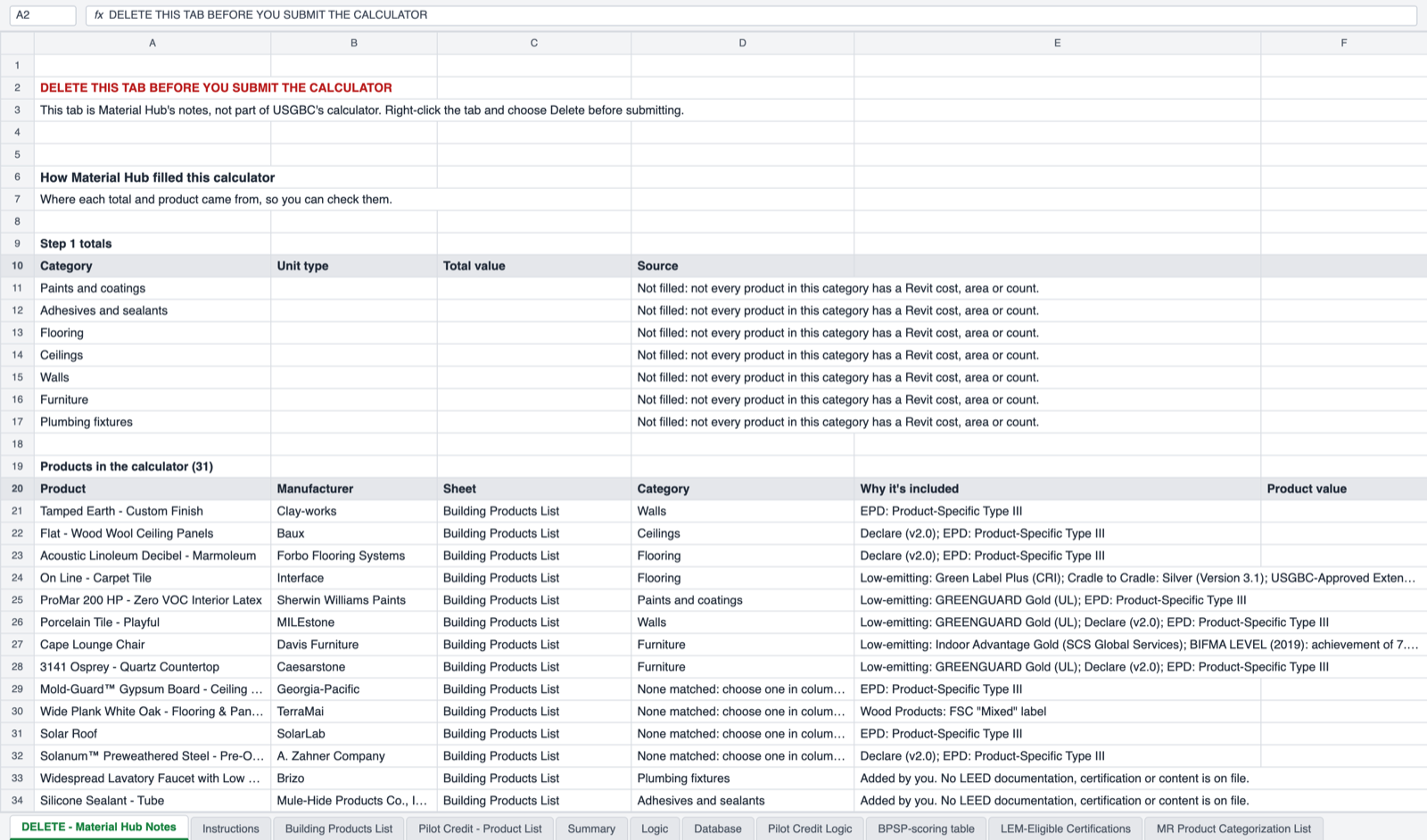
The optional notes tab lists each product, its sheet and the documentation behind it.
Material Hub fills what it can prove from the product data. Complete the rest before you submit:
Categories that did not match. When a product’s MasterFormat section is not in USGBC’s list, the LEED category cell reads Select. The notes tab marks these rows with None matched: choose one in column B. Pick the category from the dropdown.
Product values. Enter cost, area or count for products without Revit data.
Verification. Open each certification on the product page and confirm it meets your project’s LEED v5 requirements. Scores reflect potential eligibility.
The notes tab. Delete the DELETE - Material Hub Notes tab. Right-click the tab and choose Delete.
Do not type over the calculator’s formulas. The grey cells in the Step 1 table and the Summary sheet calculate from your product rows.
You can also ask Ace. In a project, ask for a LEED v5 calculator, for example “Export the LEED v5 calculator for this project.” Ace replies with a report card. Click Choose products to open the same product picker and download the same file.
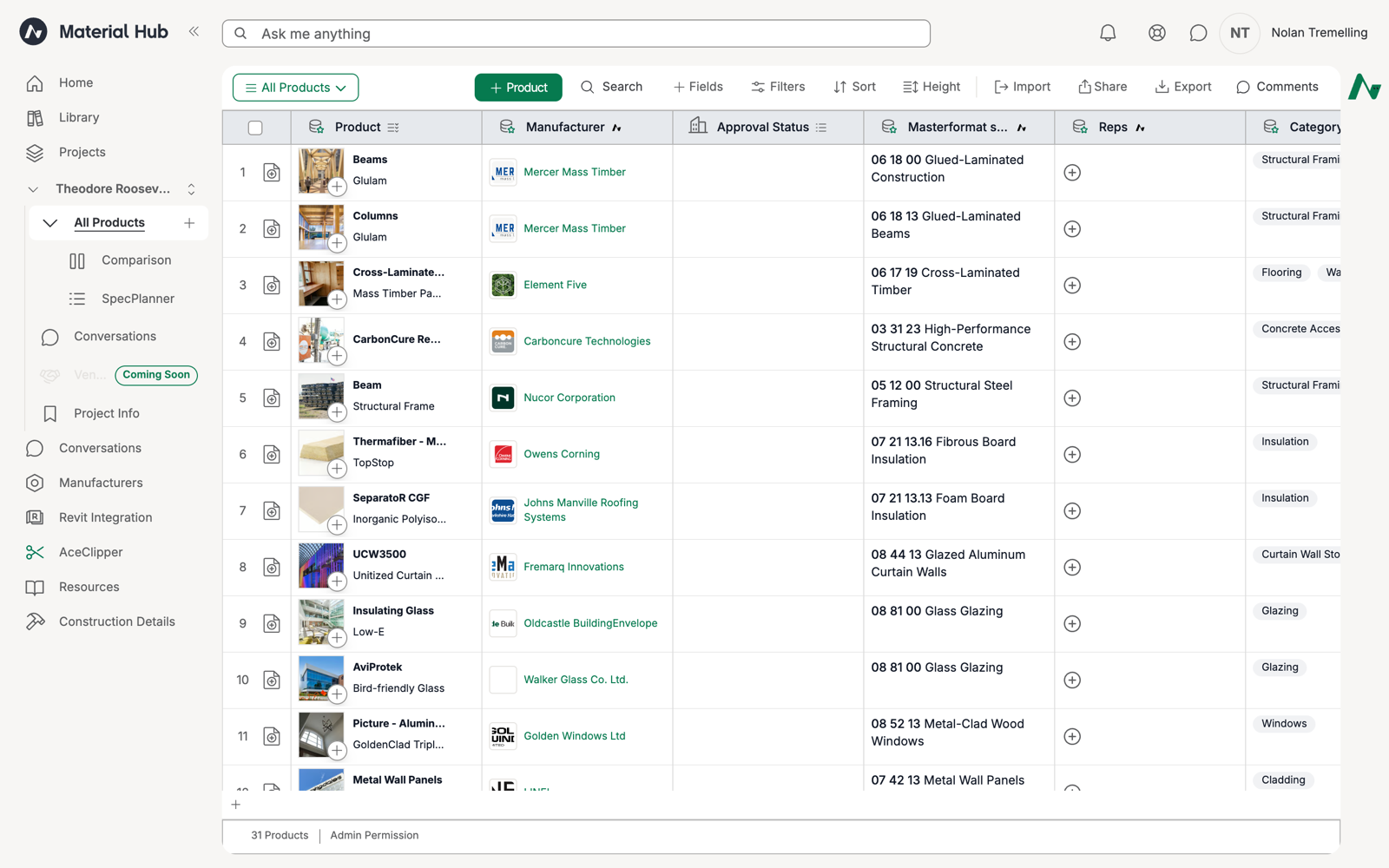
The demo project Theodore Roosevelt Presidential Library models a LEED Platinum civic building with a glulam and CLT roof, low-carbon concrete, mineral wool insulation, a living roof and healthy interior finishes. Its All Products schedule holds 31 products.
The demo project's All Products schedule: glulam, CLT, low-carbon concrete, structural steel and insulation at the top.
Mercer glulam beams and columns (Declare, EPD), Element Five CLT (EPD), CarbonCure ready mix (EPD), Nucor structural steel (EPD), Walker bird-friendly glass (EPD)
Twenty-three of the 31 products were checked by default because Acelab has LEED documentation on file for them. The other eight were added by hand to show how the calculator treats products without documentation.