

How to Use Filters
-
Start by Creating a New View
- Note: Filtering is disabled in the default All Products view to maintain visibility of all products
- Click on the Filters button at the top bar
- Click Add Condition or Add Group Condition
-
Use the drop down menu to select each option and build a query that reflects the products you want to show
- For example, show doors where Approval Status is either Selected or Approved by Client, AND Material is Aluminum (see image below for how the query looks like)
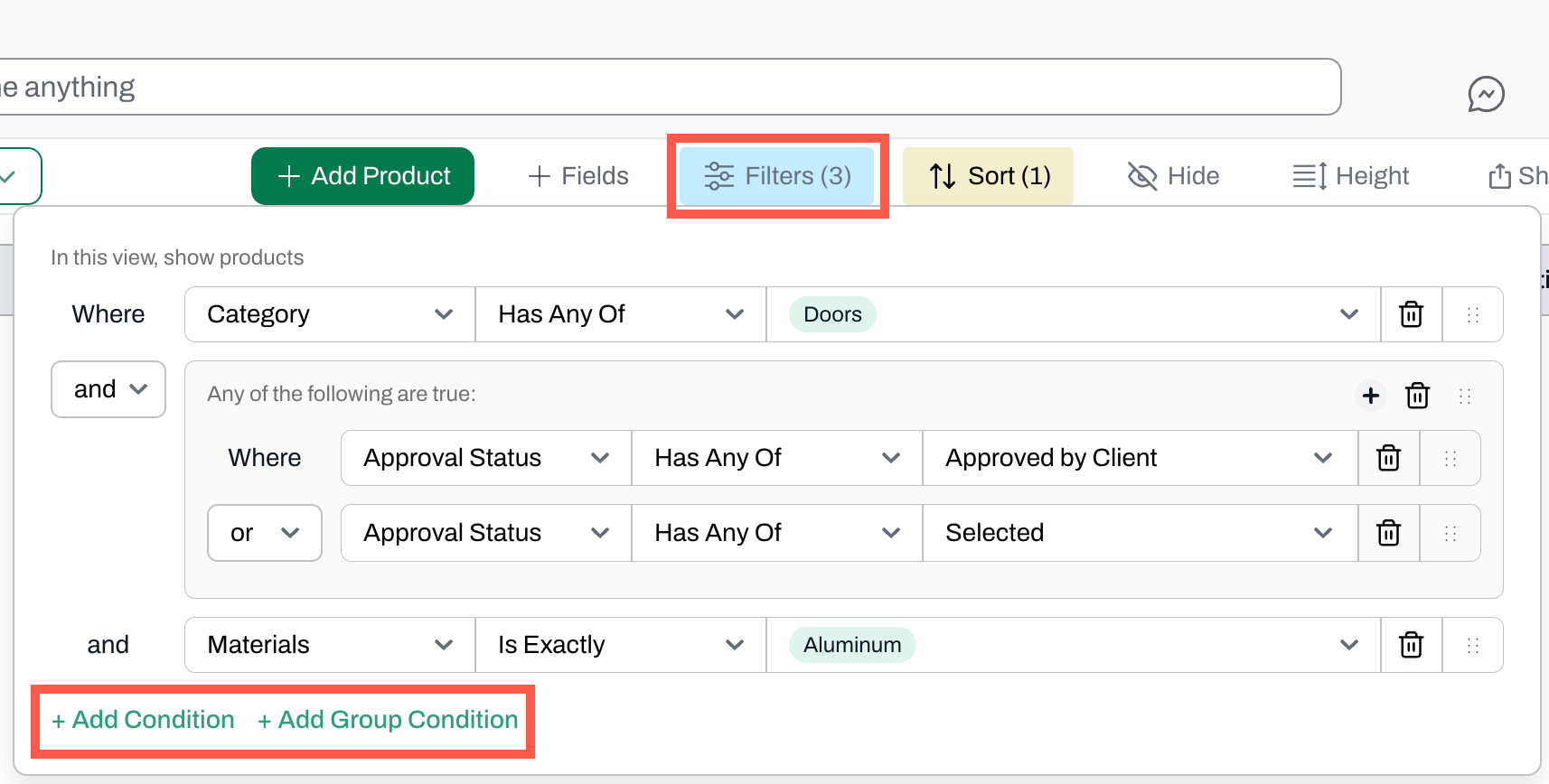
- Use the + icon to add conditions within the group
- Use Add Condition or Add Group Condition to add more conditions
- Remove conditions by clicking on the trash icon
- To reorder conditions, click on the six dots icon and drag them up or down
- You will see the list of products updating as you add/remove filters
- The view is automatically saved
📚 Keep Learning 📚