How to Sort
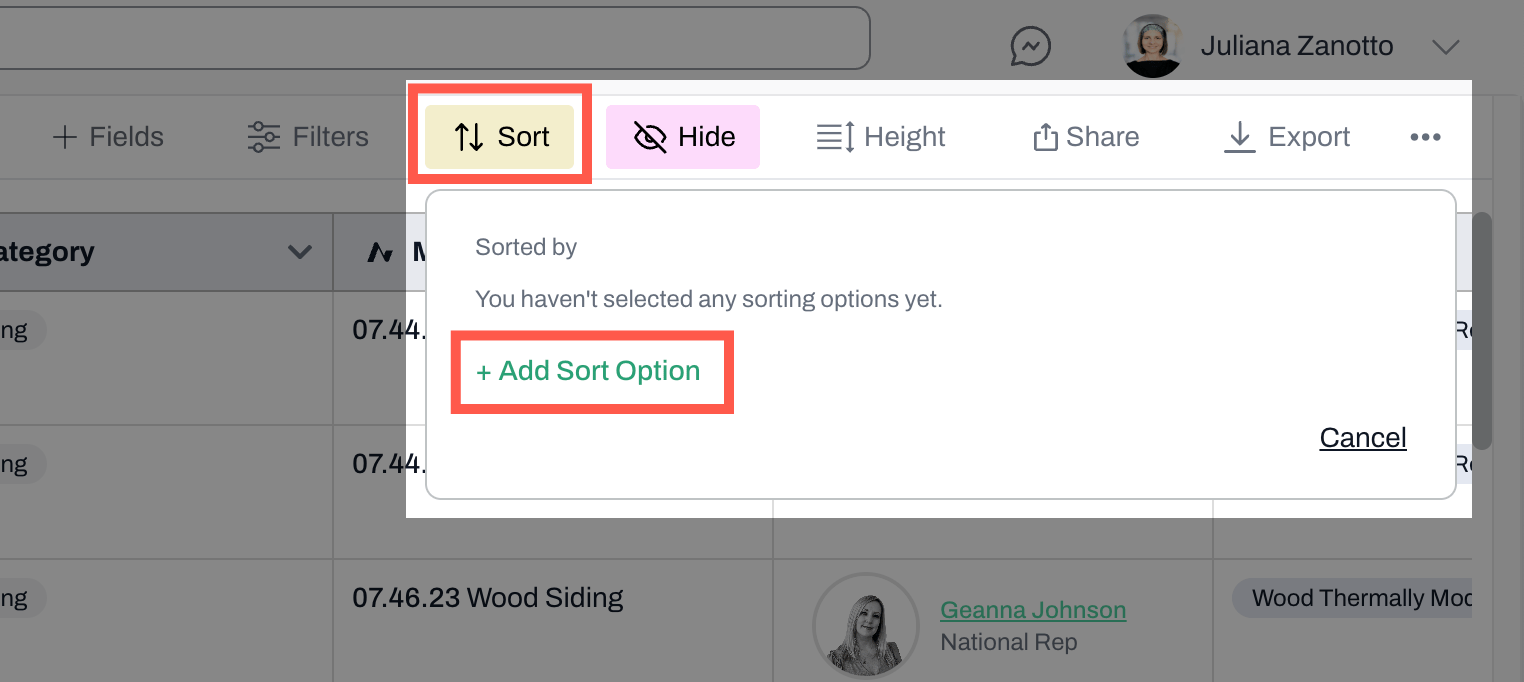
- Navigate to the Sort button in the top bar.
- Click Add Sort Option (or choose an existing one if you have already added sort options)
-
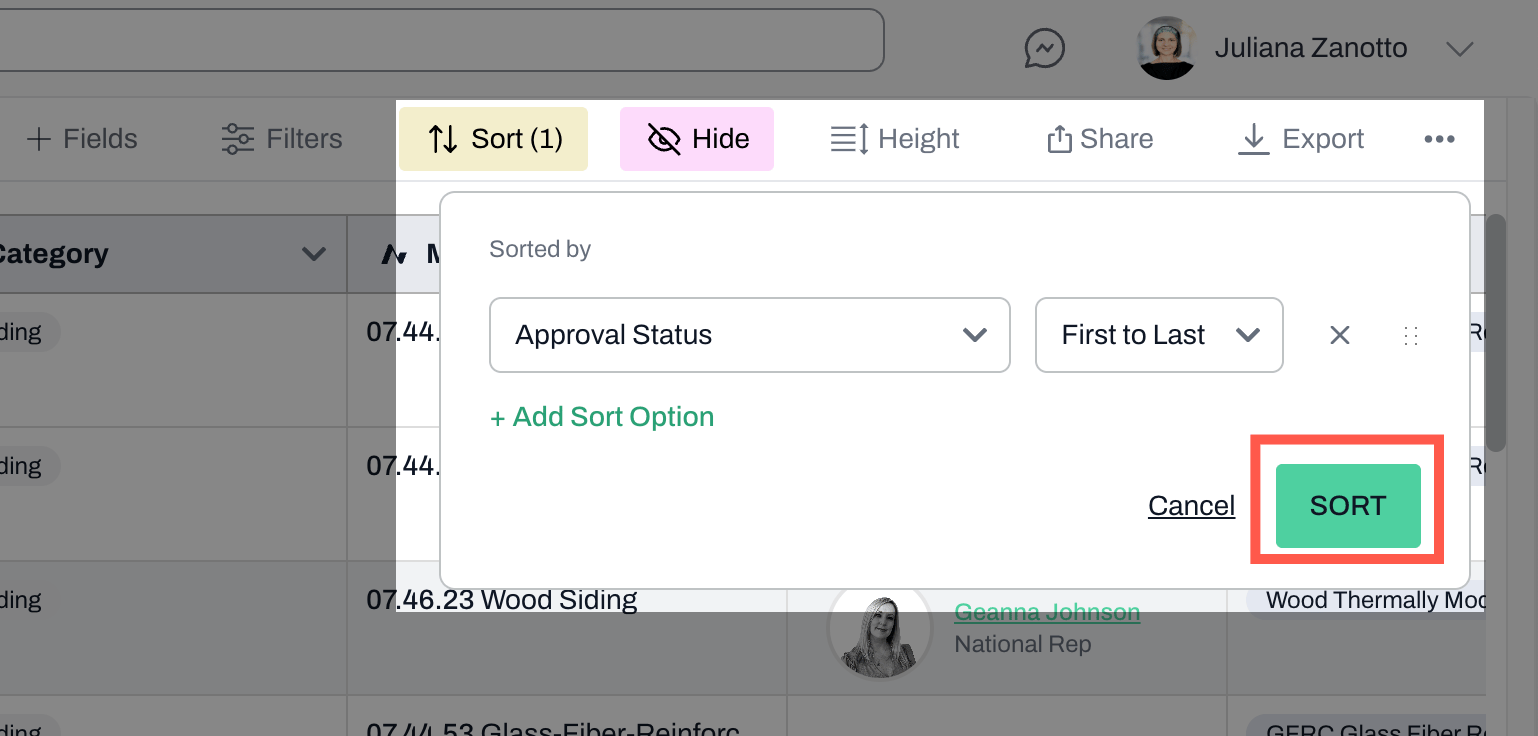
Choose an option
- The options listed are the fields (columns) visible in your schedule. If you do not see the option you want, you need to add the field (or make it visible).
-
Once you select the sort option, choose how you want to sort
- Some options may allow for sorting by A to Z while others may be First to Last.
-
If you want to add more sort options, click to add them.
- You may reorder sort options by dragging the six dots icon to the right of the sort option, and you may remove sort options by clicking on the ‘x’ next to each option.
- If you are done, click Sort. The schedule will automatically update.