

Note: Users with all permission level, except Viewer, can edit masterformat section.
How to change Masterformat Section in Schedules
- Navigate to Schedules in the Project where the product is saved
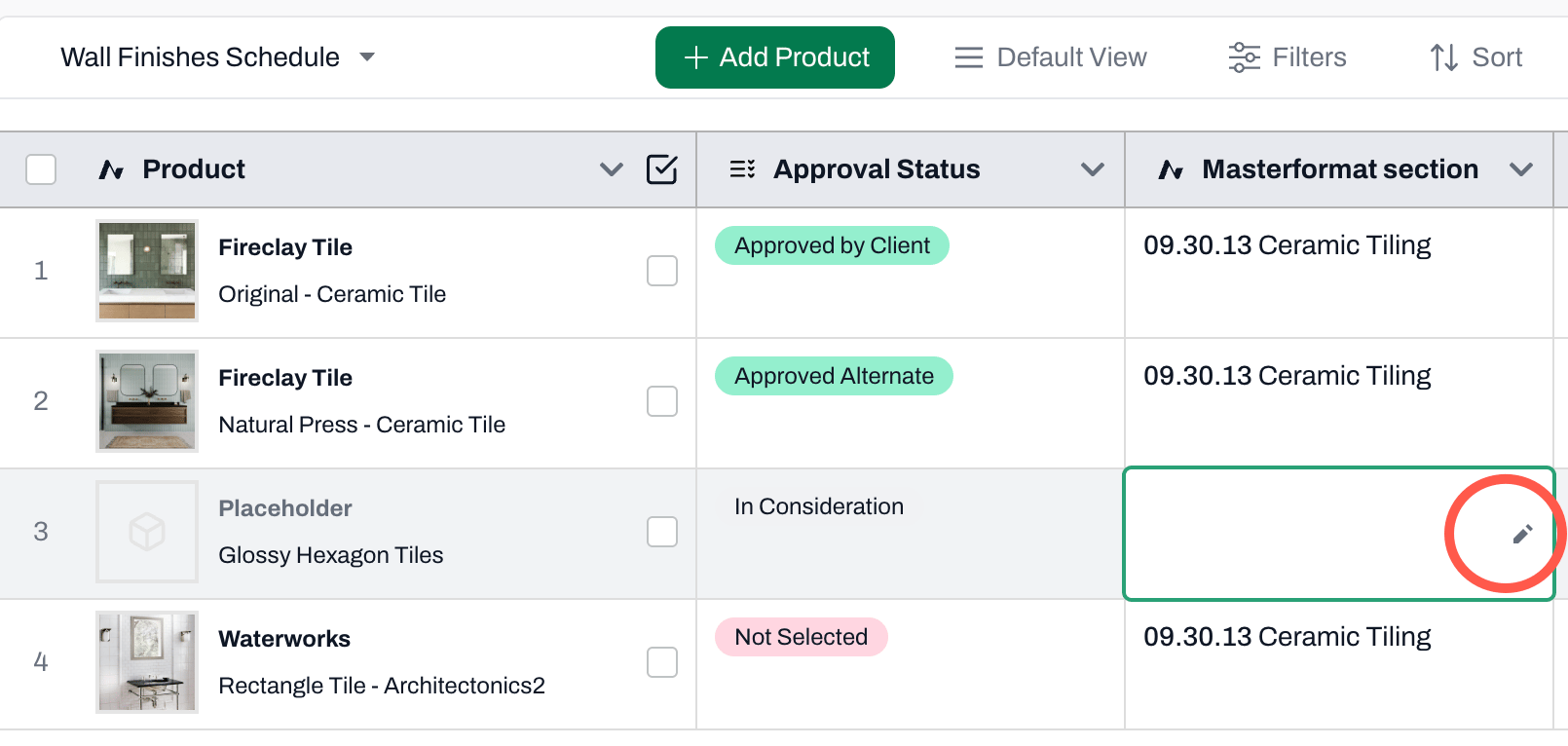
- In the Masterformat section field (column), click on the cell you wish to change
- Click on the pencil icon
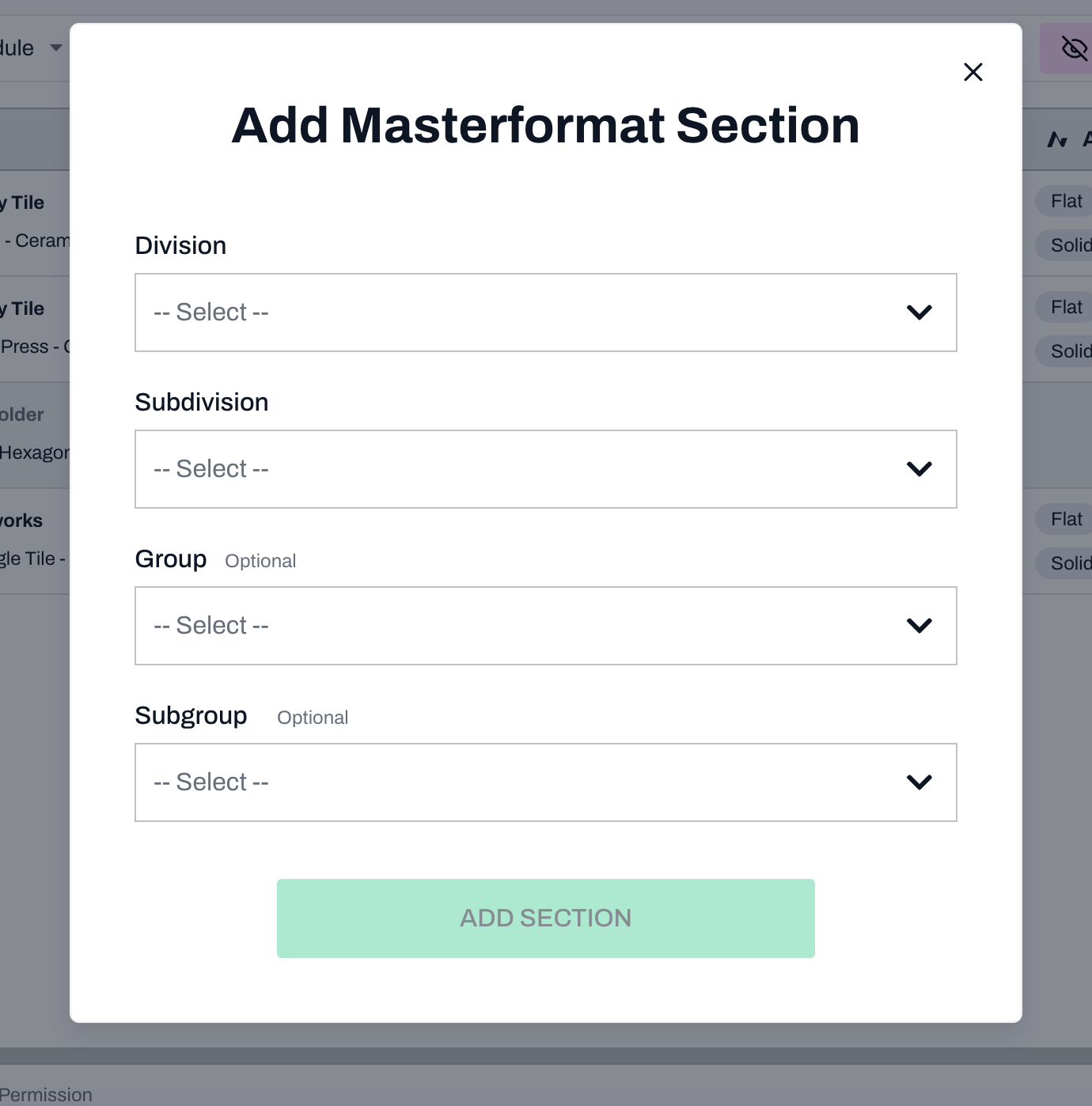
- Select a Division, Subdivision, Group, and Subgroup (optional)
- Click Change Section
Note: When copying a product with an changed masterformat section to another project, the change will be copied as well.
Impact in SpecPlanner
- If the checkbox for adding to Spec Planner is selected, the masterformat in the SpecPlanner will align with the changed masterformat section in Schedules.