

How to Edit Project Field Data Types
-
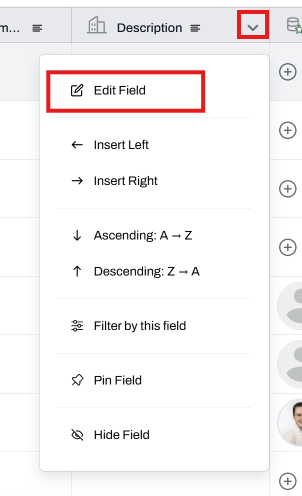
Click the down arrow next to the Project Field header, and choose Edit Field.
-
Choose what to edit. Here are some things you can do:
- Add a new name
- Select a new data type (see below the implications to your data)
- Change the behavior of the field (e.g. toggle on/off the option for multi-select).
- If working with a List field, add, remove, or rename options and change their color
- If working with a Number field, change the Decimal formatting
Implications When Changing Field Data Types
Below is the list of changes and the implications that occur:-
Number ➝ Text: Converts the numbers to text
- For Multi-Entry Fields: numbers become a comma separated list of values
- Number ➝ Attachment: Deletes all values
-
Number ➝ List: Changes all values to list options
- For Multi-Entry Fields: every value becomes an option
-
List ➝ Text: Converts the list options to text
- For Multi-Entry Fields: list becomes a comma separated list of values
- List ➝ Attachment: Deletes all values
- List ➝ Number: Deletes all values
- Text ➝ List: Deletes all values
- Text ➝ Number: Deletes all values
- Text ➝ Attachment: Deletes all values
- Attachment ➝ List: Deletes all values
- Attachment ➝ Number: Deletes all values
- Attachment ➝ Text: Deletes all values
📚 Keep Learning 📚