

What You Need to Know
User Permissions
- Only Admins, Creators, and Editors of the Project can edit Default Fields.
Types of Fields
- Only Default Fields in List and Number formats can be edited.
- Only fields with information on Acelab Products (not Placeholders) can be edited.
How to Edit Default Fields
Adding and Removing Options
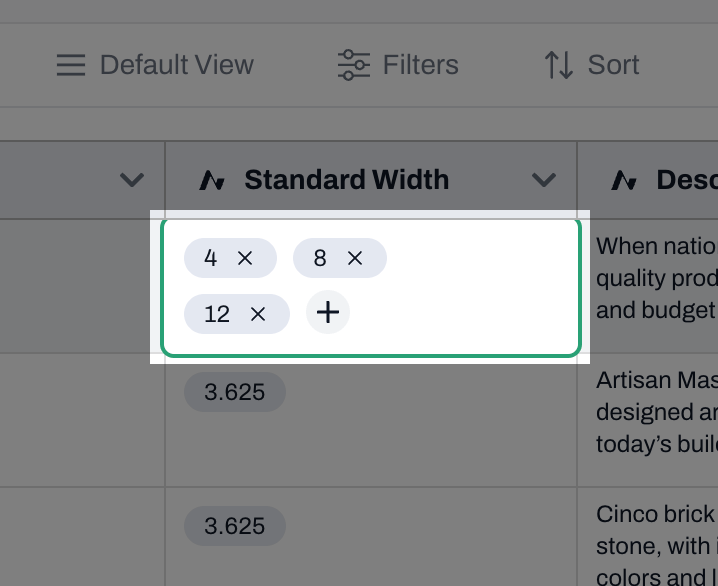
- Click on cell you wish to edit
-
To add a new option:
- Click the ’+’ sign
- Type in your desired option and click ‘Add Option’.
-
To remove an existing option:
- Click the ‘x’ sign next to the option you wish to remove
- Note: Options are not permanently deleted. They will be removed from the cell, but will still be listed as an option to be added
Editing Options
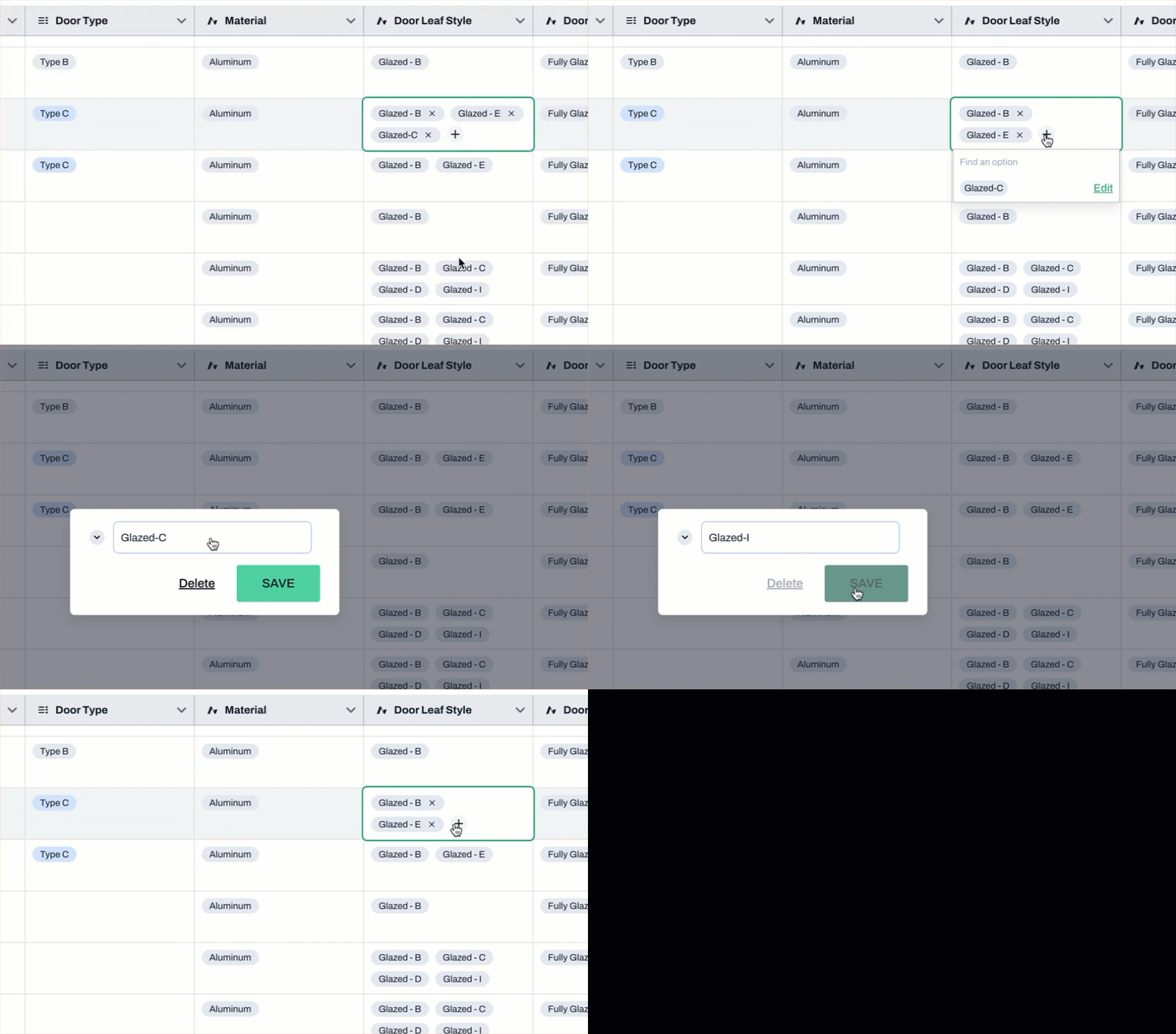
Note: You can only Edit options that you have added. You cannot edit default options from Acelab’s database.- Click on the cell with the option you wish to edit.
- If the option you wish to edit is included in the cell, you must removed it first by clicking on the ‘x’ sign.
- Click the ’+’ sign
-
You will see a list of options you have added.
- Click ‘Edit’ next to the option you wish to edit
- Rename the option and click ‘Save’. OR
-
Deleting Options:
- You can delete an option only if it is not in use in this project or any other projects.
- If an option is in use, a pop-up error will display a list of projects where the option is active.
- If the option is free of usage, you can click on Delete.
📚 Keep Learning 📚