

Search
Type in the Search box above the product list. The list narrows as you type. Search matches the manufacturer, the product name and the name of the element a product is linked to.Add columns with Manage Field
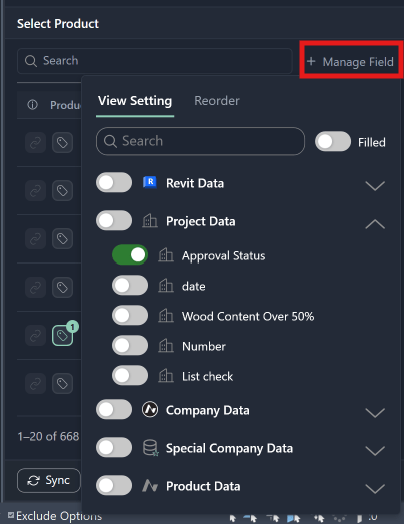
The list starts with one column, Product, which always stays first. Add more columns to tell similar products apart.- Click Manage Field above the list.
- On the dropdown menu, fields are grouped as Revit Data, Project Data, Company Data, Special Company Data and Product Data. Click a group to expand it.
- Turn on a field’s toggle to add it as a column. Turn on a group’s toggle to add every field in it.
- Use the search box to find a field by name. Turn on Filled to see only the fields you have added.
- To change the column order, open the Reorder tab and drag fields up or down.
- Drag a column’s edge in the header to make it wider or narrower.
- Your columns, their order and their widths are saved for you on this computer. They stay the same in every model and project you open.
Filter and sort a column
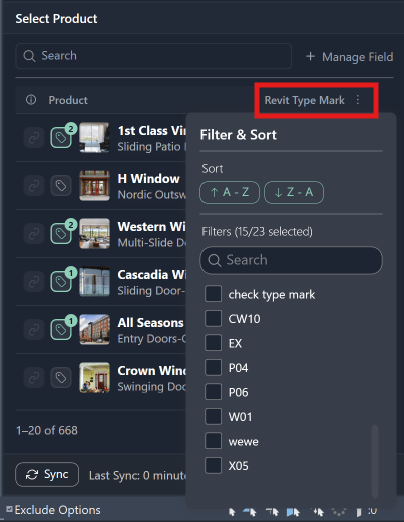
- Click ⋮ in a column header.
- In the Filter & Sort menu, click A - Z or Z - A to sort. Click the same option again to remove the sort.
- Under Filters, tick the values you want to see. Use the search box to find a value.
- The list updates as soon as you tick a box.
Move between pages
The list shows 20 products per page. Use the arrows under the list to go to the first, previous, next or last page. The text beside them shows which products you are looking at, such as 21–40 of 212. Searching, filtering or sorting takes you back to page 1.What stays and what resets
| Change | Search, filters and sort |
|---|---|
| You select something else in Revit | Kept |
| You sync | Kept |
| You switch to another open model and back | Kept |
| You link the model to a different Acelab project | Cleared |
| You close Revit | Cleared (your columns are kept) |
Troubleshooting
| What you see | What to do |
|---|---|
| No products match your search | Try a different term, or click Clear Filters to remove the search and all filters |
| No items match your filters | Click Clear Filters, or untick some values in the column’s Filter & Sort menu |
| A column I added is missing | That field is not in this project’s Acelab schedule. It reappears in projects that have it |
| A product I expect is not listed | Check that it is in your Acelab project schedule, then click Sync |