

Open the panel
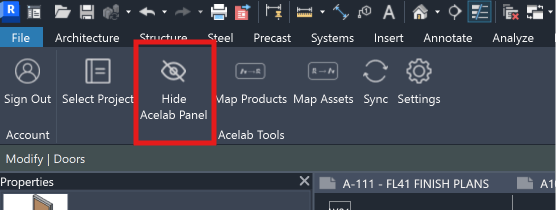
- In Revit, click the Acelab tab.
- In the Acelab Tools group, click Show Acelab Panel.
- The panel opens docked on the right. The ribbon button changes to Hide Acelab Panel.
Link a project from the panel
If the model is not linked to an Acelab project yet, the panel shows No Acelab project linked.- Click Select Project in the panel.
- Pick your Acelab project and click Next.
- The panel loads that project’s products.
What’s in the panel
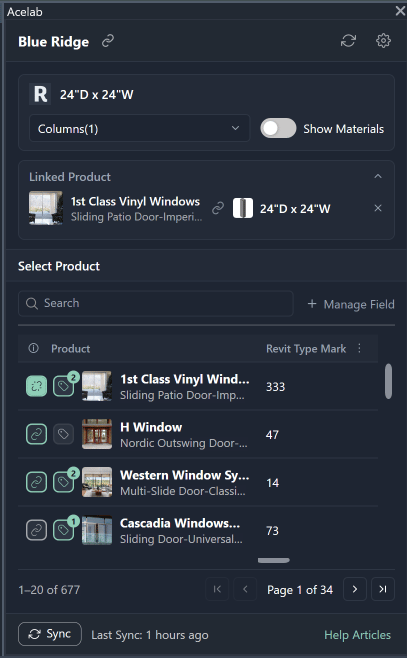
| Area | What it does |
|---|---|
| Header | Shows the linked project name, with icons for Select Project (link), Settings (gear) and Sync |
| Selection box | Shows what you have selected in Revit and which type or material a link applies to. See Article 2 |
| Linked Product | Shows which product each selected type or material is linked to |
| Select Product list | Every product in your Acelab schedule, 20 per page, with search, columns, filters and sort. See Article 3 |
| Footer | Sync button, Last Sync time and a Help Articles link |
Sync from the panel
- Click Sync in the footer, or the sync icon in the header.
- The panel shows Syncing… while it gets the latest products from Acelab, matches them to your model, refreshes MH Tags and sends your updates to Acelab.
- When it finishes, the panel shows Sync complete and the Last Sync time updates.
Notes
- The panel follows the model you are working in. Switch to another open model and the panel shows that model’s Acelab project.
- The panel matches Revit’s light or dark theme.
- Signing out of Acelab closes the panel.
Troubleshooting
| What you see | What to do |
|---|---|
| Show Acelab Panel is greyed out | Sign in, and open a project model rather than a family file |
| Please Sign In First | Click Sign In on the Acelab tab, then open the panel again |
| No Acelab project linked | Click Select Project in the panel and pick a project |
| Add products to your Acelab Schedule to see them here | Your Acelab project has no products yet. Click Acelab Schedule to open it and add some, then sync |
| This is a large project, so it can take a little longer | The panel is still loading. You can keep working in Revit |
| Couldn’t load products | Check your internet connection and click Retry |
| Connection to Acelab failed | Check your internet connection. If it keeps happening, contact support |
| No sync ran after Save & Sync | You switched to another model while Settings was open. Click Sync |