

Before You Begin
- You must be a member of a firm that has a Firm Library set up in Acelab.
- To add products from the Firm Library, you need Admin, Creator, or Editor permissions on the destination project.
- Users with Viewer permissions can copy products to a project using the method below.
- Starting from the Firm Library — best when you want to browse or select multiple products at once.
- Starting from Schedules — best when you’re already working in a project and want to pull in Firm Library products without leaving it.
Starting from the Firm Library
-
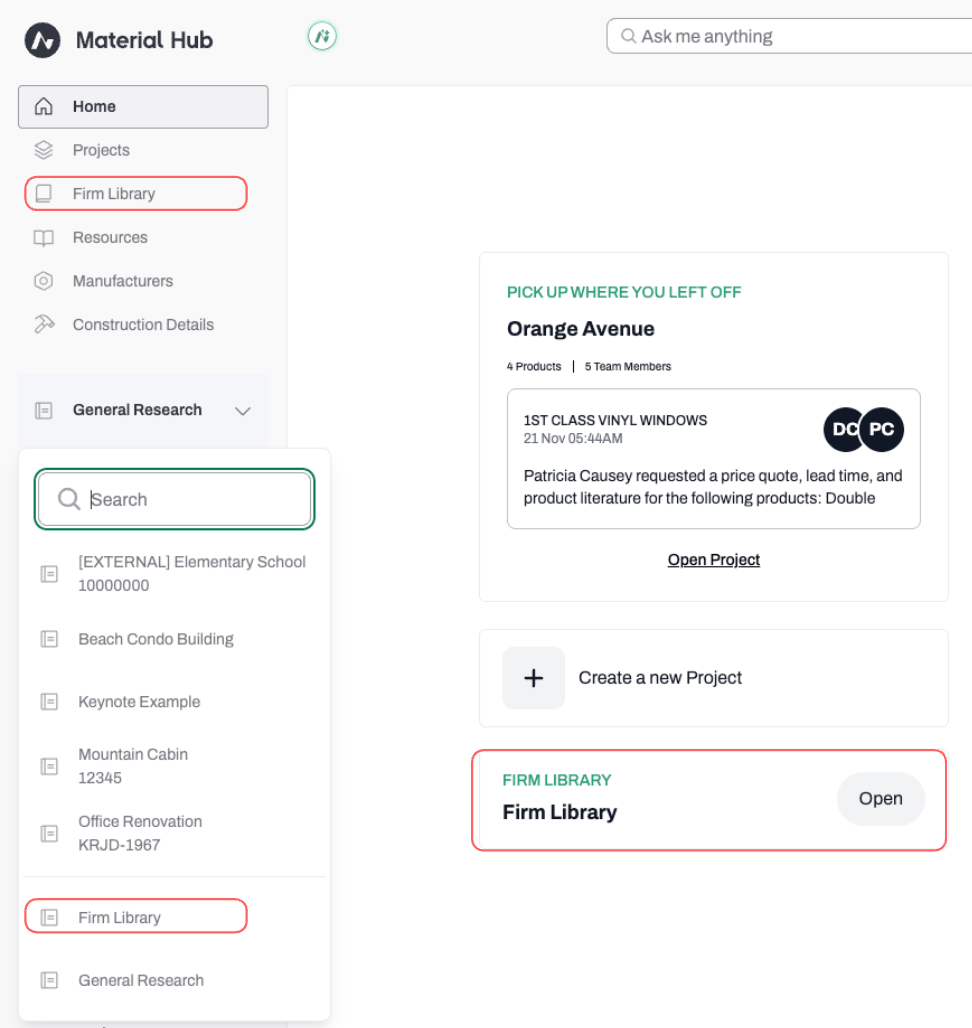
Navigate to your Firm Library using the Library entry in the left-side navigation, or access it from the Projects page. (Firms on Pro or Premium plans may see a custom name here if their admin has renamed the Library.)
- Go to Schedules.
-
Select the product(s) you want to add:
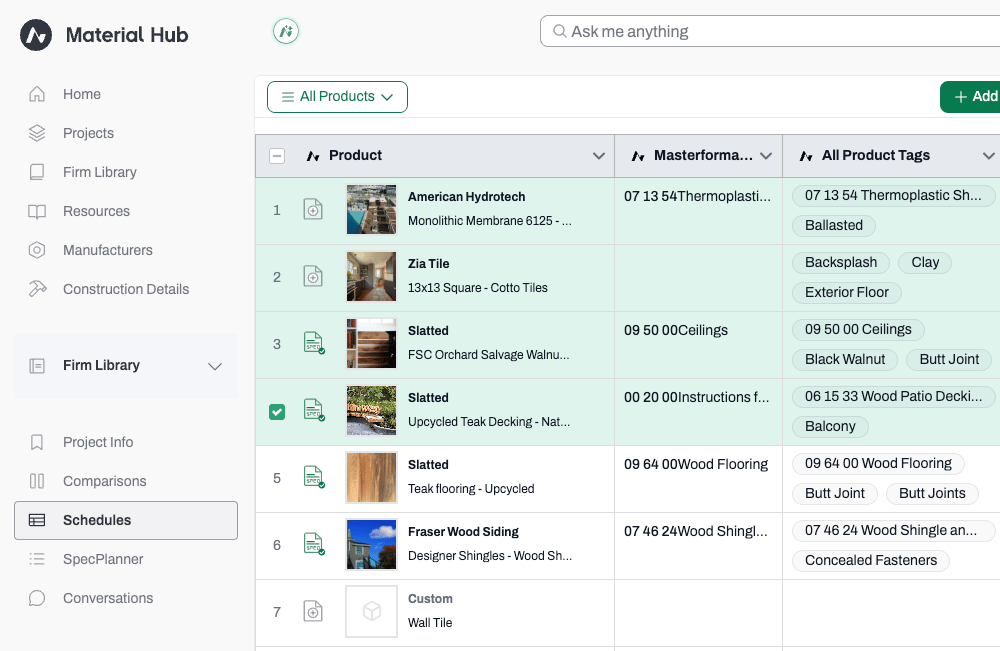
- Hover over a product and click the checkbox that appears to the left of its name.
- To select all products, click the checkbox next to the product column header.
-
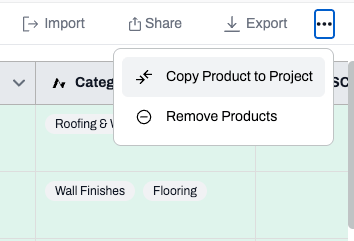
Click the three dots (•••) button in the top bar. Choose Copy Product to Project.
-
Select the destination project from the list.
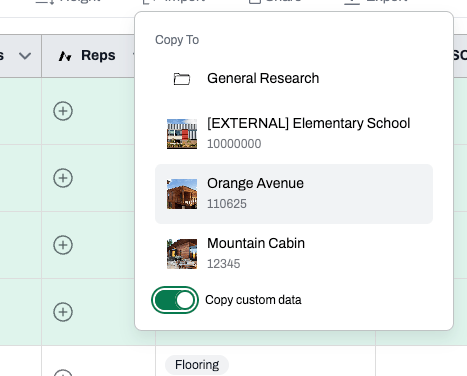
- Toggle Copy custom data on or off depending on whether you want to include custom field data with the product.
-
Navigate to that project’s Schedules to confirm the products have been added.
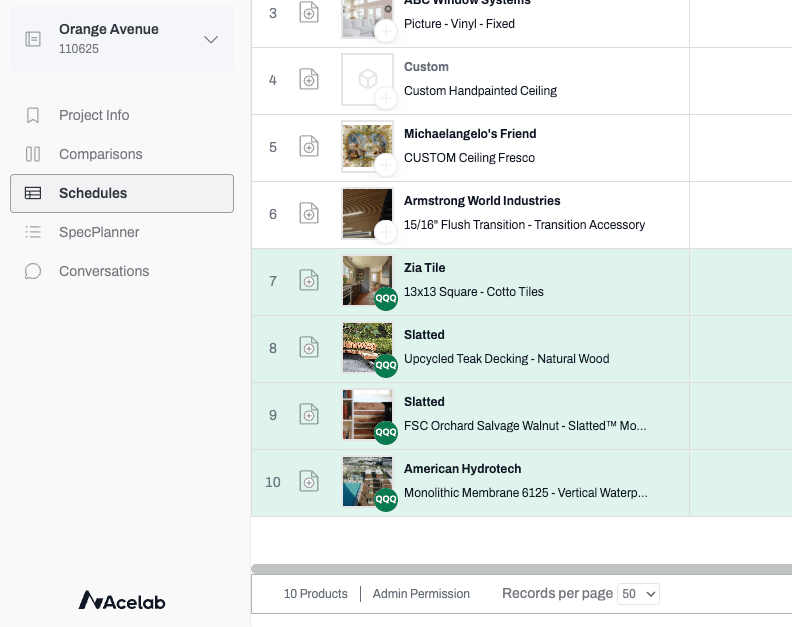
For more information about the Copy custom data toggle, see Copying Products from Other Projects.
Starting from Schedules
- Navigate to the schedule of the project where you want to add products.
-
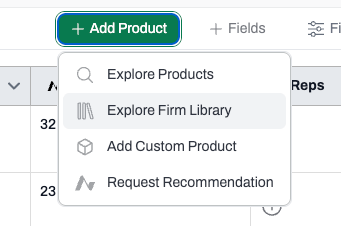
Click + Add Product in the top bar and select Explore Firm Library.
-
Browse or search for products:
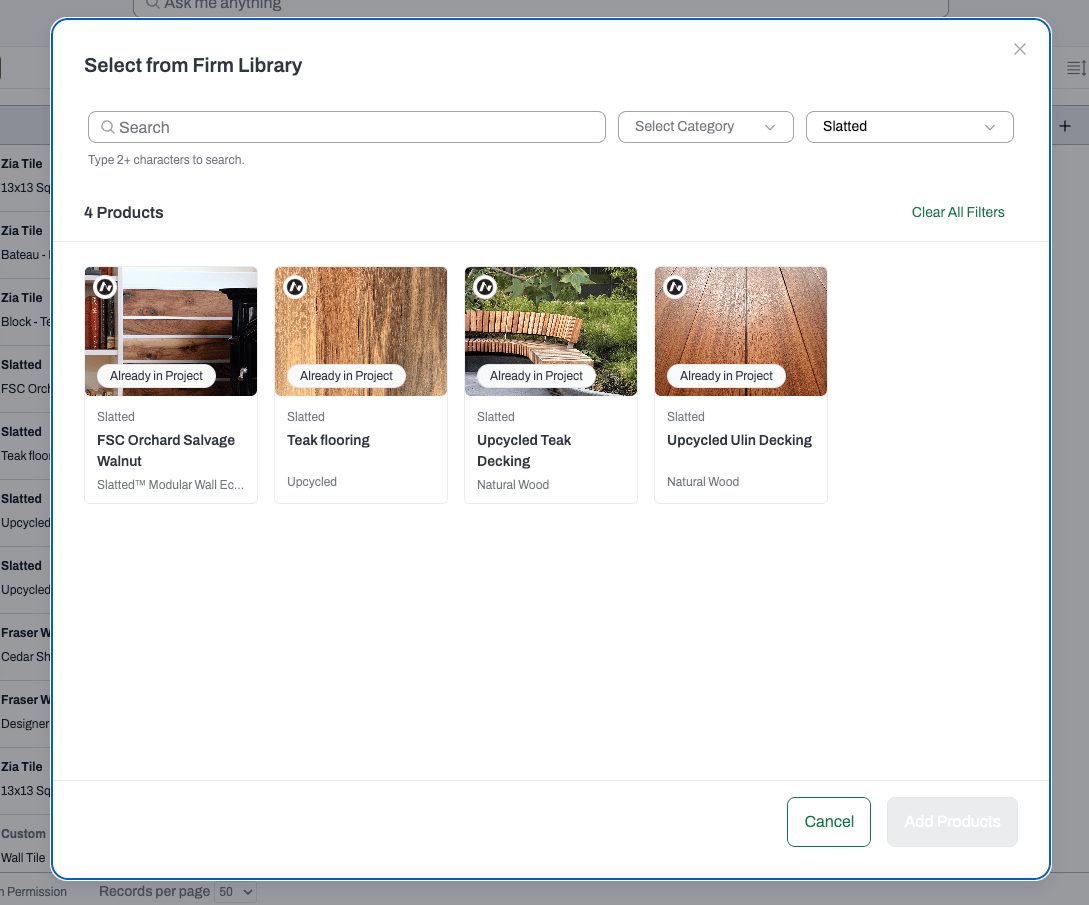
- Use the search bar to find products by name.
- Use the Category and Manufacturer filters to narrow results.
-
Click each product you want to add to select it.
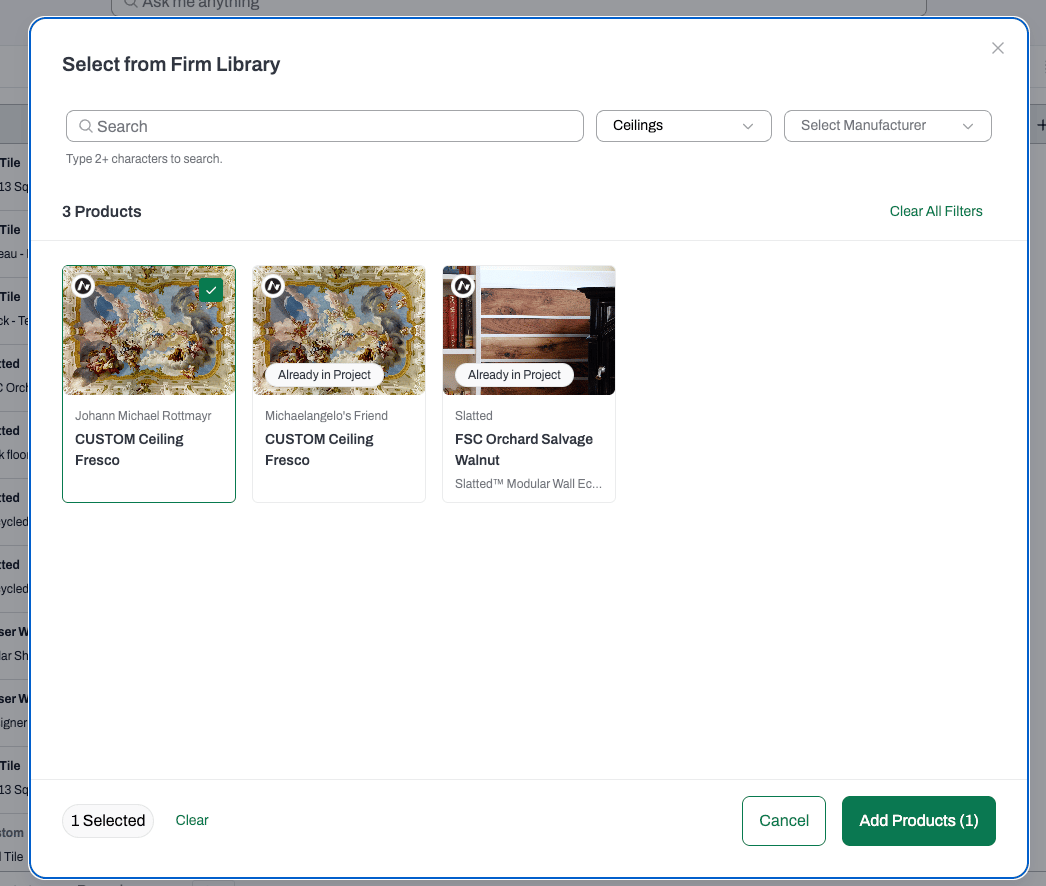
- Click Add Products.
Outcome
The products you selected from the Firm Library now appear in your project schedule. Any custom data included during the copy (if the toggle was on) will be available in the project’s custom fields.📚 Keep Learning 📚