

Before You Begin
- You must be a member of both the source project and the destination project.
- To copy products, you need Editor, Creator, or Admin permissions on the destination project. Viewers cannot copy products.
- The destination project must already exist. You cannot create a new project during this flow.
How to Copy Product(s) to another Project
1
Navigate to the **Schedule** in the source project — the project you want to copy products *from*
2
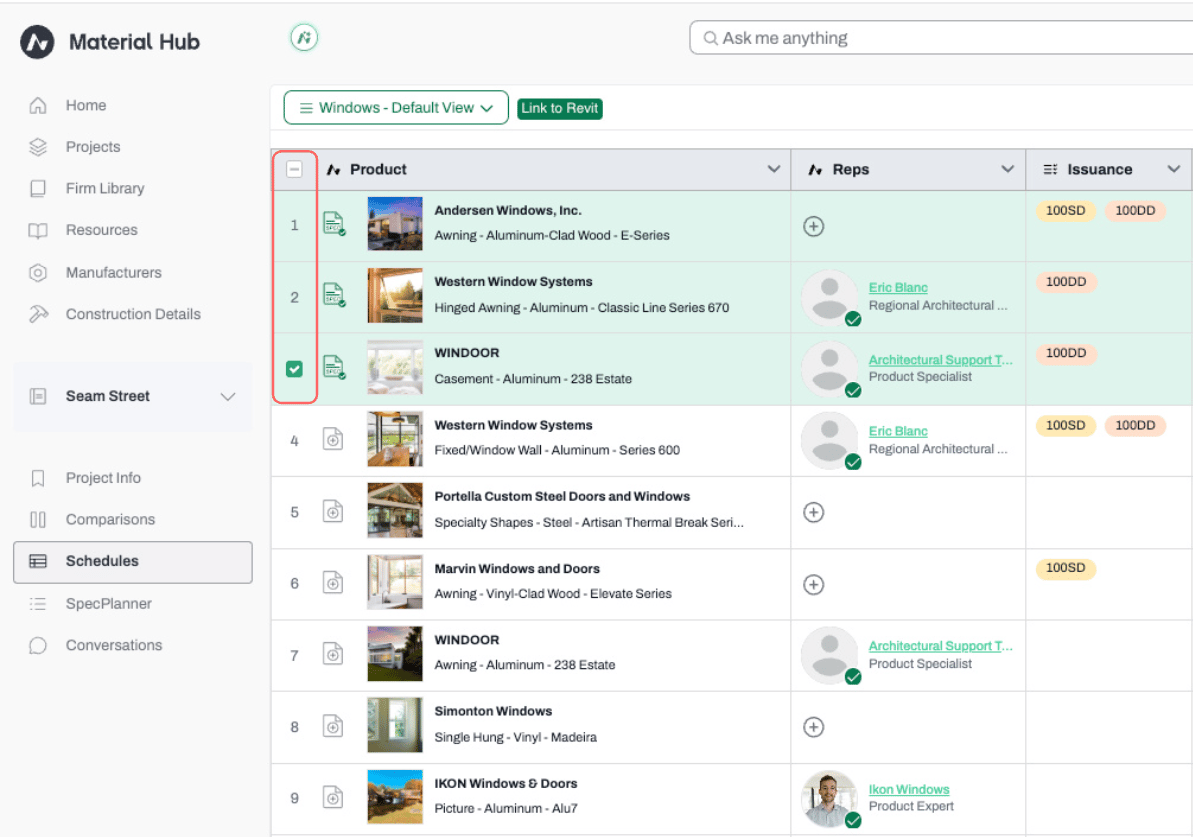
Select the product(s) you want to copy
- Hover over a product and click the checkbox that appears to the left of its name, or
-
Click the checkbox next to the product column header to select all products.
3
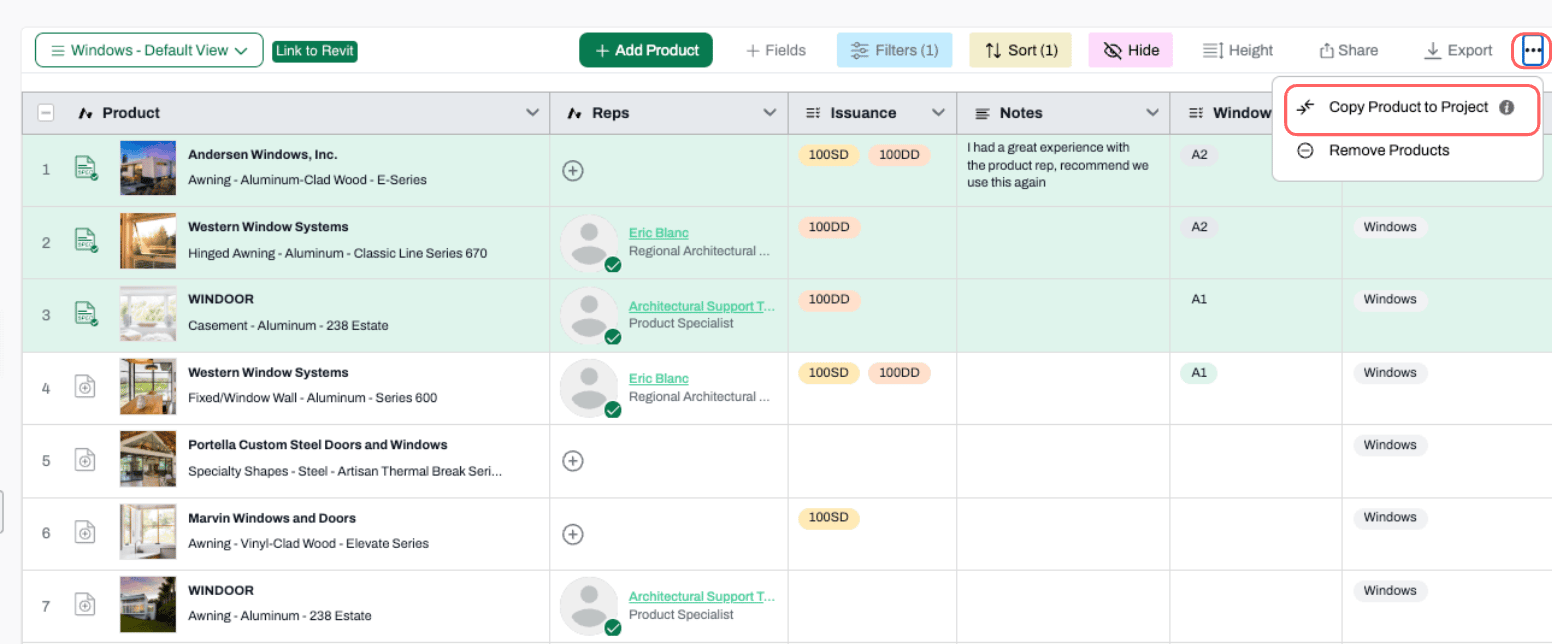
Click the **three dots (⋯)** button in the top bar and select **Copy Product to Project**
4
Toggle **Copy custom data** on or off depending on whether you want to bring field values along with…
Toggle Copy custom data on or off depending on whether you want to bring field values along with the products.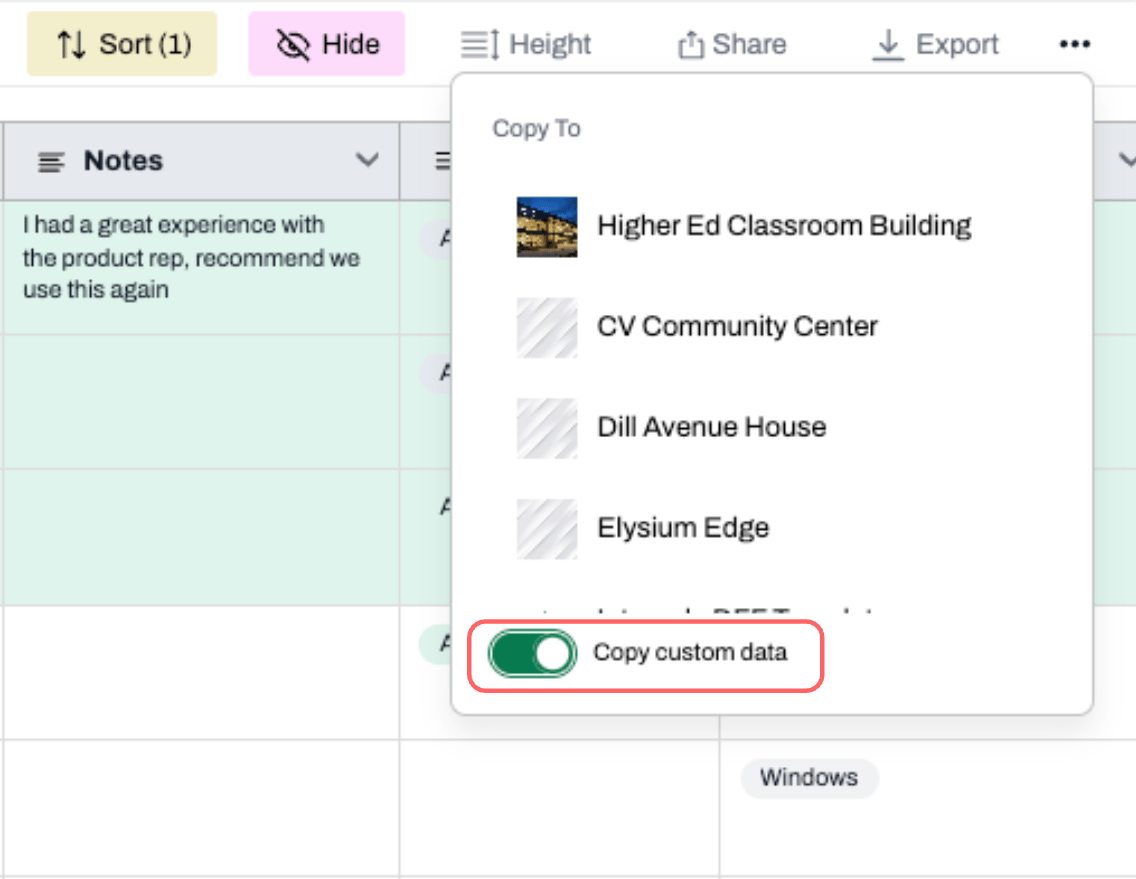
5
Select the Project where you want to send the product.
Navigate to the destination project’s Schedule to see your copied products.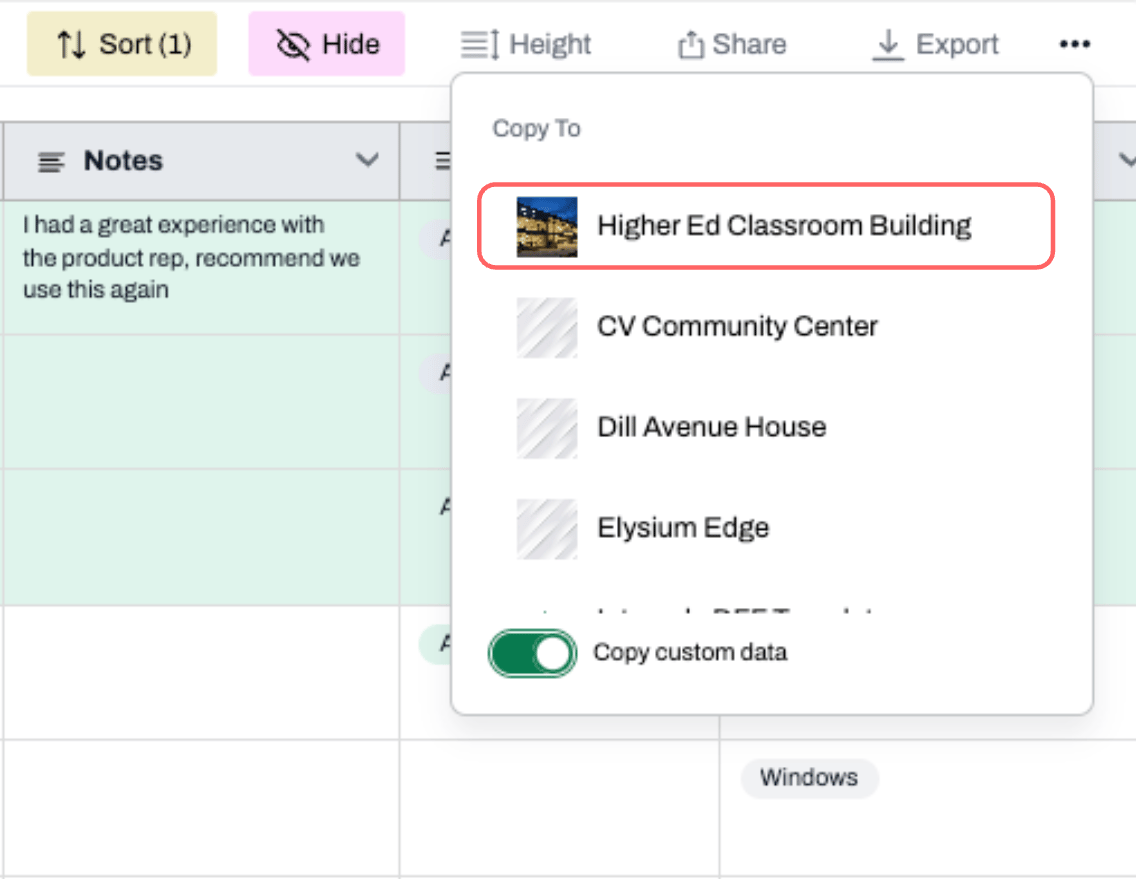
Outcome
The selected products will appear in the destination project’s default Schedule view. Any new columns created during the copy will be visible and placed at the far right of the default view, and hidden by default in any shared or personal views.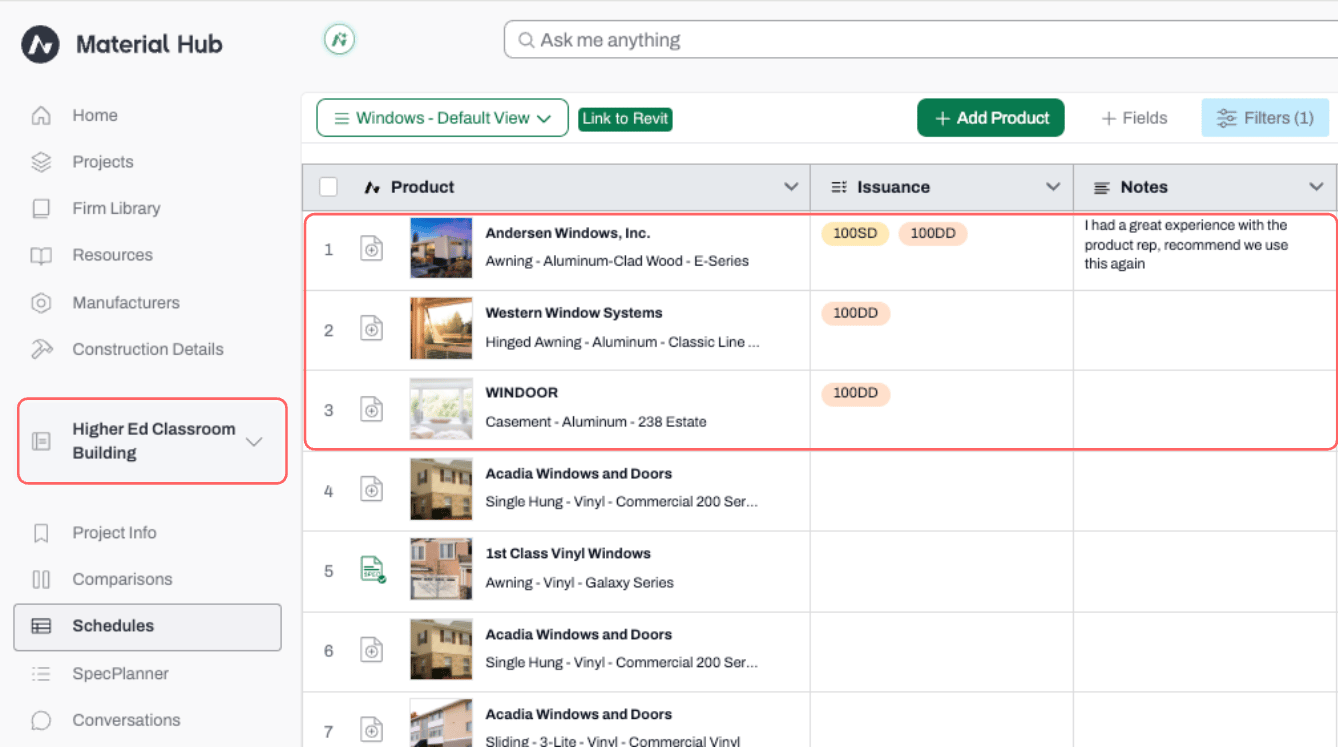
Copying Custom Data with Products
When Copy custom data is toggled on, field values travel with the product. Here’s how the system handles each scenario:Custom Fields
Field-type behavior:
- List fields — new options from the copied data are added to the destination field’s option list
- Number fields — values are included; decimal places align with the destination project’s settings
- Text fields — text is copied as-is
- Attachment fields — new attachments are added
Company Fields (Editable)
Company Fields are standardized fields shared across your firm’s projects. Editable Company Fields allow users to enter project-specific values in those cells — for example, a “Cost” field where each project team logs their own price. When you copy a product with copy custom data enabled, editable Company Field values are included in the copy. For example: if Window X has a Cost value of 300 value will appear in Project B’s schedule.📚 Keep Learning 📚