

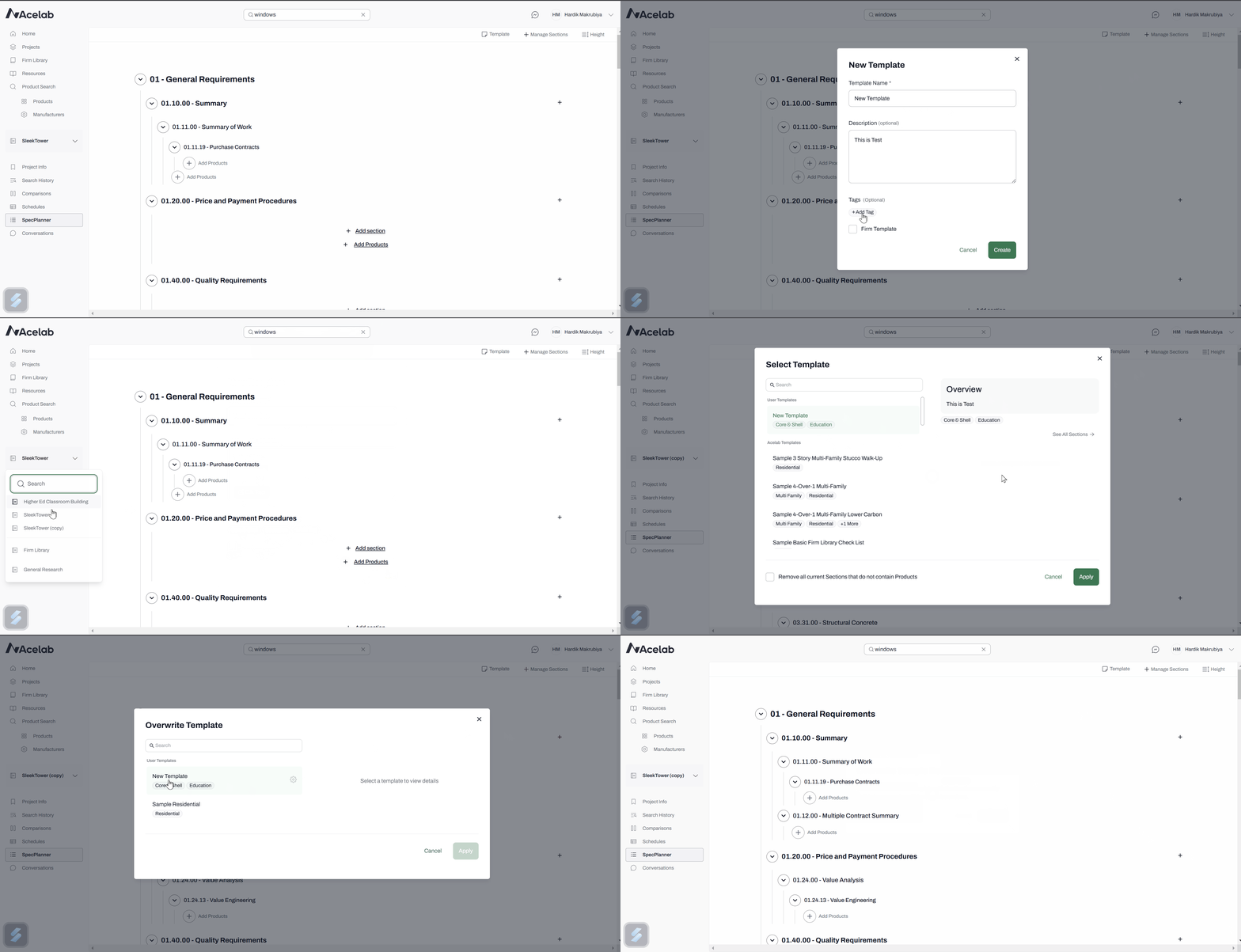
How to Create a New Template from Your Current SpecPlanner
If you want to save your current SpecPlanner configuration as a new template, follow these steps:-
Select Create Template from Current View
- Navigate to the Template menu on the SpecPlanner toolbar and click Create Template from Current View.
-
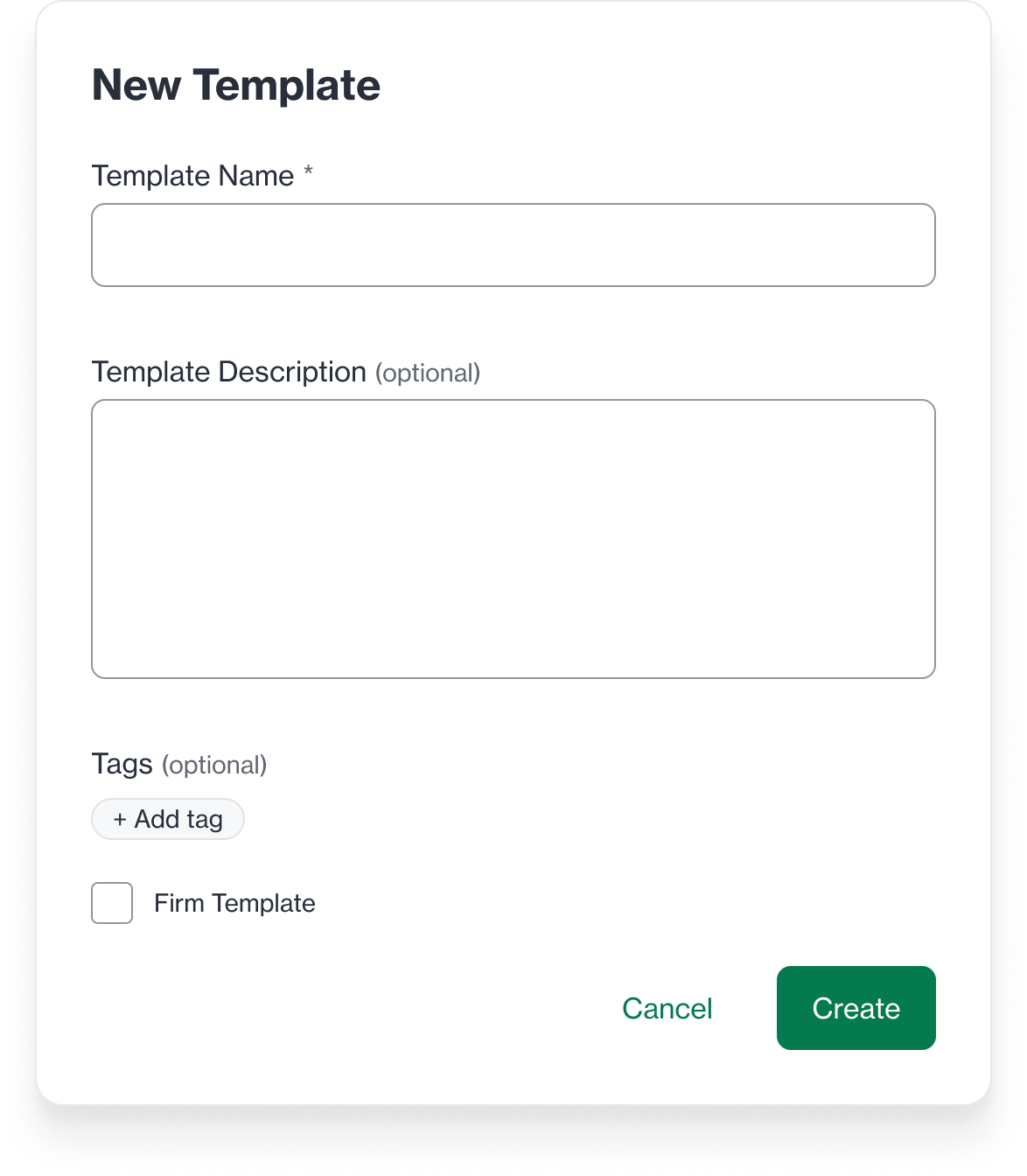
Enter Template Details
- Name : Enter a unique name for your new template.
- Description : Add a description to help identify the template’s purpose.
-
Tags : Add any relevant tags to organize your template.
-
Select Template Level
- If the checkbox is checked, the template will be saved as a Firm Level Template or else User level template.
-
Click Create to save your new template
How to Overwrite an Existing Template
If you want to update an existing template with your current SpecPlanner configuration, follow these steps:-
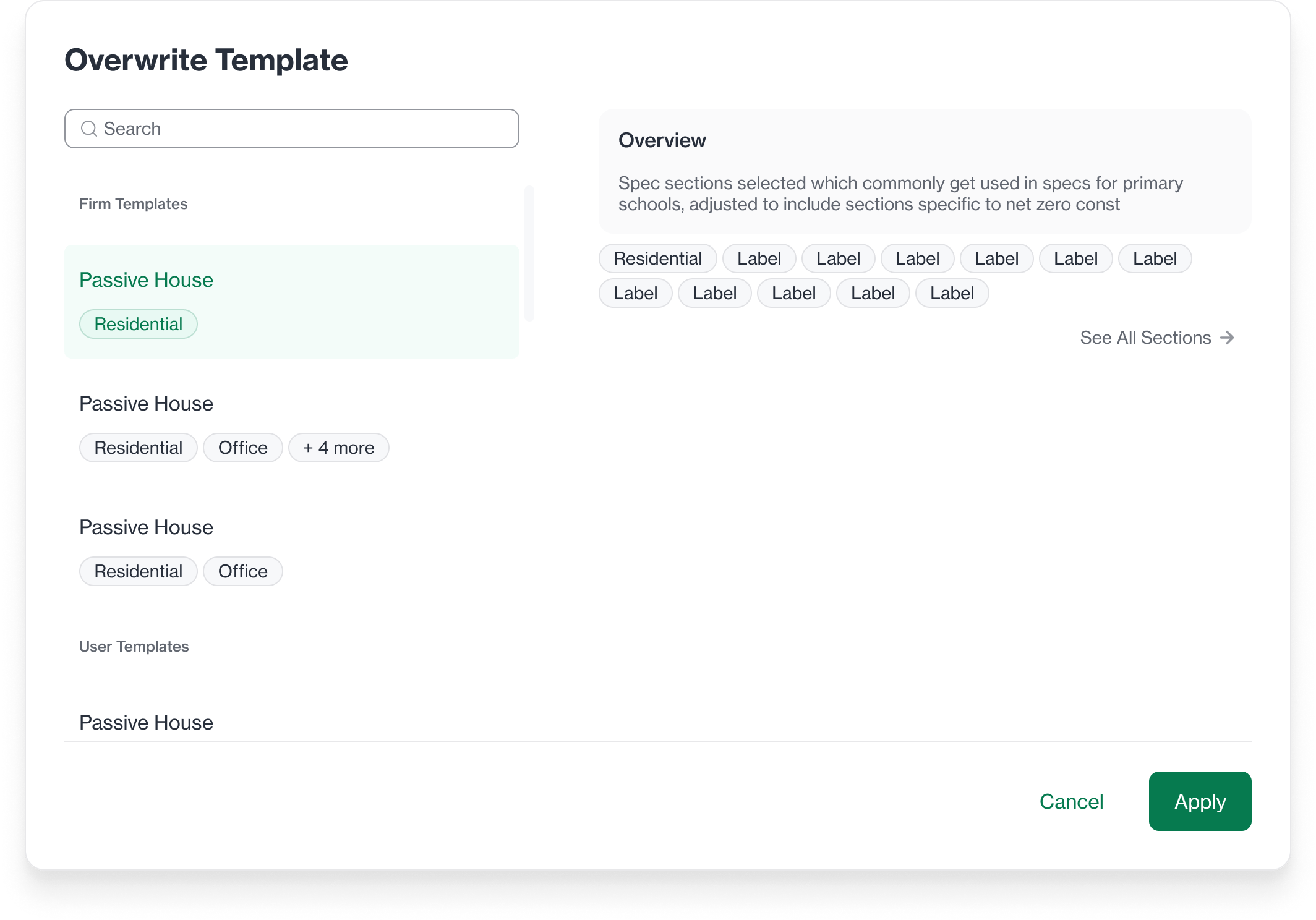
Select Overwrite Existing Template
- In the Template menu on the SpecPlanner toolbar, click Overwrite Existing Template.
-
Select the Template to overwrite
- You will see list of templates that you can update.
- Admins and Creators will see both User and Firm level templates.
-
Editors will only see User level templates.
-
Click Apply
- This will confirm updating the selected template with your current SpecPlanner configuration.