

Before You Begin
Some features in this article require a Premium plan.
💡 If you’re unsure which plan your firm has, contact your Acelab account admin or reach out to Acelab support.
Add Acelab Fields and Company Fields to SpecPlanner
⭐ Premium Feature. This section requires a Premium plan. You can enrich your SpecPlanner with additional context by pulling in fields from two sources:- Default Fields — standard product data fields maintained by Acelab, such as category, manufacturer, and specification details.
- Company Fields — custom fields your firm has created to track internal data relevant to your workflow.
How to Add Fields
- Open your project in the Materials Hub and navigate to SpecPlanner.
-
Click + Add Field. In the field picker, choose either the Default Fields or Company Fields tab depending on the data source you need.
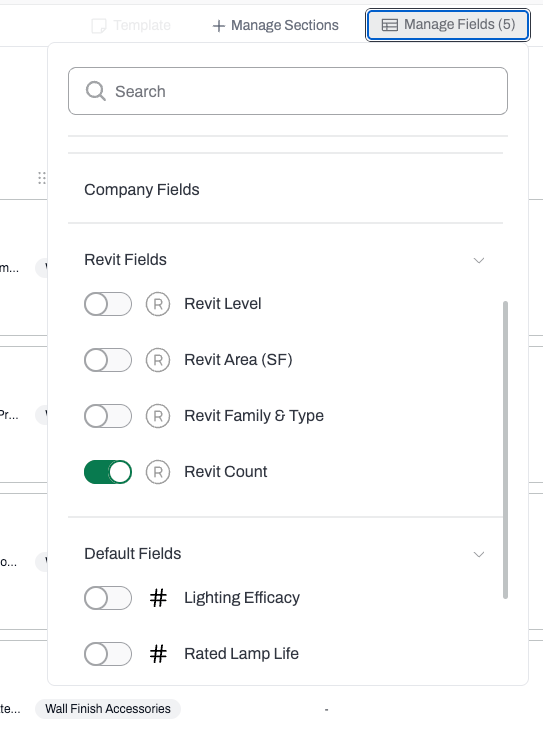
- Select the field(s) you want to add and confirm.
Navigate Fields and Remove Field Limits
Premium feature. Unlimited fields and horizontal navigation require a Premium plan. Free plan users are limited to a three fields and cannot scroll horizontally through additional columns.
How Horizontal Navigation Works
Once you’ve added enough fields to exceed the visible width of the SpecPlanner:- Horizontal scroll controls appear at the top or bottom of the field area.
-
Use the scroll bar or arrow controls to move left and right across all fields.
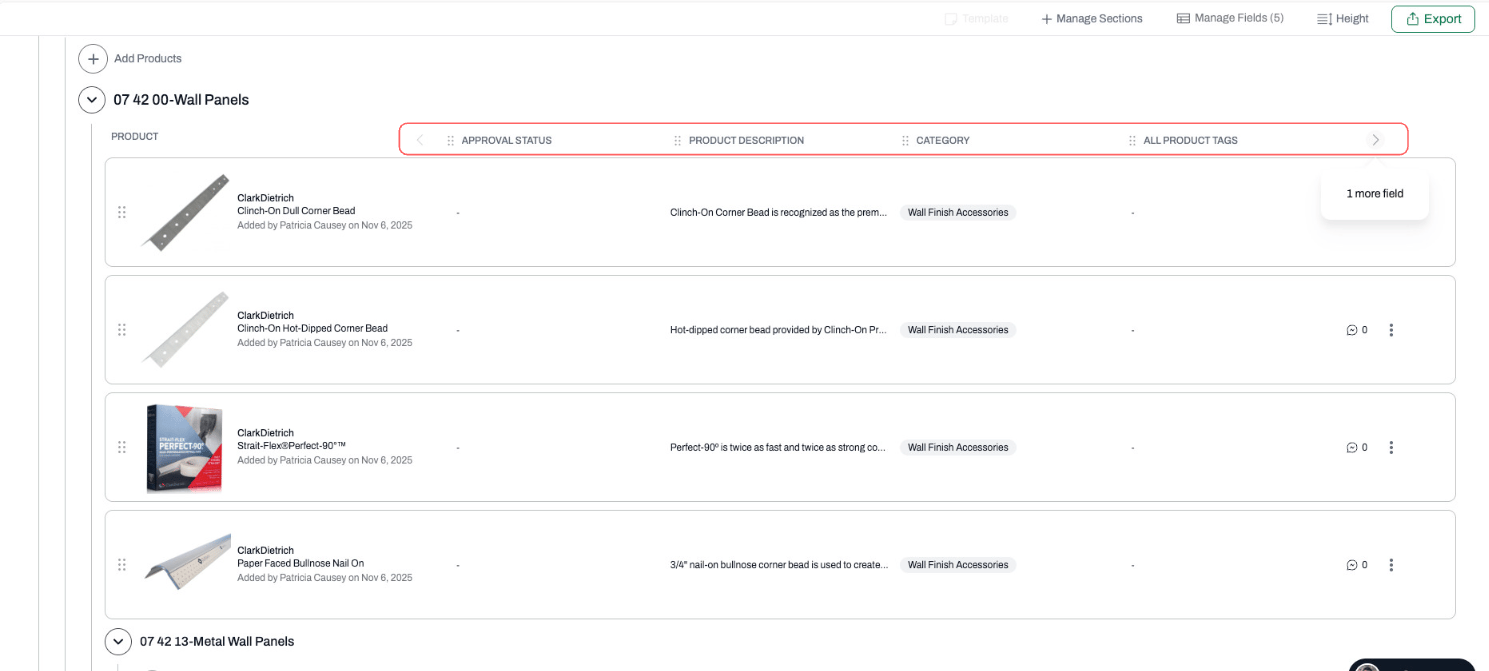
- Fixed columns (such as product name and section) remain pinned while you scroll — think of it like a wide spreadsheet where the first few columns stay locked while you scroll right.
Rename a MasterFormat Section
All users can rename MasterFormat sections in SpecPlanner to better match internal naming conventions or project-specific terminology.How to Rename a Section
- In SpecPlanner, locate the MasterFormat section you want to rename.
-
Hover at the section name and click on the Change MasterFormat Section icon
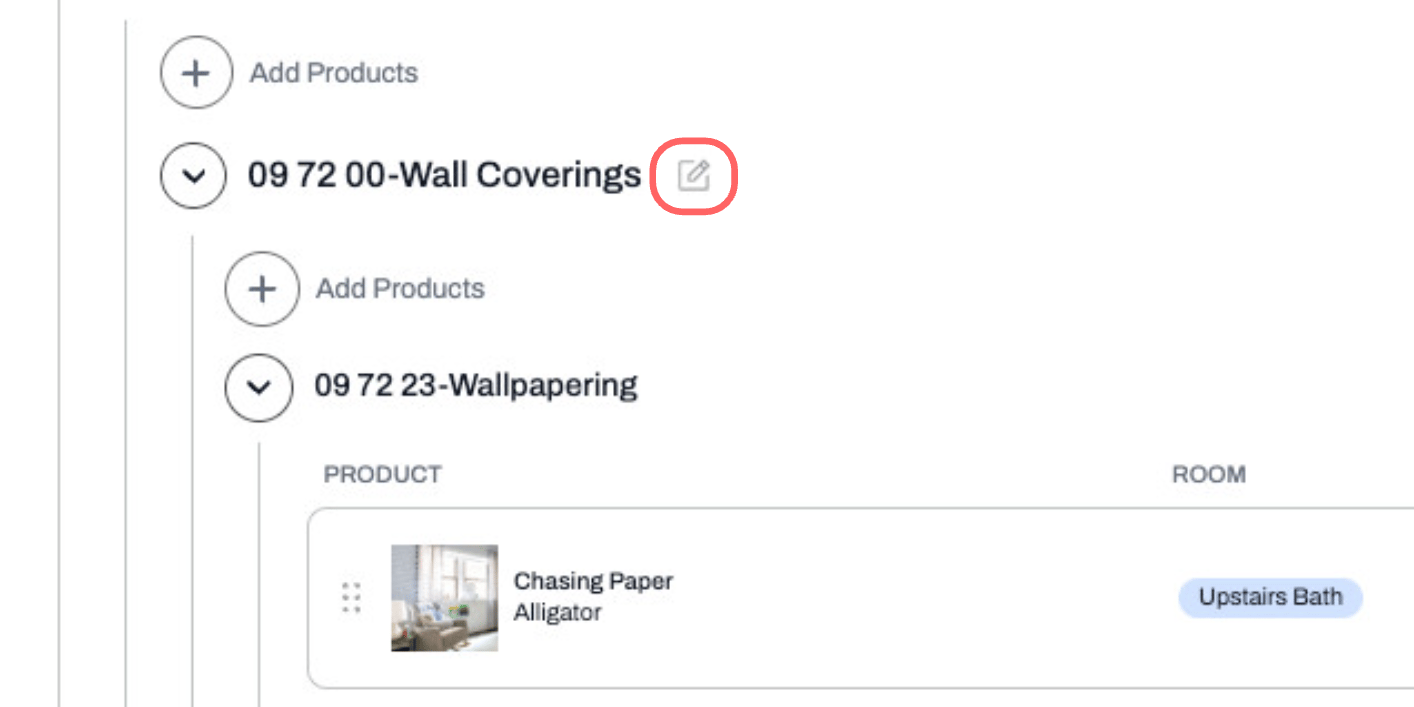
- The Change MasterFormat Section modal will open, showing the current section name and number.
-
Type your new section name in the name field.
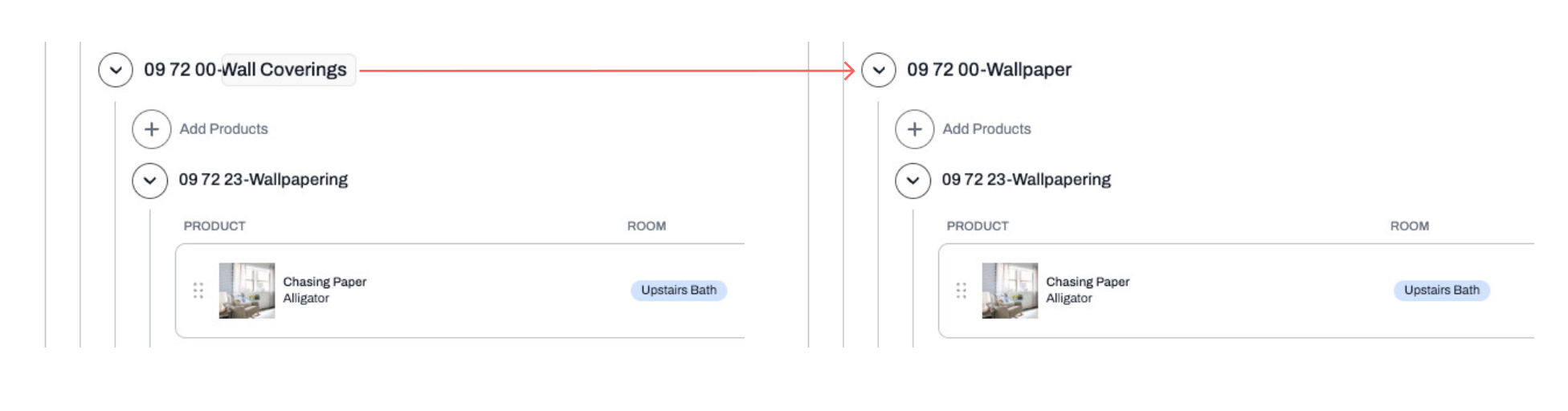
- Click Save.
Revert a MasterFormat Section Name to Default
If you’ve renamed a MasterFormat section and want to restore the original name and number, you can revert it at any time.How to Revert a Section Name
- In SpecPlanner, locate the section with the custom name.
-
Hover at the section name and click on the Change MasterFormat Section icon. Select Revert to Acelab Default.
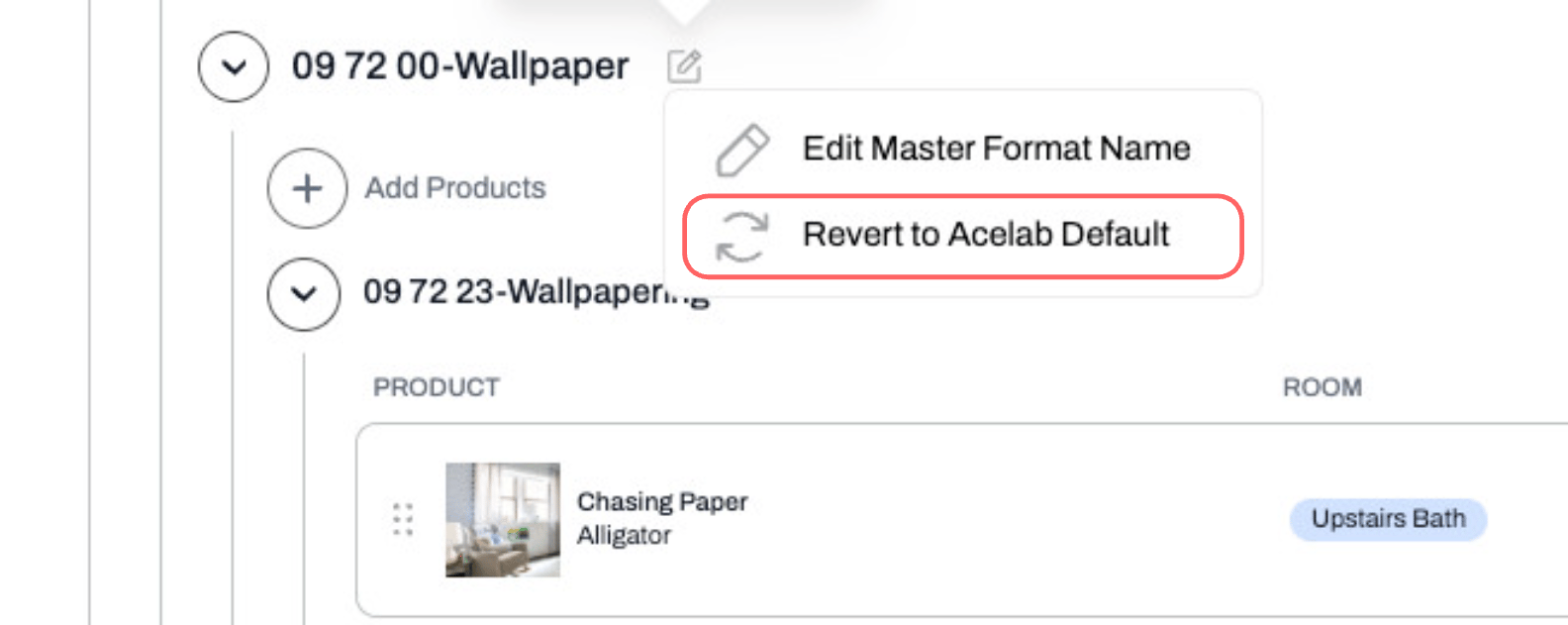
-
The section name and number will reset to the standard MasterFormat value.
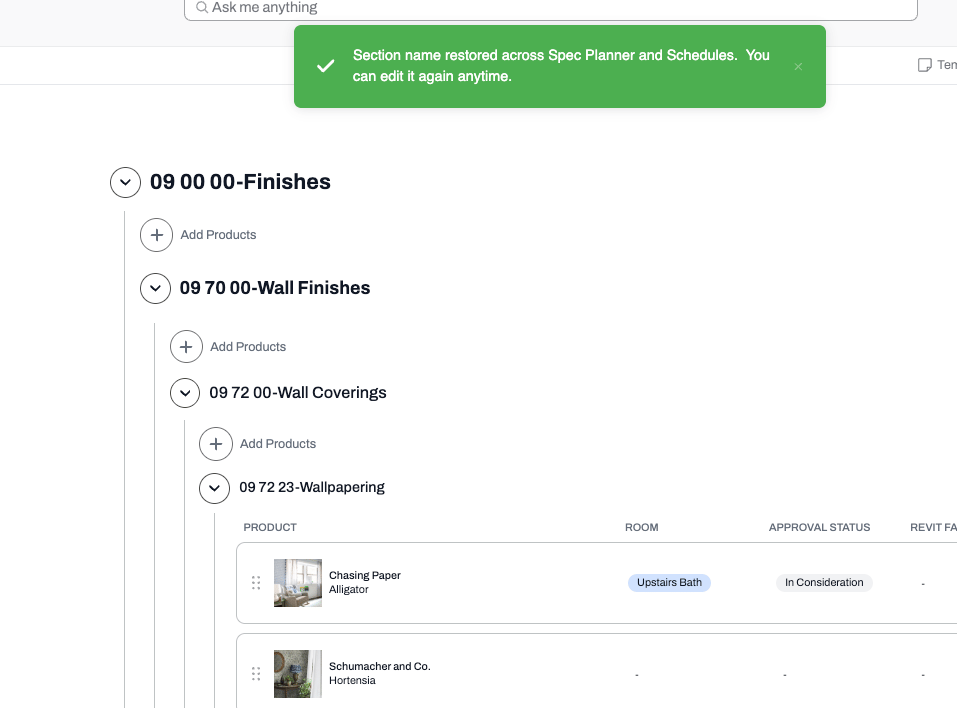
What to Expect
After customizing your SpecPlanner:- Acelab and Company Fields you’ve added will display populated data alongside your specified products.
- On Premium, you can add fields without limit and navigate across them horizontally within the same view.
- Renamed MasterFormat sections show your custom labels throughout the project. Reverting restores the original MasterFormat name and number instantly.