

How to Remove a Product
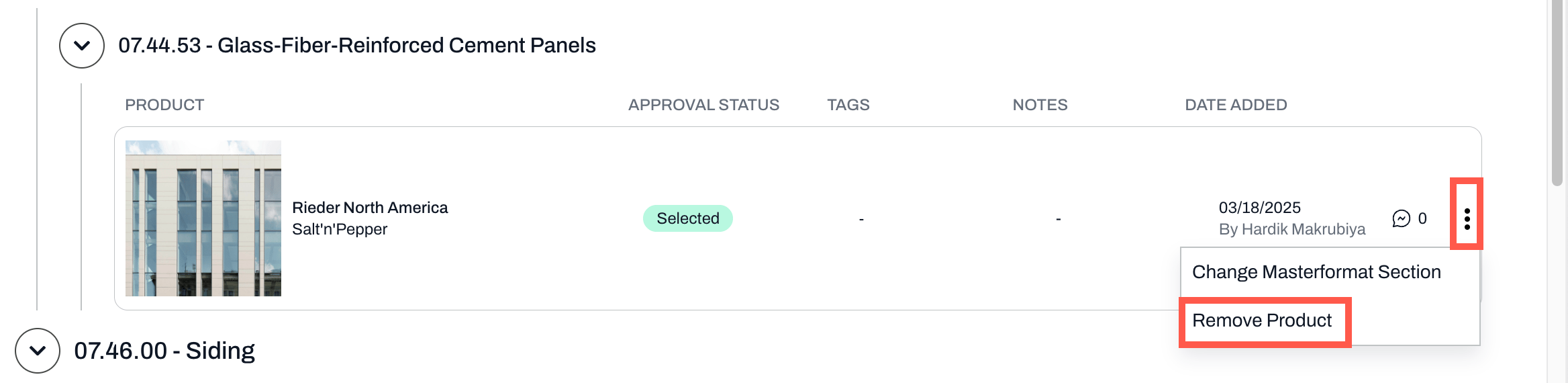
- Locate the product you wish to remove from your SpecPlanner
- Click on the three dots (⋮) at the end of the product row
Re-adding Removed Products
If you need to add the product back to SpecPlanner:- Go to the relevant schedule
- Find the product
- Check the box next to the product name
- The product will reappear in SpecPlanner
Note: The product will reappear in the masterformat section that is aligned with the product type. You have to change the section again if you wish.
📚 Keep Learning 📚