Message manufacturers about an RFI, read the request and response cards in a conversation, and filter a conversation to show only RFIs.
Every RFI is linked to a conversation with the manufacturer, in the same Conversations area you use for other messages in Acelab. You can discuss the request there, and the RFI itself appears in the conversation as cards.
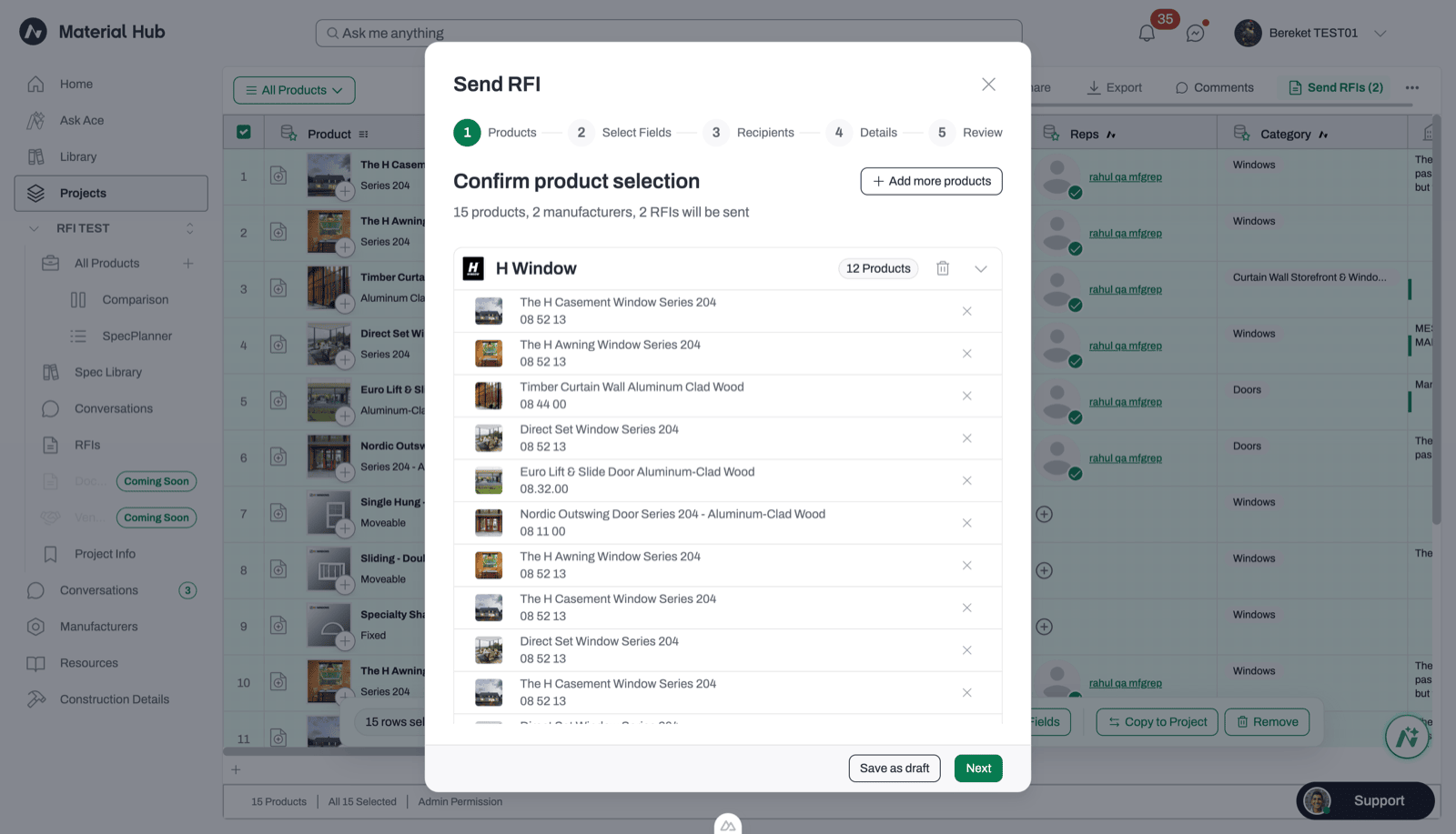
One conversation per manufacturer. When you send a batch, each manufacturer gets their own conversation and only sees their own products. For example, a selection with products from two manufacturers creates two RFIs and two conversations.
Each manufacturer group in the Send RFI wizard becomes its own RFI and its own conversation.
Later RFIs join the same conversation. Any other RFI you send the same manufacturer on the same project is added to the existing conversation, so your full history with that manufacturer stays in one place.
Acelab Connection RFIs have their own conversation. If an RFI was routed to Acelab Connection because the manufacturer isn’t on Acelab yet, it gets a separate conversation. It starts with a note explaining that Acelab’s team is reaching out to the manufacturer and will relay information back to you there. If the RFI is later passed to a manufacturer rep, it moves into your regular conversation with that manufacturer, and the rep sees your original request.
Each RFI adds up to two cards to the conversation.
Request card
Response card
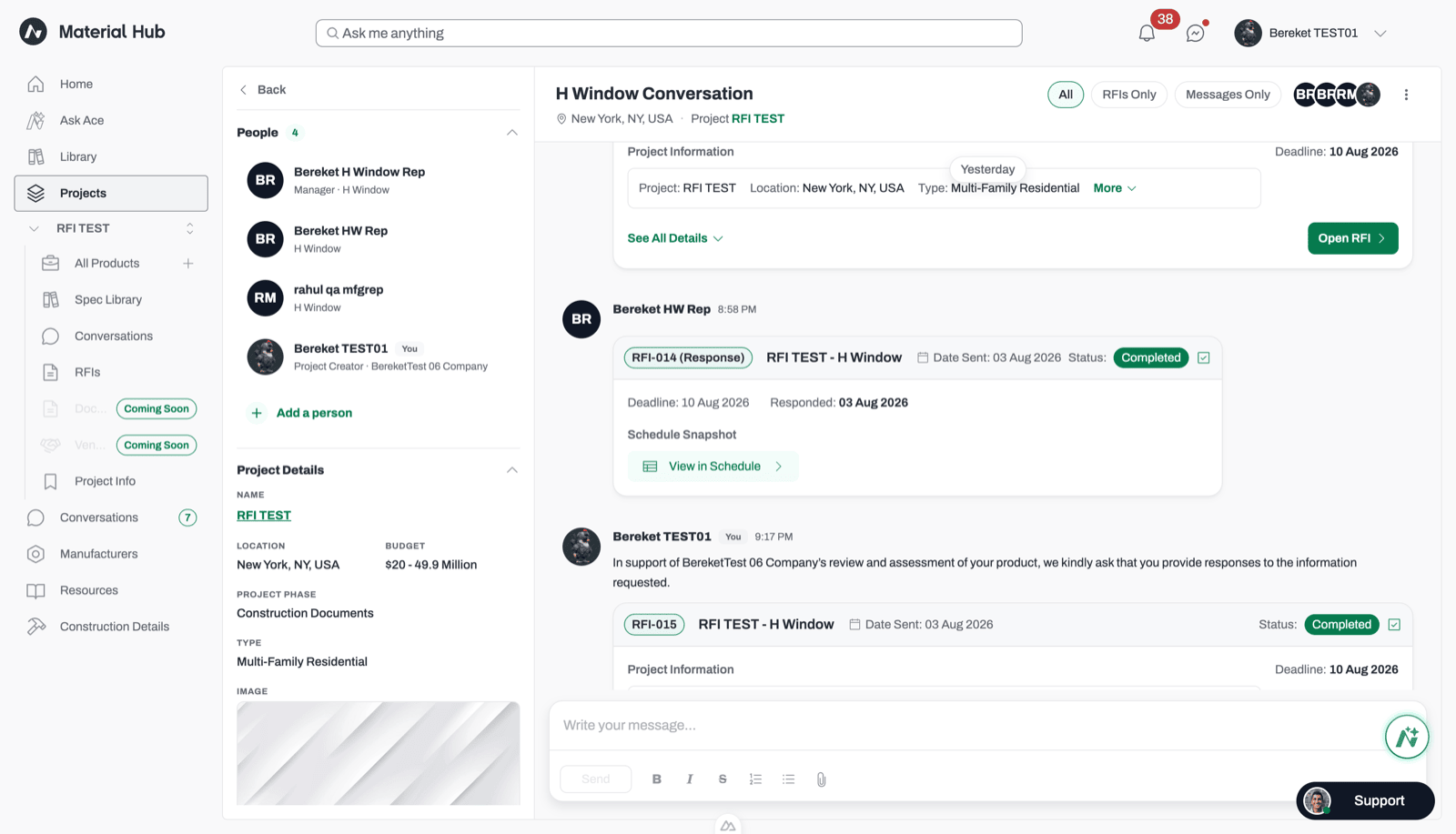
Posted when you send the RFI, along with your message. It shows the RFI number, project, manufacturer, date sent, current status, deadline, and shared project information.
Click See All Details to view the requested products, requested fields, your attachments, and a download of the request PDF.
Click Open RFI to go to the RFI.
The card always shows the latest status and deadline, including any deadline you extended.
An expanded request card in a manufacturer conversation.
Posted when the manufacturer submits. It’s labeled with the RFI number and (Response), and shows the deadline, the date of the response, a download of the response PDF, and any documents the manufacturer added.Click View in Schedule to open the schedule where the answers were applied.
A response card followed by the request card for the next RFI in the same conversation.
Being in a conversation doesn’t give someone access to the RFI. People can be added to a conversation to follow along and send messages, but access to the RFI is based on project role. Someone without RFI access can see a summary on the card, but can’t open the RFI or download its files.