

Save a draft
Click Save as draft next to the primary button on any step of the wizard. Your progress is saved, including any attachments, and the wizard stays open so you can keep working. After you save, the Save as draft button is disabled until you make another change. If you close the wizard right after saving, it closes without asking you to confirm.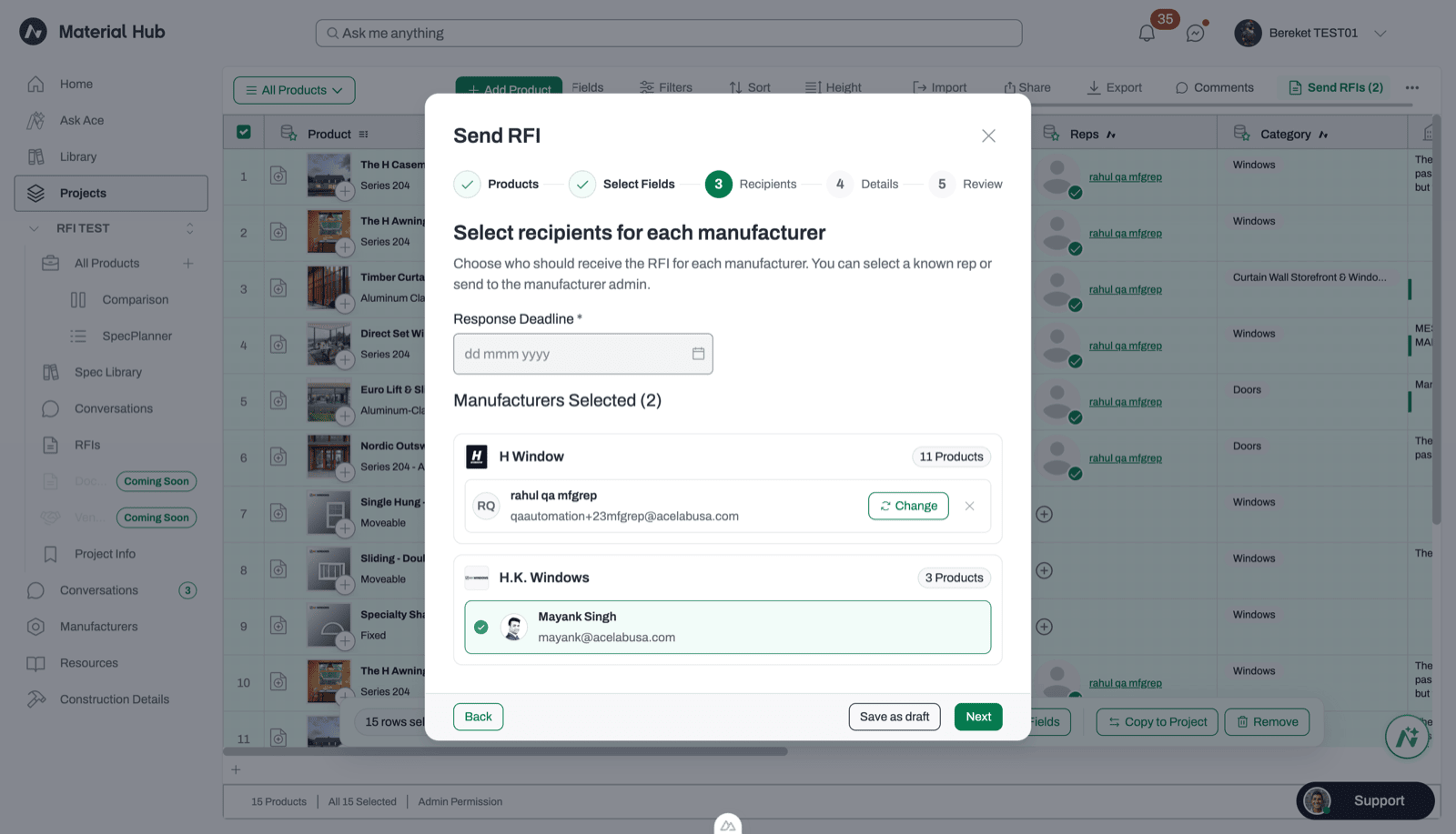
Save as draft appears next to Next on every step of the Send RFI wizard.
If you close the wizard with unsaved changes (using the X, pressing Esc, or clicking outside it), Acelab asks whether you want to close the RFI and discard your selections.
Resume a draft
- Open the project’s RFIs dashboard.
- Find your draft. In Board view, it’s in the Draft column.
- Click the draft to reopen the wizard at the step where you left off.
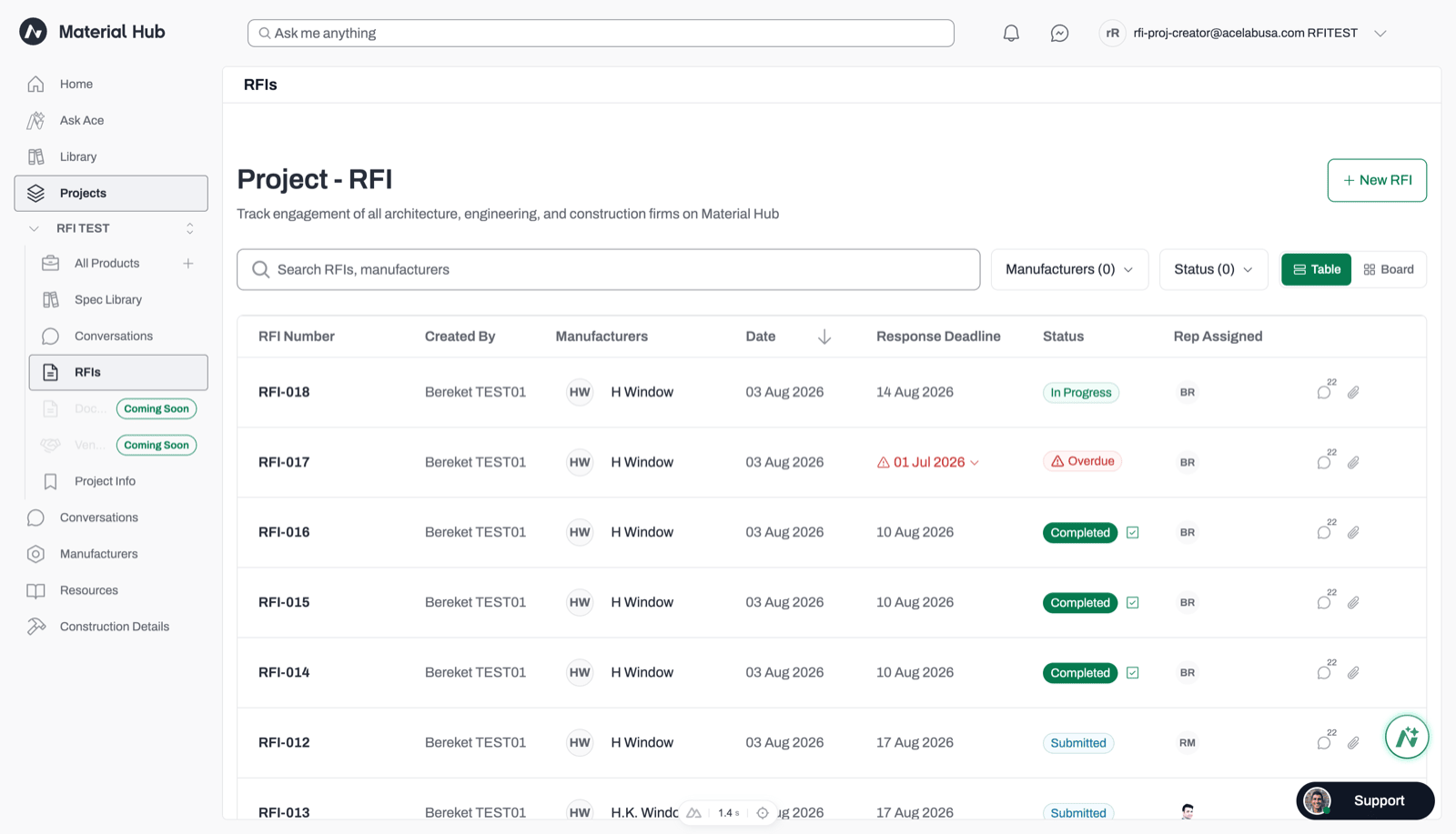
Open RFIs in the project sidebar to reach the dashboard. Switch to Board view with the toggle at the top right to see the Draft column.
Things to know about drafts
- Drafts are private. Only you can see your drafts. Other team members on the project can’t see or edit them.
- Drafts expire after 30 days. Each save restarts the 30-day period. Expired drafts are removed automatically.
- Deleting a draft is permanent. Deleted drafts can’t be restored.
Related articles
Sending an RFI
Walk through the Send RFI wizard.
Tracking RFIs
Find drafts and sent RFIs on the dashboard.