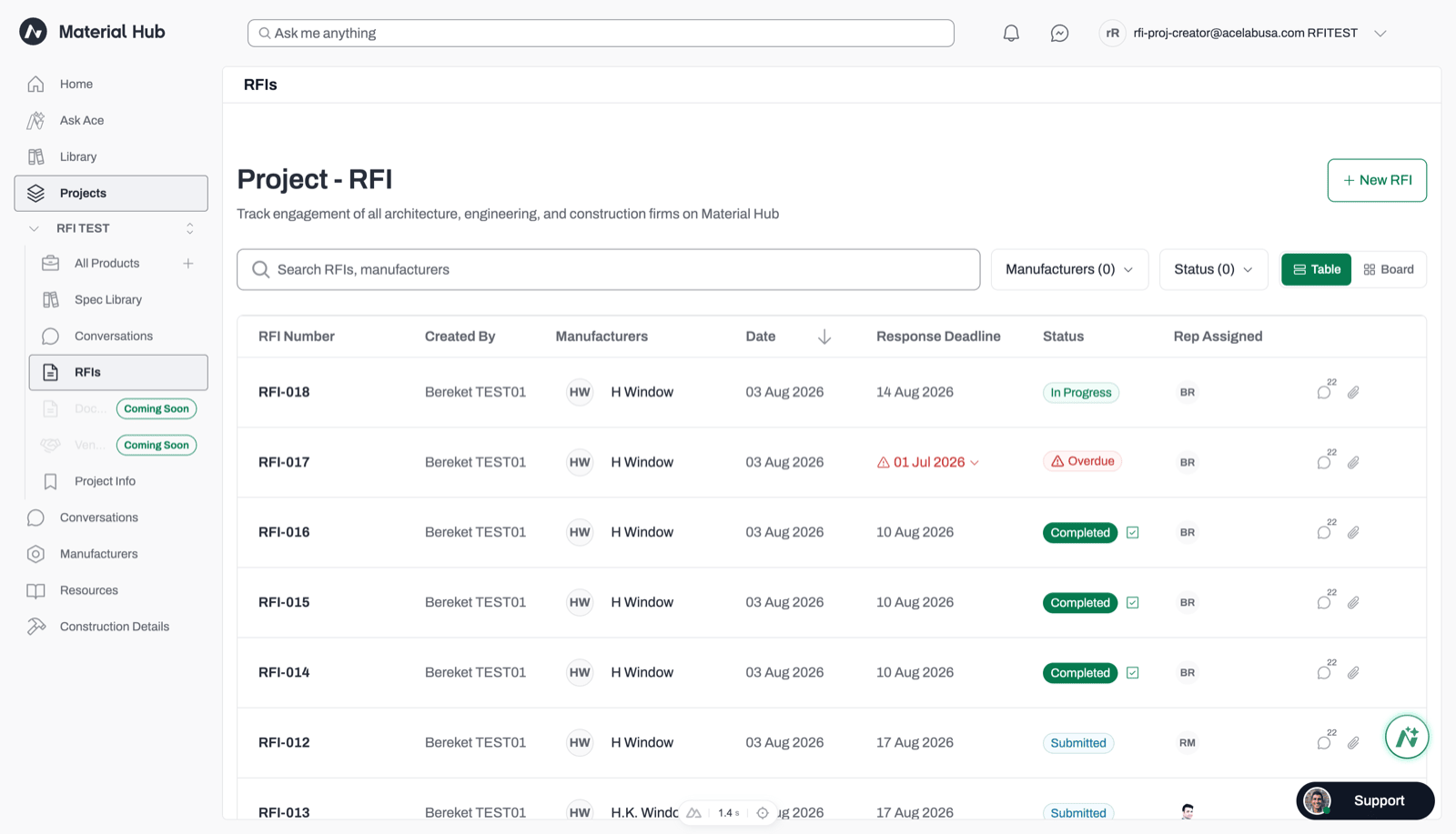
Use the project RFIs dashboard to find, filter, and review your sent RFIs and drafts.
The project’s RFIs dashboard lists every RFI sent from that project, plus your own drafts. Use it to check statuses, spot overdue requests, and open the details of any RFI.
In either view, use the search box to find RFIs by RFI number, project, manufacturer, sender, product name, or requested field. Use the Manufacturers and Status filters to narrow the list.
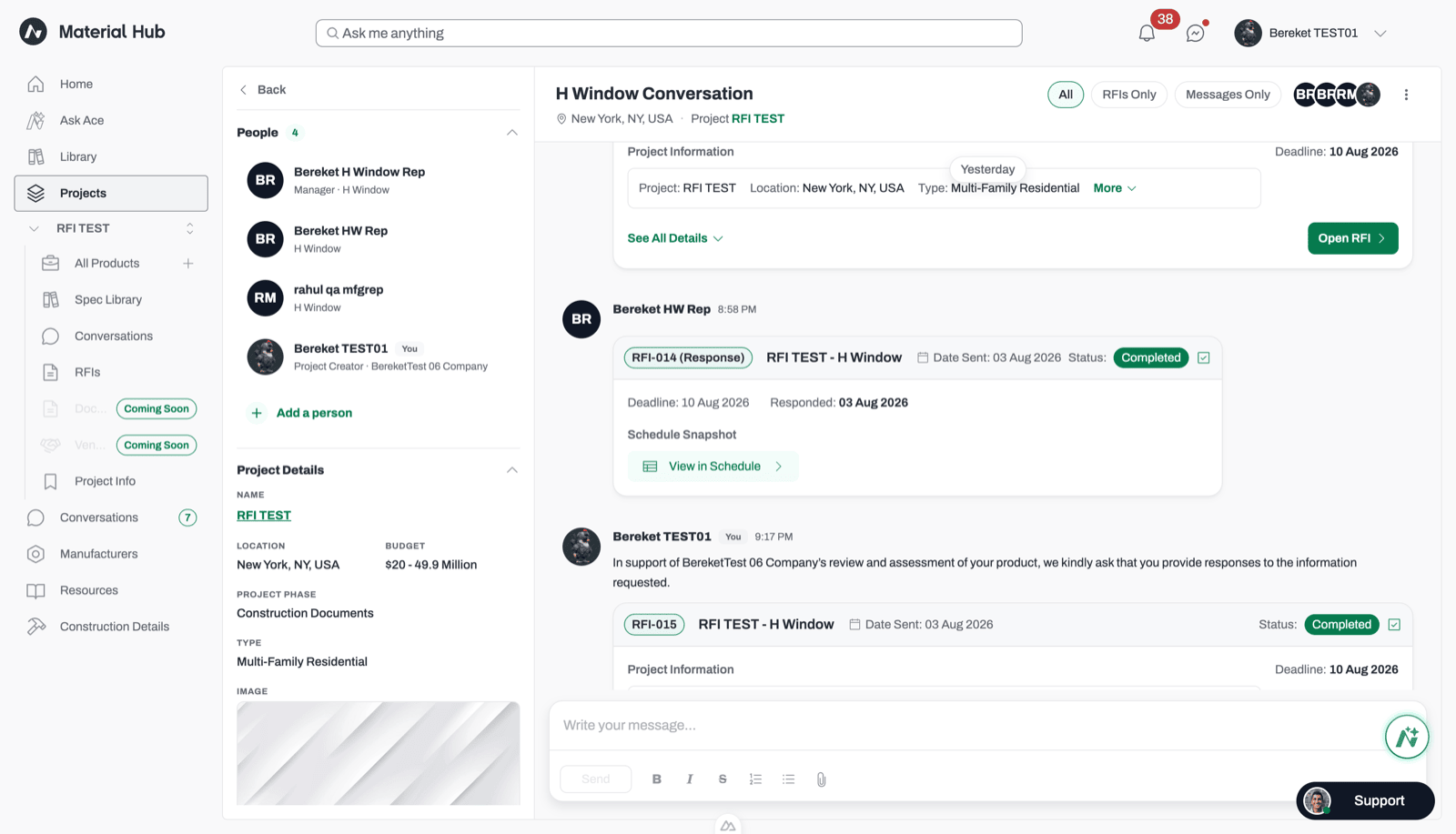
Each RFI also appears as cards in your conversation with the manufacturer. Use Conversation in the details panel to jump there.
Request card
Response card
Posted when you send. Click See All Details to view the products, requested fields, your attachments, and the request snapshot PDF.
An expanded request card in a manufacturer conversation.
Posted when the manufacturer submits. It shows the response date and the response snapshot PDF. Click View in Schedule to see the answers in your schedule.
A completed response card with the View in Schedule button.
To show only RFI cards in a busy conversation, select RFIs Only at the top of the conversation.