Request product data from manufacturers directly from your schedule, and get their answers back in the same schedule automatically.
An RFI (Request for Information) lets you ask one or more manufacturers for specific product data, directly from a project schedule. Instead of chasing answers over email, you select products in a schedule view, pick the exact fields you need filled in, and send a structured request.Each manufacturer answers in a grid that mirrors your schedule. When they submit, their answers flow back into your schedule automatically.
Choose the rows you want answers about in any schedule view, then click Send RFIs in the schedule toolbar.
2
Build your request
A five-step wizard walks you through confirming products, choosing fields, picking recipients and a deadline, adding a message and attachments, and reviewing.
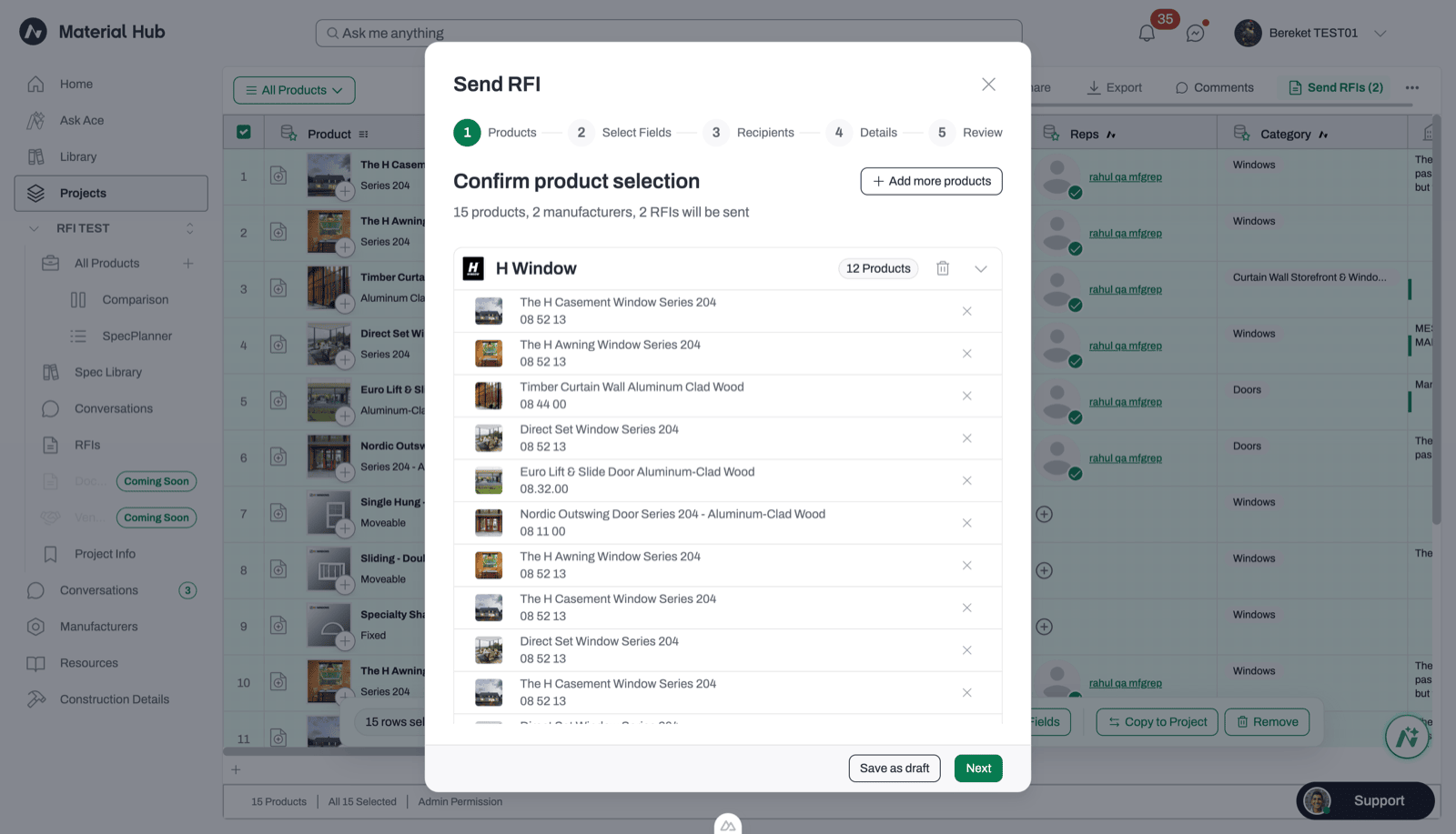
The Send RFI wizard groups your selected products by manufacturer and shows how many RFIs will be sent.
3
Send
Acelab sends one RFI to each manufacturer, containing only the products they make.
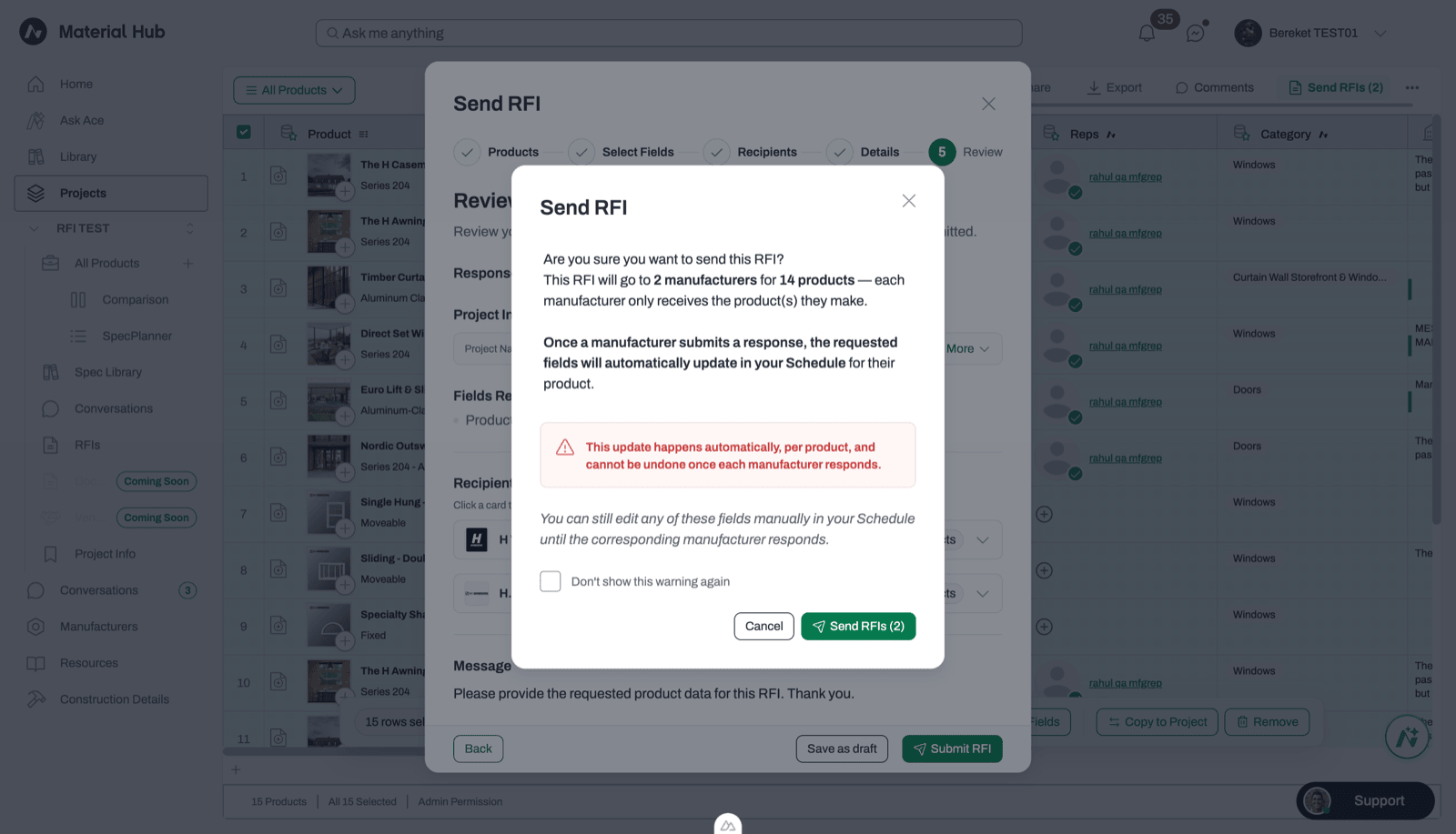
Before sending, Acelab confirms how many manufacturers and products are included.
4
The manufacturer responds
The manufacturer’s rep fills in the requested fields and submits. They see your current values as a reference, so they only change what needs updating.
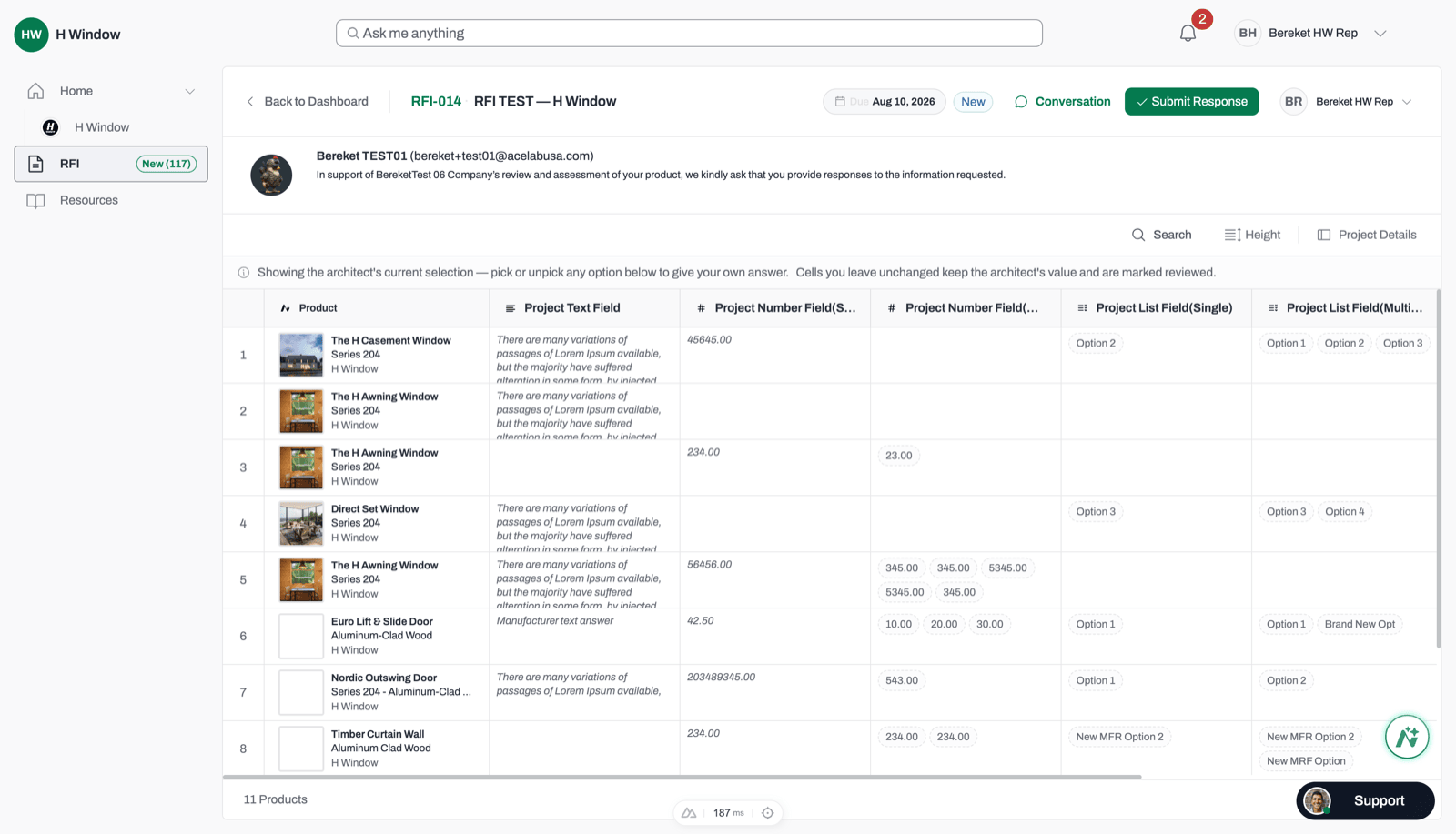
The manufacturer's response grid mirrors your schedule, with your current values shown in muted text.
5
Answers land in your schedule
Submitted answers are written into the exact cells you asked about, and you receive a PDF receipt of the response. A response card also appears in your conversation with the manufacturer.
A green marker on a schedule cell shows its value came from a manufacturer's RFI response.
One send can create several RFIs. If your selection includes products from three manufacturers, you send three RFIs. Each gets its own number (RFI-001, RFI-002, and so on), recipient, and response. Numbers are sequential across the whole project.
An RFI is a snapshot. The products, fields, and project details the manufacturer sees are frozen when you send. Editing your schedule afterward doesn’t change what you asked.
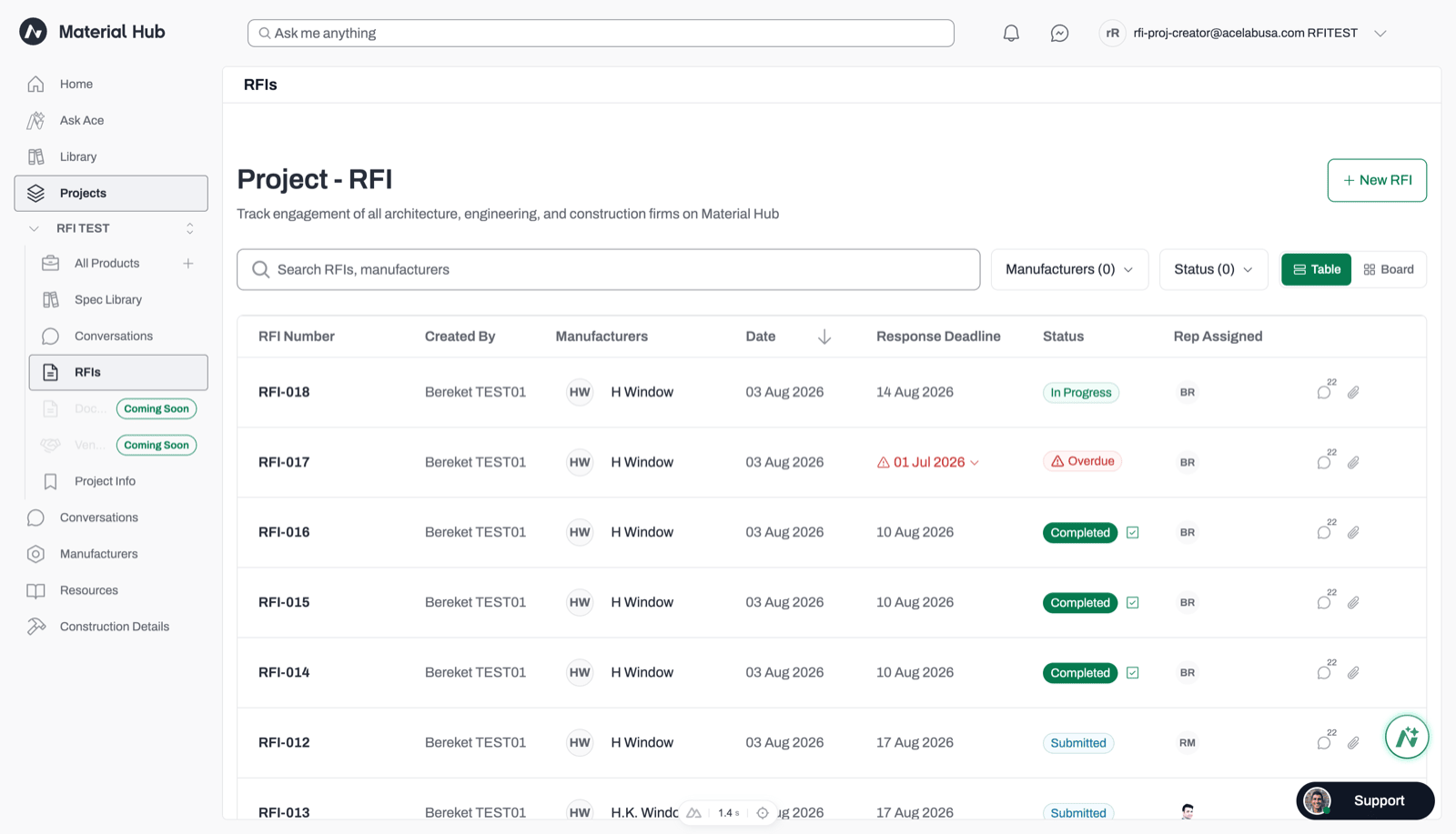
Every RFI has a deadline. If the manufacturer doesn’t respond in time, the RFI becomes overdue and locks until you extend the deadline.
Responses can’t be undone. When a manufacturer submits, their answers replace your values in the fields they changed.
Everything is documented. You get a PDF receipt of your request when you send and a PDF receipt of the response when the manufacturer submits.
If a manufacturer has no rep available to you on Acelab, your RFI still goes out. It’s routed to Acelab Connection, a team at Acelab that reaches out to the manufacturer for you. They relay information back in the RFI conversation and, when possible, connect the RFI to a rep who can answer it directly.